Named Ranges in Google Sheets: A Practical Guide for Teams
Master named ranges in Google Sheets to simplify formulas, boost accuracy, and improve collaboration. This How To Sheets guide walks you through setup, use cases, and best practices for team workflows.


Named ranges in Google Sheets are labeled blocks of cells you assign a name to, so formulas reference a fixed area even if rows or columns shift. They improve readability, reduce errors, and support data validation, charts, and cross-sheet calculations. Create, edit, or delete named ranges from the Data > Named ranges menu and use them in your formulas.
What named ranges are and why they matter
In spreadsheet work, named ranges give real meaning to the data you reference in formulas. Named ranges in Google Sheets are labeled blocks of cells you assign a name to, so a formula like =SUM(SalesTotal) stays readable even if the underlying cells move. According to How To Sheets, this approach reduces errors and makes collaboration smoother by letting teammates refer to a concept rather than a grid address. When you create a named range, you establish a stable anchor for critical data—whether it's monthly revenue, customer IDs, or inventory counts. Over time, named ranges become a common language that new teammates can understand quickly, which is especially valuable in shared workbooks.
Benefits and scenarios where named ranges shine
Named ranges shine in dashboards, cross-sheet analyses, and collaborative workbooks. They turn vague references like A1:B20 into meaningful labels such as Revenue_Q1 or Active_Customers. This clarity helps with onboarding new teammates and reduces the likelihood of formula errors when sheets are reorganized. In shared documents, named ranges also act as living documentation, signaling how data is intended to be used. How To Sheets analysis suggests teams appreciate the stability they offer, especially in large projects with multiple contributors.
How to create named ranges in Google Sheets
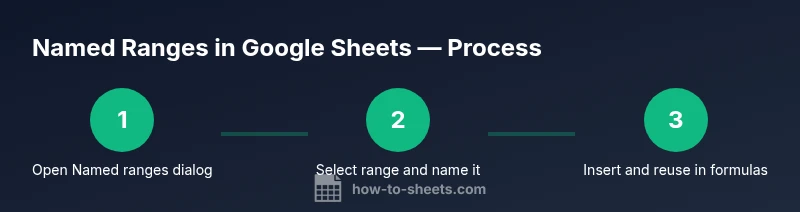
Starting from Data > Named ranges, you can create, edit, and remove named ranges with ease. First select the cells you want to name, then enter a concise, descriptive label. The interface provides a live preview of the named range, making it easy to spot overlaps or misaligned selections. As you grow your workbook, reuse consistent names to avoid duplicating ranges for similar data. This step-by-step approach helps keep formulas clean and scalable.
Managing scope and naming conventions
Decide whether a named range should apply to the entire workbook or only to a single sheet. Workbook-wide scope improves reuse across charts, filters, and cross-sheet references, but sheet-scoped names can prevent accidental cross-talk in smaller projects. Adopt naming conventions that are easy to scan, avoid spaces, and use underscores or camelCase (for example, Revenue_Q1 or Customer_IDs). Document these conventions in a shared guide and update them as your workbook evolves to prevent drift.
Using named ranges in formulas (with examples)
Named ranges integrate seamlessly into formulas, making complex calculations more legible. For example, =SUM(Revenue_Q1) aggregates the first quarter’s revenue, while =AVERAGE(Active_Customers) computes the mean across a defined customer list. You can combine names in a single expression, such as =SUM(Revenue_Q1, Revenue_Q2) or =SUM(Revenue_Q1) - SUM(Expense_Q1). Rely on the built-in autocomplete to ensure names are spelled correctly and exist in the current workbook.
Best practices for maintenance and collaboration
Create a short glossary of named ranges and a quick reference for team members. Regularly audit named ranges for unused or duplicated names, and avoid reusing names for different data blocks. When collaborating, keep a changelog of edits to named ranges so teammates can track what changed and why. Training sessions or templates that showcase common use cases can accelerate adoption across teams.
Common pitfalls and how to avoid them
Renaming or deleting a named range can break several formulas that reference it. To minimize disruption, plan changes in a dedicated maintenance window and search the workbook for all references before applying edits. Avoid overly generic names that don’t convey data context, as this defeats the purpose of using named ranges. Finally, remember that too many named ranges can clutter your autocomplete results—keep only meaningful, grouped names.
Quick-start templates and a simple checklist
Start with a small, well-defined set of named ranges (e.g., Revenue_Q1, Revenue_Q2, Active_Users) and gradually expand as needed. Use a simple checklist: define the range, assign a clear name, set scope, update formulas, and verify results. Keep a one-page guide for teammates and revisit it quarterly to ensure naming remains consistent and practical.
Tools & Materials
- Google Sheets access(Open a sheet you own or have edit access to.)
- Active Google Sheets document(The file where ranges will be defined.)
- Plan for naming conventions(Optional but recommended to maintain consistency.)
- List of target ranges to name(Prepare in advance to speed setup.)
Steps
Estimated time: 15-25 minutes
- 1
Open the Named ranges manager
In Google Sheets, select Data > Named ranges to open the manager. You’ll see existing ranges and an area to create new ones. This is your starting point for clean, maintainable references.
Tip: Keep the manager open on a side panel for quick edits. - 2
Select the range to name
Click and drag to select the cell block you want to name, or enter the A1 notation. The manager will reflect the highlighted range.
Tip: Use the range picker to ensure accuracy. - 3
Enter a descriptive name
Type a meaningful name that conveys the data (e.g., Revenue_Q1, Customer_IDs). Avoid spaces; use underscores or camelCase for readability.
Tip: Names should be concise but meaningful. - 4
Choose scope: workbook or sheet
Decide whether the name should apply to the entire workbook or only to the current sheet. Workbook scope improves reuse in dashboards.
Tip: If unsure, start with workbook scope for flexibility. - 5
Use the named range in formulas
Replace cell ranges with the named range in formulas, such as =SUM(Revenue_Q1). Autocomplete will help confirm the name.
Tip: Rely on autocomplete to avoid typos. - 6
Edit, rename, or delete ranges
Return to the Named ranges manager to modify or remove ranges. Renaming updates references, but you may need to update dependent formulas.
Tip: Document changes to prevent breakage. - 7
Maintain naming conventions
Document and follow a short naming standard, then audit periodically for consistency across your team.
Tip: Create a shared glossary for your workbook.
FAQ
What is a named range in Google Sheets?
A named range is a labeled block of cells you can reference in formulas. It provides a stable, human-readable reference that stays consistent even when the sheet layout changes. This improves clarity and reduces errors.
A named range is a labeled group of cells you reference in formulas, making your sheets clearer and less error-prone.
How do I create a named range in Google Sheets?
Select the cells, go to Data > Named ranges, and enter a concise name. Choose the scope (sheet or workbook) and save. You can then use the name in any formula.
Go to Data > Named ranges, pick your cells, name the range, and save to use it in formulas.
Can named ranges be used across multiple sheets?
Yes. If you choose workbook scope, the same named range can be referenced from any sheet within the workbook. Sheet-scoped names stay local to that sheet.
Yes, workbook-wide named ranges can be used across all sheets; scope matters for cross-sheet use.
What happens if I rename a named range?
Renaming updates references automatically in formulas that point to the old name. However, some formulas or scripts may need review to ensure they still point to the new name.
Renaming updates references, but you should verify dependent formulas after the change.
Are there limits to how many named ranges I can have?
Google Sheets supports many named ranges, but very large numbers can clutter the autocomplete and slow workbook performance if overused. Use meaningful groupings and periodic cleanup.
There isn’t a hard public limit, but avoid excessive naming to keep things manageable.
How do named ranges improve collaboration?
Named ranges communicate intent clearly, helping teammates understand formulas faster and reducing misinterpretation when multiple people edit the same sheet.
They make formulas easier to read and share intent across your team.
Do named ranges affect performance in large spreadsheets?
In most cases, named ranges have negligible performance impact. However, excessive naming and frequent dynamic references can slow recalculation in very large workbooks.
Generally minimal impact unless you overdo it in massive sheets.
Watch Video
The Essentials
- Define named ranges for core data blocks
- Use them in formulas to improve readability
- Scope and naming conventions matter for reuse
- Regularly audit references to avoid errors