How to Use IF in Google Sheets: A Practical Guide
Learn how to use the IF function in Google Sheets with clear syntax, nesting techniques, and practical examples. This How To Sheets guide helps students, professionals, and small business owners implement conditional formulas with confidence.


In this guide you’ll learn how to use the IF function in Google Sheets to apply conditional logic across your data. You’ll see exact syntax, nesting techniques, and practical examples for everyday tasks.
Why mastering the IF function matters in Google Sheets
According to How To Sheets, mastering conditional logic with the IF function is foundational for data analysis in spreadsheets. When you can reliably separate data into true/false branches, you unlock automation, faster decision-making, and cleaner dashboards. Whether you’re a student tracking grades, a professional managing project milestones, or a small business owner calculating pricing tiers, the IF function is your first tool for turning raw data into meaningful insights. In practice, it helps you encode business rules directly into your sheet so that your reports update automatically as inputs change. By building confidence with a few basic patterns, you’ll reduce manual checks and minimize human error across your workflows.
The How To Sheets team found that learners who start with simple IF tests and gradually add nesting grow their spreadsheet fluency, making more complex analyses feasible without leaving Google Sheets.
Syntax and variations of the IF function
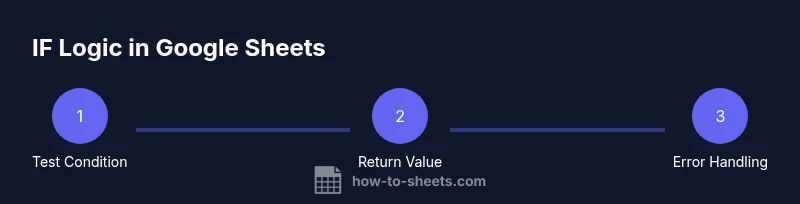
The core syntax of IF is straightforward: =IF(logical_expression, value_if_true, value_if_false).
- logical_expression: any expression that evaluates to TRUE or FALSE (for example, A2>50).
- value_if_true: what the cell shows when the condition is true (text, number, or a reference).
- value_if_false: what the cell shows when the condition is false.
Tips:
- You can use numbers or text as outputs, but wrap text in quotes: "Pass" or "Fail".
- If you omit value_if_false, Google Sheets returns FALSE when the condition is not met.
- IF can compare text, numbers, or dates, but type handling matters (e.g., comparing text requires exact matches).
Common variation: IF with nested conditions, or IF() combined with logical operators like AND and OR (e.g., =IF(AND(A2>0, A2<100), "OK", "Outside range")).
Nesting IF statements for complex logic
For multi-branch logic, nesting IFs is the traditional approach. Example: =IF(A2>=90, "A", IF(A2>=80, "B", IF(A2>=70, "C", "D"))). This structure reads like a decision tree: first test, then second test only if the first is not met, and so on. Important tips:
- Keep nesting readable by using line breaks in the formula bar.
- Consider using named ranges to simplify readability and maintenance.
- When nesting gets very deep, evaluate using alternative functions like IFS or SWITCH for clarity.
Another common pattern: combining IF with ISBLANK to handle empty cells, e.g., =IF(ISBLANK(B2), "No data", IF(B2>=60, "Pass", "Fail")).
Practical examples: common scenarios in Google Sheets
Examples help transfer theory into practice:
- Example 1: Pass/Fail by score. Formula: =IF(A2>=60, "Pass", "Fail").
- Example 2: Tiered discounts. If total sales in C2 exceed 1000, apply a 10% discount; otherwise 5%: =IF(C2>1000, C20.9, C20.95)
- Example 3: Grade letter using nested IF. =IF(A2>=90, "A", IF(A2>=80, "B", IF(A2>=70, "C", "F"))).
- Example 4: Status badge based on date. =IF(TODAY()-D2<=7, "New", IF(TODAY()-D2<=30, "Recent", "Old")).
These scenarios show how the IF function can drive conditional formatting, categorization, and business rules directly in your data cells.
Common pitfalls and how to troubleshoot
Several pitfalls trip users up:
- Mismatched parentheses or missing commas are common syntax errors. Use the function helper in Sheets to balance parentheses.
- Mixing data types (numbers vs text) can yield unexpected results. Ensure outputs are consistent in type across your dataset.
- Locale-based separators: some locales use semicolons instead of commas. If a formula fails, try swapping separators.
- Nested IFs can become hard to read. If you find yourself nesting more than 4-5 levels, switch to IFS or SWITCH for readability.
- When data can be blank, plan for blanks using IF(ISBLANK(A2), "N/A", ...).
Alternatives and complement functions: IFS, SWITCH, and array formulas
IF is powerful, but other functions offer clearer syntax for multiple conditions:
- IFS: =IFS(A2>90, "A", A2>80, "B", A2>70, "C", TRUE, "D"). It eliminates some nesting while still handling multiple tests.
- SWITCH: ideal for exact matches on a single value: =SWITCH(A2, "apple", 1, "banana", 2, 0).
- Array formulas: Use ARRAYFORMULA to apply IF across a range: =ARRAYFORMULA(IF(A2:A>50, "High", "Low")). This spills results automatically across rows.
When your logic depends on multiple columns, consider combining IF with VLOOKUP or FILTER for more robust decision rules.
Debugging tips and best practices
Best practices to keep formulas reliable:
- Build formulas in helper columns to test intermediate outputs before finalizing in a single cell.
- Use IFERROR to trap errors and return meaningful fallbacks, e.g., =IFERROR(your_formula, "Error").
- Document your rules in a separate sheet or in cell comments to aid future edits.
- Always test with edge cases: blank cells, extreme values, and non-numeric inputs.
- Keep formulas readable by using named ranges and breaking complex logic into smaller parts.
Authoritative sources and further reading
For deeper dives, consult these credible references:
- Google Docs Editors Help: IF function in Sheets (official documentation)
- Educational resources on conditional logic in spreadsheets
- Official guides from trusted educational publishers
If you want additional practice and templates, How To Sheets offers practical step-by-step guides and templates tailored to Google Sheets users.
Tools & Materials
- Device with internet access(To open Google Sheets and follow along)
- Google account(Needed to sign in and access Sheets)
- Sample dataset(Create a small dataset (e.g., scores, dates, totals) for practice)
- Optional: test sheet copy(Work on a duplicate to avoid altering the original data)
Steps
Estimated time: 20-30 minutes
- 1
Identify the condition
Decide which data point will determine the outcome. Write a simple logical test that returns TRUE or FALSE (e.g., A2>60). This lays the foundation for your IF formula.
Tip: Keep the condition as concise as possible and verify with a sample value. - 2
Write the IF formula
Enter the IF syntax with the logical_expression, value_if_true, and value_if_false. Use quotes for text outputs and numbers as-is. Test with a known value to confirm the outputs.
Tip: Start with a simple true/false output to verify syntax first. - 3
Choose outputs
Decide what should appear when TRUE and when FALSE. Use distinct, meaningful outputs (e.g., "Pass" vs. "Fail" or 1 vs. 0).
Tip: Prefer consistent data types in output across all branches. - 4
Fill down or drag
Copy or drag the formula down a column to apply it to multiple rows. Ensure relative references (A2) adjust correctly (A3, A4, …).
Tip: If copying across columns, consider absolute references for fixed inputs. - 5
Nest for multiple conditions
If you need more branches, nest additional IF statements within value_if_false or value_if_true. Keep each nested level readable.
Tip: If nesting becomes hard to read, switch to IFS or SWITCH for clarity. - 6
Test and handle errors
Test with edge cases (blanks, non-numeric data). Use IFERROR to provide friendly fallbacks where appropriate.
Tip: Create a dedicated test row to quickly verify error handling.
FAQ
What is the IF function in Google Sheets?
IF evaluates a condition and returns one value if TRUE and another if FALSE. It’s the foundation for conditional data in Sheets and can be combined with other functions for complex logic.
IF checks a condition and returns different values based on TRUE or FALSE.
How do I nest IF statements in Google Sheets?
Nest IF functions by placing one IF inside the value_if_false (or value_if_true) to handle multiple conditions. This creates a decision tree directly in a single formula.
You nest IFs to handle multiple conditions right in your formula.
What’s the difference between IF and IFS?
IF handles one condition or a nested sequence of tests. IFS simplifies multiple conditions without deep nesting by evaluating the first TRUE condition in order.
IF uses nesting for many tests; IFS handles several tests more cleanly.
How can I handle errors in IF formulas?
Wrap your IF with IFERROR to provide a fallback when the formula encounters an error. This keeps your sheet tidy and interpretable.
Use IFERROR to catch errors and show a friendly result.
Can IF work with arrays in Google Sheets?
Standard IF does not spill across ranges by itself; use ARRAYFORMULA(IF(...)) to apply to an entire column or row.
For ranges, use ARRAYFORMULA with IF.
Are there alternatives to IF for complex logic?
Yes. IFS, SWITCH, CHOOSE, and LOOKUP-style approaches can offer more readable or efficient solutions for multi-branch logic.
If the logic gets complex, try IFS or SWITCH for clarity.
Watch Video
The Essentials
- Use IF for core conditional logic in Sheets
- Nest IFs carefully or switch to IFS/SWITCH for readability
- Test with edge cases and handle errors gracefully
- Combine IF with other functions for robust rules