How to Use CountIf in Google Sheets: A Step-by-Step Guide
Learn how to use COUNTIF in Google Sheets to count cells that meet specific criteria. This comprehensive guide covers syntax, numeric and text criteria, wildcards, dates, and practical examples for students, professionals, and small business owners.


By the end of this guide you will know how to use countif in google sheets to count cells that meet a specific condition. You’ll learn the exact syntax, practical examples for text, numbers, dates, and how to build dynamic criteria with cell references. practical, step-by-step methods help students, professionals, and small businesses work faster.
What COUNTIF Does in Google Sheets
COUNTIF is a lightweight, one-criterion counting function that quickly tallies cells in a range that meet a defined condition. It’s especially useful for filtering datasets, checking data quality, and generating quick summaries without writing lengthy formulas. According to How To Sheets, mastering COUNTIF lays a solid foundation for more advanced data tasks in Google Sheets. The function is not case-sensitive, which means it treats text with different capitalizations as equivalent when evaluating a criterion. This simplicity makes COUNTIF a reliable first tool for students, professionals, and small business owners who need fast insights from tabular data. When you learn how to use countif in google sheets, you unlock a straightforward way to quantify occurrences, such as completed tasks, sales above a threshold, or responses matching a category. The goal is to apply a clear rule to your data and return a single numeric result that you can reuse across dashboards and reports. This block lays the groundwork so you can comfortably move into more complex scenarios like dynamic criteria and date-based filtering.
COUNTIF Syntax and Basic Usage
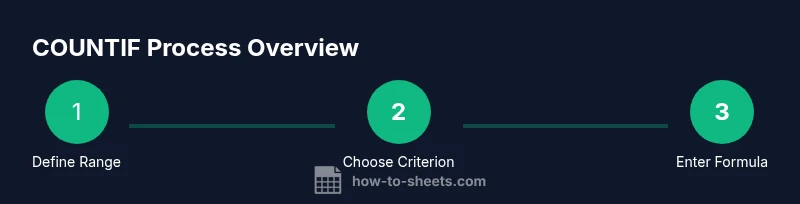
The core syntax for COUNTIF is simple: =COUNTIF(range, criterion). Here, range refers to the cells you want to evaluate, and criterion defines what counts as a match. A few key ideas help you get started quickly:
- Criterion can be a plain number, a text string, or an expression like ">5" or "<=100".
- Text criteria should be enclosed in quotation marks, for example =COUNTIF(A2:A100, "Completed").
- You can place the range and criterion in a way that makes your sheet flexible for future data.
A practical starting example: if column A contains task statuses, you can count how many are marked as "Done" with =COUNTIF(A2:A100, "Done"). If you want to count entries greater than 50 in column B, use =COUNTIF(B2:B100, ">50"). As you practice, you’ll quickly recognize patterns for text, numbers, dates, and other data types.
Counting Text with Exact and Partial Matches
Text criteria can be exact or partial. For exact matches, simply provide the exact string in quotation marks. For partial matches, use wildcards with COUNTIF (see the next section). A common pattern is counting all rows where a product category equals "Electronics": =COUNTIF(C2:C100, "Electronics"). If your data includes multiple synonyms for a category, consider normalizing the text or creating a helper column that maps variants to a canonical label. This approach keeps your COUNTIF formula simple and your data clean. Remember to check for leading/trailing spaces in your data, since those can cause unexpected mismatches.
Counting Numbers with Comparative Criteria
COUNTIF shines when comparing numeric data. You can count values that are greater than, less than, or equal to a threshold. For example, to count sales values over 100, use =COUNTIF(D2:D100, ">100"). To count values between two bounds, you’d typically use COUNTIFS (see below for a note). One important tip: ensure your numbers are stored as numeric values, not text. If numbers are stored as text, comparisons may not work as expected. If you suspect this, use VALUE or multiply by 1 to coerce text to numbers, then re-run COUNTIF.
COUNTIF with Dates and Times
Dates are a common COUNTIF use case. You can count all dates before a given date, after a date, or on a specific day. For example, to count orders placed before 2025-12-31, use =COUNTIF(E2:E100, "<2025-12-31"). If your sheet uses dates that include time components, normalize the data first (e.g., by applying INT to strip time) to ensure consistent results. You can also reference a date cell, like =COUNTIF(E2:E100, "<"&F1), where F1 holds a date value. Keep in mind that date formatting varies across regions, so using an actual date value or a cell reference helps avoid misinterpretation.
Wildcards for Text Patterns
Wildcards let you count by pattern rather than exact strings. The asterisk () stands for any number of characters, and the question mark (?) stands for a single character. For example, to count all items that start with "Desk" use =COUNTIF(B2:B100, "Desk"). To count entries that contain the word "report" anywhere in the text, use =COUNTIF(C2:C100, "report"). Wildcards work best when data is fairly clean; if your data include irregular spacing, consider a pre-clean step or a helper column to trim whitespace before applying COUNTIF.
Practical Examples: Real-World Scenarios
Real-world datasets often mix categories, dates, and numeric values. For instance:
- Customer support: Count tickets labeled "Resolved" regardless of assignee with =COUNTIF(Status!A2:A500, "Resolved").
- Inventory: Count items with stock less than or equal to 20 using =COUNTIF(Inventory!B2:B500, "<=20").
- Survey responses: Count respondents who selected "Yes" in a single-column answer set with =COUNTIF(Responses!C2:C1000, "Yes").
These scenarios illustrate how COUNTIF can become a reusable metric across dashboards. To scale, store your basic data in a single sheet and reference that range from your summary sheet. This approach reduces duplication and makes updates straightforward, especially when datasets update frequently.
Common Errors and How to Fix Them
COUNTIF is straightforward, but a few pitfalls cause frustration:
- Mismatched range sizes: COUNTIF requires the range and the criterion to align in intent; mismatched sizes do not break the formula but can yield misleading results. Always ensure your range covers the data you expect.
- Text stored as numbers: If you count numeric data that appears as text, comparisons may fail. Convert with VALUE or multiply by 1 to force numeric types.
- Quotation marks in criteria: If you forget to wrap text criteria in quotes, Google Sheets will interpret the input as a range or function, causing errors. Always enclose text criteria in quotation marks.
- Case sensitivity: COUNTIF is not case-sensitive. If you need case-sensitive matching, use a more advanced approach such as an array formula with EXACT or a script.
To avoid these errors, build small, testable examples in separate cells before placing COUNTIF into your main dataset. This practice helps you catch data-type and syntax issues early and ensures your final results are accurate.
Advanced Tip: Dynamic Criteria Using Cell References
Dynamic criteria enable flexible counting that adapts when data changes. Instead of hard-coding the criterion, reference a cell that holds the criterion. For example, if B1 contains the text "Completed", use =COUNTIF(A2:A100, B1). For numeric thresholds, place the limit in a separate cell (e.g., D1) and use =COUNTIF(B2:B100, ">"&D1). This technique makes your sheets more maintainable and reduces the need to edit formulas whenever criteria shift. If you want even more versatility, combine COUNTIF with other functions like FILTER or QUERY to craft powerful data summaries.
Tools & Materials
- Google account with Google Sheets access(Sign in to Google and open your sheet)
- Sample dataset in Google Sheets(Data prepared for practice with ranges like A2:A100)
- Optional: external data (CSV) to import(Can be used to test imports and COUNTIF on larger datasets)
- Calculator or mental math for quick checks(Useful for cross-verifying numeric results)
- Notepad or cells for notes(Jot down criteria patterns and common formulas)
Steps
Estimated time: 15-25 minutes
- 1
Open the target Google Sheet
Launch Google Sheets and open the document containing the data you want to analyze with COUNTIF. Identify the data range you will evaluate (e.g., A2:A100). This step ensures you know where to apply the formula and which cells will be counted.
Tip: Use the keyboard shortcut Ctrl+Arrow to quickly jump to the edge of your data. - 2
Decide the counting target
Decide whether you are counting text, numbers, dates, or blanks. The choice of criterion depends on the data type and the business question you’re trying to answer. Document the exact criterion in a separate cell if you plan to make it dynamic later.
Tip: Write down the criterion in a separate cell so you can reuse and adjust it without editing the formula. - 3
Enter the COUNTIF formula
In a new cell, type =COUNTIF(range, criterion). For example, =COUNTIF(A2:A100, "Done") counts all cells in A2:A100 that contain the text Done. Ensure the criterion is in quotes if it’s text, and avoid extra spaces that could affect results.
Tip: Double-check that the range matches the intended data column and that quotes enclose text criteria. - 4
Experiment with cell-referenced criteria
To make the criterion dynamic, store it in a cell (e.g., B1) and reference it: =COUNTIF(A2:A100, B1). This lets you switch the condition without editing the formula itself.
Tip: If you want to include operators, concatenate them with the ampersand: ">"&D1. - 5
Use numeric and date criteria
For numbers, use criteria like ">50" or "<=100". For dates, you can use formats like "<2025-12-31" or reference a date cell, e.g., =COUNTIF(Dates!A2:A100, "<"&E1).
Tip: Be mindful of date formats and regional settings to avoid misinterpretations. - 6
Apply wildcards for text patterns
If you need partial matches, use wildcards: =COUNTIF(Products!B2:B100, "Desk*") counts all items starting with Desk. For patterns anywhere in text, use =COUNTIF(Products!B2:B100, "*report*").
Tip: Wildcards can dramatically widen or narrow your results, so test with a small sample first. - 7
Verify results and adjust ranges
Look at the output and compare with a known subset to confirm accuracy. If your data grows, extend the range (e.g., A2:A1000) and re-run the formula to maintain correct counts.
Tip: Avoid hard-coding absolute endpoints when data size is dynamic; prefer ranges that cover expected growth.
FAQ
What does COUNTIF do in Google Sheets?
COUNTIF counts the number of cells within a range that meet a single specified criterion. It’s ideal for quick tallies, such as counting completed tasks or entries matching a category. Remember that COUNTIF is not case-sensitive by default.
COUNTIF counts cells in a range that meet one condition. It’s handy for quick tallies, like how many tasks are done, and it doesn’t worry about uppercase or lowercase.
Can COUNTIF count blanks?
Yes. To count blanks, set the criterion to an empty string, using "" as the criterion, for example =COUNTIF(A2:A100, ""). This returns how many cells are empty in the specified range.
Yes. Use an empty string to count blanks, like =COUNTIF(A2:A100, "").
How do I count with a dynamic criterion using a cell reference?
Store the criterion in a separate cell and reference it in COUNTIF, for example =COUNTIF(A2:A100, B1). If you need comparisons, concatenate operators, like ">"&D1.
Put the criterion in a cell and reference it in COUNTIF, so the condition can change automatically.
Is COUNTIF case-sensitive?
No. COUNTIF is not case-sensitive. If you need case-sensitive matching, you’ll typically need a more advanced approach (e.g., using EXACT with an array formula or a script).
COUNTIF isn’t case-sensitive. For case sensitivity, consider a more advanced method.
What is the difference between COUNTIF and COUNTIFS?
COUNTIF counts with a single criterion. COUNTIFS supports multiple criteria and counts cells that meet all given conditions. Use COUNTIFS for complex filters such as multiple date ranges or category filters at once.
COUNTIF uses one condition; COUNTIFS handles many conditions at once.
How can I count numbers within a range using COUNTIF?
Use a criterion like ">=10" to count numbers 10 and above in the selected range, for example =COUNTIF(B2:B100, ">=10"). If you need a range, use COUNTIFS with two conditions.
Count numbers with operators like >=; for ranges, use COUNTIFS with multiple criteria.
The Essentials
- Count with a simple COUNTIF(range, criterion).
- Use quotes for text criteria and operators for numbers.
- Wildcard support lets you pattern-match text quickly.
- Dynamic criteria via cell references increases maintainability.
- COUNTIF is not case-sensitive; switch to advanced methods for case-specific needs.