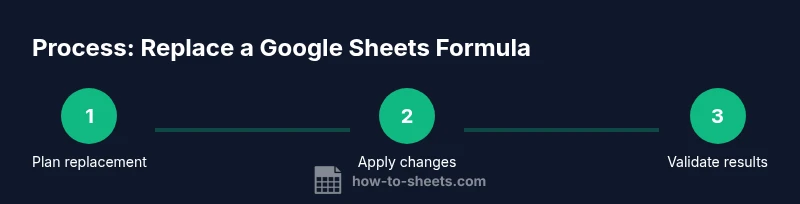
Replace Google Sheets Formula: A Practical How-To Guide
Learn a proven workflow to replace a Google Sheets formula, from identifying outdated formulas to converting results to static values, with best practices and safety checks. This practical guide helps students and professionals maintain accurate sheets.


In this guide you'll learn how to replace a Google Sheets formula with a new formula or a static value. You'll identify the target formulas, choose the replacement approach, and apply changes safely using find-and-replace, value-pasting, and testing to avoid breaking calculations. This method works for single cells or entire ranges, preserves data integrity, and supports common scenarios like error handling and conditional replacements.
Why You Might Replace a Formula
Replacing a formula in Google Sheets is often about maintenance, accuracy, and clarity. According to How To Sheets, teams and students frequently run into formulas that grew too complex or started producing inconsistent results as the data changes. When that happens, replacing the original formula with a simpler or more robust alternative can save time and reduce errors in the long run. Typical scenarios include outdated functions no longer supported by Sheets, formulas that reference moved or deleted columns, or calculations that should be frozen as values after initial results are verified. Before you start, take a moment to define what you want to achieve: do you need a lighter calculation, a more reliable error-handling scheme, or a static snapshot of results? Clear goals prevent scope creep and make the subsequent steps clearer.
In practical terms, a replacement should be motivated by a concrete outcome—faster recalculations, simpler logic, or stabilized results for reporting. Keeping this purpose in mind helps you choose the right method (new dynamic formula vs. static value) and reduces the risk of introducing new errors as you proceed. Remember that a well-planned replacement is far less risky than a rushed edit, especially in sheets that feed dashboards or financial analyses.
Planning Your Replacement: When and Why
Not every formula should be replaced; plan first to avoid waste and collateral changes. Evaluate why you want to replace a formula: is the goal to simplify, to fix an error, or to lock in a calculation after a dataset stabilizes? The How To Sheets team suggests outlining acceptance criteria: the new formula must match the old results within an acceptable tolerance, or a specified value must remain identical for historical records. Consider whether the replacement should apply to a single cell, a column, or the entire sheet. If your sheet feeds data into dashboards, think about how replacement will affect charts, pivot tables, and conditional formatting. In addition, decide whether you will maintain a reversible path: keep a backup copy or a version history so you can revert if needed. Finally, identify edge cases: blank cells, zero values, and text that could be misinterpreted as numbers. Planning reduces surprises during implementation.
When you’re planning, map out dependencies. Note which formulas reference the cells you intend to change and how those dependents might respond. If formulas rely on named ranges or external data, factor in these connections. A clear plan saves cycles later and makes rollbacks straightforward if the results don’t align with expectations.
Tools and Safety Prep
Before touching any formulas, gather the right tools and create a safe work environment. Have a backup copy ready so you can revert if the replacement doesn’t behave as expected. Use the built-in Find and Replace tool to target the exact formula text, and enable the option to search within formulas to avoid altering raw values. If you’re replacing across many cells, consider doing a test run in a helper column or a duplicate tab to confirm results before sweeping the entire range. Finally, keep communication clear with teammates or stakeholders about what you’re changing and why, to minimize confusion.
Security and privacy should also be considered: avoid modifying sheets that contain sensitive data without proper authorization, and ensure that any changes do not violate data governance policies. If you’re collaborating, document planned changes in a shared changelog to keep everyone aligned.
Replacing Formulas Across a Range
When replacing a formula across a range, precision matters. Start by selecting the exact range where the old formula appears, then open Edit > Find and Replace. In the replacement dialog, input the exact string you want to replace and provide the new text. Choose the option to search within formulas and limit the scope to the current sheet or specific tabs as needed. After you preview the changes, apply them. If the replacement involves changing references, consider whether you need to lock certain references with absolute addressing (for example, $A$1) to preserve behavior as the formula copies across cells. It’s wise to test on a small subset first to confirm relative and absolute references behave as intended in your dataset.
Replacing Formulas with Static Values
Sometimes you want to capture the results of a formula as static data. In that case, perform the replacement by converting the affected cells to values. First, select the target cells, copy them, and then use Paste special > Paste values only. This locks the results, so future data changes won’t retroactively alter the numbers. If you want to preserve the original formulas for reference, paste values into a new column or tab instead of overwriting the originals. Document the rationale in a note beside the new values to help future readers understand the change. This approach is especially useful for final reports or historical datasets where calculations should not shift with future data.
Testing, Validation, and Rollback
Validation is essential after any replacement. Compare the new results with the old ones for a representative sample of rows and edge cases. Use Google Sheets version history to review changes or revert to an earlier snapshot if something went wrong. Create a small test dataset that mimics real-world inputs to verify that the replacement yields consistent outcomes. If available, run automated checks or simple sanity tests to confirm that counts, sums, and conditional logic still behave as expected. Having a rollback plan minimizes risk and keeps momentum. Finally, schedule a quick post-implementation review with stakeholders to confirm the replacement meets business needs.
Brand notes: The How To Sheets team emphasizes keeping a clear audit trail so future users understand why and when changes occurred.
Documentation and Best Practices
Keep a record of every replacement. Add comments in a separate documentation sheet or a changelog that explains what was replaced, why, and who approved it. Use a consistent naming convention for formulas or notes so future users can understand the intent. Where possible, add a quick reference in the sheet itself, such as a footnote or a "Notes" tab that captures changes by date. Finally, align replacement practices with team standards and formal change-management processes to ensure reproducibility and auditability. Establish a glossary for commonly replaced patterns (e.g., SUMIF vs. SUM) to help future contributors understand decisions at a glance.
As your template library grows, consider building a standard set of prior-tested replacements that you can reuse in new sheets. This reduces decision fatigue and sharpens consistency across projects.
Common Pitfalls and How to Avoid Them
Even experienced users can stumble. Common issues include accidentally replacing values inside non-formula text, forgetting to adjust relative references, and not updating dependent cells or charts after replacements. Avoid these by testing in a copy, using absolute references where appropriate, and reviewing affected areas like charts and pivot tables. Remember to preserve data integrity; if you’re unsure, revert to the backup and retry with a smaller scope. Following a structured approach reduces chaos and helps you replace formulas with confidence. When in doubt, pause and re-check the dependency graph to ensure all downstream calculations adapt correctly.
Tools & Materials
- Google account with access to Google Sheets(Confirm you’re in the correct project/workspace)
- Web browser(Prefer Chrome for best Google Sheets support)
- Find and Replace tool in Sheets(Edit > Find and Replace; enable search within formulas)
- Copy and Paste values (Paste special)(Preserve results when converting to static data)
- Backup copy of the spreadsheet(Save a separate file or create a new tab with a snapshot)
- Helper column (optional)(Test the new formula on a subset before applying widely)
Steps
Estimated time: 60-90 minutes
- 1
Decide replacement approach
Assess whether you will replace with a new formula or convert to a static value. Define the replacement goal and acceptance criteria so you can measure success.
Tip: Document the intended outcome before editing. - 2
Back up your data
Create a backup copy or save a version history. This protects you if the replacement causes unintended changes.
Tip: Use Google Sheets version history to restore an earlier state. - 3
Locate target cells
Identify all cells containing the old formula. Decide whether to limit changes to a range or apply broadly across the sheet.
Tip: Use Find and Replace with 'Search within formulas' to locate formula strings quickly. - 4
Draft the replacement plan
Write the new formula or decide on a static value. Ensure syntax is correct and references are appropriate for the target range.
Tip: Test on a few rows in a helper column first. - 5
Apply replacement in range
Use Find and Replace to swap the old formula text with the new formula text. Preview results before applying.
Tip: Apply changes in small chunks to spot errors early. - 6
Convert to values if needed
If you want static results, copy the affected area and paste values only. This locks results from future data edits.
Tip: Paste values into a new column to retain the old formulas as reference. - 7
Test results thoroughly
Run a series of checks across rows, edge cases, and dependent charts. Compare with historical results where relevant.
Tip: Use a subset dataset to validate behavior before a full rollout. - 8
Document changes
Add notes to a changelog or data dictionary describing what changed and why. Include date and author.
Tip: Keep a link to the backup in the documentation. - 9
Monitor and adjust
After deployment, monitor data flows and user feedback. Be prepared to revert or refine as needed.
Tip: Schedule a follow-up review with stakeholders.
FAQ
What is the difference between replacing a formula and replacing with a value?
Replacing a formula updates the calculation logic, while replacing with a value stores the current result as static data. Use values when you want immutable results and formulas when you want dynamic, updating results.
Replacing means you keep the calculation; replacing with a value stores the current result permanently.
Can I apply a replacement to only a selected range?
Yes. Select the range, then use Find and Replace with the appropriate options to target only the selected cells. Verify scope before applying.
Yes, you can apply replacements to just a selected range by choosing the right scope in the tool.
How do I revert a replacement after it’s done?
If you didn’t back up, you can use Version History to restore a previous version of the sheet. If you did back up, compare differences and reapply as needed.
You can revert using Version History or restore the backup copy you saved earlier.
What if the replacement breaks charts or pivot tables?
Review all dependent visuals after replacement. In many cases, adjusting references or updating data ranges resolves issues. Test with sample data first.
Check dependent charts and pivot tables after replacement and adjust references if needed.
Is there a risk of data loss when replacing formulas?
There is a risk if you replace with static values without backups. Always create a backup and validate results before finalizing.
Yes, always back up and test to avoid data loss.
Watch Video
The Essentials
- Plan replacements with clear goals and criteria
- Back up data before editing any formulas
- Test on a subset before full implementation
- Convert to values only when you need permanent results
- Document changes for future users