How to Replace Google Sheets: A Practical Migration Guide
Learn how to replace Google Sheets with robust alternatives, compare features, plan data migration, and migrate workflows smoothly with a step-by-step approach.


In this guide, you will learn how to replace google sheets with robust alternatives, plan migration, and preserve workflows. According to How To Sheets, thoughtful planning reduces risk and keeps teams productive. You’ll compare features, migrate data, and set up templates that fit real-world use cases.
Why replace google sheets matters
In today’s collaborative work environment, many teams discover that Google Sheets alone can’t support their data growth, automation needs, or offline access. When you decide to replace google sheets, you’re not abandoning spreadsheets—you’re choosing a platform that better matches your data model, security, and scale. This shift matters for students, professionals, and small business owners who rely on accurate, timely data. A successful transition requires clear scope, mapped workflows, and a plan to preserve critical formulas and integrations. According to How To Sheets, a successful transition starts with a clear scope, a record of current workflows, and a plan to preserve critical formulas and integrations. You’ll learn what to measure, why it matters for different teams, and how to frame success criteria so stakeholders stay aligned. The goal is to reduce risk, preserve data integrity, and maintain productivity as you replace google sheets in real-world scenarios.
Alternatives worth considering
When replacing google sheets, you’ll find several capable platforms that align with different needs. If your team relies on deep data analysis, Microsoft Excel with advanced formulas and desktop power remains a strong choice. For teams prioritizing collaboration and rapid data capture, Airtable offers a relational approach, while Smartsheet emphasizes project-oriented workflows. Zoho Sheet provides a familiar spreadsheet experience with competitive pricing, and Notion tables offer lightweight structure for quick planning. The objective is to pick a tool that models your data, supports your routines, and meets security requirements. How To Sheets recommends starting with a short list of 3–5 candidates and validating them against a migration checklist, including data size, formula compatibility, script support, and access control. Some teams adopt hybrid approaches, using sheets for light data collection and a more structured database for reporting, then integrating results back into the chosen platform. This approach reduces risk while preserving familiarity.
How to compare features across tools
To choose the right replacement, compare data modeling capabilities, formula support, automation options, and API access. Look for data validation, built-in collaboration controls, offline access, and real-time syncing. Consider formula compatibility for common operations such as VLOOKUP, INDEX/MATCH, and array formulas, and verify whether your existing Apps Script can be migrated or rewritten. Evaluate security features like role-based access and audit trails, plus compliance with data governance standards relevant to your industry. A practical method is to create a side-by-side feature table for the top candidates and rank them against your must-have list. These steps, outlined by industry best practices, help ensure the selected tool aligns with your workflows and long-term growth.
Data migration: exporting, mapping, and importing
Migration begins with exporting your current data from Google Sheets to stable formats such as CSV or Excel files. Then map each column to the corresponding field in the target tool, taking care to preserve data types and date formats. For formulas, decide whether to recreate them in the new environment or rely on built-in equivalents. If you use Apps Script, plan for potential rewrites or API-based replacements. During importing, validate row counts, check for merged cells, and confirm that charts and pivots translate correctly. A well-documented mapping sheet helps data owners track changes and reduces post-migration cleanup.
Collaboration and permissions during migration
Moving away from Google Sheets often hinges on how you manage collaboration and permissions during the transition. Establish a temporary access plan that prevents accidental edits while data is validated. Create role-based access levels in the new tool and define who approves changes during migration windows. Share a migration calendar with stakeholders to minimize surprises and ensure everyone understands when cutover will occur. Document the process so users know how to request changes and where to find updated templates. These steps help preserve trust and maintain productivity during the switch.
Building a migration plan with templates
Templates are powerful ways to standardize structure and ensure consistency across teams. Start with a migration plan template that lists datasets, owners, data types, critical formulas, and required integrations. Build lightweight data entry templates to replace ad hoc sheets, and create a centralized template library for templates used byFinance, HR, and operations. Attach checklists for each phase: discovery, mapping, testing, validation, and go-live. Use a template-driven approach to simplify onboarding and reduce ambiguity when new users join the project.
Real-world migration patterns and pitfalls
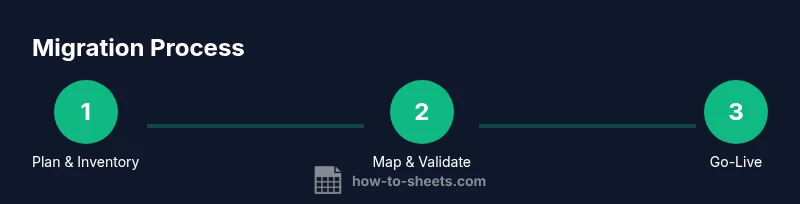
In practice, most migrations follow predictable patterns: inventory all sheets, map data models, run pilot migrations, and iteratively refine mappings. Common pitfalls include failing to preserve date formats, not validating cross-sheet references, and underestimating the effort required for automation and script migration. A robust migration plan allocates time for verification, user training, and contingency testing. Expect that education and change management are as important as technical work; ensuring users understand new workflows will shorten the learning curve and reduce resistance.
Final checklist before going live
Before you flip the switch, run a final validation: compare data totals, test essential formulas, confirm access controls, and verify integrations with external apps. Ensure that all critical teams have sign-off and that a rollback plan exists if issues arise. Prepare a concise onboarding guide and a short training session to ease the transition. A well-executed go-live minimizes downtime and reinforces confidence in the new tool, helping you replace google sheets with minimal disruption.
Tools & Materials
- Computer with internet access(Reliable connection; up-to-date browser)
- Target platform (Excel, Airtable, Smartsheet, etc.)(Choose based on data model and collaboration needs)
- Data export formats (CSV, XLSX)(Used for initial migration exports)
- Migration plan template(Optional but highly recommended)
- Access credentials for source and destination tools(Ensure you have admin rights or sufficient privileges)
- Inventory of sheets, datasets, and formulas(Baseline for mapping and validation)
Steps
Estimated time: 3-6 weeks
- 1
Define goals and scope
Clarify why you are replacing Google Sheets, which teams and processes are in scope, and what success looks like. Establish non-negotiables such as data integrity and required automations.
Tip: Document success metrics and get stakeholder sign-off. - 2
Audit current sheets
Inventory all sheets, owners, and critical formulas. Note data types, merged cells, and any scripts or add-ons in use.
Tip: Create a master inventory spreadsheet to track findings. - 3
Choose the replacement tool
Evaluate candidates against your must-have features, such as data modeling, offline access, collaboration, and APIs. Prioritize a tool that minimizes rework.
Tip: Run a quick pilot with a representative dataset. - 4
Plan data migration
Map each source field to a destination field, decide on data formats, and plan for formula and script migration. Prepare a rollback plan.
Tip: Document field mappings in a single reference sheet. - 5
Test migration and validate
Perform a test import, verify totals, formulas, and charts, then adjust mappings as needed. Validate access controls in the new environment.
Tip: Keep a log of issues and fixes for transparency. - 6
Train users and go-live
Provide brief training and share templates. Monitor post-migration usage and address questions quickly.
Tip: Schedule a follow-up session after a week to collect feedback. - 7
Optimize after go-live
Review performance, automate repetitive tasks, and refine data governance. Update templates based on user feedback.
Tip: Create a change-management plan for ongoing improvements.
FAQ
What does it mean to replace Google Sheets?
Replacing Google Sheets means moving data and workflows to a different platform while preserving essential formulas and reporting. It involves selecting a new tool, planning the migration, validating results, and training users.
Replacing Google Sheets means moving to another tool while keeping data and workflows intact, with careful planning and user training.
Which tools are best for replacing Google Sheets?
Common options include Microsoft Excel for advanced analysis, Airtable for relational data, and Smartsheet for project-oriented work. The best choice depends on your data model, collaboration needs, and automation requirements.
People often choose Excel, Airtable, or Smartsheet depending on their data and collaboration needs.
How do I export data from Google Sheets for migration?
Use File > Download to export CSV or Excel formats. Ensure date and number formats are preserved and that all sheets have clear headers for mapping.
Export your data as CSV or Excel and check that headers and formats stay intact.
Is there a risk of data loss during migration?
There is some risk without backups and validation. Minimize risk by making a full backup, running a test migration, and validating data before go-live.
Yes, but you can minimize risk with backups and a thorough test.
What about formulas and scripts during migration?
Formulas and Apps Script often require rewriting or mapping to equivalents. Plan to validate each formula and test scripts in the new tool
Formula and script migration usually needs rewriting and testing.
Watch Video
The Essentials
- Plan migration in stages with clear milestones.
- Choose a tool that matches your data model and workflow.
- Map formulas and scripts to equivalents in the new environment.
- Validate data, train users, and prepare a go-live plan.