Substitute Google Sheets Formula: Practical Guide
Learn how to use the SUBSTITUTE function in Google Sheets with clear syntax, real-world examples, and tips for case sensitivity and error handling. Master substitute google sheets formula to clean and normalize text efficiently.


The SUBSTITUTE function is a text-manipulation tool that replaces occurrences of a specified substring within a text string with a new substring. It is especially useful for cleaning data, standardizing terms, and preparing strings for analysis. When you work with real-world datasets, you will often need to replace misspellings, inconsistent punctuation, or commas, and SUBSTITUTE can handle those tasks in a single formula. It is a core building block for text processing in Google Sheets, especially when you want repeatable, scalable substitutions across rows. This guide shows the exact syntax, practical examples, and best practices for the substitute google sheets formula, including how to handle case sensitivity and missing values.
What SUBSTITUTE does in Google Sheets
The SUBSTITUTE function is a text-manipulation tool that replaces occurrences of a specified substring within a text string with a new substring. It is especially useful for cleaning data, standardizing terms, and preparing strings for analysis. When you work with real-world datasets, you will often need to replace misspellings, inconsistent punctuation, or commas, and SUBSTITUTE can handle those tasks in a single formula. It is a core building block for text processing in Google Sheets, especially when you want repeatable, scalable substitutions across rows. This guide emphasizes the substitute google sheets formula and provides a practical path from syntax to real-world templates. Remember that SUBSTITUTE is case-sensitive by default, so you may need to adjust your approach if your data contains mixed-case entries.
Syntax and how to read it
The general syntax is: SUBSTITUTE(text, old_text, new_text, [instance_num]). The text argument is the cell reference or text string you want to modify. old_text is the substring you want to replace, and new_text is what you want to insert in its place. The optional instance_num lets you target a specific occurrence of old_text; omit it to replace all occurrences. In the substitute google sheets formula, you can combine text references, strings, and other functions to create flexible, reusable templates. For example, wrap SUBSTITUTE in an IF statement to handle missing data, or nest it inside REGEXREPLACE for more complex patterns.
Advanced usage: pairing SUBSTITUTE with other functions
For robust text processing, combine SUBSTITUTE with IFERROR to gracefully handle strings that do not contain the old_text. You can also use UPPER or LOWER to standardize case before substitution, effectively creating a case-insensitive substitute with a two-step approach. When you need to remove unwanted characters rather than replace them, you can chain SUBSTITUTE calls or switch to REGEXREPLACE for more complex patterns. The substitute google sheets formula remains a foundational building block, but savvy users extend it with logical tests, lookup-based replacements, and dynamic references.
Real-world examples: practical replacements
- Example 1: In A2 you have 'apple-banana', and you want 'apple-orange'. Use =SUBSTITUTE(A2, "banana", "orange"). This basic case illustrates the core idea of substitute google sheets formula.
- Example 2: To remove all dashes, use =SUBSTITUTE(A2, "-", "").
- Example 3: Replace the first occurrence only with =SUBSTITUTE(A2, "2023", "2024", 1). These examples demonstrate how to adapt the function to common data cleaning tasks. When applying these to a whole column, ensure the formula references the correct cells and then drag-fill.
Handling case sensitivity and text irregularities
Because SUBSTITUTE is case-sensitive, 'Apple' and 'apple' are treated as different strings. If your goal is to catch all variants, normalize the text first with LOWER or UPPER, then perform substitution. Another tactic is to use REGEXREPLACE for more flexible pattern matching that can ignore case. And remember that in large datasets, performance matters: minimize nesting and avoid repeatedly recalculating the same long strings. Always test on a subset of your data before applying to the full sheet. The substitute google sheets formula becomes more powerful when you plan these steps ahead of time.
Common pitfalls and debugging tips
If the formula returns the original text, it means old_text was not found or the string contains extra spaces. Make sure to trim data and use exact matches, including punctuation. When old_text contains special characters, you may need to escape them or wrap them in quotes precisely. Use the FORMULA AUDIT features in Google Sheets to trace errors, and consider wrapping in IFERROR to provide a friendly result. Keep a log of what substitutions you apply to avoid conflicts later. In practice, the substitute google sheets formula is straightforward, but mistakes in what you replace or where you point your references can lead to unexpected results.
Performance and best practices
Design your substitutions around modular steps: first normalize text, then apply replacements, then validate. Use absolute references in templates to keep your formulas consistent when you copy them, and keep your dataset tidy by removing stray spaces before substitution. If you’re substituting multiple terms, a single SUBSTITUTE can become unwieldy; in that case, consider building a small replacement table and using a combination of SUBSTITUTE with VLOOKUP or REGEXREPLACE to map terms. Finally, document each substitution in a separate hidden sheet or comments to help teammates understand the logic behind the substitute google sheets formula you implemented.
Authority sources and further reading
While this guide provides practical strategies, consult additional resources to deepen your understanding of text processing in spreadsheets. For official guidance on Google Sheets functions, visit the Google Docs Editors Help resources. You can also review standard references on string manipulation and data cleaning from reputable educational and government sources. The following links offer foundational concepts that underpin any substitution technique:
- https://www.census.gov
- https://www.nist.gov
- https://www.mit.edu
Tools & Materials
- Google Sheets account(A free Google account is enough to access Sheets.)
- Sample dataset for testing(Text data with strings to substitute (e.g., product names).)
- Web browser with internet access(Chrome, Edge, or Firefox recommended for best compatibility.)
- Documentation/reference(Optional: keep a cheat sheet or the official help page nearby.)
Steps
Estimated time: 15-25 minutes
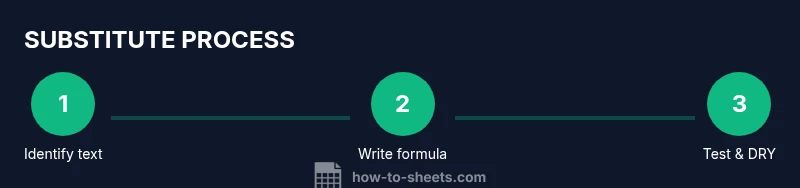
- 1
Identify target text and range
Choose the cell or column where substitutions will occur and determine the exact old_text you want to replace. Align your plan with the real-world data you’re cleaning to avoid unintended changes.
Tip: Test on a small sample first to validate the target text and avoid overwriting data. - 2
Write the basic SUBSTITUTE formula
In the destination cell, enter =SUBSTITUTE(text, old_text, new_text). Use direct strings or cell references for text and replacement terms.
Tip: Use relative references first to see how results propagate when you copy the formula. - 3
Reference text and terms from cells
Replace literals with cell references, e.g., =SUBSTITUTE(A2, B2, C2), so you can adjust inputs without editing the formula.
Tip: Create a small mapping table for replace terms to simplify maintenance. - 4
Add instance_num when needed
If you want to replace only a specific occurrence, include instance_num, e.g., =SUBSTITUTE(A2, "apple", "orange", 1).
Tip: Use 1 for the first occurrence, 2 for the second, etc., to target precise matches. - 5
Apply to multiple rows
Drag the fill handle down (or use ARRAYFORMULA for mass application) to extend substitutions across a data range.
Tip: Check a few rows to ensure references adjust correctly and results match expectations. - 6
Handle missing values gracefully
Wrap the formula with IFERROR to avoid showing errors when old_text isn’t found or if data is blank.
Tip: Example: =IFERROR(SUBSTITUTE(A2, B2, C2), "") - 7
Address case sensitivity and cleaning
Since SUBSTITUTE is case-sensitive, normalize case with LOWER/UPPER before substitution if needed, or consider REGEXREPLACE for flexible patterns.
Tip: A two-step approach (LOWER(A2) and SUBSTITUTE on the result) often works well for case-insensitive tasks. - 8
Validate results and iterate
Review several results to confirm accuracy; adjust the old_text or instance_num if necessary and document changes for teammates.
Tip: Maintain a changelog of substitutions to prevent conflicts later.
FAQ
What does SUBSTITUTE do in Google Sheets?
SUBSTITUTE replaces occurrences of a specified substring within a text string with a new substring. It can target only a specific occurrence using the optional instance_num, or all occurrences if omitted. It’s a foundational tool for text cleaning and standardization in Sheets.
SUBSTITUTE replaces text within a string, and you can pick which occurrence to change or replace all of them.
How is SUBSTITUTE different from REPLACE?
REPLACE shifts characters by position and length, while SUBSTITUTE looks for exact substrings. SUBSTITUTE is text-based and returns a modified string without changing the original length unless you replace with a different-length text.
SUBSTITUTE looks for a substring to replace; REPLACE edits by position and length.
Can SUBSTITUTE be used for case-insensitive substitution?
SUBSTITUTE is case-sensitive by default. To handle case-insensitive needs, normalize both sides with LOWER or UPPER, or use REGEXREPLACE with a case-insensitive pattern.
You’ll need to normalize the case or use a regex-based substitution for case-insensitive results.
What happens if old_text isn't found?
If old_text isn’t found, SUBSTITUTE returns the original text unchanged. You can wrap the formula with IFERROR to handle unexpected results gracefully.
If nothing matches, the original string is returned.
How can I substitute multiple terms at once?
You can nest SUBSTITUTE calls or create a small replacement table and use VLOOKUP or REGEXREPLACE for more complex mappings.
Nest multiple substitutions or map terms with a lookup/regex approach.
Is SUBSTITUTE suitable for large datasets?
SUBSTITUTE works well for typical datasets, but very long or complex chains can impact performance. Consider batching or using array formulas where appropriate.
It works well for most datasets, but very large substitutions may require optimization.
Watch Video
The Essentials
- Learn SUBSTITUTE syntax and optional instance_num to control replacements.
- Use cell references to keep substitutions dynamic and reusable.
- Wrap with IFERROR to gracefully handle missing terms or blanks.
- Normalize case or switch to REGEXREPLACE for case-insensitive needs.
- Test on subsets and document your substitutions for maintainability.