How to Add a Check Box in Google Sheets: Step-by-Step Guide
Learn how to add a check box in google sheets, customize checkbox values, and use them for task lists and automation with a practical, step-by-step guide.


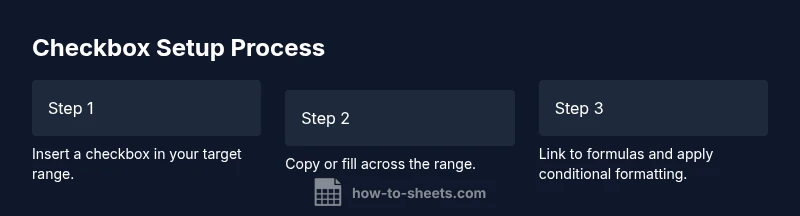
To add check box in google sheets, select the cells where you want the boxes, then choose Insert > Checkbox. The boxes toggle between checked and unchecked states, representing TRUE and FALSE values. You can copy the checkbox to adjacent cells, link them to formulas, and customize by using data validation for custom TRUE/FALSE values.
What this feature does and why it's powerful
Checkboxes in Google Sheets are small interactive controls that translate to boolean values in the cells. When you insert a checkbox, you get a square that toggles between checked and unchecked states. This simple UI change unlocks automated counting, status tracking, and clean task lists without typing TRUE or FALSE manually. According to How To Sheets, checkboxes provide a lightweight mechanism to turn raw data into actionable signals. For students, professionals, and small business owners, this means you can monitor progress at a glance and feed checkbox states into formulas, charts, and dashboards. By using a consistent approach across a sheet or workbook, you create a scalable system for tracking tasks, approvals, inventory checks, or QA steps. The core idea is that a checked box becomes a 1-equivalent in many calculations, while an empty box contributes a 0-equivalent. This makes reporting and analytics simpler and less error-prone compared with free-text status fields.
Inserting the checkbox: simple methods
There are two reliable ways to add check boxes in Google Sheets. The first method is the fastest: select the cells where you want boxes, then go to the menu and choose Insert > Checkbox. The second method uses data validation to enforce boolean values if you want more control in a large sheet. With data validation, choose Criteria: Checkbox, and specify what TRUE or FALSE means in your context. The advantage of Data Validation is that it prevents accidental text entries from breaking your formulas. If you need a fast setup across a column, type or copy a single checkbox, then drag the fill handle down the column to replicate it. Both methods produce consistent, interactive controls that can be used in formulas and conditional formatting. For consistency, consider applying the same checkbox style across related sheets or projects to simplify reporting.
How to reuse and copy checkboxes across a range
Once you’ve inserted a checkbox in one cell, you can copy it to adjacent cells with a simple fill. Select the cell with the checkbox, grab the blue square handle, and drag it across the target range. If you need non-adjacent ranges, hold Ctrl (Cmd on Mac) and click multiple cells before drawing the fill handle. Copying preserves the TRUE/FALSE behavior in each cell, so formulas referencing the range update automatically. If you are working with a very large dataset, Paste Special > Paste values only to avoid dragging unintended formatting, then reapply conditional formatting if needed. Regularly review that the target range aligns with your data structure to prevent misalignment in dashboards.
Linking checkboxes to formulas for automation
Checkbox values play nicely with formulas. A checked box is TRUE and an unchecked box is FALSE, and Google Sheets treats these booleans as 1 and 0 in many calculations. Common patterns include: 1) Counting completed items: =COUNTIF(A1:A20, TRUE) 2) Generating a status label: =IF(A1, "Done","Pending") 3) Tallying progress across a range: =SUM(A1:A20) to get the number of checked boxes. You can also convert the booleans to custom numbers with --A1 or N(A1) when you need numeric results in charts or totals. For best results, place the formula in a separate helper column and reference the checkbox column, so you can audit and adjust easily.
Conditional formatting that responds to checkbox state
To visually emphasize status, apply conditional formatting based on the checkbox state. Select the range with checkboxes, go to Format > Conditional formatting, and add rules such as: 1) Custom formula is =A1=TRUE => fill green; 2) Custom formula is =A1=FALSE => fill red. This approach creates a quick visual scoreboard. If you have multiple columns of checkboxes, use relative references so the rule scales automatically when applied to a whole range. Combine with text labels for even clearer dashboards. Pro tip: set a default background color for unchecked cells to avoid sudden color changes when you clear data.
Real-world use cases: task lists, project tracking, and checklists
Checkboxes are ideal for lightweight project tracking, simple to-do lists, and QA checklists. For a team task board, you might have columns for Task, Assigned To, Due Date, and Completed (checkbox). As items are checked, you can compute completion percentages, trigger reminders, or summarize progress in charts. In budgeting or inventory sheets, checkboxes help mark items reviewed or approved. By centralizing these controls in one sheet, you reduce confusion and make updates traceable. A practical tip is to keep a separate "Summary" tab that aggregates the checkbox data for management reports. This keeps the raw data clean while still delivering actionable insights.
Troubleshooting and common mistakes
Common issues include: 1) Merging cells before inserting checkboxes (checkboxes don’t always render well in merged cells); 2) Copy-pasting values instead of checkboxes (you may carry over TRUE/FALSE or a blank); 3) Referencing a mixed range (ensure your formulas point to the right cells); 4) Not accounting for the default TRUE/FALSE mapping in charts; 5) Mobile users: checkboxes may render differently on the mobile app. Solutions: insert checkboxes after merging is settled, use Paste Special to paste values, double-check formula ranges, and test on mobile to verify display.
Advanced tips and scripts for power users
Use Apps Script to insert or reset checkboxes, or to bulk update states based on events. Example script snippet to set all checkboxes in a range to FALSE on a button click. Also advanced trick: use a dynamic named range for the checkbox column, so new rows automatically get a checkbox. Combine with onEdit triggers to automatically add a row with a checkbox when a new entry is added. Security note: keep scripts scoped to the necessary range to avoid accidental edits.
Best practices and maintenance
Keep your checkbox setup tidy by using a dedicated sheet for raw checkbox data and a separate Summary sheet for dashboards. Name ranges clearly, document the meaning of TRUE/FALSE, and back up data regularly. Review formulas that reference checkboxes after any structural changes, and periodically audit permissions to prevent accidental edits in shared workbooks.
Tools & Materials
- Computer or device with internet access(Needed to access Google Sheets in Drive)
- Web browser (Chrome/Edge recommended)(Ensure JavaScript is enabled for Drive and Sheets)
- Google account(Used to access Sheets in Google Drive)
- Google Sheets dataset (test sheet)(A sample sheet to practice inserting and using checkboxes)
- Optional: Apps Script editor (for automation)(Use if you plan to automate checkbox actions)
- Keyboard shortcuts sheet quick reference(Helpful for speed, e.g., Ctrl/Cmd + D to fill down)
- Backup plan or version history awareness(Regular saves prevent data loss during experimentation)
Steps
Estimated time: 25-35 minutes
- 1
Prepare target range
Identify the column or area where you want check boxes. Ensure the range is consistent in size and that there are no merged cells inside it, which can disrupt checkbox rendering.
Tip: Tip: Label the range header to keep track of what each checkbox column represents. - 2
Insert a single checkbox
Select the first cell in your target range, then use Insert > Checkbox to add a single checkbox. This establishes the control pattern for the rest of the range.
Tip: Tip: If you plan to apply this to many cells, insert one, then use paste or drag fill to replicate. - 3
Fill the rest of the range
Drag the fill handle from the corner of the first checkbox to cover the entire target range. Each cell will receive an independent checkbox with its own TRUE/FALSE state.
Tip: Tip: For non-adjacent areas, select multiple cells with Ctrl/Cmd and then insert or fill. - 4
Optional: switch to Data validation
If you want strict boolean behavior, apply Data validation with Criteria: Checkbox. This enforces TRUE/FALSE and prevents accidental text entries.
Tip: Tip: After applying validation, you can copy the validated range without disturbing data integrity. - 5
Link to a formula
In a adjacent helper column, reference the checkbox cells (e.g., =A1) so you can perform calculations or display status with IF statements.
Tip: Tip: Use =SUM(A1:A20) to count checked boxes automatically. - 6
Apply conditional formatting
Create a rule that formats cells based on the checkbox state, such as green when TRUE and gray when FALSE, to make the status visually obvious.
Tip: Tip: Use relative references so the rule expands as you fill more rows. - 7
Test edge cases
Click several boxes, clear some, and verify your formulas update correctly. Ensure sheets with merged cells or protect ranges behave as expected.
Tip: Tip: Test on mobile to confirm rendering matches desktop behavior. - 8
Document your setup
Add a short note or a separate sheet that explains the meaning of checked/unchecked values and how they feed into your reports.
Tip: Tip: Use a named range for the checkbox column to simplify maintenance. - 9
Maintain and evolve
Periodically review the checkbox schema as your workbook grows. Update formulas, formatting rules, and data validation as needed.
Tip: Tip: Create a versioned backup before major changes.
FAQ
What is the quickest way to add a checkbox in Google Sheets?
The fastest method is to select the target cells and use Insert > Checkbox. This creates independent check boxes in each cell that can be queried by formulas.
Use Insert > Checkbox to quickly add check boxes across your range; you can then reference them in formulas.
Can I customize what a checked box means in calculations?
Yes. Use formulas to map TRUE/FALSE to custom values, for example =IF(A1, 'Done','Pending'), or convert booleans to numbers with --A1 for totals.
Yes. Map checked and unchecked states to your own labels or numbers with a formula.
Are checkboxes usable on mobile devices?
Yes, checkboxes render in the Google Sheets mobile app, though some advanced formatting options are easier on desktop.
Yes, you can use checkboxes on mobile, but some features may be limited.
How do I copy multiple checkboxes without changing their states individually?
Select the range with checkboxes and drag the fill handle or use Copy and Paste; each cell maintains its own independent state.
Copy multiple checkboxes with the fill handle to replicate across many cells.
How can I remove a checkbox without losing data?
To remove, clear the cell contents or delete the data validation. This removes the checkbox and its boolean value in that cell.
Clear the cell or remove the data validation to delete the checkbox.
Can I have checkboxes trigger automatic actions beyond formulas?
Yes. You can use Google Apps Script to trigger actions when a checkbox state changes, such as sending emails or updating dashboards.
Yes, via Apps Script you can automate actions when a checkbox is toggled.
Watch Video
The Essentials
- Insert check boxes with a clear plan
- Link boxes to formulas for automation
- Use conditional formatting to highlight status
- Maintain and document your checkbox setup