Master Google Sheets Checkboxes for Task Tracking
Learn how to add and use a google sheets checkbox in Google Sheets. This step-by-step guide covers insertion, formulas, conditional formatting, and best practices for efficient task tracking.


Goal: add and use a google sheets checkbox to track tasks and status. You will learn how to insert checkboxes, connect them to data with formulas, and visualize progress with conditional formatting. This practical guide focuses on step-by-step instructions ideal for students, professionals, and small business owners who want quick, reliable task tracking in Google Sheets using the google sheets checkbox. By the end, you’ll have a reusable pattern for any binary input and a cleaner dashboard that updates automatically.
Understanding the google sheets checkbox and its role in data collection
In Google Sheets, a checkbox is a simple boolean input that lets you mark items as done, selected, or approved without typing text. The google sheets checkbox is especially powerful for task lists, attendance tracking, surveys, and project dashboards. By standardizing inputs as checked/un-checked, you unlock reliable formulas, filters, and conditional formatting that respond to user actions in real time. According to How To Sheets, checkboxes reduce data-entry errors and speed up status updates across teams. This guide shows how to add them, link them to other cells, and integrate them into more advanced workflows. You will learn practical, ready-to-use patterns that apply to students, professionals, and small business owners who want a clean, scalable approach to task tracking in Google Sheets. Whether you manage a classroom assignment, a product backlog, or a daily check-in sheet, the checkbox pattern remains consistent: a TRUE/FALSE toggle that your formulas can read and your dashboards can visualize.
Why use checkboxes in spreadsheets
Checklists are a simple yet powerful UX element for data capture. When you convert a column into checkboxes, you get a native TRUE/FALSE data type, which makes downstream calculations straightforward and robust. For example, you can count how many tasks are complete with COUNTIF or SUM. You can also drive conditional formatting, so a row turns green when checked, or a dashboard can display progress as a single metric. The google sheets checkbox also improves collaboration: teammates can update status without editing text, which reduces misinterpretation. Use checkboxes for project milestones, attendance, inventory checks, or any binary decision you want to track. Remember, a well-structured checkbox system is easier to audit and scales better than long lists of "Yes/No" text. How To Sheets has observed that consistent checkbox usage correlates with faster updates and fewer human-entry errors.
Insertion methods: Checkbox vs Data Validation
There are two primary ways to add a checkbox: the quick insert and the data-validation approach. First, the quick insert: select the cells where you want checkboxes, go to the menu and choose Insert > Checkbox. This creates a native TRUE/FALSE value in each cell, which is ideal for ongoing data entry on dashboards or lists. For large sheets, you can drag the fill handle to apply checkboxes across many rows quickly. Second, Data validation: select the target range, choose Data > Data validation, and pick Criteria: Checkbox. This method is more explicit in the sheet’s rules, which helps with data governance. You can also customize the error message and help text. In either approach, ensure you don’t mix methods in the same column to prevent inconsistent data states. If you’re building a standardized template, consider sticking to one method for consistency.
Linking checkboxes to data and results
Checkboxes act as boolean switches, which opens a wide range of formulas. For example, in a status column, use: =IF(A2, "Done", "Pending"). This displays a human-friendly label when checked and a clear status when not. You can also assign numeric values for aggregation: =IF(A2, 1, 0) and then sum them: =SUM(B2:B100) to show total completed items. To count how many tasks are checked in a range, use =COUNTIF(A2:A100, TRUE). You can combine these with dates or priorities to create dynamic dashboards that highlight what’s complete and what remains. As you extend your sheet, remember that TRUE/FALSE booleans can feed charts, conditional formatting, and filters for a clean, data-driven view.
Visualizing checkbox status with conditional formatting
Conditional formatting turns a simple checkbox column into a visual dashboard. Start by selecting the range with your checkboxes, then add a rule: Format cells if TRUE. Choose a color (e.g., green) to indicate completed items. You can also create a separate progress bar using a helper column that converts TRUE to 100 and FALSE to 0, then visualize with a conditional progress bar in a chart. For more nuance, combine with date fields to alert overdue tasks or use custom formulas to color rows based on priority and completion. This creates a quick-glance view that makes status updates effortless for teams.
Common use cases: To-do lists, project trackers, attendance trackers
A simple to-do list benefits immensely from a checkbox column: you track completion with a single click, and formulas keep a live tally. Project trackers can use a checkbox per milestone, coupled with due dates and responsible persons. Conditional formatting highlights overdue items, while a summary row shows progress. Attendance trackers can mark presence with a checkbox and automatically generate attendance rates. The key is to keep the layout clean: separate input columns from display columns, label clearly, and avoid merging cells in the checkbox column to prevent formula issues. The consistency you create here scales to any team or workflow and keeps data clean and auditable.
Advanced techniques: Using checkboxes with SUM, COUNTIF, and FILTER
Beyond basic checks, you can perform powerful analyses with checkboxes. Use =COUNTIF(A2:A100, TRUE) to count completed items, and combine with other criteria like dates: =COUNTIFS(A2:A100, TRUE, D2:D100, ">= today()") to count completed tasks due today or later. For dynamic dashboards, use FILTER to return the list of checked items: =FILTER(B2:B100, A2:A100). If you want to sum associated numeric values when a checkbox is checked, use =SUMPRODUCT(--A2:A100, C2:C100). These patterns make your sheets more than trackers; they become data pipelines.
Design tips for clean checklists
Keep the UI tidy with consistent column widths, clear headers, and accessible labels. Use a dedicated status column for checkboxes and reserve separate columns for descriptions, due dates, and owners. Avoid merging cells in the checkbox column, as this can trip up formulas and filtering. Consider a small header row with explanations, and use named ranges for readability. If you share with others, protect the header and input areas to prevent accidental edits. Finally, keep a snapshot template for new projects so your team can copy and start with a proven design.
Troubleshooting and common pitfalls
Common issues include accidentally merging cells in the checkbox column, which breaks the checkbox behavior, or mixing different data entry methods in the same column. If a checkbox appears as a text label, you likely pasted values instead of checkboxes; re-apply the Insert > Checkbox method. Another pitfall is overusing checkboxes in large sheets; try to segment tasks into separate sheets or use query-based filters to keep performance responsive. When in doubt, test your formulas on a small sample before scaling to the entire project and use Google Sheets' built-in audit tools to trace dependencies.
A practical starter template you can copy
To get started quickly, create a small template with columns: Task, Owner, Due Date, Checkbox. Add a few sample rows and apply =IF(A2, "Done", "Pending") in the Status column. Then copy the formulas down for future rows and enable conditional formatting to color completed tasks. Save the template as a shared document for your team, and protect the header row to prevent accidental edits. This practical starter gives you a living blueprint you can customize for any workflow.
Next steps and best practices for collaboration
As you grow your checkbox-driven sheets, establish conventions: pick a single method (Insert > Checkbox or Data validation) for the checkbox column, use named ranges for formulas, and document your rules in a dedicated help row. Share with team members who understand the data flow and protect critical areas. Regularly review your sheet’s structure to keep it scalable, especially as tasks and participants increase. The How To Sheets team recommends creating a short onboarding guide within the sheet itself so new collaborators understand how checkboxes drive calculations and dashboards.
Tools & Materials
- Google account with Sheets access(Needed to create, edit, and share Google Sheets documents)
- Google Sheets or access to Google Drive(Use web or mobile app for editing)
- Sample dataset (tasks, due dates, owners)(Optional but helpful for practice)
- Mouse and keyboard(For efficient navigation and data entry)
- Optional: data validation templates or formulas(Useful for advanced patterns)
Steps
Estimated time: 40-60 minutes
- 1
Open Google Sheets and plan the checkbox column
Open your Google Sheets document and decide which column will house the checkboxes. Consider the data structure: a separate status column keeps calculations clean. If you’re using this in a dashboard, plan where the counts and summaries will appear. Visualize the end goal so you know exactly how the checkboxes will feed other formulas.
Tip: Tip: Name the sheet tab clearly (e.g., Tasks) to keep navigation simple. - 2
Insert checkboxes in the target range
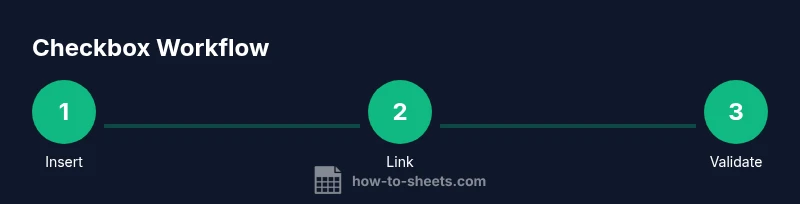
Select the cells where you want checkboxes, then use Insert > Checkbox. This creates a native TRUE/FALSE value in each cell. For large ranges, drag the fill handle to apply checkboxes quickly. Ensure the range stays aligned with your data so formulas referencing these cells stay accurate.
Tip: Tip: Use a single column for inputs to avoid data integrity issues. - 3
Label the checkbox column clearly
Add a descriptive header such as Status, Done, or Completed. Clear labels prevent confusion when collaborators review the sheet. Consider adding a short note in a frozen header row to explain what a checked box signifies.
Tip: Tip: Freeze the header row for easy reference when scrolling. - 4
Link checkbox state to results with a formula
In a nearby column, use a formula like =IF(A2, "Done", "Pending"). This translates the boolean into a readable status. Copy the formula down for all rows so each checkbox drives a corresponding label automatically.
Tip: Tip: Use relative references (A2) so you can fill down without editing each row. - 5
Count checked items with a summary formula
To see how many tasks are complete, use =COUNTIF(A2:A100, TRUE). This counts only checked boxes. You can also sum numeric weights with =SUMPRODUCT(--A2:A100, C2:C100) if you have numeric values tied to each item.
Tip: Tip: Place the summary in a distinct dashboard area for clarity. - 6
Apply conditional formatting to highlight status
Select the checkbox range and apply a rule like: Format cells if TRUE, choose a green fill. This makes completion obvious at a glance. You can also color-code the entire row based on the checkbox and priority.
Tip: Tip: Combine with due dates to flag overdue tasks visually. - 7
Copy down formulas for new rows consistently
As you add new tasks, ensure the checkbox cells extend with the same formulas. Use the fill handle or create a dynamic array if available. This keeps your dashboard scalable without manual edits in every row.
Tip: Tip: Create a template row with all formulas pre-filled and copy that template for new tasks. - 8
Test and validate your setup
Check a few rows by ticking and unticking boxes. Verify that the status labels update, counts adjust, and conditional formatting reacts as expected. If results don’t update, recheck ranges and ensure no merged cells disrupt the references.
Tip: Tip: Use the built-in Trace Dependents tool to confirm formula links.
FAQ
How do I insert a checkbox in Google Sheets?
Select the target cells, then choose Insert > Checkbox. The cells become TRUE/FALSE and can drive further formulas.
To insert a checkbox, select the cells and pick Insert Checkbox; the cells become true or false for use in formulas.
Can I customize the checkbox text or appearance?
Checkboxes in Google Sheets are boolean inputs with no text labels by default. You can display text in adjacent cells based on their state using IF formulas, and apply conditional formatting to color-code status.
Checkboxes are boolean; customize by showing text in nearby cells and coloring with conditional formatting.
How do I count checked items quickly?
Use a formula like =COUNTIF(A2:A100, TRUE) to count checked boxes. You can combine this with other criteria using COUNTIFS for more complex dashboards.
Count with COUNTIF TRUE, or use COUNTIFS for complex rules.
Are checkboxes accessible on mobile devices?
Yes. Google Sheets supports checkboxes on mobile, but ensure the checkbox column is wide enough for tapping and that formulas reference the correct cells.
Checkboxes work on mobile; ensure readable tap targets.
Can checkboxes trigger conditional formatting rules?
Yes. Create a rule based on the checkbox cell value being TRUE to apply color fills or font changes, enhancing visibility.
Yes, set conditional formatting on TRUE values.
Watch Video
The Essentials
- Define a single checkbox column to simplify formulas.
- Link checkboxes to readable status labels for clarity.
- Use COUNTIF and SUMPRODUCT to quantify progress.
- Apply conditional formatting to visualize completion at a glance.