Checkmark in Google Sheets: A Practical Guide
Learn how to add and customize checkmarks in Google Sheets, using checkboxes, Unicode symbols, and formulas to track tasks, color-status, and build lightweight dashboards.


Learn how to add and customize checkmarks in Google Sheets. This guide covers checkbox insertion, data validation, conditional formatting, and using formulas to count checked items. You'll also learn when to use Unicode checkmarks as an alternative. By the end, you can build interactive to-do lists and lightweight progress dashboards.
Understanding checkmarks in Google Sheets
In Google Sheets, a checkmark can be either an interactive checkbox or a simple text symbol like ✓. According to How To Sheets, both approaches help you convert raw lists into actionable items and make progress visible at a glance. Using checkmarks in spreadsheets is especially useful for task tracking, attendance rosters, approval workflows, and lightweight dashboards. This section explains when to choose a checkbox versus a Unicode symbol, what data is stored behind each option, and how to design sheets that stay clean as they scale. We’ll start with the checkbox option, because it's the most interactive and auditable, and because it integrates directly with formulas and conditional formatting.
With both methods, your goal is to provide clear indicators of completion that are easy to aggregate in reports or dashboards. A well-implemented checkmark system reduces ambiguity and speeds up reviews. In subsequent sections, you’ll see practical steps to implement each approach and how to combine them for maximum clarity.
Why it matters: checkmarks in Google Sheets turn plain lists into trackable workflows, boosting visibility and accountability across teams. They also help prevent misinterpretations when sharing a sheet with stakeholders who rely on visual cues to gauge progress.
Quick context for readers
Digital checklists live in your spreadsheet. They are lightweight, auditable, and easy to share. The methods described here apply whether you’re managing homework, project tasks, or inventory approvals. By the end of this section, you will understand which method fits your data needs and how to implement it with confidence.
note():null},
toolsMaterials({
items2
name
required
note
Tools & Materials
- Google Sheets access(A Google account with permission to view/edit the sheet.)
- Inserted checkboxes (Insert > Checkbox) or Unicode symbols(Choose the checkbox control for interactive states or type ✓/✔ for static displays.)
- Data validation (optional)(Use to restrict inputs to TRUE/FALSE or custom text when not using native checkboxes.)
- Conditional formatting setup(Prepare color rules to visually distinguish checked vs. unchecked states.)
- Formulas for aggregation(COUNTIF(range, TRUE) or SUM(range) to tally completed items.)
- Template or practice sheet(A sample sheet to apply concepts and test formulas.)
Steps
Estimated time: 15-25 minutes
- 1
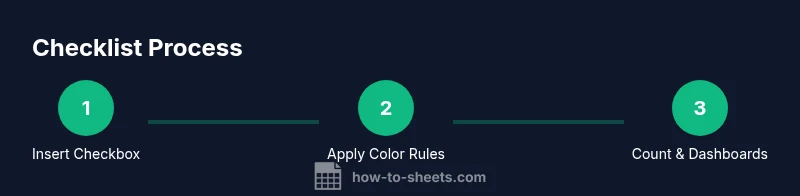
Insert checkboxes
Select the status cells and choose Insert > Checkbox. Each cell becomes a toggleable control that stores TRUE when checked and FALSE when unchecked.
Tip: Tip: Place a header row above and keep the status column narrow for readability. - 2
Customize checked/unchecked values
Open the checkbox options to set a custom value for checked (e.g., Done) and unchecked (e.g., Not done). This aligns with team language and reporting.
Tip: Tip: Keep values consistent across the sheet to simplify counting. - 3
Apply conditional formatting for color
Create a rule that formats cells when the value is TRUE, choosing a color (e.g., green) for visual emphasis.
Tip: Tip: Use a second rule for the unchecked state if you want a neutral color. - 4
Count checked items
Use COUNTIF(range, TRUE) to quantify how many tasks are completed in a column.
Tip: Tip: If you changed the values to text (e.g., Done/Not done), use COUNTIF(range, "Done"). - 5
Optional: replace checkboxes with a Unicode symbol
If you prefer a static symbol, use =IF(A2=TRUE, "✓", "") to display a checkmark when checked.
Tip: Tip: Ensure the font supports checkmark glyphs for consistent rendering. - 6
Create a simple status dashboard
Summarize progress with a small chart or a summary row showing total tasks and completion rate.
Tip: Tip: Use a separate sheet to keep the dashboard clean and shareable.
FAQ
What is the difference between a checkbox and a Unicode checkmark in Google Sheets?
A checkbox is an interactive control that stores TRUE/FALSE values. A Unicode checkmark is a static symbol you place in a cell. Choose the checkbox for interactivity and data integrity, or use the symbol for a simple display.
A checkbox lets users toggle status and store true values; a checkmark is just a symbol you can place in a cell for a visual cue.
How do I count the number of checked items in a column?
Use COUNTIF(range, TRUE) to tally checked items when you use native checkboxes. If you used text like Done/Not done, count those values with COUNTIF(range, "Done").
Use COUNTIF with TRUE for checkboxes, or count the text value you used for the checks.
Can I customize the label shown when a checkbox is checked?
Yes. In Google Sheets, you can set the Checked value and Unchecked value in the checkbox options to show text such as Done/Not done. Note that the underlying data may still be TRUE/FALSE depending on your settings.
You can set custom labels for checked and unchecked states in the checkbox options.
How can I color checked items automatically?
Apply conditional formatting with a rule like =A2=TRUE to color checked cells. Use a second rule for unchecked cells if you want a complementary color scheme.
Use conditional formatting to color checked items, making progress easy to spot.
Is a static Unicode checkmark accessible for screen readers?
Static symbols can be less accessible than native checkboxes. If accessibility is important, prefer actual checkboxes or provide an alternative text description.
Be mindful of accessibility; checkboxes are generally better for assistive tech.
How do I print a checklist with checkboxes?
Print settings may affect how checkboxes appear on paper. Ensure gridlines and checkboxes are visible in the print preview and adjust scale if needed.
When printing, verify that checkboxes render properly in the preview before finalizing.
Watch Video
The Essentials
- Use checkboxes for interactive task tracking
- Color-code checked items with conditional formatting
- Count completed tasks with COUNTIF(range, TRUE)
- Unicode checkmarks offer a simple static alternative
- Plan for accessibility and printing when sharing sheets