How to Add a Check Mark in Google Sheets
Learn how to add check marks in Google Sheets using checkboxes, Unicode symbols, and formulas. This comprehensive guide covers data validation, range applications, formatting, and practical templates to streamline data entry for students, professionals, and small businesses.


Goal: add a visible check mark in Google Sheets. You can achieve this in two reliable ways: insert a checkbox (data validation) that users can toggle, or display a check symbol with a formula. Checkboxes provide clear on/off states and are great for trackers, while symbol-based methods give visual flexibility when you need a static indicator. This guide shows both methods and how to apply them across ranges.
What is a check mark in Google Sheets?
A check mark in Google Sheets serves as a visual indicator that a task is done or a condition is met. There are two common approaches: a built-in checkbox control (interactive) and a static symbol such as ✓. Both approaches serve to indicate a completed task, a positive status, or a data-collection flag. Checkboxes are ideal for trackers, to-dos, and forms where you want users to actively mark completion. If you prefer simple visuals without interactivity, using a check symbol in a separate column can be just as effective for reports and summaries.
Understanding when to use each method helps you design cleaner sheets. For shared documents, checkboxes provide explicit state that is easier for collaborators to interpret, while symbols can be color-coded via conditional formatting for quick scanning.
Two core approaches to add check marks
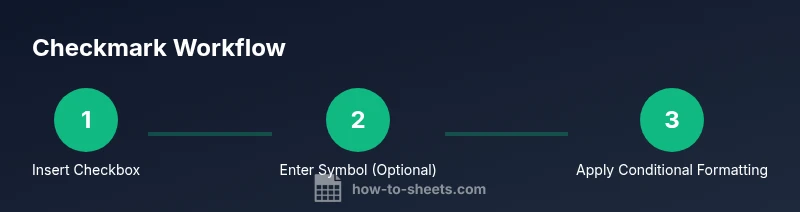
There are two reliable ways to display check marks in Google Sheets: using interactive checkboxes or using symbolic indicators like ✓ via formulas or direct entry. Checkboxes are ideal when you want to track progress and share editable state with others. Symbolic indicators, meanwhile, are excellent for presentation-grade sheets and exports where you want a consistent look without interactive toggling. You can even combine both in a single workflow by storing the checkbox state in a hidden column and showing a symbol in a visible one.
Method A: Using the Checkbox feature (data validation)
Insert a checkbox to create an interactive on/off control. Start by selecting the target cells, then go to Insert > Checkbox. Each box can be checked or unchecked, corresponding to TRUE or FALSE in the underlying data. For cleaner data, you can format the column to hide TRUE/FALSE values using a custom number format, or keep them visible for troubleshooting. This method is ideal for tasks lists, attendance sheets, and issue trackers where collaborators need a direct toggle.
Method B: Using a formula to display a check mark
If you prefer a non-interactive indicator, place a formula in a separate column that outputs a check mark when a condition is met. Example: =IF(A2=TRUE, "✓", "") where A2 is the source cell. You can adapt the condition to your workflow, such as =IF(B2="Done", "✓", ""). This approach keeps your original data untouched while providing a clean, export-friendly visual.
Choosing the symbol and accessibility considerations
The most common check mark symbol is the Unicode check ✓, but you can also use a square box ☐ if you want a hollow indicator. Make sure the font you select supports the symbol; otherwise, you may see a blank box. For accessibility, provide a textual description in adjacent cells or use tooltips so screen readers can interpret the status. Color alone should not be the sole indicator of state.
Applying across a range efficiently
To scale from a single cell to a range, use the fill handle or array formulas. For checkboxes, drag the small square to cover additional rows. For symbols, copy the formula down or use an ArrayFormula to apply a condition across many rows at once, e.g., =ARRAYFORMULA(IF(A2:A, "✓", "")) in the result column. This reduces manual work and keeps formatting consistent.
Conditional formatting integration for emphasis
You can visually emphasize checked items by combining check marks with conditional formatting. For example, apply a rule that turns the row light green when a checkbox cell is TRUE or when a symbol cell contains ✓. This makes completed tasks stand out in dashboards and reports, especially when you’re sharing the sheet with teammates or clients.
Troubleshooting common issues
Common problems include mixed data types (text vs. boolean), misaligned ranges, or formulas referencing the wrong cells. If a checkbox shows TRUE/FALSE instead of a symbol, switch to a dedicated symbol column or adjust the number format. If conditional formatting does not apply, ensure the rule uses the correct cell range and logic (TRUE vs. "").
Practical templates and use cases
Popular templates include a task tracker with a checkbox column, an attendance sheet marking present/absent, and a project status board with symbolic indicators. Save these blocks as templates in How To Sheets-style sheets so you can reuse them across projects, teams, or courses. As you start, keep headers clear, use consistent alignment, and document any formulas in a separate notes column for future maintenance.
Tools & Materials
- Google account with edit rights(Needed to create and modify sheets)
- Target Google Sheet(Choose the range where you want the check marks)
- Keyboard and mouse(For quick insertion and dragging)
- Optional: fonts with good symbol support(Noto, Arial, etc.)
Steps
Estimated time: 15-25 minutes
- 1
Select the target range
Open your sheet and select the cells where you want the check marks to appear. This defines the scope for either checkboxes or symbol-based indicators. Creating a defined range helps keep formatting consistent as you scale.
Tip: Use Shift+Click to quickly select a vertical range. - 2
Insert checkboxes for interactive tracking
With the range selected, insert the checkbox control via Insert > Checkbox. Each cell becomes an interactive on/off switch, returning TRUE when checked and FALSE when not. This is ideal for to-do lists and progress trackers.
Tip: If you want all boxes unchecked by default, ensure the sheet starts with FALSE values. - 3
Test toggling to verify behavior
Click a checkbox to toggle its state. Confirm that the underlying value changes to TRUE or FALSE accordingly. This validates both the visual indicator and the data state for downstream formulas.
Tip: Try a mixed range to ensure consistency across different rows. - 4
Optionally hide underlying TRUE/FALSE values
If you don’t want teammates to see TRUE/FALSE, apply a custom number format or use a separate display column that shows a symbol instead of the raw boolean.
Tip: Go to Format > Number > More formats > Custom number formats to customize display. - 5
Create a symbol column with a condition
In a neighboring column, enter a formula to display a check mark when a condition is met. Example: =IF(A2=TRUE, "✓", "") to mirror the checkbox state in a readable form.
Tip: Keep a clear data flow by separating the source of truth (checkbox) from the presentation (symbol). - 6
Copy the setup across the range
Drag the fill handle or copy-paste the formula down to extend the pattern to additional rows. This ensures uniform indicators across the entire dataset.
Tip: Use an ArrayFormula when possible to apply the logic across many rows without filling manually. - 7
Optional: apply conditional formatting for emphasis
Add a conditional formatting rule to highlight rows or cells when checked. For example, format the entire row with a green background when a checkbox is TRUE.
Tip: Choose a light color to maintain readability and avoid visual clutter. - 8
Review data validation and sharing settings
Ensure collaborators can interact with checkboxes if needed and confirm that the sheet’s sharing settings align with your workflow.
Tip: If you’re publishing a read-only report, consider using symbols instead of checkboxes.
FAQ
How do I remove a checkbox from Google Sheets?
Select the checkbox cells and press Delete, or remove the data validation that creates the checkbox. The cells will revert to their previous content. If you used a separate symbol column, you can delete that column as well. Always confirm your data state after removal.
To remove a checkbox, delete the cells or remove the data validation. If you used a separate symbol column, delete that column too.
Is a checkbox better than a symbol for data validation?
Checkboxes are excellent for interactive status tracking because users can toggle them. Symbols are better for clean visuals in reports or exports where interaction isn’t needed. Choose based on whether you need user input or just a visual cue.
Choose checkboxes for interactivity; use symbols for clean reports when you don’t need user input.
How can I count how many items are checked?
If you use checkboxes, you can count checked items with COUNTIF(range, TRUE). If you use symbols, count cells containing the symbol (e.g., =COUNTIF(range, "✓")). Adjust ranges as your sheet grows.
Use COUNTIF to count checked boxes or symbols in your range.
Do checkboxes work in filtered views?
Yes. Checkboxes persist their state when filtering. If a row is hidden, the checkbox state remains, and the row’s status is still valid when unfiltered.
Yes, checkboxes maintain state in filtered views.
Can I apply check marks to an entire column automatically?
Yes. After setting the first cell, use the fill handle or an ArrayFormula to apply the setup to the full column. Be mindful of performance on very large sheets.
You can apply to a whole column with fill or ArrayFormula, but watch performance.
Watch Video
The Essentials
- Choose interactive checkboxes for active tracking
- Use symbols for static, presentation-ready indicators
- Combine with conditional formatting to highlight status
- Scale indicators with ranges using ArrayFormula
- Test thoroughly before sharing with teammates