App Store Google Sheets: Step-by-Step Data Import and Automation
Learn how to connect App Store data to Google Sheets with a practical, step-by-step workflow, including API setup, data modeling, and dashboards.


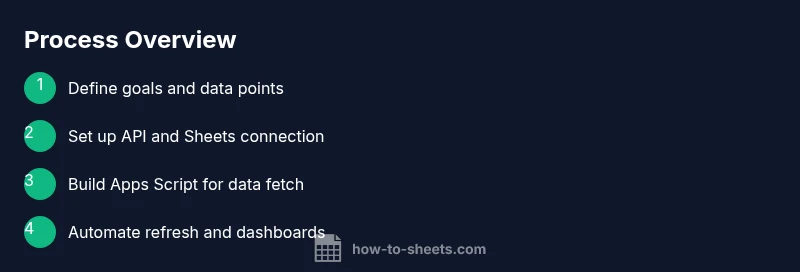
Goal: You will learn to pull app store google sheets metrics into Google Sheets using App Store Connect API and Google Apps Script, then organize and visualize the data. The process blends API setup, data modeling, and automated refresh to keep your sheets current. This guide emphasizes practical, repeatable steps you can adapt for any app or dataset.
Overview: Why integrate App Store data with Google Sheets
If you're tracking your mobile app's performance, combining App Store data with Google Sheets can save you time and reduce manual errors. A unified sheet helps you see trends across date ranges, regions, and apps in one place. With a well-designed pipeline, you can pull data automatically, refresh it on a schedule, and share dashboards with teammates. This approach supports decision-makers for product roadmaps, marketing campaigns, and budget approvals. According to How To Sheets, starting with a clear objective and a lightweight prototype speeds up the rollout and reduces rework. In this guide, you’ll learn how to plan, fetch, and organize app store google sheets data, then turn raw numbers into actionable visuals. The steps are designed to be practical and scalable, so you can adapt them to other data sources beyond the App Store.
Data points and schema for App Store metrics
When designing a data model for app store google sheets, identify core metrics that matter to your goals (e.g., downloads, impressions, active users, retention, revenue). Create a consistent schema with columns for date, app_id, app_name, country, metric, and value. Normalize dates to a single format (YYYY-MM-DD) to simplify sorting and filtering. Use separate sheets or tabs for raw exports and for transformed dashboards. Planning the schema up front reduces rework and helps you scale as you add more apps or markets.
Data acquisition methods: API, CSV, and add-ons
There are multiple pathways to get App Store data into Google Sheets. The most robust is programmatic access via the App Store Connect API, which supports automated pulls of key reports. If API access is limited, you can start with CSV exports from App Store Connect and import those files into Sheets, then build a transformation layer. Third-party add-ons can simplify the workflow but may introduce limits on data freshness. Start with a small pilot to validate the data structure before scaling up.
Building the data pipeline with Google Apps Script
A practical pipeline uses Google Apps Script to fetch data, normalize it, and write it into Sheets. Start by creating a small function that calls the App Store Connect API (or CSV loader) and returns a JSON array of records. Then map each record to a row in your sheet, handling nulls and type conversions. Use batch writes (range.setValues) to improve performance and reduce quota usage. Finally, add a simple error handler that logs failures to a separate sheet for quick triage. This approach keeps your data current with minimal manual intervention.
Scheduling, error handling and governance
Automate refresh with time-based triggers so your dashboards stay up-to-date without manual imports. Implement try/catch blocks and clear error messages to simplify troubleshooting. Maintain a changelog or audit sheet documenting schema changes, API key rotations, and permissions updates. Apply least-privilege access to both the Apps Script project and the Google Sheet, and rotate API keys on a regular basis to minimize risk.
Starter templates and dashboards
Create a lightweight starter sheet with a raw data tab, a transformed data tab, and a basic dashboard (KPIs, trend lines, and a per-app breakdown). Add conditional formatting to highlight anomalies, such as sudden drops in downloads or spikes in impressions. As you grow, extend the templates with additional charts (bar charts for by-country views, line charts for trends over time) and pivot tables for aggregate insights. This modular setup makes it easy to onboard teammates and scale your analytics.
Practical example workflow and best practices
A typical workflow begins with pulling a daily report from App Store Connect into a dedicated data sheet, then running a single Apps Script function to normalize fields and append new rows. Schedule a nightly refresh, review the dashboard briefly in the morning, and iterate on the model if you notice gaps. Keep notes on where data gaps occur (e.g., missing API days) and adjust your data model to minimize future gaps. The emphasis is on repeatable, documentable steps that reduce manual handling and errors.
Accessibility and sharing considerations
Because this workflow centers on Sheets, it naturally supports collaboration. Use protected ranges to guard formulas and critical data, and publish a read-only dashboard for stakeholders who do not need edit access. Document the data sources and refresh cadence in a shared readme within the file, so new contributors understand how the pipeline works and where to look for issues. This clarity enhances trust and speeds onboarding.
Tools & Materials
- Google account(Needed for Sheets and Apps Script access.)
- App Store Connect account with API access(Apple developer credentials required to obtain API keys.)
- Apple API credentials (key ID, issuer ID, private key)(Store securely; rotate keys periodically.)
- Google Cloud Platform project(Enable Sheets API and create OAuth credentials or a service account.)
- Google Sheets file(Prepare a structured sheet with raw and transformed data tabs.)
- Google Apps Script editor(Built-in tool in Sheets for custom automation.)
- Internet connection(Necessary for API calls and cloud-based scripting.)
Steps
Estimated time: 2-4 hours
- 1
Define data goals
Identify which App Store metrics matter for your team (downloads, impressions, sessions, localization, revenue) and the date range. Document use cases and decision-makers to align the data model with business objectives. This clarity saves time during later stages and helps avoid feature creep.
Tip: Create a one-page requirements note listing metrics, timeframes, and the intended audience. - 2
Gather prerequisites
Collect access to App Store Connect and a Google account with permission to edit the target Sheets file. Ensure you can create a Google Cloud project and have permission to enable APIs and generate credentials. Verifying access early prevents bottlenecks later.
Tip: Verify you can reach both the App Store Connect API and Google Sheets from your network to avoid firewall issues. - 3
Generate App Store API credentials
Create an API key in App Store Connect and note the key ID, issuer ID, and private key. Safely store these credentials in a secure vault or password manager. You will use them to authenticate requests from Apps Script.
Tip: Treat API keys like passwords; rotate them on a schedule and restrict key usage to required endpoints. - 4
Set up Google Cloud project and enable Sheets API
Create a new Google Cloud project (or reuse one with proper permissions). Enable the Sheets API and create OAuth 2.0 credentials or a service account to authorize Apps Script actions. Connect this service to your Sheets file.
Tip: Use a service account for automated tasks to minimize user-specific permission changes. - 5
Design data schema and mapping
Draft a consistent schema: date, app_id, app_name, country, metric, value. Decide where raw data lands versus transformed data and dashboards. This step ensures clean, repeatable imports and easier analytics.
Tip: Keep date formatting uniform (YYYY-MM-DD) to simplify sorting and filtering. - 6
Implement Apps Script to fetch data
Write a script that authenticates with App Store Connect API, fetches a defined dataset, and returns a structured JSON array. Parse the response and map it to your sheet’s schema. Start with a test endpoint or a small dataset to validate structure.
Tip: Use UrlFetchApp with try/catch blocks and log API responses for debugging. - 7
Write data to Sheets and format columns
Append new rows to the raw data tab, then run a transformation to populate the cleaned data tab. Apply basic formatting and freeze header rows for readability. Validate that date, app_id, and metric fields align across rows.
Tip: Batch writes (setValues) are faster and reduce quota usage compared to per-row writes. - 8
Schedule refresh and error handling
Create time-based triggers to refresh data nightly or at a cadence that fits your reporting cycle. Implement error handling to log failures and alert you when something goes wrong. Regular reviews help catch API changes early.
Tip: Set up a simple alert rule (email or chat) for script failures.
FAQ
Can I automate data import from App Store Connect to Sheets?
Yes. By using App Store Connect API together with Google Apps Script, you can schedule automatic data pulls and write results to Sheets. Start with a small pilot and expand as you validate the workflow.
Yes. You can automate data imports from App Store Connect to Sheets using Apps Script and the API, then schedule regular updates.
What credentials do I need to begin?
You will need an App Store Connect API key (key ID, issuer ID, private key) and access to a Google Cloud project with Sheets API enabled. Keep keys secure and restrict permissions to the minimum necessary.
You need App Store Connect API credentials and a Google Cloud project with Sheets access.
How often can data be refreshed?
Data can be refreshed on a schedule via Apps Script triggers. The frequency depends on API limits and your reporting needs. Start with nightly refresh and adjust as you observe performance.
You can refresh data on a schedule using Apps Script triggers, typically nightly to start.
Do I need to write code to implement this?
A basic understanding of Google Apps Script is helpful. You can adapt templates and gradually add custom logic for authentication, data mapping, and error handling.
Some scripting knowledge helps, but you can start with templates and adapt as you learn.
What if data imports fail or are incomplete?
Implement try/catch logic, log errors in a dedicated sheet, and set up alerts. Regularly review and adjust time windows to account for API latency or outages.
If imports fail, log errors and alert yourself, then investigate and retry when ready.
Watch Video
The Essentials
- Define data goals before building.
- Model metrics and dimensions for consistent reports.
- Automate data import to reduce manual errors.
- Validate data after each import and adjust schema as needed.
- Create starter dashboards to visualize trends