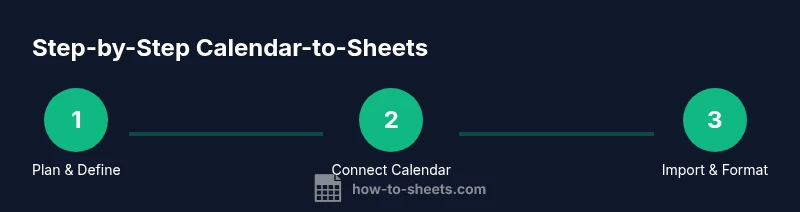
Google Sheets with Calendar: A Practical How-To Guide
Learn to connect Google Sheets with Calendar data, pull events into Sheets, and build a calendar-aware dashboard with step-by-step guidance, templates, and best practices.


Goal: Create a calendar-aware Google Sheets workflow that automatically imports Google Calendar events into a sheet, formats them for a dashboard, and refreshes on a schedule. You’ll need a Google account, a Sheets workbook, and calendar access to authorize data retrieval. This guide shows you how to plan, connect, test, and deploy a reliable calendar-to-Sheets integration.
What is Google Sheets with Calendar?
Google Sheets with Calendar combines the scheduling power of Calendar with the data-handling capabilities of Sheets. This integration lets you plan projects, manage event-driven tasks, and visualize timelines directly in a spreadsheet. The approach relies on Apps Script or built-in functions to pull calendar events into a Sheet, transforming raw data into filters, pivot-ready data, and charts. According to How To Sheets, a well-structured calendar feed starts with a clear data model: a date column, a start time column, an end time column, a title, a location, and a description. The How To Sheets team found that teams often underestimate the effort required for proper time-zone handling and data refresh scheduling, which can undermine dashboards.
For Google Sheets with Calendar, you’re typically looking at an ongoing data pipeline: events arrive from Calendar, are parsed into Sheets, and then feed dashboards, reports, or reminders. The end user should be able to filter by date ranges, search by keyword, and export a subset of events for meetings or milestones. This section sets the stage for practical implementation, emphasizing data structure, permissions, and automation readiness.
Why integrate Google Calendar with Sheets?
Integrating Google Calendar with Sheets unlocks a range of efficiencies. Real-time or scheduled updates reduce manual data entry, improve accuracy, and ensure teams are aligned on upcoming commitments. Dashboards built from calendar data help managers spot overload periods, allocate resources, and track project milestones. The approach supports templates for event trackers, project calendars, resource calendars, and time-block planning. According to How To Sheets analysis, automated calendar data capture tends to lower reporting time and minimize errors, especially when events include date, time, title, and location fields. This synergy also enables conditional formatting, trend analysis, and seamless sharing with teammates. In practice, you can craft a lightweight daily plan, then expand into weekly and monthly calendars that feed directly from your Sheets data.
Key use cases include classroom planning, team sprints, event coordination, and service calendars. You’ll appreciate how calendar data becomes an extension of your datasets, allowing you to combine events with task lists, budgets, and approvals.
Planning your calendar-to-Sheets integration
A successful calendar-to-Sheets project starts with a solid plan. Decide which calendar(s) you want to import, what fields you’ll capture (date, start/end time, title, location, description, attendees), and how you’ll structure the Sheet workbook. Time zone handling is critical: always store dates in a standard time zone in Sheets and convert on display when needed. Determine refresh frequency: do you want real-time updates via triggers, or periodic pulls at end of day? Establish access controls to ensure only authorized users can view sensitive calendars. Consider creating templates that separate raw imports from analyzed views, so you can protect formulas and keep your dashboard stable. Finally, map out error-handling: what happens if the API returns no events or quota is exceeded? A clear plan helps prevent surprises during deployment.
From a practical standpoint, ensure your Sheet has a clean header row, consistent date formats, and a clear key (for example: EventDate, StartTime, EndTime, Title, Location, Description). If you’re targeting multiple calendars, design a calendarId column to differentiate data sources. This planning stage reduces post-launch tweaks and makes it easier to scale.
Step-by-step: Build a live calendar feed into Sheets
Building a live calendar feed involves creating a data pipeline that authenticates with Calendar, fetches events, writes them to Sheets, and sets up automatic refresh. Start by creating a dedicated Sheets workbook with a clean sheet for events. Then, write a script that authenticates your Google account, requests Calendar data for a given date range, and writes each event’s fields to the sheet. Implement a simple data validation rule to guard against empty fields and duplicate rows. Schedule a time-driven trigger to run the fetch at your chosen interval. Finally, test with a controlled date range to verify that dates, times, and titles align with expectations. After confirming the data flow, protect sensitive columns and guard against accidental edits in the raw import area.
Why this matters: clean, repeatable data flows reduce maintenance and ensure dashboards reflect current information. Pro tip: start with a short date window (e.g., two weeks) to validate the process before expanding.
Templates and sample workflows for calendar data in Sheets
Templates help you accelerate setup and maintain consistency across projects. A common template includes: a raw import sheet (events_raw) and a processed sheet (events_dashboard) with computed columns for duration, a status tag, and a color-coded priority. You can create a reusable Apps Script function that accepts a calendarId, date range, and target sheet, then writes structured data into events_raw. From there, pivot tables and charts can summarize events by date, resource, or category. If you’re integrating with other data sources (tasks, budgets, or attendees), keep the data model modular: use separate sheets for each source and a master view for consolidated reporting. This separation makes maintenance easier and reduces the risk of breaking dashboards when a source schema changes.
Across templates, include a simple error banner and logging mechanism so you can quickly diagnose failures during refreshes. Keeping a changelog is essential when you update scripts or templates. This practice aligns with broader data-management principles and helps teams adopt the workflow with confidence.
Troubleshooting, security, and data governance
Security matters when linking Calendar data to Sheets. Review OAuth scopes and restrict access to only those users who need it. Calendar API quotas can cap how many requests you can make per day; design your solution to batch data where possible and stagger refreshes to avoid hitting limits. If you encounter missing fields or time zone mismatches, double-check your parsing logic and ensure you’re storing dates in a consistent format. Use clear error messages and a retry strategy for transient failures. Maintain versioned scripts and templates to track changes over time, and document assumptions in a README so new collaborators understand the flow. Finally, consider privacy implications: calendar data may include attendee lists or meeting topics; ensure access is appropriate for your audience and comply with organizational policies.
Pro tip: enable a daily notification to alert you when the pipeline runs successfully or if errors occur, so you can address issues promptly. Always test changes in a staging copy of your workbook before applying them to production.
Final thoughts and next steps
Integrating Google Sheets with Calendar empowers teams to move from scattered notes to a unified, query-friendly data model. The practical approach—planning, scripting, and templating—creates a scalable foundation for automation and insight. As you refine your calendar-to-sheets workflows, you’ll discover additional enhancements like conditional formatting to highlight upcoming deadlines or color-coded calendars that improve readability at a glance. The How To Sheets team recommends starting with a small, well-defined use case—such as a weekly team calendar—and expanding the data model as you gain confidence with automation and data governance. With careful planning and incremental testing, your calendar-driven dashboards can become a reliable backbone for project visibility and operational planning. How To Sheets's verdict is that a thoughtful, modular approach beats a complex, monolithic solution every time.
Tools & Materials
- Google account with Calendar access(Used to authorize Calendar data retrieval)
- Google Sheets(Create a dedicated workbook for the calendar integration)
- Google Apps Script editor(Extensions > Apps Script in Sheets)
- Calendar API access(Enable via Google Cloud Console linked to your project)
- Calendar IDs(Optional for multi-calendar setups)
Steps
Estimated time: 60-90 minutes
- 1
Define data model and scope
Decide which fields to import (date, start/end time, title, location, description) and which calendars to pull from. Establish time zone handling and how often the data will refresh.
Tip: Document the chosen fields and the calendar IDs to avoid scope creep later. - 2
Create the Sheets structure
Set up a dedicated sheet for raw data (events_raw) and a dashboard sheet (events_dashboard) with headers and validation rules.
Tip: Use consistent date formats and protect the raw data area. - 3
Write Apps Script to fetch events
In Apps Script, write a function that connects to Calendar, requests events for a date range, and writes them to events_raw.
Tip: Start with a two-week window to simplify debugging. - 4
Parse and format data for the dashboard
Transform raw fields into calculated columns (duration, end-to-start time, status) and create short, readable labels.
Tip: Keep processing logic modular to ease maintenance. - 5
Set up triggers and error handling
Create time-driven triggers (e.g., daily) and implement try/catch blocks with logging for failures.
Tip: Log errors to a dedicated sheet section for quick triage. - 6
Test with real data and edge cases
Run tests for overlapping events, all-day events, and time zone changes. Verify data in events_dashboard matches expectations.
Tip: Test across a few different calendars to ensure compatibility. - 7
Document and roll out
Create a short user guide and share access with teammates. Monitor usage and adjust permissions as needed.
Tip: Keep a changelog and versioned scripts to track improvements.
FAQ
Can I pull past events or only future events?
You can fetch both past and future events by adjusting the date range in your script. For dashboards that track upcoming milestones, focus on future events; for historical reports, include past dates as well.
You can fetch past and future events by setting the date range in your script, so you can keep both historical and upcoming data in Sheets.
Do I need Apps Script to connect Sheets to Calendar?
Apps Script is a common method to connect Google Calendar with Sheets, but you can also use built-in functions for simple date pulling or third-party integrations. Apps Script offers more control and automation.
Apps Script is a common choice for Calendar-to-Sheets connections and gives you more control and automation options.
Is there a ready-made template for calendar events in Sheets?
There are templates and sample scripts created by the community and official docs. Look for calendar-to-sheets templates that align with your fields and adjust as needed.
There are templates and examples you can adapt, so you don’t have to start from scratch.
How often can I refresh calendar data in Sheets?
Refresh frequency depends on triggers and quota limits. A common pattern is once daily or multiple times per day during business hours, while respecting API quotas.
Commonly, people refresh daily or several times a day, but you should consider API quotas.
What permissions are needed to access Google Calendar data from Sheets?
You need calendar read access and the ability to authorize Apps Script to access your Sheets and Calendar data. Use least privilege and scope down where possible.
You need read access to the calendar and permission for Apps Script to access Sheets and Calendar data.
Can I share the calendar-enabled Sheet with others?
Yes, you can share the Sheet, but ensure that recipients have the necessary calendar access and consider restricting access to the raw data area.
Yes, you can share, but manage access to calendar data carefully.
Watch Video
The Essentials
- Plan data fields and time zones before coding.
- Separate raw imports from processed dashboards.
- Automate with triggers but monitor quotas and errors.
- Protect sensitive calendar data with proper permissions.