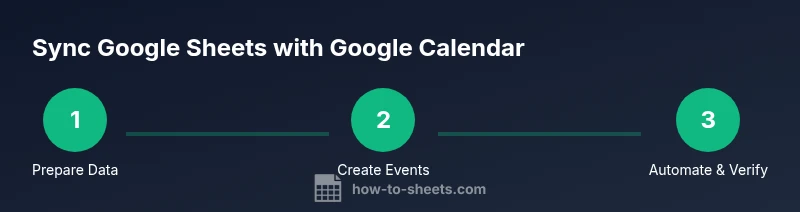
Google Sheets and Google Calendar: A Practical Guide
Learn to connect Google Sheets with Google Calendar to automate event creation, updates, and scheduling using no-code methods and Apps Script. A practical, step-by-step guide for students, professionals, and small business owners.


To sync Google Sheets with Google Calendar, use Apps Script to automate event creation or rely on manual CSV import/export for smaller tasks. This concise approach sets you up for the full, step-by-step guide that follows, covering practical, scalable workflows and templates that work for students, professionals, and small business owners.
Why Integrate Google Sheets with Google Calendar
Integrating Google Sheets with Google Calendar helps teams and individuals plan, track, and execute schedules more reliably. By connecting structured data in sheets to calendar events, you can avoid double data entry, reduce planning errors, and maintain a single source of truth. This approach is particularly valuable for class rosters, project timelines, event planning, and client engagements where details change often. The How To Sheets team found that organizations that automate scheduling workflows report fewer missed meetings and cleaner timelines, especially when data entry is standardized and time zones are handled consistently. Start by identifying the events you manage in Sheets (dates, times, titles, descriptions, locations) and map them to calendar fields. With a clear data model, both tools work in harmony rather than at cross purposes.
Practical no-code workflows: manual import/export
For many teams or individuals just starting out, no-code methods offer a low-friction path to syncing Sheets and Calendar. A simple approach is to export your Sheets data as a CSV and import it into Google Calendar, mapping each column to a calendar field such as Title, Start Date, Start Time, End Time, Description, and Location. You can also create events one by one from the sheet by highlighting relevant rows and using the Calendar’s Quick Add feature. If your data changes frequently, consider maintaining a separate sheet to track changes and re-import as needed. According to How To Sheets, starting with a clean data structure reduces errors and makes future automation easier.
Apps Script approach: automated syncing
If you want ongoing automation, Google Apps Script is a powerful option. Create a script that reads rows from your sheet, formats start and end times as Date objects, and uses the Calendar service to insert events with fields like title, description, and location. You can set a trigger to run daily or when the sheet is edited. This method scales with volume and reduces manual work, but it requires permission prompts and careful handling of time zones to avoid off-by-one-hour mistakes. A well-built script also logs successes and failures to help you monitor the sync health.
Designing data templates for reliable sync
A robust integration starts with a clean data template. Use clear headers: Date (YYYY-MM-DD), Start Time (HH:MM), End Time or Duration, Event Title, Description, Location, and Calendar ID. Store the calendar ID if you need to publish events to multiple calendars. Validate date and time formats in Sheets to prevent misinterpretation by Apps Script or the import tool. Consider adding a Last Updated timestamp and a unique ID to each row to prevent duplicates after re-imports. When mapping fields, keep a consistent timezone (for example, UTC) and document any deviations so teammates can follow the same rules.
Troubleshooting common issues and edge cases
Time zone mismatches are a frequent source of confusion. Always standardize on a single time zone in the sheet and in the script. If events don’t appear, check permissions for the Apps Script project and ensure the target calendar exists. Missing fields like Start Date or Title can cause imports to fail; implement data validation and default values where appropriate. Duplicates can happen after re-imports, so include a unique ID per row and implement idempotent logic in your Apps Script. Regularly review logs or run a test with a small batch to catch errors early.
Security, privacy, and governance considerations
Granting calendar write access via Apps Script means one set of credentials can affect many events. Minimize risk by using a dedicated calendar for automation, limiting who can view or modify the sheet, and using domain-restricted accounts where possible. Archive older data and rotate API credentials if you use external automation tools. Document your workflow and obtain approvals for any data containing personal information. Regular audits help ensure compliance and protect sensitive data.
Tools & Materials
- Google account with access to Google Sheets and Google Calendar(Essential for creating and syncing events; ensure you have edit rights on both tools.)
- Sample Google Sheets template with event fields(Include columns: Date, Start Time, End Time, Title, Description, Location, Calendar ID.)
- Access to Google Apps Script (optional for automation)(Use Extensions > Apps Script to create and run automation scripts.)
- CSV export/import capability(Useful for no-code imports when not using Apps Script.)
- Reliable internet connection(Required for accessing cloud-based Sheets, Calendar, and Apps Script.)
Steps
Estimated time: 60-90 minutes
- 1
Prepare your Google Sheet
Create a clean sheet with headers for Date, Start Time, End Time (or Duration), Title, Description, Location, and Calendar ID. Populate at least one test row to verify the mapping works. Ensure dates and times use a consistent format.
Tip: Keep headers exact and consistent to simplify mapping in scripts or imports. - 2
Open Apps Script and create a new project
In your Sheet, select Extensions > Apps Script and start a new project. Grant the necessary permissions when prompted so the script can access Calendar and Sheets data.
Tip: Comment your code and document which fields map to which calendar attributes. - 3
Write a function to read rows and create events
Develop a function that loops through rows, parses dates and times, and calls the Calendar service to create events with title, description, and location. Include basic error handling and logging.
Tip: Use a simple idempotent approach to avoid duplicates when re-running the script. - 4
Test with a small data sample
Run the function on a subset of rows and verify that events appear on the correct calendar. Check time zones and descriptions align with expectations.
Tip: Review the execution transcript and adjust parsing if necessary. - 5
Add error handling and logging
Implement try-catch blocks and log outcomes to a separate sheet or console. This helps diagnose issues without disrupting the whole workflow.
Tip: Log the row ID and calendar ID for traceability. - 6
Set up a trigger for automation
Create a time-driven trigger (e.g., daily at 2 AM) or an onEdit trigger to keep events in sync as sheet data changes. Ensure you respect quota and permissions.
Tip: Test the trigger in a low-stakes window before enabling full automation.
FAQ
Can I sync multiple calendars with one sheet?
Yes. Use a Calendar ID column and route each event to the appropriate calendar. In Apps Script, pass calendarId when creating events; no-code options require manual assignment.
Yes—map each row to a calendar using a calendar ID.
Do I need to code to set this up?
No-code options exist for basic imports, but automation usually requires Apps Script or third-party tools. For simple needs, CSV import works.
You can start with no-code imports, but automation typically needs scripting.
Is there a no-code option for ongoing syncing?
Yes, you can use scheduled CSV exports or add-ons. Ongoing automation generally requires scripting or lightweight automation tools.
Yes, try scheduled imports or add-ons; for full automation, scripting helps.
How often can the sync run?
Manual sync happens on demand; scripted automation can run on a configured schedule (e.g., daily). Triggers determine cadence.
You control how often it runs with triggers.
What if my date formats differ?
Standardize on a single format (ISO YYYY-MM-DD) and use parse methods in Apps Script. Validate in Sheets to prevent misreads.
Standardize date formats to prevent misreads.
How do I handle recurring events?
Recurring events require recurrence settings in Calendar or generating separate events for each occurrence. Scripts can create multiple events based on a pattern.
Recurring events require recurrence settings; scripts can generate them.
Watch Video
The Essentials
- Plan your data structure before automating
- Choose no-code vs. Apps Script based on need
- Test with sample data before production
- Monitor logs and adjust as needed