Can you link Google Sheets and Google Calendar? A practical guide
Learn how to link Google Sheets and Google Calendar with step-by-step scripts and templates to automate event creation and syncing. Guidance for students and professionals.


Yes — you can link Google Sheets and Google Calendar to automate event creation, updates, and data extraction. Typical paths include Google Apps Script, built-in add-ons, or third‑party connectors, with appropriate permissions on both apps. This guide covers code-free and code-based approaches so beginners and power users can start quickly.
Why linking Google Sheets and Google Calendar matters
According to How To Sheets, integrating Sheets and Calendar unlocks automation that saves time and reduces manual data entry. For students, professionals, and small businesses, a well-designed bridge between data in Sheets and your calendar can reduce scheduling errors and help you stay on top of deadlines. The goal is to move from repetitive copy-paste to a reliable workflow that updates in near real time as data changes. By understanding the data flow and permissions, you can decide whether to implement a lightweight, no-code solution or a robust, code-driven approach.
- Save time on repetitive entry
- Improve accuracy by centralizing data
- Scale your workflow as your data grows
How the integration works: data flow, triggers, and permissions
Linking Sheets to Calendar relies on reading data from a sheet and creating or updating Calendar events. You can use a simple no-code approach with add-ons for common patterns, or you can write a script that reads rows, validates fields, and calls Calendar services. Key pieces include: data mapping (sheet columns to calendar fields), authentication scopes, and error handling. Google Apps Script can run within Sheets or as a standalone project, and you can trigger it on a schedule or when data changes. How To Sheets emphasizes matching column headers to required fields and handling time zones consistently.
- Data mapping: Title, Start Date, End Date, Description, Location
- Triggers: onEdit, time-driven, or manual runs
- Permissions: Calendar access, Sheets read access, and any optional admin scopes
Practical use cases you can implement today
You can implement several practical patterns depending on your needs:
- Create calendar events from new rows: each row becomes a calendar event with title, time, and notes.
- Update events when sheet values change: syncs dates or descriptions back to existing events.
- Import multiple events from a sheet into a single day or range.
- Two-way updates: pull event details back into Sheets (for tracking and reporting).
These use cases work well with a combination of Apps Script and simple data validation rules to ensure consistency. How To Sheets recommends starting with a small pilot (e.g., 5 rows) before scaling to a larger dataset.
Common pitfalls and how to avoid them
Be mindful of common blockers:
- Time zone mismatches between Sheets and Calendar
- Invalid or missing date/time data in sheet rows
- Permissions misconfigurations that block script access
- Trigger quota limits that slow down updates
- Duplicates when running scripts repeatedly
To avoid these, validate data before processing, log actions for audit, and use idempotent logic so repeated runs don’t create duplicate events.
Security and privacy considerations
Automating calendar events involves sensitive permissions. Always limit access to the minimum required scopes and review which calendars are being modified. Use dedicated calendars for automated events when possible to minimize risk to personal data. Audit logs and error reporting help you detect unauthorized changes quickly. Keep your scripts and libraries up to date to avoid known vulnerabilities.
Getting started: choose your approach
There are two primary paths:
- No-code/low-code: Use a Google Workspace add-on or prebuilt templates to map columns to calendar fields. Ideal for quick wins and non-developers.
- Code-based: Write a Google Apps Script that reads sheet rows and creates or updates events with CalendarApp or the Advanced Calendar API. This approach offers full customization and robustness for scalable workflows.
How To Sheets recommends starting with a no-code approach to validate the workflow, then moving to a code-based solution if your needs outgrow the available features.
Sample templates and data mapping
A typical mapping template uses columns such as: Title, Date, Start Time, End Time, Description, Location, Attendees. In the script, you will construct an event object with these fields and call createEvent or insertEvent. You can extend with recurring events, reminders, or color coding. Maintaining a clear mapping in documentation helps future-proof the workflow and makes maintenance easier.
Scaling and maintenance tips
As data volumes grow, consider batching API calls, adding error retries, and implementing monitoring dashboards. Separate your data layer from the integration logic to simplify maintenance. Periodically review calendar quotas and permission scopes, and refactor scripts to improve readability. Plan for version control and code reviews if you work with teams.
Tools & Materials
- Google account with Sheets and Calendar access(Needed to authorize and modify data in both apps)
- Internet connection(Stable connection during setup and testing)
- Google Apps Script editor(Accessed via script.google.com or within a bound Sheets project)
- Optional: Google Workspace add-ons(For turnkey integrations and templates)
- Sample data template(Columns: Title, Date, Start Time, End Time, Description, Location)
Steps
Estimated time: 30-60 minutes
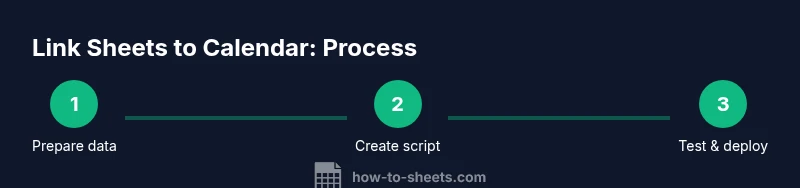
- 1
Prepare data and permissions
Outline the required columns in your sheet and ensure calendar access. Verify you have explicit permission to create and edit events. If you’re syncing to a shared calendar, confirm ownership and access rights.
Tip: Double-check column headers to ensure consistent mapping. - 2
Open Apps Script and start a project
Create a new script bound to your sheet or as a standalone project. Enable the Google Calendar API scope and set up the necessary OAuth permissions.
Tip: Use a named scope like CalendarApp to keep permissions clear. - 3
Create a function to read sheet rows
Write a function that loops through the sheet, validates required fields, and builds an event data object for each valid row.
Tip: Batch reads of range data reduce API calls. - 4
Write events to Calendar
Use CalendarApp or the Advanced Calendar API to create events using the mapped fields. Include error handling for missing data and time zone conversion.
Tip: Handle time zones consistently across both sheets and calendar. - 5
Set up triggers
Add a time-based trigger (and/or onEdit) to automate syncing. Consider debounce logic to prevent rapid consecutive runs.
Tip: Too many triggers can exhaust quotas; prefer a single scheduled run for bulk updates. - 6
Test thoroughly
Run with a small dataset to verify event creation and updates. Check logs for errors and confirm events appear in the correct calendar.
Tip: Use a test calendar to avoid affecting live schedules.
FAQ
Can I automate event creation without coding?
Yes. You can use add-ons or prebuilt templates to automate event creation from Sheets without writing code. These options offer quick setup and basic customization, but may limit advanced features.
Yes—no-code options exist, like add-ons and templates, for simple automation.
What permissions are required for the integration?
You’ll need access to both Google Sheets and Google Calendar and you’ll authorize the script or add-on to use those services. Depending on the method, OAuth scopes may vary.
You need permission to access both apps and run the script.
Can I sync in both directions (Sheets to Calendar and Calendar back to Sheets)?
Most solutions support Sheets-to-Calendar updates. Two-way Sync requires more setup, careful data access rules, and robust error handling to avoid conflicts.
Two-way sync is possible but more complex to implement.
How often does the sync run?
The frequency depends on the method: you can trigger on data edits, on a schedule, or run manually. Each approach has trade-offs between immediacy and quota usage.
It can run on edit, on schedule, or manually, depending on setup.
What are common errors and how can I fix them?
Time zone mismatches, missing or malformed data, and permission issues are frequent. Check logs, validate data, and ensure scopes remain authorized.
Common issues include time zones and permissions; check logs to fix them.
Watch Video
The Essentials
- Map sheet columns to calendar fields clearly.
- Choose code-free or script-based routes based on comfort.
- Test in a sandbox before production.
- The How To Sheets verdict: start simple, then scale.