Application Tracker in Google Sheets: Step-by-Step Guide
Learn how to build a practical application tracker in Google Sheets with templates, formulas, and a lightweight dashboard. This educational guide helps students, professionals, and small teams stay organized across job, school, and internship applications.


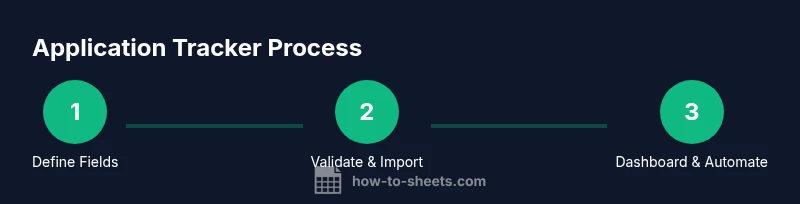
Create an application tracker in Google Sheets to manage job, school, or internship applications. You’ll define fields, import data, and build a simple dashboard. Essentials: a Google account, access to Google Sheets, and a reusable template. This guide walks you through a practical, scalable workflow suitable for individuals and teams.
Why an application tracker google sheets matters
According to How To Sheets, a well-structured application tracker in Google Sheets helps you stay organized, meet deadlines, and gain visibility into your job, school, or internship search. When you manage every submission in one place, you reduce the risk of missing follow-ups and duplicating efforts. A dedicated spreadsheet also lets you customize views for different stakeholders—for example, a personal progress board and a team-wide status report. This approach is practical for students juggling multiple applications, professionals coordinating with mentors, and small teams tracking outreach. By using Google Sheets, you gain accessibility, sharing controls, and version history—all critical for collaborative applications. The keyword here is consistency: a standardized template makes data entry faster and more reliable over time, and it scales with your needs as you add more applications in 2026 and beyond.
Define your data model: fields and structure
Before you build anything, decide which data you will collect. A lean data model keeps your tracker fast and easy to maintain. Start with core fields such as: Company/School, Role/Program, Source, Date Applied, Status, Next Follow-Up, Last Contact, Outcome, and Notes. Add optional fields for your context, like Location, Links, and Interview Type. For the application tracker google sheets, use a single row per submission and consistent column order. This consistency pays off when you run filters, summaries, or dashboards. Remember to keep your data clean and human-readable so you can quickly interpret results at a glance.
Create a starter template: columns, data validation, and templates
Set up your header row with clear labels and short, consistent values. Use data validation for statuses (e.g., Applied, Interviewing, Offer, Rejected) to minimize entry errors. Create a separate sheet tab for templates and another for dashboards. A starter template saves you time and ensures everyone on a team uses the same structure. If you’re new to Google Sheets, start with a minimal template and gradually add fields as you refine your process. This is where you’ll begin applying the application tracker google sheets strategy in practice.
Importing and maintaining data: quick import tips
If you’re migrating from another tracker or a CSV export, use File > Import to bring data into your sheet. Map each source column to your template columns, and set a rule to detect duplicates (e.g., same Company and Role). For ongoing use, prefer manual entry for new submissions but schedule regular imports from external systems (careers portals, email exports, or calendars) to keep your tracker up to date. Regular maintenance is easier when you have consistent column types and validated fields, reducing manual re-entry and errors. This approach aligns with the application tracker google sheets framework.
Automations and dashboards: turning data into insights
Turn raw entries into actionable insights with lightweight automations. Create filters to view applications by status, date, or company. Use conditional formatting to highlight overdue follow-ups and upcoming deadlines. Build a simple dashboard with key metrics like count by status, days since last contact, and upcoming follow-ups. Charts and pivot tables can help you visualize progress without overwhelming complexity. Based on How To Sheets Analysis, 2026, structured templates and consistent data entry improve efficiency and reduce manual re-entry, making dashboards reliable and easy to maintain. This is the power of the application tracker google sheets approach.
Collaboration, sharing, and version control
Google Sheets makes collaboration straightforward. Share with teammates or mentors, assigning view or edit permissions as needed. Protect critical columns (like status and dates) to prevent accidental edits, and use named ranges for dashboards to keep formulas readable. Maintain a version history to track changes and revert if necessary. When you share an application tracker google sheets workbook, communicate ownership and update cadence so everyone stays aligned. Clear guidelines help prevent chaos while maintaining flexibility for individual workflows.
Common pitfalls and optimization tips
The biggest traps are overcomplication and inconsistent data entry. Start simple, then layer in complexity as you gain confidence. Avoid free-text fields for statuses; instead, use drop-downs for consistent filtering. Regularly audit data for duplicates and format inconsistencies (dates, text case). Create a short onboarding guide for new users to reduce setup time. Finally, schedule periodic reviews (monthly or quarterly) to prune and refine the template so it remains relevant and efficient for your needs.
Tools & Materials
- Google account with access to Google Sheets(Needed to create, save, and share the tracker)
- Starter Google Sheets template for application tracking(Use the included starter template or create your own as a baseline)
- CSV or Excel import data (optional)(Helpful for migrating from another tracker)
- Data validation lists and conditional formatting rules(Provide prebuilt rules to speed setup)
Steps
Estimated time: 45-90 minutes
- 1
Open a new Google Sheet
Create a new workbook in Google Sheets and name it clearly, e.g., "Application Tracker – 2026". This establishes a fresh canvas for your data and prevents mixing with other projects. Start with a clean slate to ensure consistent structure from the first entry.
Tip: Pro tip: enable version history early to track changes as you customize fields. - 2
Define essential columns
Create a header row with core fields: Company, Role, Source, Date Applied, Status, Next Follow-Up, Last Contact, Outcome, and Notes. Use clear, short labels and consistent data types to simplify filtering and formulas.
Tip: Pro tip: keep the header row frozen for easy navigation while scrolling. - 3
Set up data validation for status
Add a drop-down list for Status (Applied, Interviewing, Offered, Rejected, Follow-Up). This ensures uniform entries and makes the dashboard reliable.
Tip: Pro tip: store the list in a separate sheet and reference it to keep changes centralized. - 4
Import existing applications (optional)
If you have a CSV or Excel export, use File > Import to pull data into your template. Map each column from the source to the corresponding field in your tracker to preserve structure.
Tip: Pro tip: deduplicate during import by checking exact Company + Role pairs. - 5
Create a simple dashboard sheet
Add a Dashboard tab with summary metrics: total applications, status distribution, and upcoming follow-ups. Use simple SUMIF/COUNTIF formulas and a few charts for quick visual insights.
Tip: Pro tip: link dashboard metrics to named ranges for easier maintenance. - 6
Add filters and conditional formatting
Enable filters for quick drill-downs (e.g., Status = Interviewing) and apply conditional formatting to highlight overdue follow-ups or recent activity.
Tip: Pro tip: create a separate sheet for highlight rules so you can reuse them across dashboards. - 7
Protect critical data
Lock important columns (Status, Date Applied, Next Follow-Up) to prevent accidental edits. Share with teammates using appropriate permissions and maintain a clean version history.
Tip: Pro tip: use protected ranges and a shared note on data governance. - 8
Test and iterate
Run a few test scenarios: add new entries, update statuses, and verify the dashboard reflects changes. Iterate on fields or visuals based on your workflow needs.
Tip: Pro tip: schedule a monthly review to prune outdated entries and refine fields. - 9
Document and train
Create a short guide or checklist for teammates to ensure consistent usage. Include examples of entries and a troubleshooting section.
Tip: Pro tip: store the guide in the same workbook as a hidden sheet for easy access.
FAQ
What is an application tracker in Google Sheets?
An application tracker in Google Sheets is a centralized workbook that records each submission, its status, and follow-up actions. It helps you stay organized, track progress, and meet deadlines across various applications.
An application tracker in Google Sheets is a central workbook that records each submission, its status, and follow-up actions to help you stay organized.
Which fields should I include in my tracker?
Core fields should include Company, Role, Source, Date Applied, Status, Next Follow-Up, Last Contact, Outcome, and Notes. You can add Location and Interview Type as needed for deeper context.
Include core fields such as company, role, source, dates, status, and follow-ups to keep the tracker informative and actionable.
How can I automate reminders from Google Sheets?
You can add reminders using Google Apps Script or built-in calendar integrations. Start with lightweight scripts to trigger email notifications for upcoming follow-ups.
Set up lightweight scripts or calendar reminders to alert you about upcoming follow-ups.
Can I share this tracker with teammates?
Yes. Share with appropriate permissions and protect critical columns. Use a version history to track changes and maintain accountability.
Yes, you can share with your team with proper access and protect key columns.
How do I import data from an existing source?
Use File > Import to bring in CSV or Excel data, then map columns to your tracker. Deduplicate based on company and role to avoid duplicates.
Import data from CSV or Excel and map columns carefully to avoid duplicates.
What about security and privacy?
Limit access to trusted users, avoid storing sensitive personal data in shared sheets, and regularly review permissions and protected ranges.
Limit access and protect sensitive fields to improve security.
Watch Video
The Essentials
- Define a minimal, consistent data model.
- Use validations to ensure clean data entry.
- Create a lightweight dashboard for quick insights.
- Protect critical fields when sharing.
- Iterate based on real usage and feedback.