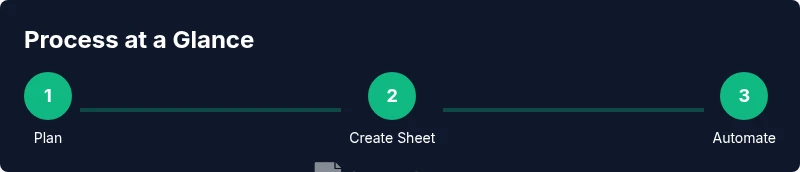
How to Make an Assignment Tracker in Google Sheets
Learn step-by-step how to create a practical assignment tracker in Google Sheets to manage tasks, due dates, and progress for students, professionals, and small teams.


By the end, you’ll have an assignment tracker in Google Sheets that records tasks, due dates, status, and notes. You’ll set up a simple data model, add data validation, apply conditional formatting, and build a compact dashboard. This step-by-step guide demonstrates a practical, scalable solution ideal for students, professionals, and small teams.
Why building an assignment tracker in Google Sheets matters
In education and professional settings, an assignment tracker helps you stay on top of deadlines, prioritize workloads, and share progress with mentors or teammates. The How To Sheets team analyzed practical templates and step-by-step approaches that minimize setup time while maximizing visibility. A well-constructed tracker reduces last-minute scrambling and supports accountability across students, freelancers, and small businesses. By centralizing tasks, due dates, and status, you gain a clear, actionable overview that scales from a single course to multiple projects.
According to How To Sheets, a reliable tracker is not just a list; it’s a living view that updates as tasks move from planned to completed. This article shows how to make an assignment tracker in Google Sheets that remains maintainable as you grow, whether you’re juggling coursework or client work.
A practical tracker also helps you spot bottlenecks early. When you can see overdue items at a glance, you can reallocate time or adjust priorities without scrambling at the last minute. The approach outlined here emphasizes clarity, consistency, and reusable components that reduce duplication and errors.
Define a robust data model
Choosing the right data model is the foundation. For an assignment tracker in Google Sheets, typical columns include Task, Course/Subject, Due Date, Status, Priority, Assigned To, and Notes. Optionally add Grade/Mark, Link, or Category. Normalize values with drop-downs and date formats to ensure consistent data and enable reliable filters. As you implement, consider future needs like reminders, cross-project views, or templates for different subjects. This structure supports both quick overviews and in-depth analysis, which is essential for students tracking multiple assignments and for teams managing several projects at once.
A well-designed model also helps with collaboration. By keeping a concise data dictionary (what each column means and acceptable values), new teammates can join without misinterpreting fields. This is especially important when you plan to share and loop in others for feedback or grading.
From a practical standpoint, start small: include core columns first, then add optional fields as you refine your workflow. You’ll be able to scale the tracker without disrupting the base data. In short, a solid data model reduces future rework and accelerates improvements.
To keep the system sustainable, use consistent naming conventions and a simple data dictionary that explains dropdown options, date formats, and status categories. Documenting decisions now saves time later when you or someone else updates the tracker.
Layout and formatting: headers, columns, and styles
Set up a clean layout by freezing the header row, using bold text for headers, and applying alternating row colors to improve readability. Create a column sequence like Task, Subject, Due Date, Status, Priority, Assigned To, and Notes. Use wrap text for long notes and adjust column widths so that essential fields are visible without scrolling. Apply number formats to dates and use text-only formats for names to keep filters accurate. Conditional formatting can color-code rows based on Status (e.g., Not Started in gray, In Progress in blue, Completed in green) and highlight overdue items in red. A well-styled sheet reduces cognitive load and makes it easier to scan for urgent tasks.
If you’re learning how to make an assignment tracker in google sheets, start by building a single sheet with the core columns and a sample row of data. Then, duplicate the sheet for templates (e.g., one per subject or project). This approach keeps your workspace organized while you test features before scaling.
Pro tip: consider using named ranges for key areas (header row, data range) so your formulas stay readable and robust when you add more rows. This practice also helps with data validation and dashboard connections. Keep the layout logical and predictable so anyone can pick it up quickly.
As you finalize the layout, test with real tasks and adjust the formatting rules to match your workflow. A consistent, well-structured layout is the backbone of an effective assignment tracker.
Build essential validations and formulas
Data validation ensures consistency. Create dropdowns for Status (Not Started, In Progress, Completed, On Hold) and Priority (Low, Medium, High). Date fields should accept only valid dates; consider a rule that prohibits past due dates for new assignments unless you’re retroactively entering tasks. Core formulas include COUNTIF to tally tasks by status, SUMIF to aggregate by category, and DATEDIF to compute days left until the due date. A simple IF formula can label overdue tasks automatically, which you can combine with conditional formatting for color cues. These pieces enable fast, reliable filtering and reporting without manual recalculation.
When you learn how to make an assignment tracker in google sheets, you’ll often use FILTER and UNIQUE to create dynamic views. For example, a “Today” view can show only tasks due today, while a “This Week” view aggregates upcoming items. If you want to track progress, a progress column can compute completion as a percentage of total tasks for a given scope. These elements together give you a functional, data-backed tracker rather than a static list.
Tip: set up a separate dashboard sheet that summarizes counts by status, upcoming due dates, and average days remaining. Dashboards turn raw data into insights and help you communicate progress at a glance.
Visualization and dashboard basics
A simple dashboard can dramatically improve how you monitor progress. Use sparklines to show trend lines for tasks completed over time, and place small charts (bar or donut) to visualize status distribution. A compact KPI area can display total tasks, overdue tasks, and percent complete. Keep charts lightweight and color-contrast friendly for readability. A well-designed dashboard provides at-a-glance insight without overwhelming the viewer.
To implement, create a separate Dashboard sheet and pull summary data from your task data using formulas like COUNTIF, SUMIF, and AVERAGEIF. Place key metrics near the top and keep drill-down sections below. If you’re sharing with teammates, ensure the dashboard remains readable for others and that filters don’t hide critical data from authorized viewers.
Note: sparklines and tiny charts are great for compact dashboards, but add a full chart if you need more details. The goal is to provide quick, actionable insights that you can act on immediately.
Collaboration, templates, and sharing tips
Google Sheets makes collaboration straightforward. When you’re ready to share your tracker, set permissions to editors only for those who should modify data, while allowing viewers to see results. Add comments to tasks that require clarification, and use version history to track changes over time. To scale your template, publish a clean start file with a documented data dictionary and a ready-made dashboard. This makes it easy for others to copy your setup and adapt it to their needs.
If you’re working with students or teammates, consider creating subject-specific templates or multi-project templates. A shared template reduces setup time and ensures consistency across teams. When sharing, provide a short guide on how to use the tracker, including definitions of statuses, how to interpret dashboards, and where to find the latest data.
Maintenance is essential. Periodically review dropdown lists, date formats, and filters to reflect evolving requirements. Establish a simple process for archiving completed tasks and refreshing dashboards so the tracker remains relevant over time.
Templates, backups, and long-term maintenance
To lock in a repeatable workflow, build and save a clean template version of your assignment tracker. Use a separate template sheet or a Google Drive folder dedicated to templates, and create a short checklist for new users. Regular backups help prevent data loss; enabled version history serves as an ongoing safety net. Establish a routine to review and prune outdated tasks, update status categories, and refine dashboard metrics as needed. By approaching maintenance proactively, you’ll keep the tracker valuable as your coursework or projects evolve.
Starting from a simple, reliable template makes it easier to scale to multiple classes or projects. As you gain experience, you can add more sophisticated views and automation, such as triggers that alert you to overdue items or shared reminders for collaborators. The result is a robust, maintainable system that stays useful over time.
Tools & Materials
- Google account with Google Sheets access(Required to create and edit sheets in your browser)
- Stable internet connection(Needed to save changes and access Google Drive)
- Optional: color palette + font choices(For consistent visuals across sections)
- Sample data for practice(A few tasks with due dates to test filters)
- Device with spreadsheet-ready display(Laptop, tablet, or desktop)
Steps
Estimated time: 60-90 minutes
- 1
Define scope and outputs
Decide what the tracker will cover (single course, project, or multiple subjects) and the key outputs (summary dashboard, exportable report). Clarify who will use it and what decisions it should support.
Tip: Write down 2–3 concrete goals for the tracker before you start. - 2
Create the sheet and set up headers
Open a new Google Sheet and create the core columns: Task, Subject, Due Date, Status, Priority, Assigned To, Notes. Freeze the header row so it stays visible as you scroll.
Tip: Use bold headers and left-align task descriptions for readability. - 3
Format and validate data
Apply date formatting for Due Date, set up dropdowns for Status and Priority, and lock important cells. Add a data dictionary if needed to keep values consistent across collaborators.
Tip: Prefer drop-downs over free text to enable reliable filters. - 4
Enter sample data
Populate a handful of rows with realistic tasks to test filters, formulas, and dashboard visuals. Include upcoming, due soon, and overdue items.
Tip: Include at least one overdue example to verify conditional formatting. - 5
Add essential formulas
Use COUNTIF to track status counts, SUMIF for category totals, and a simple IF with conditional formatting to flag overdue items. Consider a DATEDIF calculation to show days remaining.
Tip: Keep formulas in a separate tab or named ranges to keep the main sheet clean. - 6
Create a compact dashboard
On a new Dashboard sheet, pull KPI values from the data sheet (total tasks, overdue tasks, percent complete) and add sparklines or a small chart for trends.
Tip: Limit the dashboard to 6–8 visuals to preserve clarity. - 7
Plan sharing and access
Decide who can edit and who can view. Add a short usage guide and comments to capture questions or changes. Ensure all collaborators know where to find templates.
Tip: Protect core formulas to prevent accidental edits. - 8
Test, refine, and save the template
Review the tracker with a few users, gather feedback, and adjust columns, colors, and rules. Save a template version for future projects or classes.
Tip: Document the workflow so others can reuse it easily.
FAQ
What are essential columns for an assignment tracker?
Core columns typically include Task, Subject, Due Date, Status, Priority, and Notes. You can add Assigned To, Grade, and Category as needed. Keeping the data model lean helps maintain performance and clarity.
The essential columns are Task, Due Date, Status, Priority, and Notes, with Subject and Assigned To as optional enhancements.
How do I set due date reminders in Google Sheets?
Use conditional formatting to highlight near-due and overdue dates. For automation, you can use Google Apps Script to send reminders on a schedule, but this requires a bit of scripting. The core reminders come from visual cues in the sheet.
Highlight upcoming due dates with conditional formatting, and consider Apps Script if you need automated reminders.
Can I share my tracker with teammates and control access?
Yes. Google Sheets supports sharing with specific people and setting view-only or editing permissions. You can also add comments for context and track changes via version history.
Yes, you can share with teammates and choose who can edit.
How can I customize the tracker for different subjects?
Use a Subject column with dropdowns and filters, and create subject-specific views or dashboards. You can also duplicate the tracker and tailor each copy for a different class or project.
Create subject filters and dashboards for each topic.
What are common mistakes when building trackers?
Overcomplicating with too many columns, inconsistent data formats, and failing to protect critical formulas. Start simple and iterate.
Common mistakes include too many fields and inconsistent data.
Is there a ready-made template I can start with?
Yes, Google Sheets offers templates and a gallery; you can start with a basic task-tracking template and customize it to fit your workflow.
There are templates you can adapt.
Watch Video
The Essentials
- Define a lean data model to support growth
- Use data validation to maintain data quality
- Build a compact dashboard for quick insight
- Share templates to scale the workflow
- Maintain the tracker with regular reviews and backups