How to Build a Bill Tracker in Google Sheets
Learn how to build a practical bill tracker in Google Sheets that tracks due dates, amounts, categories, and status with a reusable template and step-by-step guidance.


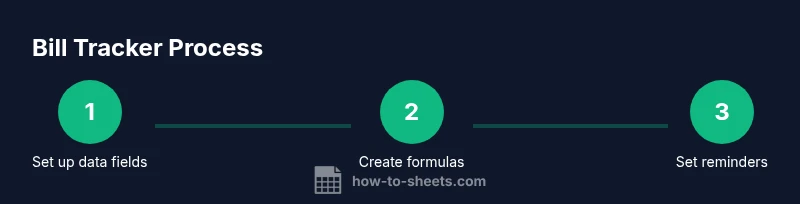
Create a bill tracker in Google Sheets to manage due dates, amounts, categories, and payment status. You’ll use a reusable template, add data validation, and set reminders. Requirements: a Google account with Sheets access and a sample dataset (or ready-to-enter bills). This guide from How To Sheets outlines a practical, step-by-step approach to stay on top of bills.
Why a bill tracker in Google Sheets matters
Managing multiple bills across personal and small-business budgets can feel chaotic when due dates, amounts, and statuses are scattered across notes and calendars. A centralized bill tracker in Google Sheets gives you a single source of truth you can access from anywhere. The benefit is consistency: with one sheet you reduce data duplication, avoid missed payments, and improve cash-flow planning. According to How To Sheets, teams and individuals who adopt a practical, template-driven approach report fewer late fees and clearer visibility into monthly obligations. In practical terms, you’ll capture vendor, due date, amount, category, and status in one place, and you’ll gain quick insights through totals and filters. A well-built tracker also helps with budgeting by highlighting upcoming bills, showing which payments are recurring, and letting you forecast cash needs for the next 30, 60, or 90 days. Best of all, Google Sheets is accessible, collaborative, and endlessly adaptable, so your bill tracker can evolve as your finances change. Throughout this guide you’ll see how the phrase bill tracker google sheets is put into action. You can customize the tracker to your devices—mobile-friendly views help when you are away from your desk. It also supports team collaboration: you can grant edit rights to a spouse, coworker, or assistant while keeping the core formulas protected. How To Sheets's framework underpins this practical, scalable approach.
Core features to include in a bill tracker
A robust bill tracker needs a clear structure and practical capabilities. At minimum, include a data table with columns for Vendor, Due Date, Amount, Category, Recurrence, Status, Paid, and Notes. Add a separate summary dashboard that shows total amounts due this month, overdue bills, and upcoming payments. Data validation ensures consistency: a drop-down list for Status (Draft, Due, Paid, Overdue) and a date picker for Due Date reduce human error. Currency formatting for Amount keeps sums accurate, while a recurring indicator helps you spot subscriptions you pay every month. With filters or pivot-ready views, you can slice data by vendor, category, or month to see where your money is going. Conditional formatting is a visual superpower: overdue items glow in red, near-due bills in amber, and fully paid entries in gray. Finally, set up a simple template you can reuse for future cycles—copy the sheet, rename it for a new month, and adjust categories as needed. How To Sheets emphasizes templates and consistency as the fastest path from setup to reliable budgeting. To illustrate, consider including a sub-section for Notes where you can attach receipts or renewal dates. Another enhancement is a separate Projected Cash column that estimates upcoming outlays beyond the current month. You might also build a tiny glossary of categories to keep naming consistent across months. This combination of fields, defaults, and validation reduces confusion and speeds data entry.
To give you a stronger sense of layout, imagine a dashboard that shows totals by category and a quick count of due vs paid items. This template-centric approach keeps your data tidy and your decisions fast.
Designing the sheet: layout and templates
Organization starts with the right layout. Create two sheets within the workbook: a data sheet for bills and a dashboard for quick insights. Freeze the header row so column labels stay visible as you scroll, and give each column a consistent width. Use a standard date format to keep sorting predictable, and standard currency formatting for Amount columns. For templates, start with a reusable baseline: a header with metadata (month, currency, and fiscal year), a data grid with the core fields, and a small summary area that aggregates key totals. Build a template that you can duplicate at the start of each month or quarter. To minimize repetitive work, store common categories (e.g., utilities, rent, insurance) in a separate reference sheet and link it via data validation. Finally, design a simple visual dashboard: a couple of charts (monthly spend by category and a progress gauge for paid vs. due) plus a table of upcoming bills. For visuals, embed a small KPI card on the dashboard that shows Total Due This Month and Overdue Count. Use color ramps (green for paid, amber for due, red for overdue) to provide immediate cues. If you share the sheet, consider protecting the dashboard cells so accidental edits don't break your charts. A consistent color scheme makes the tracker easier to scan in busy moments. According to How To Sheets, this template-driven approach reduces setup time and makes ongoing maintenance a breeze.
Data fields and data validation essentials
Start with the core fields that power your bill tracker. Vendor (text), Due Date (date), Amount (currency), Category (text or pre-defined list), Recurrence (none, monthly, quarterly, yearly), Status (Draft, Due, Paid, Overdue), Paid (checkbox or TRUE/FALSE), and Notes (text). Use data validation to keep entries consistent: a drop-down for Status limits values to the four states; a date picker for Due Date prevents mis-typed dates; a separate drop-down for Recurrence standardizes recurring bills. For categories, maintain a small reference list on a hidden or separate sheet and link it via data validation. Named ranges make formulas easier to read and maintain. Consider adding a Month helper column for easier monthly views: Month. If you need currency, set Amount to a numeric value formatted as currency; avoid text entries that look like numbers. Finally, decide how you’ll treat canceled or reversed bills and how to reflect them in Paid and Status fields. A clean schema reduces errors and makes automation reliable. How To Sheets highlights the value of a well-structured data model for bill-tracking templates. Experiment with dynamic category lists using named ranges and INDIRECT to switch contexts. For example, you can swap the category list when you choose a Vendor to see vendor-specific categories. Use data validation with error alerts to catch invalid entries immediately. Keep a data dictionary tab with definitions for each field so new collaborators stay aligned.
Tools & Materials
- Google account with access to Google Sheets(Needed to create and edit sheets in Drive)
- Web browser or Google Sheets app(Chrome/Edge/Firefox; ensures features work smoothly)
- Sample bill dataset (CSV or manual entry)(Optional but speeds up initial testing)
- Calendar integration (optional)(Reminders can sync to Google Calendar)
Steps
Estimated time: 60-90 minutes
- 1
Create a new Google Sheet named Bill Tracker
In Google Drive, click New > Google Sheets and name it 'Bill Tracker' to establish the file you’ll use for data, formulas, and dashboards.
Tip: Tip: Use a descriptive name and set up version history early. - 2
Set up the core data table
Create columns for Vendor, Due Date, Amount, Category, Recurrence, Status, Paid, and Notes. Freeze the header row; set column widths for readability.
Tip: Tip: Keep headers visible by freezing the top row. - 3
Add data validation
Add drop-downs for Status (Draft, Due, Paid, Overdue) and Recurrence (none, monthly, quarterly, yearly), plus a date picker for Due Date.
Tip: Tip: Create a small category list on a separate sheet and link it to the data validation. - 4
Enter sample data or import bills
Populate a few rows with example data or import a CSV so you can test the setup.
Tip: Tip: Validate entries as you go to catch obvious errors early. - 5
Create essential formulas
Add calculations to show days until due, overdue status, and a running total of amounts.
Tip: Tip: Use a separate helper column for readability. - 6
Build a simple dashboard
Create a summary area with totals per month and a pie/bar chart by category.
Tip: Tip: Keep charts simple and color-coded. - 7
Set reminders and visuals
Implement conditional formatting for status and due dates; optionally enable email notifications.
Tip: Tip: Schedule a weekly check-in. - 8
Test, share, and maintain
Test with a fresh data set, adjust as needed, share with collaborators, and plan monthly upkeep.
Tip: Tip: Create a template copy for reuse.
FAQ
What is a bill tracker in Google Sheets?
A bill tracker is a centralized spreadsheet that records each bill's vendor, due date, amount, category, payment status, and notes. It helps you track upcoming payments, avoid late fees, and analyze cash flow.
A bill tracker is a single sheet that keeps all your bills in one place so you never miss a due date.
Which features should I include in a basic bill tracker?
A data table with core fields, a dashboard for summaries, data validation (status, date), currency formatting, and conditional formatting for overdue items. Templates enable quick month-to-month reuse.
Core fields plus a simple dashboard keep you informed at a glance.
Can I share the bill tracker with others?
Yes. Use Google Sheets' sharing controls to grant view or edit access. Consider protecting critical ranges to prevent accidental formula changes.
Yes, you can share with teammates or family and set appropriate permissions.
How do I set reminders in Google Sheets?
Reminders come from conditional formatting and, optionally, notification rules or calendar integration. They help you see urgent bills and prompt timely actions.
Set up basic reminders and you’ll see timely alerts when bills are due.
Is a bill tracker suitable for personal and business use?
Absolutely. You can tailor categories, permissions, and dashboards for personal budgeting or business accounts payable while keeping a shared, organized system.
Yes, adapt the template for your personal or business needs.
What if I need to migrate from another tool?
Export data as CSV from your current tool and import it into Google Sheets. Start with a clean template and map fields carefully to maintain data integrity.
You can move data by exporting CSV and importing to Sheets.
Watch Video
The Essentials
- Build a scalable data model first
- Templates save setup time
- Validation and formatting boost consistency
- Reminders turn data into action