Google Sheets Bill Tracker: Step-by-Step Guide (2026)
Build a practical Google Sheets bill tracker to manage due dates, amounts, and reminders. This guide covers data modeling, formulas, dashboards, and templates you can customize for personal finances or small business use.


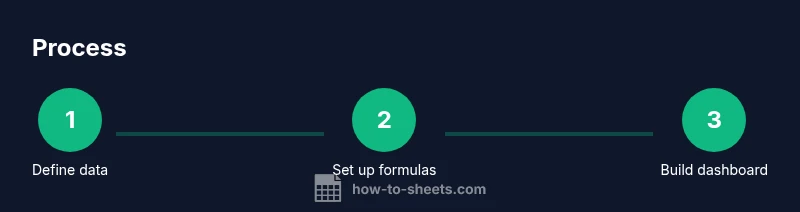
You will build a Google Sheets bill tracker to manage due dates, amounts, statuses, and reminders. It uses a simple data model, essential formulas, and a dashboard for at-a-glance cash flow. You’ll set up categories, conditional formatting, and automatic alerts so you never miss a payment. This guide provides a practical, reusable template.
What a Google Sheets bill tracker does for you
A Google Sheets bill tracker helps you organize upcoming payments, track amounts, due dates, and payment status in one place. By structuring data clearly, you reduce late payments, improve cash flow visibility, and simplify reporting for personal finances or small businesses. With a tracker, you can quickly see what is due this week, what’s already paid, and what needs attention. You can also customize categories, apply conditional formatting, and share the sheet with teammates for collaboration.
Key data model: what to track
A practical tracker starts with a clean data model. Define fields for each bill and use consistent data types. Suggested columns include: Bill name, Vendor, Due Date, Amount, Paid (TRUE/FALSE), Recurrence (monthly, quarterly, yearly), Category (Rent, Utilities, Subscriptions, etc.), Reminder date, Status, and Invoice Link. Use data validation to constrain Category and Status, and format currency and dates uniformly to keep calculations accurate. Keeping data consistent makes reporting reliable and automations easier to implement.
Setting up your sheet: an outline
Plan your workbook with three logical tabs: Data, Dashboard, Settings. In Data, set up a header row and data validation rules. In Dashboard, prepare visual summaries and charts. In Settings, define constants (e.g., currency, reminder offset) and data validation lists. Freeze the header row and keep a clean, readable layout to support quick scanning. This structure mirrors common budgeting workflows and scales as your bill list grows.
Step-by-step core formulas for tracking
This section provides practical formulas you can copy into your sheet. For example, to sum upcoming bills due within the next 30 days: =SUMIFS(Data!D:D, Data!C:C, ">="&TODAY(), Data!C:C, "<="&TODAY()+30, Data!E:E, FALSE). To count overdue bills: =COUNTIFS(Data!C:C, "<"&TODAY(), Data!E:E, FALSE). For a status lookup by bill name: =VLOOKUP(A2, Categories!A:B, 2, FALSE). Use conditional formatting to highlight due dates that are near or overdue, and format the Paid column to show a checkmark for TRUE and a cross for FALSE.
Automations and reminders: keeping on track
Rely on built‑in features first. Use conditional formatting to flag upcoming or overdue bills, and set a reminder date column to trigger human follow-ups. If you need more, lightweight automation options include Google Apps Script or add‑ons for email or calendar reminders. Start with manual reminders and grow to automation as your data stabilizes.
Building a simple dashboard: insights at a glance
The Dashboard tab should present at-a-glance metrics without requiring you to scroll through the Data sheet. Include cards for Total Due This Week, Overdue Bills, and Paid vs Unpaid. Use charts to show expenses by Vendor or by Category over time. Keep the dashboard focused on a few key metrics to prevent cognitive overload. Link charts to the Data sheet with dynamic ranges so the visuals stay current as you add new bills.
Templates and sample sheets you can customize
To speed up adoption, start from a clean template. A minimal example includes these headers in Data: Bill, Vendor, Due Date, Amount, Paid, Recurrence, Category, Reminder, Status, Invoice Link. A sample row might be: Rent, Landlord, 2026-02-01, 1200, FALSE, Monthly, Housing, 2026-01-25, Open, https://... . Such templates are easy to customize for personal budgets or small business finances. Save versions for different departments or months.
Authority sources and best practices
For broader budgeting practices and trustworthy guidelines, consult authoritative sources such as government and major publications. See CFPB guidance on personal finance tracking and general budgeting tips, Harvard Business Review articles on dashboard design and data literacy, and Investopedia resources on budgeting math. These sources provide context to your tracker design and help you structure data responsibly. Helpful references include:
- https://www.consumerfinance.gov/
- https://hbr.org/
- https://www.investopedia.com/
Common pitfalls and how to avoid them
Common mistakes include inconsistent data entry, failing to update data after payments, and overcomplicating the sheet with too many formulas. Avoid by establishing entry rules, using templates, validating inputs, and setting a quarterly data review. Also ensure you have a backup plan and a clear ownership policy when sharing with teammates.
How to scale your tracker for teams
When working with others, consider permissions and governance. Use Protected ranges to prevent accidental edits, and create a lightweight change log. Use a single source of truth (Data tab) and derive all charts and dashboards from it. Regularly audit formulas and update reminders to reflect changing budgets and cycles.
Tools & Materials
- Google Sheets (web or mobile)(Access to a Google account and a new or existing spreadsheet.)
- Device with internet(Desktop or laptop preferred for dashboard setup.)
- Sample bill data(CSV or manual entry for initial population.)
- Data entry guidelines(A simple rule set to keep fields consistent.)
- Reminders/Notifications(Optional; for alerts via email/calendar.)
- Invoices/receipts links(Optional; for reference.)
Steps
Estimated time: 1-2 hours
- 1
Create a new Google Sheet and set up tabs
Open Google Sheets, create 'Data', 'Dashboard', and 'Settings' tabs. Use a clean header row and freeze the header for easy reading. This structure keeps data separate from visuals.
Tip: Use a consistent tab order so formulas across sheets don’t break. - 2
Define the header row and data validation
Enter headers like Bill, Vendor, Due Date, Amount, Paid, Recurrence, Category, Reminder, Status, Invoice Link. Add data validation for columns like Due Date (date) and Paid (TRUE/FALSE).
Tip: Use drop-down lists to prevent typos in Category and Status. - 3
Enter or import initial bill data
Populate the Data sheet with your existing bills or import from a CSV. Verify dates are correct and amounts are numeric. Keep a small sample before expanding.
Tip: Double-check currency formatting and date formats for consistency. - 4
Add formulas to track totals and due dates
Create calculated columns or a separate summary to show overdue counts (COUNTIF) and upcoming totals (SUMIF). Link Due Date to Dashboard for dynamic visuals.
Tip: Test formulas with sample data before adding more rows. - 5
Build a simple dashboard with key metrics
In the Dashboard tab, add cards for Total Due This Week, Overdue Bills, and Paid vs Unpaid. Use charts to visualize by vendor or category over time.
Tip: Keep visuals simple; avoid clutter to preserve readability. - 6
Apply conditional formatting for due dates
Highlight rows where Due Date is within 7 days or is overdue, and where Paid is FALSE. This creates a quick visual cue at a glance.
Tip: Set rules to avoid false positives by double-checking the Paid column. - 7
Configure reminders and automation
Use built-in features to flag reminders and explore optional Apps Script or add-ons for email/calendar alerts. Keep it lightweight to avoid maintenance headaches.
Tip: Start with manual reminders before adding scripts. - 8
Share, review, and maintain the tracker
Share the sheet with teammates, set appropriate permissions, and establish a review cadence. Regular maintenance ensures accuracy and usefulness.
Tip: Create a simple maintenance checklist and assign responsibilities.
FAQ
How do I automatically flag overdue bills in Google Sheets?
Use a conditional formatting rule comparing the due date to TODAY() and Paid status. For example, format the Due Date column red when the date is past today and Paid is FALSE. Combine with a simple IF to display an 'Overdue' status.
You can automatically highlight overdue bills using conditional formatting based on the due date and paid status.
Can I share the bill tracker with teammates without giving edit access?
Yes. Use Google Sheets sharing settings to assign Viewer or Commenter roles. To protect data, use protected ranges and only grant edit rights to trusted users.
Yes, you can control who can edit by using Google Sheets sharing options and protected ranges.
How can I import existing bills into the tracker?
Import your bills from CSV or copy-paste into the Data sheet. Make sure the column order matches your headers and adjust data types (date, currency) as needed.
Import your data from CSV, ensuring proper column alignment and data types.
What about recurring bills?
Add a Recurrence column (e.g., monthly, quarterly) and set up reminders accordingly. For automation, consider Apps Script or a lightweight add-on.
Recurring bills can be labeled and reminded automatically with simple rules or scripts.
Do I need Apps Script to automate everything?
No. You can achieve many tasks with built-in features like formulas, conditional formatting, and data validation. Apps Script is optional for advanced automation.
Apps Script is optional; build with sheets features first.
Watch Video
The Essentials
- Define a clear data model with essential fields.
- Use SUMIF/SUMIFS for totals and COUNTIF for counts.
- Apply conditional formatting for due dates.
- Create a dashboard for at-a-glance insights.
- Share with teammates using protected ranges and notes.