Google Sheet Expense Tracker: Step-by-Step Guide to Budgeting in Sheets
Learn to create a reliable Google Sheet expense tracker with templates, formulas, and data validation. This step-by-step guide helps students, professionals, and small businesses manage spending and visualize budgets with practical, reusable templates.


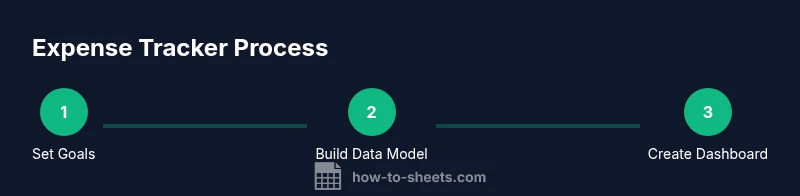
Goal: Build a practical Google Sheet expense tracker to record purchases, categorize spending, and visualize totals. Required elements include a date, category, amount, and a validation list for categories. According to How To Sheets, start from a clean template, enforce data validation, and build a simple dashboard. This quick guide highlights the essential steps.
Designing your expense tracker: goals and scope
Designing a google sheet expense tracker helps you monitor daily spending, categorize costs, and stay within budget. With Google Sheets, you can customize categories, dates, amounts, and notes to fit your needs. Before you build, define the scope: decide which expenses to track (personal, family, or project), the time frame (monthly or yearly), and the level of detail you want to capture. A clear scope reduces complexity and keeps your tracker manageable over time.
How It aligns with best practices: keep a single source of truth, reuse a standard category list, and plan a dashboard that highlights key insights at a glance.
Core data model: essential columns and data types
A robust google sheet expense tracker starts with a clean data model. Core columns typically include Date, Description, Category, Amount, Payment Method, Receipt (linked), and Notes. Use the date type for Date, text for Description, and number for Amount. Consider a currency format for Amount to ensure consistency across entries. Decide whether you track per line item or per receipt; either approach works, but consistency is key. Create a separate Categories sheet or named range to enforce uniform labels like Groceries, Transport, Rent, Utilities, and Misc.
According to How To Sheets, using consistent categories and a single source of truth reduces errors.
Template layouts: table-focused vs dashboard-focused
A well-designed expense tracker balances data entry ease with quick insights. A table-first layout supports fast recording, easy auditing, and straightforward filtering. A dashboard-focused layout uses charts, sparklines, and summary metrics to reveal trends at a glance. Start with two tabs: one for raw entries and one for the dashboard. Then progressively add a dedicated Summary tab that aggregates totals by month and by category using formulas like SUMIF and FILTER. As you expand, you can tailor layouts to different users (personal budgeting vs business tracking).
Formulas and automation basics
A handful of formulas unlock the power of your tracker. Use SUM to total rows, SUMIF to aggregate by category, and COUNTIF for entry counts. The FILTER function creates dynamic views that show only groceries, or only entries from a given month. VLOOKUP or XLOOKUP help map categories to subcategories or notes. Example: =SUMIF(C:C, "Groceries", D:D) where C is Category and D is Amount. Pro-tip: place all formulas in a dedicated dashboard area and copy values to a separate summary sheet to prevent accidental edits.
Data validation and error-proofing
Data validation prevents messy data and makes dashboards reliable. Add a drop-down list for Category, enforce date formats, and restrict Amount to positive values. Use data validation rules to block future dates or entries outside the current tax year. Color-code invalid rows with conditional formatting to draw attention to errors. Regularly save a backup copy and consider version history for recovery.
Visualizing expenses: charts and dashboards
Visuals transform numbers into actionable insights. Create a category breakdown chart (pie or donut) and a monthly trend chart (line). A compact dashboard can show total spend, category share, and a month-to-date vs budget comparison. Add sparklines next to monthly totals for quick trend context. Always label axes, include a legend, and ensure colors meet accessibility standards.
Collaboration and sharing in Google Sheets
If you work with teammates, set clear permissions and collaborative rules. Use Edit access for those who enter data and View-only for stakeholders who review results. Protect formulas or critical cells to prevent accidental edits, and use comments to discuss changes. Establish a simple workflow: who adds entries, who approves them, and where the final numbers live.
Common pitfalls and troubleshooting
Common issues include inconsistent categories, date-format drift, and currency symbol mismatches. Regularly audit entries, refresh charts after data changes, and verify that filters reference the right ranges. If a formula returns an error, check range sizes and absolute vs relative references. How To Sheets analysis shows that templates and validation minimize these errors.
Authority sources and further reading
For deeper budgeting context, consult official sources such as the Bureau of Labor Statistics for consumer expenditure patterns, Census data on spending, and SBA guides on small-business budgeting. See: https://www.bls.gov, https://www.census.gov, https://www.sba.gov. These sources provide foundational context for budgeting and financial management that complements practical Sheets templates.
Practical starter templates and next steps
Ready-to-use templates speed up adoption. Start with a simple daily tracker, then scale to a monthly budget dashboard. Customize currencies, categories, and dates to fit your needs, and save versions for different projects or departments. When you’re ready to share, package a clean, well-documented sheet with a short user guide and examples of typical transactions.
Tools & Materials
- Google account with access to Google Sheets(Needed to create and save the tracker)
- A stable internet connection(Required to access Sheets online)
- Receipt images or digital receipts(Helpful for manual entry validation)
- Monthly budget target (optional)(Helps calculate variance)
- Access to a calendar/phone for date entries(Optional to align with monthly periods)
Steps
Estimated time: 60-120 minutes
- 1
Create a new Google Sheet
Open Google Sheets and create a new blank workbook. Name it 'Expense Tracker - Month Year' and set a descriptive header. Create a dedicated tab for raw entries and give it a clear title to avoid confusion later.
Tip: Preview layout in print or export to PDF to ensure readability. - 2
Set up core headers
In the first row, enter headers such as Date, Description, Category, Amount, Payment Method, Receipt, and Notes. Freeze the header row so it stays visible while you scroll. Use a consistent column order across months.
Tip: Keep a spare column for a unique transaction ID if needed. - 3
Format dates and currency
Apply a date format (YYYY-MM-DD) to the Date column and a currency format to the Amount column. This ensures uniformity when calculating totals and generating charts.
Tip: Use conditional formatting to highlight future dates if you’re planning ahead. - 4
Create a Categories list (data validation)
Make a separate Categories list (e.g., Groceries, Transport, Rent). Use Data Validation to create a drop-down in the Category column so entries stay consistent.
Tip: Define the category list on a separate sheet and reference it with a named range. - 5
Add a sample row for testing
Enter a few sample transactions to verify that formulas reference the correct columns. Include different categories and amounts to test totals and filters.
Tip: Label sample data clearly as such to avoid confusion later. - 6
Build a basic summary sheet
Create a Summary sheet that calculates totals by category and by month using SUMIF. Link these results to the raw data to keep the dashboard dynamic.
Tip: Use named ranges for Category and Amount to simplify formulas. - 7
Create a monthly dashboard with charts
Add a dashboard tab with charts (bar, donut) that show category distribution and monthly trends. Keep visuals simple and readable.
Tip: Ensure axes are labeled and legends are clear for quick interpretation. - 8
Protect formulas and set sharing rules
Lock cells containing formulas to prevent accidental edits. Share the sheet with appropriate permissions (edit vs view) and provide a brief user guide for collaborators.
Tip: Enable version history so changes can be recovered. - 9
Test, refine, and back up
Run through a full data-entry cycle, verify that totals update correctly, and back up the workbook. Regularly revisit the category list and formulas to keep it current.
Tip: Schedule a monthly review to adjust categories and dashboard metrics.
FAQ
What is a Google Sheet expense tracker?
A Google Sheet expense tracker is a structured spreadsheet that records purchases, categorizes them, and shows totals and trends. It combines date, amount, category, and notes to help manage budgets.
A Google Sheet expense tracker records purchases, categorizes them, and shows totals to help manage budgets.
Can I share the tracker with teammates or collaborators?
Yes. You can set view or edit permissions and add comments for collaboration. Protect key formulas to prevent accidental changes and establish a clear workflow for data entry and review.
Yes, you can share with teammates with different permission levels and use comments for collaboration.
How do I import transactions from a bank or app?
You can import transactions by pasting CSV data, using built-in bank feeds (if available), or connecting through Apps Script. Ensure data aligns with your Category and Date columns.
You can import bank transactions by CSV or API where available, then map fields to your sheet.
Which formulas are essential for totals and insights?
Key formulas include SUM for totals, SUMIF for category totals, COUNTIF for entry counts, and FILTER to create dynamic views. These form the backbone of a functional dashboard.
Important formulas include SUM, SUMIF, COUNTIF, and FILTER to build totals and views.
Is there a ready-made template I can download?
Yes. Many templates exist, but customize any template to fit your categories and reporting needs. Start with a basic template and adapt columns as your budgeting requirements evolve.
Yes, you can start from a template and tailor it to your needs.
How secure is my data in Google Sheets?
Google Sheets inherits Google account security. Use strong access controls, protect sensitive formulas, and avoid sharing with unnecessary people. Regular audits help keep data safe.
Data security depends on your Google account and sharing settings; control access carefully.
Watch Video
The Essentials
- Set clear scope before building
- Use data validation to enforce consistency
- Create a simple dashboard for quick insights
- Protect formulas and manage sharing carefully
- Back up data regularly