Google Expense Tracker in Sheets: Step-by-Step Guide
Learn to build a google expense tracker in Google Sheets, log purchases, categorize expenses, and generate monthly summaries with templates and formulas. Practical for students, professionals, and small businesses.


Create a practical google expense tracker in Google Sheets to log purchases, categorize expenses, and generate monthly summaries. This guide shows how to structure a sheet, apply formulas, and build a simple dashboard. You’ll need a Google account, a basic budget template, and a plan to classify entries by date, amount, category, and method.
What is a google expense tracker and why use it
A google expense tracker is an organized system for recording every purchase, recurring bill, or cash transaction. In Google Sheets, a google expense tracker lets you log date, description, amount, category, payment method, and receipts, then summarize spending by week, month, or category. According to How To Sheets, a well-structured tracker reduces spending leakage by giving you real-time visibility into where money goes. For students, professionals, and small business owners, it’s a flexible, low-cost alternative to proprietary apps. The key benefits include improved accuracy, audit trails, and the ability to tailor the template to your exact needs (e.g., project budgets or department expenses). The phrase google expense tracker often appears in practical templates because it signals a single source of truth for all spending data, synced with your Google account. You can access your tracker from any device, share with teammates, and preserve historical data for longer timeframes. In short, the goal is to replace scattered receipts with a single, auditable ledger that supports decision-making.
Core features of a good google expense tracker
A strong google expense tracker should include clear date fields, a concise description, a fixed amount column, and a category drop-down to ensure consistency. Look for a template that supports multiple currencies, receipts notes, and a payment method column (card, cash, digital wallet). Dashboards with monthly totals and category breakdowns help users see where money goes at a glance. As you scale, you’ll want filters for date ranges, project codes, and department budgets. How To Sheets emphasizes maintaining a consistent taxonomy to avoid misclassification, which is critical for accurate reporting and easy auditing. A well-designed tracker also supports data validation, audit trails, and export options for sharing with stakeholders.
Designing a robust template: layout and data structure
Start with a clean, columnar layout that mirrors typical transactions: Date, Description, Category, Amount, Tax (optional), Currency, Payment Method, Receipt (link or note), and a running Balance column if you need a personal cash ledger. Use named ranges for categories and dynamic data validation to keep entries uniform. Create a separate sheet for a monthly summary or dashboard that uses SUMIF, FILTER, and QUERY formulas to consolidate data. This structure lets you add new expenses without breaking formulas and makes it simple to copy the template for new months or different teams.
Automations with Sheets formulas and features
Automate common tasks to save time and reduce errors. Use data validation to enforce consistent dates and categories, and apply conditional formatting to highlight unusual spend. Core formulas to master include SUMIF for monthly totals, COUNTIF for transaction counts, and VLOOKUP or XLOOKUP for category metadata. For a scalable solution, build a small dashboard using pivot tables or QUERY-based summaries to show top categories, trends, and cash vs. card spending. Connecting a receipt image via a note or link keeps the sheet compact while preserving evidence of expenses.
Starter templates, examples, and customization
Templates are your fastest path to a usable google expense tracker. Start with a basic template and tailor it to your needs—add or remove columns, adjust categories, and set currency defaults. Examples include a family budget tracker, a student project budget, or a small business expense ledger. Customization tips: create a separate sheet for annual totals, implement a quarterly review view, and add a tips column to capture notes about each expense. A well-curated starter template reduces setup time and ensures consistency across months and users.
Validation, receipts, and error-proofing
Data quality is essential for reliable expense tracking. Use data validation for dates, amounts, and the category field to prevent typos. Attach receipts either as image links or embedded metadata to keep audit trails intact. Implement a simple review step where a designated person marks entries as approved or flagged for review. Regularly back up your sheet to Google Drive and consider version history checks to revert unwanted changes. The aim is to minimize manual corrections and improve confidence in your reports.
Privacy, sharing considerations
Expense data can be sensitive; manage access with Google Sheets sharing settings. Grant view-only access to teammates who don’t need to edit and reserve editing rights for those responsible for input and reconciliation. If you’re using a shared company template, establish a data governance policy that defines who can view, edit, or export data. Avoid leaving devices unlocked and consider enabling two-factor authentication for added security. Summary: balance collaboration with protection of personal and financial information.
Tools & Materials
- Google account with Google Drive access(Needed to access Google Sheets and save templates.)
- Device with internet access (computer or mobile)(For creating, editing, and sharing the expense tracker.)
- Google Sheets(Open a new or existing sheet to host the tracker.)
- Starter expense-tracker template(A ready-to-use sheet with columns for date, description, category, amount, and more.)
- Predefined expense categories(A fixed list to ensure consistency (e.g., Travel, Meals, Office).)
- Receipt capture method(Optional if you want to attach receipts as images or links.)
Steps
Estimated time: 60-90 minutes
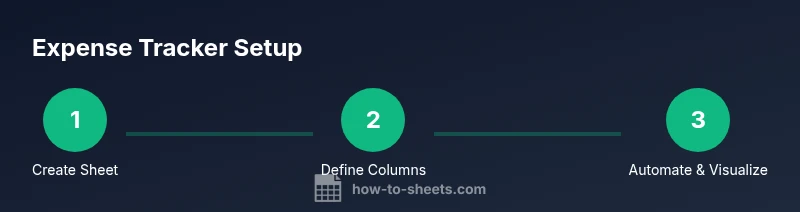
- 1
Create a new Google Sheet
Open Google Drive, click New > Google Sheets, and name the file clearly (e.g., Personal Expenses 2026). This establishes your working document and ensures easy sharing. Set a base currency in a header row for consistency.
Tip: Use a descriptive name with the month and year to keep versions distinct. - 2
Define core columns
Create columns for Date, Description, Category, Amount, Tax, Currency, Payment Method, Receipt, and Notes. Freeze the header row so you always know what each column represents, and format the Date column for uniformity.
Tip: Apply data validation to Category to enforce a fixed list and prevent typos. - 3
Set up category data validation
Enter your category list on a separate sheet (Categories!) and reference it in the data validation rule for the Category column. This ensures consistency across all entries and simplifies filtering.
Tip: Keep the category list concise and group similar items under parent categories. - 4
Enter sample transactions
Add 6–10 example rows to test layout, formulas, and dashboard visuals. Include a mix of card and cash payments to reflect real-life spending patterns. Verify date formatting and currency consistency.
Tip: Use a few recurring expenses to confirm the template captures habitual costs. - 5
Create running totals and monthly summaries
Add SUMIF formulas to compute monthly totals by category. Build a separate sheet or section that uses QUERY or FILTER to display totals by month. This creates a quick financial snapshot.
Tip: Label your months clearly and test across year boundaries to ensure accuracy. - 6
Build a simple dashboard with charts
Insert charts for top categories, monthly trends, and payment method mix. Use Pivot Tables or a charting array to visualize the most important metrics at a glance.
Tip: Choose chart types that communicate trends (bar charts for totals, line charts for trends). - 7
Share and protect your sheet
Set sharing permissions, enable view-only access where appropriate, and appoint a data steward for reconciliation. Review sharing access periodically to protect sensitive information.
Tip: Enable two-factor authentication on your Google account for extra security.
FAQ
What is a google expense tracker in Sheets?
A google expense tracker in Sheets is a structured ledger that records your purchases, categorizes them, and summarizes spending over time. It uses Sheets as the data store and can include templates, formulas, and dashboards to simplify budgeting.
A Google expense tracker in Sheets is a ledger in Google Sheets that records and groups your spending for easy budgeting.
Can I share my expense tracker with teammates?
Yes. Use Google Sheets sharing settings to grant view or edit access. For sensitive data, limit editors and enable access controls. Regularly audit who has access.
Yes, you can share it, but control who can edit and review access regularly.
How do I automatically categorize expenses?
Set up a fixed Category list and apply data validation. You can also use simple lookup formulas to map keywords from Description to a category. This reduces manual tagging.
Use a preset category list and mappings to automate categorization where possible.
Is it possible to export data to CSV or Excel?
Yes. Google Sheets allows exporting to CSV or Excel formats from the File menu. This is useful for sharing with non-Sheets users or importing into other tools.
You can export to CSV or Excel from Google Sheets when needed.
How can I protect sensitive financial data?
Limit access, enable two-factor authentication, and consider hiding sensitive columns or using separate sheets for private data. Regularly review permissions.
Limit who can access or edit your tracker and enable strong authentication.
Can receipts be attached to entries?
You can store receipts as image links or notes within entries. This keeps records organized without bloating the sheet.
Yes, attach receipts as links or notes to keep the tracker compact.
Watch Video
The Essentials
- Define a clear data structure for consistency
- Use data validation to reduce errors
- Create dashboards to visualize trends
- Regularly back up and restrict sharing
- Customize templates to suit your needs