How to Make a Google Sheets Budget Tracker: A Practical Guide
Learn to build a practical Google Sheets budget tracker from scratch with clean data structure, formulas, charts, and automation. Ideal for students, professionals, and small business owners seeking an actionable, reusable workbook.


Build a reusable Google Sheets budget tracker that records income, expenses, and categories, then auto-calculates totals, variances, and savings. You’ll need a Google account and access to Google Sheets, plus optional templates for ideas. This guide covers data structure, core formulas, charts, and sharing. By the end, you’ll have a working, shareable workbook you can adapt for monthly budgets, project dashboards, or personal finance goals.
Why a budget tracker matters
If you're asking how to make a google sheets budget tracker, you're choosing a scalable solution to manage money across income, expenses, and savings. A budget tracker helps you see cash flow in one place, so you can make informed decisions instead of guessing where money goes. According to How To Sheets, a well-structured tracker reduces overspending by clarifying where money is going and what to adjust. The How To Sheets team found that templates built in Google Sheets are especially effective for students, professionals, and small business owners who need quick, shareable worksheets. This guide walks you through a practical design you can customize for monthly budgets, side projects, or family plans. You’ll learn how to structure data, apply formulas, validate inputs, and visualize outcomes with charts. The aim is to deliver a practical, copy-paste-ready workbook that saves time and avoids common pitfalls like category overlap or inconsistent date formats. By the end, you’ll have a robust foundation you can reuse every month, quarter, or year.
Core design principles and data model
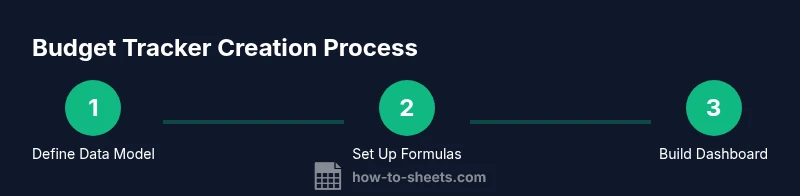
A budget tracker works best when you separate data entry from analysis. Create a simple data model with at least these tabs: Transactions (date, description, category, type, amount), Categories (name, budgeted amount, color), and Summary (current totals, variances, trends). Use consistent date formats (YYYY-MM-DD) and currency formatting. In Sheets, use drop-down menus for the Category column via Data validation to avoid misspellings. The data model should support two-way updates: when a transaction changes, totals recalculate automatically. This approach makes it easy to reuse the same workbook for a monthly budget or for ongoing project budgets. If you want more structure, prepare a separate template tab for recurring incomes and fixed expenses. Keep data normalization simple to avoid slowing calculations or complicating sharing. Design should emphasize clarity: clean headers, unambiguous categories, and a readable color scheme.
Key formulas and functions you’ll rely on
Mastering a few core formulas unlocks most budget tracker capabilities. Use SUMIF/SUMIFS to total Income and Expenses by type or category, then derive Net Savings with simple subtraction. Monthly totals can be calculated with SUMIFS against a date range; dynamic ranges reduce maintenance. For category subtotals, =SUMIF(Transactions!Category, "Groceries", Transactions!Amount) is a starting point. To build a user-friendly dashboard, use IFERROR to silence blanks, and FILTER or QUERY to pull the latest month’s data. ARRAYFORMULA helps you apply formulas across many rows, while VLOOKUP or INDEX/MATCH can map a description to a category. Remember to test formulas with a few sample transactions and document what each piece does so future you can adapt quickly. If you want a robust solution, consider combining these with conditional formatting and named ranges to keep references stable.
Step-by-step: create the basic budget tracker
This section provides a practical, hands-on workflow you can follow to build the workbook. It is designed to be completed in one sitting or in focused blocks, so you can return to it as a reusable template. Each step is a discrete action with a clear purpose, and the cumulative effect is a live budget tracker that updates automatically as you add transactions. You’ll end up with a three-tab structure (Transactions, Categories, Summary) and a first-pass dashboard.
Practical tips for data validation, automation, and sharing
When you design a tracker for ongoing use, small choices matter. Consistent categories, stable date formats, and locked formulas prevent drift. Data validation reduces errors at entry time, while conditional formatting highlights overspending or milestones. If you’re sharing with teammates, protect critical cells, document assumptions, and consider version history to track changes. Automations like simple ARRAYFORMULA-based rollups keep your workbook fast and scalable, even as the transaction count grows.
Visualization: turning data into insights
Numbers alone aren’t enough; you need visuals. Turn the summary data into a clear dashboard with charts that show income vs. expenses, spend by category, and month-over-month trends. Sparkline charts inside the Transactions tab can give quick in-row signals, while a dedicated Dashboard tab can host a few key visuals: a stacked bar chart for category spending, a line chart for cumulative savings, and a pie chart for the expense mix. Use color to differentiate categories and ensure charts update automatically as you log transactions.
Common pitfalls and how to avoid them
Common mistakes include inconsistent date formats, misspelled category names, and exporting data without validation. To avoid these problems, enforce a single input format, use drop-downs for Category and Type, and validate totals against a fixed budget. Regular reviews—monthly or quarterly—help you catch drift early. Documenting decisions and labeling assumptions improves long-term maintainability, especially if the workbook will be shared with others.
Real-world example: monthly budget scenario
Imagine a user who earns $3,400 a month and has fixed expenses of $1,650, variable costs of $1,100, and a savings goal of $400. They record income as a single line, then log expenses by category such as Housing, Groceries, Transport, and Entertainment. Over a month, the tracker calculates total income, total expenses, and net savings, then updates charts showing spend distribution and savings progress. This concrete example demonstrates how the data model, formulas, and visuals come together to provide actionable insights and a clear path to meeting financial goals.
Tools & Materials
- Google account with access to Google Sheets(Needed to create and save the budget tracker workbook.)
- A computer or tablet with internet access(For editing and viewing live in Sheets.)
- Google Sheets (web or mobile app)(No download required; use the web app for best features.)
- A simple set of initial categories(Optional but helpful; you can add later as you customize.)
- Optional template or starter workbook(Save time by starting from a template if desired.)
Steps
Estimated time: 60-90 minutes
- 1
Create the workbook skeleton
Open a new Google Sheet, name it Budget Tracker 2026, and create three tabs: Transactions, Categories, Summary. Freeze the header row and set a consistent font and currency formatting from the start to avoid later mismatches.
Tip: Use a descriptive name and enable Version History to track changes. - 2
Define the Transactions table
In the Transactions tab, set columns: Date, Description, Category, Type, Amount. Format Date as date type and Amount as currency. Add a row of headers with bold text for readability.
Tip: Date → YYYY-MM-DD; Amount → currency; keep descriptions concise. - 3
Create the Categories list
In the Categories tab, list all expense and income categories you plan to track. Add a color column for charts and keep the names consistent to avoid misclassification.
Tip: Use singular category names and standardize capitalization. - 4
Set up data validation
Apply Data Validation on Category (from Categories list) and on Type (Income/Expense) to prevent typos and maintain consistency.
Tip: Turn on Show warning for invalid data only if you want gentle prompts; otherwise reject invalid entries. - 5
Build the Summary tab
Create totals for Income, Expenses, and Net Savings. Use SUMIF/SUMIFS to pull numbers by type and by category, and include a simple variance field versus a monthly budget.
Tip: Label formulas clearly and consider naming ranges for readability. - 6
Add a monthly view and charts
Add a Year-Month helper (e.g., 2026-01) and compute monthly totals. Create charts for spend by category and savings over time to visualize progress.
Tip: Place charts on a Dashboard tab for quick insights. - 7
Test, protect, and share
Enter a sample month to verify totals and visuals. Protect sensitive cells, and enable sharing permissions appropriate for collaborators.
Tip: Keep a copy of the original workbook as a template for future months. - 8
Iterate and reuse as a template
Save the workbook as a template and document any assumptions or caveats. Reuse monthly by duplicating the file and updating the Year label.
Tip: Add a Notes tab to capture budgeting assumptions.
FAQ
What is a budget tracker in Google Sheets?
A budget tracker in Google Sheets is a structured workbook that records income and expenses, categorizes them, and sums totals to show cash flow and savings. It uses formulas to automate calculations and charts to visualize spending patterns.
A budget tracker in Google Sheets is a structured workbook that records income and expenses, then automatically sums totals and creates helpful visuals.
Do I need advanced formulas to make this work?
You don’t need advanced formulas to start. Core functions like SUMIF, SUMIFS, and simple lookups cover most budgets. As you grow, you can add FILTER, QUERY, and ARRAYFORMULA for more dynamic dashboards.
Begin with SUMIF and SUMIFS for totals; later you can add FILTER and QUERY for advanced dashboards.
How do I share the budget tracker with teammates?
Use Google Sheets sharing settings to grant view or edit access. Protect critical cells and consider making a template for others to copy, then customize their own budgets.
Use Sheets share settings, protect essential cells, and provide a template others can copy.
How often should I update transactions?
Update transactions at least weekly for accuracy. Regular logging ensures your totals reflect real spending and helps you notice trends early.
Update transactions at least weekly so totals stay accurate and trends stay visible.
Can I automate data entry from receipts?
Basic automation is possible with data import and scripting, but a simple approach is to log receipts manually and use a standardized format. More advanced automation may require Apps Script.
You can automate imports with scripts, but start with manual entry and a standard format to keep things simple.
The Essentials
- Plan the data model first and keep it simple
- Enforce consistency with validation and naming
- Visualize results with a clear dashboard
- Treat the sheet as a reusable template for future months