Expenses Tracker Template in Google Sheets: A Step-by-Step Guide
Learn how to build a practical expenses tracker template in Google Sheets to monitor spending, categorize costs, and auto-calculate totals, dashboards, and insights for personal or small business budgeting.


You're going to build an expenses tracker template in Google Sheets that records every transaction, categorizes by type, and auto-calculates totals, balances, and insights. Core setup includes Date, Description, Category, Amount, and Type; plus a Dashboard, data validation, and simple formulas (SUMIF, COUNTIF, VLOOKUP). This template is reusable for personal budgets or small business tracking. By the end you’ll have a ready-to-use sheet that scales with your spending.
Why this expenses tracker template google sheets matters
In a world with rising expenses and tighter budgets, a reliable tracking template is your best ally. The How To Sheets team has found that practitioners who standardize how they log expenditures spend less time reconciling accounts and more time acting on insights. Using a Google Sheets-based template ensures you can access your data from anywhere, share with teammates, and keep a live budget that updates as soon as you enter new transactions. The goal is clarity: a single source of truth for where every dollar goes, whether you’re budgeting for a student loan, a marketing campaign, or household expenses. The template is designed for both personal and small-business use, with adaptable categories and straightforward formulas, so you don’t need a finance degree to derive real value.
Core structure: data model for expenses
A robust expenses tracker template google sheets rests on a simple data model. At its heart are core fields that capture what happened, when it happened, and why it matters. Typical columns include Date, Description, Category, Amount, Type (expense/income), Payment Method, and Notes. A well-structured data model makes it easy to aggregate by category, month, or project. To keep things consistent, you should lock down the categories with data validation rules and a master category list. This reduces mis-typing and means your dashboards will summarize reliably across periods. Align the model with your budgeting goals and you’ll unlock fast, accurate insights.
Getting started: initial template layout
Start with a clean sheet and lay out the essential sections. Create a Transactions tab containing columns for Date, Description, Category, Amount, Type, and Payment Method. Add a separate Summary tab that pulls from the Transactions tab using basic formulas. Include a Dashboard tab later to visualize spending by category and by month. Use a header row with clear labels, freeze the top row for easy scrolling, and apply a consistent date format. This foundation supports future automation while remaining approachable for beginners.
Data validation and categories
Consistency is king in budgeting. Use data validation to constrain Category to a predefined list (e.g., Rent, Groceries, Utilities, Transport, Entertainment, Subscriptions, Misc). Add Type validation (Expense, Income) and Payment Method (Cash, Card, Bank Transfer). A drop-down in the Category field reduces errors and makes filtering straightforward. Maintain a separate Category Reference sheet to update the master list without touching the Transactions sheet, ensuring your data stays clean as the template grows.
Formulas that automate budgeting
Formulas automate repetitive calculations, turning raw entries into actionable data. Core formulas include SUMIF to total by category, COUNTIF to count occurrences, and SUM to track monthly totals. VLOOKUP or XLOOKUP (where available) can map categories to broader budgets. Create a running balance by summing Income minus Expenses. For example, use a running total in the Balance column that updates as new transactions are added, providing a live sense of where money stands at any moment.
Building a simple dashboard
A dashboard converts data into insights at a glance. Create charts to visualize spending by category, a line chart for month-over-month trends, and a bar chart comparing planned vs. actual spend per category. A KPI block can display current month spend, total income, and the net balance. Use slicers to filter by month or category and apply conditional formatting to highlight overspending. This step transforms a raw ledger into a decision-ready budgeting tool.
Customization options and templates
No two budgets are the same. The template should be adaptable: add or remove categories, adjust the date range, tailor the dashboard to highlight what matters most, and incorporate your own glossary. Consider creating a separate Subscriptions tab to track recurring payments, automatically weight major expenses, and generate monthly reminders. A well-designed template can scale from personal use to small business needs, supporting features like multi-currency and project-based tracking as you grow.
Common pitfalls and troubleshooting
Common issues include inconsistent categories, missing dates, and hard-coded values that break when you expand. To avoid these, keep a central master list for categories, enforce date formats, and avoid duplicating labels in the Description field. Periodically audit the data for orphaned rows and test formulas with sample data. If a dashboard stops updating, check the data ranges that formulas reference and ensure no hidden rows are excluded from totals. How To Sheets emphasizes maintaining a clean data pipeline to preserve accuracy.
Collaboration and sharing tips
Sharing a living budget template should balance accessibility with protection. Use Google Sheets sharing settings to grant view or edit access as appropriate. For teams, create a separate version of the template with restricted permissions and maintain a changelog to track edits. Always back up data before major changes and consider locking critical formula cells to avoid accidental modification. Clear ownership helps teams stay aligned and keeps the expenses tracker reliable over time.
Real-world use cases: from student budgets to small teams
A student might use the tracker to monitor monthly living costs, categorize expenses by housing, meals, transport, and textbooks, and forecast next month’s needs. A small team could apply the same framework to project budgets, track client expenses, and reconcile with monthly invoices. The beauty of a Google Sheets-based template is its flexibility: it remains useful whether you’re budgeting for a semester or managing a lean startup’s cash flow. The template’s adaptability is exactly why teams around the world choose Google Sheets for expense tracking.
Auditing and maintenance routines
Plan regular audit windows (e.g., weekly checks) to ensure data accuracy and formula integrity. Revisit your category list and dashboard visuals quarterly to maintain relevance. Archive old months to keep performance snappy while preserving historical data. Document any template changes so collaborators understand why a given field or formula exists. A disciplined maintenance routine keeps the expenses tracker template google sheets dependable over time.
Extending with automation ideas
As you grow more comfortable, you can automate repetitive tasks with Apps Script or add-ons. For example, you could import transactions from a CSV, automatically categorize based on keywords, or generate monthly expense reports for stakeholders. If bank feed integration is needed, look into approved connectors offered by Google Workspace or your financial institution. Remember to test any automation in a copy of your template before applying it to live data.
Tools & Materials
- Google account with Google Sheets access(Needed to create, save, and share the template)
- Device with internet access(Laptop or desktop recommended for easier navigation)
- Prebuilt expenses tracker template (optional)(Can speed up setup; customize after initial import)
- Sample transaction CSV (optional)(Used for quick testing and demonstration)
- Glossary of categories(Optional reference for standardizing labels)
Steps
Estimated time: 30-60 minutes
- 1
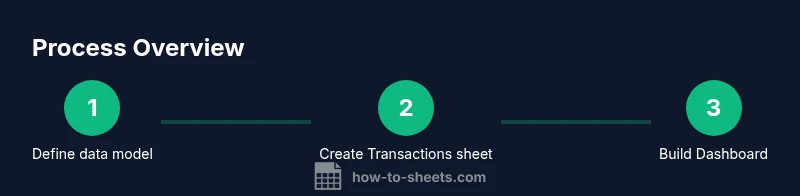
Define data model
Decide which fields you will track: Date, Description, Category, Amount, Type, Payment Method, and Notes. Establish a master category list and a clean, neutral currency format. This ensures consistent data capture from day one.
Tip: Keep the Category list centralized to prevent duplicates. - 2
Create the Transactions sheet
Set up a table with the chosen columns and freeze the header row. Add basic headers and formatting to distinguish data from calculations. This sheet is the single source of truth for all expense entries.
Tip: Use a light background for data rows to improve scanability. - 3
Add data validation
Apply data validation for Category, Type, and Payment Method. Link each to your master lists to prevent typos and improve filter accuracy. Validation reduces errors and supports reliable reporting.
Tip: Test validation by entering an invalid category; the sheet should reject it. - 4
Enter sample data
Populate a handful of rows with representative transactions: groceries, rent, utilities, and a few incomes. This gives you something to test formulas and dashboards against.
Tip: Include a mix of positive and negative amounts to simulate real cash flow. - 5
Create basic formulas
Add SUMIF-like formulas to total by category and by month, and establish a running Balance column that accumulates income minus expenses. Keep formulas dynamic to adapt as you grow.
Tip: Place formulas on a separate Summary or Dashboard tab to keep data clean. - 6
Build a dashboard
Create charts for category breakdown and monthly trends. Add KPI cards for month-to-date spend, income, and net balance. Use slicers to explore different timeframes and categories.
Tip: Use consistent color schemes to improve quick interpretation. - 7
Test scenarios
Simulate scenarios such as a sudden large expense or a pay raise. Ensure dashboards update in real-time and formulas reflect new data ranges.
Tip: Always test with edge cases to confirm robustness. - 8
Share and maintain
Invite collaborators with appropriate permissions and establish a maintenance routine. Document changes so teammates know why budgets shifted.
Tip: Lock critical formula cells to prevent accidental edits.
FAQ
What is an expenses tracker template and why use one in Google Sheets?
An expenses tracker template is a ready-made layout in Google Sheets that records every transaction, categorizes it, and computes totals and insights. It helps you monitor cash flow, stay within budgets, and quickly generate reports. Using Google Sheets enables easy sharing and real-time collaboration.
An expenses tracker template is a ready-made budget sheet that logs every expense and computes totals. It’s ideal for collaborating with others and keeps your budget up to date.
Can I import my bank transactions into this template?
Yes. You can import transactions as CSV or copy-paste from bank exports. Then, map fields to the template columns and let the formulas update your dashboards automatically.
You can import your bank transactions as CSV or copy-paste them into the sheet, then map the fields to the template.
How do I customize categories for my budget?
Edit the master Category list on its own sheet and reconnect the data validation to it. This keeps categories consistent across all transactions and dashboards.
Edit the master category list and update the validation so all categories stay consistent.
What security precautions should I take with this template?
Limit sharing to trusted collaborators and consider protecting formulas that drive totals. Regular backups help protect sensitive financial data.
Limit who can edit the sheet, protect key formulas, and back up data regularly.
Is this template suitable for small teams?
Yes. You can grant view or edit access to teammates, maintain a shared data model, and use version history to track changes.
It works for teams—just set permissions and use version history to keep track.
Which formulas are essential to start with?
Start with SUMIF for category totals, SUM for monthly totals, and a running Balance calculation. Add COUNTIF for transaction counts and VLOOKUP/XLOOKUP for category mapping.
Begin with SUMIF, SUM, and a running balance; then add lookup formulas for category mapping.
Watch Video
The Essentials
- Define a stable data model before building formulas.
- Use data validation to enforce consistent categories.
- Create a live dashboard for fast budgeting insights.
- Test thoroughly with scenarios to ensure reliability.
- Share with care, and maintain clear documentation.