Spending Tracking in Google Sheets: A Practical Guide
Learn to build a flexible spending tracker in Google Sheets. Log expenses, categorize them, and visualize monthly totals with practical formulas and budgeting templates.


You can build a simple, dynamic spending tracker in Google Sheets that records expenses, categorizes them, and summarizes monthly totals. You’ll need columns for date, category, amount, and notes, plus optional budget caps. Use SUMIF/SUMIFS for totals and simple charts for visuals. According to How To Sheets, this scalable setup works from student budgets to small business tracking.
Why spending tracking in Google Sheets matters
Tracking spending with Google Sheets gives you a flexible, cost-free way to understand where money goes. A well-structured sheet makes it easier to spot overspending, compare months, and adjust habits. For students, freelancers, and small teams, this approach scales with your needs without locking you into a single platform. By using categories, dates, and amounts, you create a durable data trail that supports budgeting decisions and financial literacy. The How To Sheets team highlights that a transparent log helps you plan with confidence, and it integrates seamlessly with dashboards that update in real time as you add new data.
Beyond numbers, a spending tracker helps you build discipline: you’ll see patterns, set realistic targets, and measure progress against them. With a clean layout and consistent entry rules, you can share the workbook with teammates or a mentor for quick feedback. As you grow, you can layer in automation and templates to save time while preserving accuracy.
Designing your workbook: layout and data model
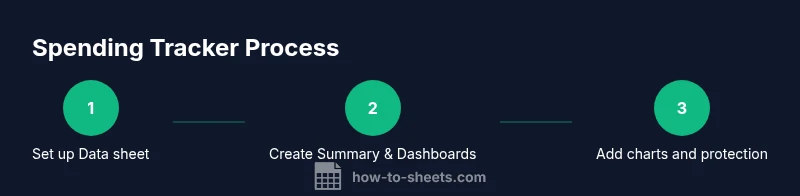
A robust spending tracker starts with a clear data model. Create a dedicated data entry sheet (name it Data) with these columns: Date, Description, Category, Amount, Payment Method, and Notes. Add a second sheet called Categories to define every spending type (e.g., Groceries, Rent, Transport) and keep entry consistent via a data validation drop-down. A third sheet, Summary, will host your dashboards and totals. Use named ranges (like categories and data) to keep formulas readable. This structure mirrors best practices in budgeting templates and ensures the workbook remains scalable as your needs change.
To keep data clean, standardize date formats and use consistent currency settings. If you’re collaborating, set permissions so others can add transactions but not alter the core structure. A well-designed workbook not only records expenses but also guides future decisions and highlights opportunities to save.
Core formulas you’ll rely on
At the heart of a spending tracker are formulas that summarize data and reveal trends. Essential functions include SUMIF and SUMIFS to total expenses by category or date range: e.g., =SUMIF(Data!C:C, "Groceries", Data!D:D). For multi-criteria totals, use =SUMIFS(Data!D:D, Data!C:C, "Groceries", Data!A:A, ">=2026-01-01"). To extract unique categories for dashboards, use =UNIQUE(Data!C:C) and FILTER for dynamic views. If you need to map categories to broader groups, INDEX-MATCH or VLOOKUP can help, though INDEX-MATCH tends to be more resilient with column changes. Consider FILTER to create live views based on user-selected months, improving the experience for quick checks and reports. The combination of these formulas keeps the sheet fast and responsive as data grows.
Building views: monthly, category, and trend dashboards
Dashboards turn raw data into actionable insights. Create a Monthly view that aggregates totals by month, a Category view showing spending by type, and a Trend chart to visualize changes over time. Use a Pivot Table (Data → Pivot table) for rapid aggregation, or build custom summaries with SUMIFS and dynamic date filters. Charts such as column or line charts offer quick visual cues about rising costs or seasonal spikes. For ongoing use, link your charts to the Summary sheet so new data automatically updates the visuals, preserving a live pulse on your finances.
Automating data entry and imports
Automation saves time and reduces manual errors. If you frequently receive receipts or bank statements, explore importing data via CSV with IMPORTDATA or the Google Forms option to feed expenses directly into Data. For ongoing automation, Apps Script can schedule imports or trigger notifications when totals exceed budget caps. You can also connect Forms to the sheet so entries are standardized, timestamped, and ready for analysis. When data sources vary, consider building a small parser in Apps Script to normalize categories, dates, and amounts before they land in Data.
Common pitfalls and how to avoid them
Common mistakes include inconsistent categories, inconsistent date formats, and formulas that aren’t updated when new rows are added. To avoid drift, lock the header row, use data validation for categories, and define named ranges for core data. Regularly audit formulas by checking a few sample rows to confirm totals match manual calculations. Finally, when sharing the sheet, set protection on formulas and sensitive tabs to prevent accidental edits, and provide a short guide for collaborators to maintain entry standards. Following these practices keeps your spending tracker reliable over time.
Templates and next steps
Start with a simple template that includes Data, Categories, and Summary sheets. Add a template-ready dashboard with monthly totals and category breakdowns. As you gain confidence, customize the template with additional views, conditional formatting to highlight overspending, and a separate template for future budgeting cycles. The goal is a scalable framework you can reuse every month without rebuilding from scratch.
Tools & Materials
- Google account(Needed to access Google Sheets and Forms)
- Laptop or tablet(Stable internet connection for online collaboration)
- Existing receipts or bank statements(Helpful for initial data entry)
- A prepared Google Sheet or template(Data, Categories, Summary sheets)
- Optional printer or note-taking app(For receipts and manual notes)
Steps
Estimated time: 45-75 minutes
- 1
Create a new Google Sheet
Open Google Sheets and start a new blank workbook. Name it Spending Tracking 2026 and save it in a dedicated folder. This creates a centralized place for all later steps.
Tip: Use a consistent naming convention and avoid special characters in file names. - 2
Set up the Data sheet with headers
Create headers: Date, Description, Category, Amount, Payment Method, Notes. Freeze the header row and format the Date column to a standard date format. This ensures consistent data capture.
Tip: Apply currency formatting to Amount for clarity. - 3
Add data validation for Category
Create a Categories sheet, list all spending types, and apply Data Validation to the Category column to limit entries to the list. This reduces misclassification and simplifies analysis.
Tip: Use a named range for the category list to keep formulas simple. - 4
Create a Summary sheet with core formulas
In Summary, implement totals by category and by month using =SUMIF(Data!C:C, "Groceries", Data!D:D) and date-based filters. Add a pivot table for quick category totals and a chart for visual insight.
Tip: Build one test period (e.g., January 2026) to validate totals before expanding. - 5
Build dashboards and visuals
Link charts to the Summary sheet: a monthly bar chart, a category pie chart, and a trend line. Ensure charts update automatically as you add transactions.
Tip: Use a color palette that matches your budget categories for quick recognition. - 6
Protect and share
Protect the core formulas and sheet structure, then share with collaborators. Set edit rights for data entry while restricting formula cells to prevent accidental changes.
Tip: Provide a short onboarding note for new users outlining entry standards.
FAQ
How do I start a spending tracker in Google Sheets?
Start with a Data sheet including Date, Description, Category, and Amount. Add data validation for categories and a basic SUMIF formula to total by category. Create a Summary sheet to visualize monthly totals.
Start with a Data sheet and a simple total by category to begin tracking your expenses.
What formulas are essential for spending tracking in Sheets?
Key formulas include SUMIF for single-criteria totals, SUMIFS for multi-criteria totals, and UNIQUE to extract categories. INDEX-MATCH can replace VLOOKUP for more robust lookups.
Use SUMIF and SUMIFS for totals, and UNIQUE for categories.
Can I automate imports from bank statements?
Yes. Import CSV data with IMPORTDATA or IMPORTFILE, or connect Forms to feed transactions. Apps Script can schedule updates and normalize data automatically.
Yes — automate imports with built-in functions or Apps Script.
How do I protect formulas while sharing the sheet?
Protect critical ranges and hide sheets if needed. Adjust sharing settings to grant data entry rights without altering formulas.
Protect formulas with range protection and controlled sharing.
Is it possible to reuse the tracker as a template?
Yes. Create a clean template with empty Data and Summary sections, then duplicate it for future budgeting periods.
Yes, you can create and reuse a template.
Watch Video
The Essentials
- Design a three-sheet model: Data, Categories, Summary.
- Use SUMIF/SUMIFS to compute category and monthly totals.
- Automate entry via Forms or simple imports to reduce manual work.
- Protect formulas and share settings to avoid accidental changes.
- Build dashboards to reveal spending trends at a glance.