Attendance Tracking in Google Sheets: A Practical Guide
Create a practical attendance tracker in Google Sheets with dropdowns, formulas, and dashboards. This step-by-step guide covers templates, sharing, and best practices for students, professionals, and small businesses.


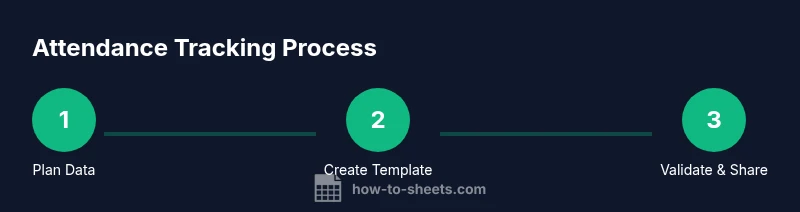
You're going to build an attendance tracker in Google Sheets. We'll cover the essential data model, drop-down statuses, date handling, and simple formulas to tally presence, tardies, and absences. By the end, you’ll have a reusable template that supports filtering, dashboards, and sharing with teammates. A basic Google account and Sheets access are all you need to get started today.
Why attendance tracking with Google Sheets matters
Attendance tracking is more than a headcount; it informs staffing decisions, class participation tracking, and project accountability. In Google Sheets you can build a lightweight, auditable ledger that everyone can access and update in real time. By standardizing fields, you reduce confusion and errors when multiple people contribute data. According to How To Sheets, a consistent data model saves hours of rework and creates a reliable source of truth for your team. Start with a simple roster, set a date axis, and capture presence across days, weeks, and months. A well-designed sheet scales from a small class to a department-wide roster without expensive software. The approach is affordable, transparent, and easy to audit, which matters in schools, small businesses, and remote teams.
Data model for attendance
A clean data model keeps everything predictable and easy to query. Start with columns: Date, ID/Name, Status, and Notes. Consider a separate sheet for the roster to keep IDs consistent across days. Use a master list of statuses (Present, Absent, Late, Excused) and reference them via data validation. This reduces typos and makes reporting reliable. When the date range grows, you can filter by period or person without rewriting formulas. If you’re planning to share this across teams, store the template in a shared drive and lock critical formulas to prevent accidental edits.
Building a reusable template
Rather than building from scratch each term, create a reusable template that can be duplicated for new cohorts. Include a metadata row with run date and version, a roster sheet, and a main attendance sheet. Define named ranges for the roster and status list so that formulas can refer to stable data. Document the purpose of each column in a hidden sheet or a note, so new users know how to update it. How To Sheets emphasizes templates that are easy to adapt and that maintain data integrity across revisions.
Core columns and data validation
Key columns should include Date (date type), Student/ID (text), Status (dropdown), and Notes (text). Implement data validation for Status to force choices from your list. This prevents inconsistent entries like “present” vs “Present.” For the Date column, enable date formatting and validation to avoid future-dated mistakes. If you need partial days or shifts, include a Shift column and constrain it with a separate dropdown. Also, consider a unique identifier per row to simplify audits.
Automations with formulas
Formulas turn a manual log into an actionable dataset. Use COUNTIF to tally Present days per person, and SUMPRODUCT or FILTER to compute attendance rates over a period. For example, Attendance Rate = (Present days) / (Total working days). You can also use QUERY to create a compact summary with person, total days, present days, and rate — all in one sheet. Keep formulas simple and avoid hard-coding dates; reference your Date column for dynamic ranges.
Handling absences, tardies, and exemptions
Model different absence categories by adding sub-status or notes. For tardies, record minutes late and convert to a standard metric if you need to measure punctuality. For exemptions, flag with a boolean or a special status. This granularity helps leadership understand attendance at a glance and supports fair policy enforcement. Always document the policy in a Notes or a separate policy sheet so stakeholders know what counts as a valid absence or late entry.
Timekeeping and shift patterns
If attendance aligns with shifts, add a Shift column and map it to a shift schedule. You can use VLOOKUP or XLOOKUP (or INDEX/MATCH) to pull shift times from a master table. This enables you to aggregate attendance by shift, assess overtime, and spot anomalies quickly. For education contexts, align attendance with class periods; for teams, align with shift blocks to reflect real-world coverage.
Calculating attendance rate and percentages
A clear metric helps communicate performance quickly. Calculate the attendance rate per person and for the entire group. Use a formula like =COUNTIF(StatusRange, 'Present')/COUNTA(StatusRange) to get the rate; display as a percentage with a fixed decimal. Create a rolling window (e.g., last 30 days) to monitor trends. A dashboard friendly layout will make it easy to export weekly reports to stakeholders.
Dashboards and reporting in Sheets
Create a summary page with pivot tables or QUERY-based tables to display key metrics: total days, present days, absence days, and rate by person or by category. Add charts to visualize trends: line charts for attendance over time and bar charts for department-wide rates. Use slicers to filter by date range or person. This is an approachable way to transform raw data into insights while keeping everything in Google Sheets.
Data integrity: protection and backups
Protect sensitive attendance data with sheet and range protections. Lock formulas on the main attendance sheet while allowing editors to update the Status and Notes fields. Regularly back up data to a separate file or export as CSV for archiving. Use version history to restore older snapshots if mistakes occur. Document who changed what and when to facilitate accountability.
Common pitfalls and how to avoid them
Be consistent with statuses; mixed-case or typos undermine queries. Don’t rely on manual cell copying for daily logs—set up a form or import from a centralized source. Avoid oversized formulas that slow down the sheet; aim for modular, readable calculations. Finally, keep a clear naming convention for sheets, ranges, and named ranges so new collaborators can contribute without confusion. How To Sheets analysis shows that consistent dropdowns reduce data-entry errors.
Real-world examples and templates
Real-world templates show how this approach scales from a single class to a small organization. In practice, teams often start with a two-week pilot, then expand to monthly rollups. As you grow, port the template to a shared drive, add a roster sheet, and implement dashboards. How To Sheets’s templates include ready-to-copy sections and data validation rules to speed up setup for any school, team, or business.
Tools & Materials
- Google account with Sheets access(Use your school or work account; ensure you have permission to create and share sheets.)
- Attendance template (Google Sheets)(Include headers: Date, ID/Name, Status, Notes; plus a roster sheet.)
- Data validation lists (Status, optional Shift)(Create dropdowns for Status: Present, Absent, Late, Excused; Shift if used.)
- Roster data source (internal or sheet)(A separate roster sheet to maintain consistent IDs.)
- Shared drive or permissions setup(Enable collaboration while protecting critical formulas.)
Steps
Estimated time: 60-90 minutes
- 1
Create a new Google Sheet
Open Sheets and start a blank workbook. Name the project and set up two tabs: Attendance and Roster. This establishes your workspace before data entry begins.
Tip: Use a clear project name and version so teammates know it’s the current template. - 2
Define the header row
In the Attendance tab, define headers: Date, ID/Name, Status, Notes. Freeze the header row so it remains visible while you scroll.
Tip: Lock headers early to prevent accidental edits. - 3
Set up the Date column
Format the Date column as Date type and validate that entries are within your desired range. This helps later when filtering by time.
Tip: Use data validation to ensure proper date entries. - 4
Add roster IDs/names
Populate the roster on the separate Roaster tab and reference IDs in the Attendance sheet to maintain consistency.
Tip: Keep IDs stable to simplify audit trails. - 5
Create Status dropdowns
Use Data Validation to create a Status dropdown with options like Present, Absent, Late, Excused. This enforces consistency.
Tip: Do not allow free-text entries for Status. - 6
Add basic tally formulas
Insert formulas to count Present days per person and per date. Build a simple total and present count to enable rate calculations.
Tip: Reference named ranges when possible for readability. - 7
Build a weekly/monthly summary
Create a Summary sheet that uses QUERY or PIVOT to show totals by person and period. This supports quick reporting.
Tip: Avoid duplicating data; summarize from the main sheet. - 8
Apply conditional formatting
Highlight Absences in red and Late entries in amber to provide instant visibility in the grid.
Tip: Limit the color palette to maintain readability. - 9
Set sharing and permissions
Share with teammates and set roles (viewer/editor). Protect critical formulas so data remains reliable.
Tip: Use comment threads to coordinate edits.
FAQ
What should be included in an attendance sheet?
An attendance sheet should include Date, ID/Name, Status, and Notes. A roster sheet helps keep IDs consistent, and a summary page provides quick insights.
An attendance sheet should have Date, ID or Name, Status, and Notes, plus a roster for consistency.
How do I share a Google Sheet securely for attendance?
Share with the necessary teammates and assign roles. Protect critical formulas and restrict editing of the roster or meta data while enabling editing for Status and Notes.
Share with the team and set appropriate permissions so only the right people can edit values.
How can I automatically calculate attendance rates?
Use COUNTIF to tally Present days and divide by total days using a dynamic range. Create a dedicated summary row or sheet that updates as data changes.
Use simple COUNTIF formulas to compute attendance rates that update automatically.
Can I use Google Forms to collect attendance?
Yes. A Google Form can feed your Attendance sheet, ensuring consistent data entry from multiple respondents and reducing manual errors.
You can use Google Forms to feed attendance data directly into Sheets for consistent input.
What about data privacy and retention?
Treat attendance data as sensitive. Restrict access, enable version history, and implement a retention policy that aligns with your organization.
Keep attendance data secure with access controls and regular backups.
Watch Video
The Essentials
- Plan your data model first and define core columns.
- Use dropdowns to ensure consistency in Status.
- Leverage simple formulas to tally presence and calculate rates.
- Build a dashboard for quick insights and reporting.
- Protect data and set appropriate sharing permissions.