Google Sheets Attendance Template: A Step-by-Step Guide
Learn how to build a reusable Google Sheets attendance template with ready-made layouts, formulas, and tips for accurate tracking and privacy.


In this guide, you’ll learn to create a Google Sheets attendance template that tracks names, dates, and presence with drop-down statuses, basic formulas, and conditional formatting. You’ll be able to customize for classrooms, teams, or events, and you’ll discover ready-made templates, automation ideas, and best practices for accuracy and privacy. This quick answer will point you to a robust workflow, sample layouts, and links to external resources. Start quickly with a ready-to-use template and adapt as needed.
What is a google sheets attendance template and why use one
A google sheets attendance template is a structured spreadsheet designed to record who attended a session, on which date, and what their status was (Present, Absent, Late, Excused). It standardizes data entry and makes it easy to aggregate attendance across days, weeks, or courses. For students, teachers, trainers, and small teams, templates save time by providing a reusable framework instead of recreating sheets for every event. In addition to basic presence tracking, a well-designed template offers automation hooks such as automatic counts, attendance rates, and visual indicators that reveal trends or problem areas at a glance. The How To Sheets team highlights that consistent templates reduce data-entry errors and improve reporting quality, especially when dealing with large rosters or multi-session programs. You’ll also benefit from built-in privacy controls and clear instructions embedded in the sheet, so new users can adopt the workflow quickly. As you start, imagine a starter layout with a participant list on the left and a row for each session on the right, then extend with a summary dashboard that updates automatically as you add data.
Core features to look for in an attendance template
When evaluating or building a google sheets attendance template, several features ensure it remains practical over time. First, a clean header with columns for at least Name, Date (or Session), and Status keeps data consistent. Second, a status dropdown standardizes inputs, reducing errors when multiple people edit the sheet. Third, a per-person summary section that counts present days and calculates attendance rate helps you measure engagement. Fourth, a separate dashboard or summary tab that aggregates results across dates provides quick insights for reports or grade books. Fifth, built-in data validation and protections prevent accidental edits to formulas while keeping input cells accessible to authorized users. Sixth, conditional formatting can highlight absences, high absence days, or overdue sessions, making issues immediately visible. Seventh, a simple versioning strategy—like keeping a template copy or a changelog—saves headaches when updates are required. Finally, consider accessibility and sharing: decide who can view, edit, or export data, and ensure the template works for both in-person and remote contexts. As you review options, look for templates that offer sample data, clear documentation, and compatibility with common reporting workflows, such as exporting to CSV for attendance audits. How To Sheets analysis shows that templates with a dashboard consistently outperform those without in terms of usability and adoption.
Planning your template layout: layout considerations and sample schema
Before you start typing, sketch a practical schema that matches your context. A classroom roster might use a single sheet per class with columns for Name, Student ID, Session Date, Status, and Notes. A team or event-based template could use a flat table with columns for Participant, Date, Check-In, Check-Out, and a separate summary panel. Consider using a separate sheet for daily sessions and another for a rolling six-week view to monitor trends without clutter. Use consistent data types: text for names, dates for sessions, and a limited set of status values to enable reliable filtering. Use hidden helper columns for intermediate calculations if needed, but keep input areas clean. If you expect frequent roster changes, design a dynamic range (for example, using named ranges) so formulas adjust automatically when you add participants. Finally, plan a simple navigation flow: a landing tab with quick links to data, a data tab for inputs, and a dashboard tab for summaries. How you structure the template now will save you time later when you start adding more advanced features like weighted attendance or cohort analysis.
Building a basic attendance template from scratch: a practical workflow
Start by creating a new Google Sheet and naming it clearly (e.g., 'Attendance Template - Fall 2026'). In the first row, set headers such as Name, ID, Date, Status, and Notes. Freeze the header row so you can scroll without losing context. Enter a sample roster in the Name column and a few test dates in the Date column. Next, populate the Status column with one of your predefined options, using a data validation rule to enforce consistency. Create a separate Summary tab that will display key metrics like total sessions, total present days per person, and overall attendance rate. As you populate data, check that formulas refer to the correct ranges and adjust as needed. This initial pass will help you spot layout issues and ensure the sheet remains usable as you scale. Finally, save a copy of the template and enable editing restrictions for anyone who will use it regularly, while leaving input areas open for new data.
Using templates: ready-made options vs custom templates
There are two practical paths for launching an attendance-tracking solution in Google Sheets. Start with a ready-made template and customize it to your context; this saves time and ensures a proven structure. Alternatively, build from scratch to tailor every field, formula, and view to your exact needs. When evaluating templates, look for flexibility: can you add a course, adjust session dates, or switch between per-session and per-student views? If you choose a ready-made option, map the existing columns to your roster data and update the dropdown lists. For teams or schools with privacy concerns, ensure the template supports cautious sharing—ideally with separate view and edit permissions. Regardless of approach, incorporate a lightweight dashboard that shows attendance trends across weeks, daily participation, and spot-checks for anomalies. Finally, document the setup steps in a dedicated sheet so future users can replicate or extend the solution with minimal guidance.
Formulas and automation to track attendance
A key strength of a google sheets attendance template lies in its ability to automate calculations and trend analysis. Use COUNTIF to tally the number of Present entries per participant, and COUNTIF across the entire date range to measure daily presence rates. Example: for a given student in cells B2:B31 (dates) with statuses in C2:C31, use =COUNTIF(C2:C31, "Present"). Sum across all days to compute total sessions attended, then divide by the total number of sessions to derive an attendance rate. To summarize by student, you can employ SUMPRODUCT or a pivot-like approach with FILTER. Create a separate dashboard showing metrics such as average attendance, highest absence day, and streaks of consecutive presences. Add conditional formatting to highlight low attendance blocks, and set up a refresh mechanism so charts update automatically when new data is added. Finally, consider integrating a simple alert or reminder column that flags upcoming sessions with missing data to keep records current.
As How To Sheets analysis shows, start with basic automation and scale as needed, avoiding overcomplexity in early versions.
Best practices for data accuracy, privacy, and accessibility
To keep data accurate, validate inputs at entry and minimize manual edits. Use dropdowns for status, enforce date formats, and keep a single source of truth for calculations. Protect sheets or ranges that contain formulas to prevent accidental changes, while allowing editors to update the input areas. For privacy, implement access controls and avoid exposing sensitive identifiers beyond what’s necessary for attendance reporting. When sharing, consider using view-only links for external audiences and granting edit access only to responsible staff. Make your template accessible by including clear labels, color contrast that meets guidelines, and concise instructions embedded in a dedicated sheet. Finally, create a short, user-friendly guide within the template so newcomers can learn the workflow quickly and without friction. The How To Sheets team notes that good governance and clear ownership improve long-term usability.
Practical maintenance: version control and updates
Even a well-made template needs periodic maintenance. Keep a changelog to record updates, such as new fields or adjusted calculations, and document the rationale for changes. Regularly back up the template to avoid data loss and consider storing versions in a shared drive with clear naming conventions. If you encounter formula errors, test against a small sample dataset and use named ranges to reduce range errors. When sharing with new collaborators, provide a short onboarding note that covers input expectations and privacy considerations. Finally, periodically review your dashboard visuals to ensure they still reflect current attendance patterns and user needs. A small investment in maintenance pays off with fewer troubleshooting sessions and more reliable reporting.
Tools & Materials
- Google account with access to Google Sheets(Essential for creating and saving the template in Drive)
- Existing roster or class list(Names in one column; include a unique identifier if available)
- Dates or sessions schedule(List all planned session dates you’ll track)
- Test data set (optional but helpful)(Use to validate formulas and layout)
- Sharing and privacy settings(Determine who can view or edit the template)
Steps
Estimated time: 30-60 minutes
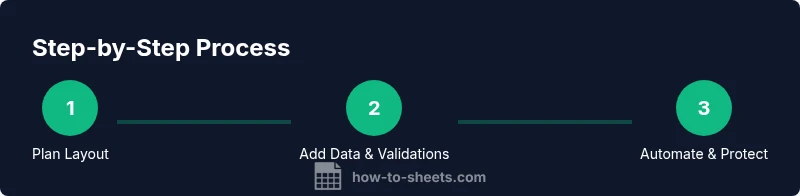
- 1
Plan the layout
Decide which columns to include (Name, Date, Status, Notes) and how you’ll structure sessions. This step ensures future formulas are straightforward.
Tip: Sketch a quick mock-up on paper or in a separate sheet before editing the template - 2
Create a new sheet and set headers
Open Google Sheets, create a new document, and add the header row with the chosen column names. Freeze the header row for easy scrolling.
Tip: Use bold text and a light background color for readability - 3
Add status dropdown options
Select the Status column, go to Data > Data validation, and set allowed values such as Present, Absent, Late, Excused. This standardizes input.
Tip: Provide a default value like Present to reduce errors - 4
Format dates and names
Format the Date column as date type and ensure Name cells are left-aligned with consistent spelling to avoid duplicates.
Tip: Enable text wrapping if names are long - 5
Set up daily/period tracking
Decide whether to track per-session per row (one date per row) or per student per sheet. Add a separate summary/tivot to aggregate counts.
Tip: Consider a compact layout to save space - 6
Create attendance formulas
Use COUNTIF or SUMPRODUCT to calculate per-student totals and overall attendance rates. Link to a summary sheet for quick insights.
Tip: Test formulas with sample data to confirm accuracy - 7
Add conditional formatting and protection
Highlight absences and near-term deadlines with color scales. Protect sensitive ranges so only authorized editors can modify formulas.
Tip: Lock the formula cells and leave input cells editable - 8
Test, share, and iterate
Fill in a few test rows, verify totals, and share with collaborators for feedback. Iterate based on usability.
Tip: Provide a short user guide within the sheet
FAQ
What is a Google Sheets attendance template?
A Google Sheets attendance template is a ready-made spreadsheet layout that records attendee names, dates, and presence statuses using standardized inputs and simple formulas to calculate totals and rates.
A Google Sheets attendance template is a ready-made spreadsheet that logs names, dates, and attendance status with simple calculations.
Can I customize the template for a different context (class, team, event)?
Yes. You can adjust columns, add fields like notes or reasons, and modify status options to fit classrooms, sports teams, or corporate trainings.
Yes, you can customize columns, options, and sheets to fit any context.
How do I ensure data privacy in shared templates?
Restrict access to trusted collaborators, protect formulas, and avoid sharing raw data publicly. Use view-only links when possible.
Limit access to those who need it and protect sensitive parts of the sheet.
What formulas help automatically count attendance?
Use COUNTIF to tally present entries per participant, and COUNTIF across dates to measure daily presence rates. Sum across days for totals and compute rates.
COUNTIF and SUMPRODUCT can automate counts in your template.
Is there an existing template I can start from?
Yes. You can start from a basic attendance template and customize it with your context requirements.
Yes, start from a basic template and tailor it.
How can I export attendance data for reporting?
You can download the sheet as CSV or Excel, or copy data to a reporting tool; ensure that exported data respects privacy settings.
Export to CSV or Excel while maintaining privacy controls.
Watch Video
The Essentials
- Plan layout for easy scalability
- Use dropdowns to ensure consistent data
- Protect formulas, not input fields
- Regularly back up the template
- Maintain privacy and access controls