Employee Schedule Template Google Sheets: Step-by-Step Guide
Learn to build a reusable employee schedule template Google Sheets that tracks shifts, availability, and coverage. This guide covers setup, data validation, formulas, and sharing controls for teams, with practical examples and tips.


You will create a robust employee schedule template in Google Sheets that tracks shifts, coverage, and availability. This guide covers setup, core features, data integrity, and sharing permissions to help teams stay aligned. By the end, you’ll have a reusable template you can customize for different roles and timeframes efficiently.
Why a centralized schedule template matters
A centralized template for employee scheduling in Google Sheets helps teams stay aligned, reduces scheduling conflicts, and speeds up planning. When everyone views the same source of truth, managers spend less time reconciling shifts and more time on coverage. The discipline of a shared template also improves accountability because changes are traceable and transparent. According to How To Sheets, a well-structured employee schedule template google sheets reduces scheduling conflicts and saves manager time. This is especially valuable for teams with rotating shifts, part-time staff, or variable availability. In practical terms, a single sheet can serve as the backbone of shift planning, coverage tracking, and absence management, provided it’s designed for clarity and consistency.
Beyond the mechanics, a good template empowers frontline staff to see their schedules, request time off, and understand coverage status at a glance. It also supports managers in quickly identifying gaps and balancing workloads. In short, a well-built Google Sheets schedule template is not just a file—it’s a collaborative workflow that scales with your organization.
Why this matters for students, professionals, and small business owners: students juggling classes, hourly workers, and small teams all benefit from predictable, shareable schedules. A Google Sheets-based template can be customized for different departments, locations, or timeframes without expensive software. The goals are consistency, speed, and clarity—so everyone can plan more effectively and avoid last-minute scheduling surprises.
Core design principles for an effective template
An effective employee schedule template in Google Sheets should be friendly to both new users and seasoned schedulers. Start with a clean structure: a roster tab, a calendar grid, and a summary section. Use consistent headers, clear naming, and predictable data formats for easy filtering and auditing. Prioritize accessibility: make sure the template works on mobile devices, and use color-coding that remains legible by people with color vision deficiencies. The template should be scalable, allowing you to add or remove shifts, roles, or teams without breaking formulas.
To ensure long-term usefulness, design with data integrity in mind. Separate data entry from calculations, implement data validation, and protect critical cells from accidental edits. Consider the workflow existing team members rely on: a simple process to copy the template for new periods, fill in availability, then publish the updated schedule. Remember that even a tiny misalignment in headers or data types can cascade into incorrect shift assignments or reporting errors.
The How To Sheets team recommends keeping a changelog within the template to track improvements over time. This small habit pays off when you onboard new managers or auditors, helping them understand historical decisions and rationale. A well-documented template also supports onboarding and ensures consistency across multiple locations or teams.
Designing the template structure in Google Sheets
A practical starting point is to create three core tabs: 1) Roster, 2) Schedule, and 3) Summary. The Roster tab lists employees, roles, and availability notes. The Schedule tab shows days across the top (Mon–Sun) with columns for each shift block (e.g., Morning, Afternoon, Night) and a row per employee. The Summary tab aggregates coverage metrics, indicators of under- or over-staffing, and highlights important warnings.
Key columns to include in the Schedule tab:
- Employee Name, Role, Department
- Availability flags (e.g., available, partial, unavailable)
- Day columns with shift type dropdowns
- Coverage status indicators (e.g., Under, Sufficient, Over)
- Notes for exceptions or special cases
Data validation matters: use dropdowns for shift types, status, and location, and enforce date formats in any date fields. Use named ranges to simplify formulas and improve readability. For color clarity, reserve a short palette for status (green for good, yellow for warn, red for under/over). These choices improve readability and reduce errors during planning.
Automations and formulas for accuracy
Formulas bring life to a static template. Start by defining a dynamic calendar grid that automatically expands as you add employees or dates. Use simple COUNTIF or SUMIF formulas to tally coverage per shift and to flag gaps. Conditional formatting can highlight days when coverage falls below a threshold, making it easier to reassign shifts quickly.
Common formulas you’ll use:
- COUNTIF to count occurrences of a shift per day
- SUMIF to compute total hours per employee or per day
- IF and AND to determine status (Under, Sufficient, Over) based on defined thresholds
- VLOOKUP or XLOOKUP (where available) to pull employee data from the roster
To protect data integrity, keep calculation cells separate from input cells. Lock essential cells and use protected ranges to prevent accidental changes. Create a lightweight version of the template for testing before rolling it out in production. This approach helps catch issues early without disrupting actual schedules.
Sharing, permissions, and governance
Management of access is critical for a schedule template. Decide which team members can view, edit, or comment. For day-to-day scheduling, grant edit rights to designated managers while offering view-only access to staff to reduce accidental changes. Use Google Drive’s sharing settings to control access at the file or folder level and enable link sharing only when appropriate.
Keep an audit trail by using version history before large updates. Document major changes in a dedicated Notes column or a changelog tab. Establish a governance policy: how changes are proposed, who approves them, and how changes are communicated to the team. A well-governed template reduces confusion and protects sensitive staffing information.
Real-world templates and customization options
Templates can be adapted for various teams—retail, healthcare, hospitality, or office staff. A common pattern is a universal roster with department-specific overrides. You can create department tabs that pull from a master roster to reflect local schedules while maintaining global consistency.
Customization ideas:
- Separate tabs for locations or shifts with a master summary consolidating data
- Conditional formatting to highlight weekend vs. weekday shifts
- Automated shift swap requests that trigger a status update upon approval
- Import/export options to share schedules with payroll or HR systems
If your team needs backup options, maintain a printable version of the schedule for on-site posting. A well-balanced mix of digital and print-friendly formats keeps everyone informed, regardless of device availability.
Common pitfalls and how to avoid them
Common mistakes include overcomplicating headers, failing to freeze panes for readability, and neglecting data validation. Other issues include inconsistent date formats or inconsistent shift labels across tabs. To prevent these problems, start with a clear data dictionary and enforce consistent naming conventions from day one. Regularly audit the template for drift between tabs and adjust formulas accordingly.
Another pitfall is underestimating accessibility. Ensure color choices work for color-blind users and test on mobile devices. Finally, avoid hard-coding values that should be dynamic; use named ranges and relative references so the template remains scalable as your team grows or shifts change.
Tools & Materials
- Google account with Google Sheets access(Access to Google Drive; ensure you have permission to create and share files.)
- Template skeleton (blank sheet or starter template)(Begin from a clean sheet or duplicate a starter file to ensure consistency.)
- Roster data (employee list, roles, and availability)(Prepare sample data for testing; replace with real data when ready.)
- Data validation lists (shifts, status, locations)(Create drop-down menus to reduce entry errors.)
- Color palette and conditional formatting rules(Helpful for readability but not essential on first build.)
Steps
Estimated time: 60-120 minutes
- 1
Create a new Google Sheet and name it clearly
Open Google Sheets, start a new blank file, and give it a descriptive name (e.g., Team A – Schedule Template). This creates a dedicated workspace for roster, schedule, and summary data. Establish the file’s initial structure with tabs named Roster, Schedule, and Summary.
Tip: Use a naming convention you can extend (Location-Department-Year-Period) to keep files organized. - 2
Define the template header and core columns
On the Roster tab, create columns for Employee Name, Role, Department, and Availability. In Schedule, lay out days across the top and shifts (Morning, Afternoon, Night) as column groups. Keep a clear header row and freeze it for easy navigation.
Tip: Use a separate row for data types (e.g., text vs. date) to simplify validation. - 3
Populate the roster with employees and roles
Enter each employee and their role, ensuring consistency in naming. Include a column for standard availability notes if needed. This roster will feed the Schedule tab through lookups and data validation.
Tip: If your team is large, consider importing data from a CSV to minimize manual entry. - 4
Set up the schedule grid with days and shifts
Create a grid where each row represents an employee and each day has a set of shift dropdowns. Implement data validation to limit shift options and a status column to indicate coverage. Add a notes column for exceptions or special instructions.
Tip: Lock cells with formulas to prevent accidental edits in critical areas. - 5
Add formulas for coverage and totals
Use COUNTIF/SUMIF to track coverage per day and per shift. Create a summary row to show overall coverage status and highlight gaps with conditional formatting. Validate that hours and shifts align with policy thresholds.
Tip: Document each formula with a small comment in an adjacent cell for future maintainers. - 6
Configure sharing, permissions, and governance
Decide who can edit, view, or comment. Use Google Drive sharing settings to enforce access controls. Enable version history and maintain a simple change log to track edits over time.
Tip: Set up a monthly or quarterly review to ensure the template stays aligned with policy changes.
FAQ
What is an employee schedule template in Google Sheets?
It’s a reusable, shared spreadsheet that organizes staff shifts, availability, and coverage. It uses structured tabs, data validation, and formulas to automate scheduling tasks and reduce errors.
It’s a reusable staff schedule in Sheets with built-in checks to keep shifts accurate.
What should be included in a good schedule template?
A roster of employees, role and location details, availability notes, a schedule grid with days and shifts, and a summary section that shows coverage status. Data validation and conditional formatting help maintain accuracy.
Key parts are the roster, schedule grid, and a quick coverage status view.
How do I share and protect a schedule template?
Decide who can edit and who can view. Use Google Drive sharing settings and protect critical cells or sheets to prevent unintended changes. Maintain version history for audits.
Limit who can edit and protect important cells; use version history to track changes.
Can this template handle part-time staff or multiple locations?
Yes. Use separate location tabs or a master roster with location-based filters. Include a location column and apply filters to view specific teams.
It works for part-timers and multiple locations with a few extra fields and filters.
What are common failures to avoid when building the template?
Avoid inconsistent headers, missing validation, and hard-coded values. Regularly test calculations, ensure date formats are uniform, and maintain a change log for governance.
Watch for header drift and inconsistent formulas; keep a log of changes.
Watch Video
The Essentials
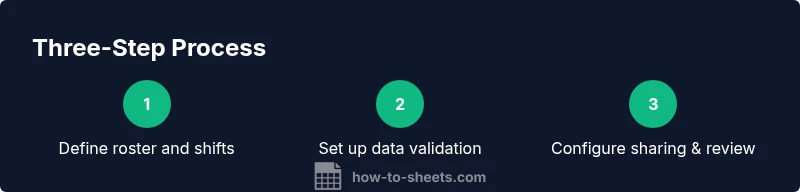
- Define a clean three-tab structure: Roster, Schedule, Summary
- Use data validation to reduce entry errors
- Leverage formulas to automate coverage tracking
- Protect critical cells and govern access for team collaboration