Google Sheets Employee Schedule Template: Step-by-Step Guide for Teams
Learn to build a reusable Google Sheets employee schedule template that tracks shifts, hours, and coverage. Step-by-step guidance, templates, and practical tips for teams.


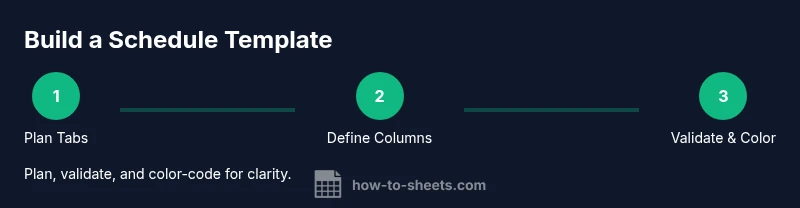
Create a reusable Google Sheets employee schedule template that tracks shifts, hours, and coverage. Start with a master roster, a schedule tab, and a fillable template. Add named ranges, data validation, and conditional formatting to catch overtime and gaps, then share with your team for real-time collaboration across multiple devices.
Why a Google Sheets employee schedule template matters
Teams of any size benefit from a centralized, shareable schedule. A template reduces miscommunication, improves coverage, and makes payroll handoffs more predictable. For students, professionals, and small business owners relying on Google Sheets, a well-designed template provides a single source of truth that updates in real time and travels with your team across devices. In practice, templates support rotating shifts, weekend coverage, and holiday coverage, while keeping overtime and absences visible. By laying out responsibilities clearly—names, roles, shifts, break times, total hours—you can quickly spot gaps, plan ahead, and avoid duplicated hours. A robust template also helps managers compare planned versus actual hours, making payroll and staffing decisions more data-driven. When designed with consistency, it’s easy to copy weekly templates, export reports, and integrate with lightweight apps that your team already uses.
From a practical standpoint, a two-tab model (Roster and Schedule) often works best. The Roster holds employee names, roles, and contact details, while Schedule records daily shifts, hours, and coverage notes. This separation keeps data tidy and makes it easier to reuse the core structure for future weeks or months. In addition, simple formulas and conditional formatting can flag conflicts (overlaps, gaps) and highlight overtime. In short, a well-crafted template saves time, reduces mistakes, and scales with your team’s growth.
Key features to include in your template
A good Google Sheets employee schedule template should balance clarity, flexibility, and control. Here are the essential features to plan for:
- Tabs and layout: A Roster tab (employees, roles, availability) and a Schedule tab (date, shift, hours, coverage). Consider a separate tab for holidays and training days to keep the main view clean.
- Clear headers: Use consistent column names like Date, Employee, Role, Start Time, End Time, Break, Hours, Overtime, and Notes. A standard layout makes it easier to train new staff on how to read the sheet.
- Shift-level data: Include columns for shift type (Morning, Afternoon, Night), start/end times, and a computed Hours column. This supports quick comparisons across days and teams.
- Hours calculations: Use time-based formulas to compute daily and weekly hours, and detect overtime or under-coverage. A robust sheet captures both planned hours and actual hours.
- Data validation: Create drop-down lists for Employee names, Roles, and Shift Types to minimize typos and ensure consistency across weeks.
- Named ranges: Define named ranges for lists and critical cells so formulas remain readable and portable when duplicating weeks.
- Conditional formatting: Visual cues help identify overtime (hours > 8), missing shifts (blank rows), or gaps in the schedule. Color-coding accelerates scanning.
- Collaboration-friendly sharing: Configure sharing settings to keep your schedule current while protecting sensitive fields. Use comments for clarifications and questions.
- Data export and templates: Build a clean template that can be exported to CSV or PDF for payroll or management reviews. This helps teams keep a record without locking the live sheet.
- Documentation: A short legend on the first tab describing field meanings, formulas, and any required maintenance steps reduces onboarding time for new users.
By focusing on these features, you’ll craft a template that is easy to use, adaptable to different team sizes, and resilient to common staffing changes.
Layout and data model: structure and sample columns
A well-designed schedule template balances readability with data integrity. Start with a two-tab foundation:
- Roster tab: columns for Employee ID (optional), Name, Role, Department, Availability, and Contact. This tab serves as the master reference for names and roles.
- Schedule tab: columns cover Date, Day, Shift Type, Start Time, End Time, Break (minutes), Hours, Overtime, Coverage Notes, and Status (Present/Absent). If you have a larger team, you may add a Subteam column to group colleagues.
Sample column layout for the Schedule tab:
- Date (date): the day being scheduled
- Employee Name (text): pulled from the roster via data validation or a simple lookup
- Shift Type (dropdown): Morning, Afternoon, Night
- Start Time / End Time (time): align with your organization’s shift definitions
- Break (minutes) (number): standard break length per shift
- Hours (computed): formula that calculates Hours = (End Time - Start Time) * 24 - Break/60
- Overtime (computed): formula that flags hours beyond standard daily hours
- Status (dropdown): Present, Sick, Holiday, PTO, etc.
- Notes (text): any coverage details or handoffs
Data integrity is critical, so enforce name consistency, use a separate lookup for Role to minimize typos, and keep dates formatted consistently (YYYY-MM-DD). A master roster makes it easy to refresh the Schedule tab each week without rebuilding formulas. For teams that rotate schedules, consider adding a Week column and a rotation index to support automatic week-based views. Finally, plan for a print-friendly view for on-site managers by building a compact, single-page layout that summarizes shifts and coverage.
Validation, formatting, and automation for accuracy
The strength of a Google Sheets schedule lies in reliable calculations and fast detection of issues. Implement these techniques:
- Data validation: create drop-down lists for Employee, Role, and Shift Type to prevent typos. Use a named range for the Employee list so validations stay synchronized as you add new staff.
- Time calculations: Hours = (End Time - Start Time) * 24 - Break / 60. Ensure you format time cells correctly and handle overnight shifts using IF statements or a 24-hour clock approach.
- Overtime detection: define standard daily hours (for example, 8 hours) and use conditional formatting to highlight hours over the threshold. This helps managers quickly flag overtime or compliance risks.
- Blank-row checks: use conditional formatting to flag empty lines in the Schedule tab that could indicate missing coverage.
- Data integrity checks: add a simple SUM of daily hours per week to verify totals align with planned staff coverage, helping catch discrepancies before payroll.
- Automation: for larger teams, lightweight Apps Script can auto-fill shifts from a rotation schedule, pull from a Google Form for availability, or send a weekly summary email to managers.
- Accessibility: ensure accessible color contrasts and avoid relying solely on color to convey meaning (include text labels or notes).
These techniques reduce manual errors, save time, and make the template robust enough to handle weekly or monthly staffing cycles without rework.
Collaboration, sharing, and version control
A schedule is inherently collaborative. Set up clear sharing rules and version-control practices:
- Permissions: grant edit access to HR or team leads, view access to others, and protect critical ranges (e.g., the roster tab) to preventing accidental changes to formulas.
- Protected ranges: lock formula cells and the roster list; allow contributors to edit only the Schedule tab or a designated input area.
- Real-time collaboration: Google Sheets excels at live updates; encourage teammates to refresh before making changes and use the Comment feature to discuss scheduling decisions.
- Version history: leverage Google Sheets’ version history to review changes, restore previous versions, and annotate updates with reasons.
- Audit trail: keep a weekly checklist in a separate Notes tab to document who approved changes and when.
- Data governance: if the template handles sensitive information, limit access to the minimum required and avoid exposing payroll details to non-admins.
A well-configured sharing model preserves data integrity while enabling efficient collaboration, which is essential for maintaining reliable shift coverage in fast-changing teams.
Real-world example: rotating schedule for a small team
Imagine a team of four with two shifts per day across four weeks. The template shows a roster of four employees (A, B, C, D) with predefined roles and availability. Week 1 places A on Morning shifts, B on Afternoon, C on Morning, and D on Afternoon. Week 2 rotates: B moves to Morning, C to Afternoon, and so on. Hours are calculated automatically, and overtime flags appear as needed. Holidays and training are pre-listed in a separate tab to avoid disrupting the main schedule. The example demonstrates how quick changes ripple through the week and how the template maintains alignment between planned and actual hours. With this setup, managers can quickly identify coverage gaps, reassign shifts, and communicate updates in real time to the team via the shared sheet.
Implementation tips and best practices for scale
- Start with a minimal, core template and expand as your team grows. Add tabs for accruals, vacation tracking, or shift swaps once the base is stable.
- Keep a versioned template in your Drive so you can revert to a known-good state if a formula breaks during weekly edits.
- Use clear naming conventions for tabs, headers, and named ranges to make it easier for new users to learn the sheet quickly.
- Consider regional time zone considerations if your workforce is distributed. Use a single time format and a separate column for timezone when needed.
- Regularly review and prune unused columns to keep the sheet readable and maintainable.
By combining a practical layout with robust validation and clear collaboration rules, your Google Sheets employee schedule template will withstand the test of time and scale with your team.
Maintenance and next steps
As you deploy the template, solicit feedback from managers and frontline staff. Track recurring issues and adjust the template to reflect real-world workflows. Schedule a quarterly review to update shift definitions, holiday coverage, and availability lists. With thoughtful maintenance, the template remains accurate, adaptable, and a trusted source of truth for staffing decisions.
Tools & Materials
- Google account with access to Google Sheets(Critical for creating and sharing the template)
- Internet connection(Needed to access Google Drive and Sheets)
- A roster of employees (CSV or list)(Names, roles, and basic contact info)
- A planned shift structure (Morning/Afternoon/Night)(Define standard shifts and hours)
- Sample data for testing(Used to validate formulas and validations)
- Color palette for readability(Optional but helpful for visual cues)
Steps
Estimated time: 60-90 minutes
- 1
Create the core workbook and tabs
Open Google Sheets and create two tabs: Roster and Schedule. Define the primary headers for the Schedule tab (Date, Employee, Shift Type, Start Time, End Time, Break, Hours, Overtime, Status, Notes). Link the Schedule tab to the Roster for data consistency.
Tip: Name the sheet tabs clearly and set up basic protected ranges for roster data to prevent accidental edits. - 2
Populate the roster and set validations
Enter employee names and roles in the Roster tab. Use data validation on the Schedule tab to create dropdowns for Employee and Shift Type. This minimizes typos and ensures consistency across weeks.
Tip: Create a named range for the employee list and reference it in validations to simplify updates. - 3
Add time calculations and hours
Implement time difference calculations for Hours and a separate formula to flag Overtime. Ensure time formats are consistent (24-hour format recommended) and consider overnight shifts with an adjustment rule.
Tip: Test time calculations with sample shifts that cross midnight to verify correctness. - 4
Apply conditional formatting for visibility
Set conditional formatting to highlight overtime hours, missing shifts, and any gaps in coverage. Use distinct colors to make issues obvious at a glance.
Tip: Avoid overusing colors; pair color cues with text like 'Overtime' or 'Missing' in a helper column. - 5
Configure sharing and permissions
Share the sheet with the team, assigning edit rights to admins and view rights to others. Protect critical ranges and enable comments for questions and handoffs.
Tip: Use version history to track changes and revert if needed after large edits. - 6
Test with a sample week and iterate
Create a test week to validate formulas, validations, and formatting. Gather feedback from a small group and update the template before rolling out widely.
Tip: Document changes in a dedicated Change Log tab to help future users understand updates.
FAQ
What is a Google Sheets employee schedule template?
A pre-built layout in Google Sheets designed to track shifts, hours, and coverage for team members. It standardizes data entry and simplifies weekly planning.
It's a ready-made layout in Google Sheets to track shifts and hours for your team.
How do I customize shift times and breaks?
Define shift types in a dropdown and adjust start/end times and break lengths. Use formulas to calculate hours, and validate inputs to prevent gaps.
Use dropdowns for shifts and add formulas to compute hours; adjust breaks as needed.
Can I share the schedule with teammates in real-time?
Yes. Share via Google Drive with appropriate permissions (edit/view). Real-time updates are synchronized across all users.
Yes—share with the team and let everyone view or edit as needed.
How can I avoid errors when copying templates across weeks?
Use absolute references and named ranges, lock formulas, and test weekly copy routines to ensure consistency.
Lock formulas and use named ranges when copying weeks.
Is there a built-in Google Sheets template for schedules?
Google Sheets offers various starter templates that can be customized into an employee schedule. You can also build your own template from scratch.
There are starter templates you can adapt, or you can create your own from scratch.
What about overtime calculations?
Define standard daily hours and use formulas to flag hours beyond that threshold as overtime. Conditional formatting helps visualize this instantly.
Calculate overtime with simple rules and highlight it for visibility.
Watch Video
The Essentials
- Create a two-tab template for clarity: Roster and Schedule.
- Enforce data validation to maintain consistency.
- Use formulas to calculate hours and overtime automatically.
- Protect critical data and manage sharing carefully.
- Iterate with feedback to keep the template relevant.