Google Sheets Overtime Tracker: A Practical Step-by-Step Guide
Learn to build a practical Google Sheets overtime tracker to capture daily hours, calculate overtime, and generate auditable reports for payroll and compliance.


You will build a Google Sheets overtime tracker to capture daily hours, calculate overtime, and flag excess hours. You'll need a simple timesheet template, headers for date, employee, hours worked, and overtime, plus formulas to compute totals. This quick guide expands into a detailed, step-by-step build. Additionally, it covers sharing, auditing, and policy alignment. Expect 60-90 minutes to set up for a team.
Why track overtime in Google Sheets
Overtime costs are a hidden drag on payroll budgets, and manual timekeeping increases the risk of errors. A well-designed overtime tracker in Google Sheets helps supervisors and teams stay aligned, document hours for audits, and simplify pay calculations. According to How To Sheets, small businesses often gain the most value by starting with a clean, formula-driven template rather than a complex, custom app. By capturing daily hours, overtime hours, and approvals in one place, managers can analyze patterns, spot compliance gaps, and forecast labor costs with confidence. In practice, a tracker should support multiple employees, accommodate different pay policies, and be easy to share with a payroll administrator. As teams adopt the sheet, you’ll appreciate features like data validation, automatic totals, and color-coded flags that quickly show when overtime exceeds policy or a cap in a given period. The goal is to reduce manual calculations, minimize disputes, and provide a simple proof trail for audits. The How To Sheets approach emphasizes clarity, guardrails, and reusability—so you can clone a proven layout across departments or projects.
Core components of an overtime tracker
An effective overtime tracker organizes data in a consistent, auditable layout. Core components typically include: Employee name, Date, Hours Worked, Overtime Hours, Overtime Rate (where applicable), Overtime Pay, Approvals, and a Notes field. You can also add a Status column to reflect whether the entry is pending, approved, or rejected. In a multi-employee setting, a separate tab or filtered view helps managers inspect hours by person, department, or project. The notebook should support both daily entries and weekly summaries, plus periodic totals for payroll. The emphasis is on simplicity and accuracy: avoid free text in date fields, lock critical formulas, and use dropdowns to standardize inputs. If you plan to scale, consider naming ranges for the hours column, the overtime rate, and the pay line so formulas stay readable and portable. In this way, the tracker becomes a living reference you can reuse for new pay cycles without rewriting the logic.
Building a basic timesheet: columns and data validation
Set up the column headers and apply data validation to keep inputs consistent. In Google Sheets, create headers in row 1: Date, Employee, Hours Worked, Overtime Hours, Overtime Pay, Overtime Rate, Status, Notes. Then create a sample row with data: 2026-03-31, Alex Kim, 8.5, 0.5, 3.25, 1.0, Approved, Initial entry. For validation: Date column uses date criteria; Hours Worked uses a numeric range (>=0); Employee uses a dropdown tied to a roster list; Status uses a small list (Pending, Approved, Rejected). Protect critical formula columns to prevent accidental edits. If you maintain a separate Holidays or Leave tab, reference those dates to avoid misclassifying leave as overtime. This guardrail pays off when you scale to 50+ employees. Remember to align locale settings for date formats to keep data consistent across payroll exports.
Calculating overtime: formulas and logic
Daily overtime can be calculated with a simple rule: overtime hours = max(Hours Worked - 8, 0). In Google Sheets, place this formula in the Overtime Hours column for each row: =IF(C2>8, C2-8, 0) where C is Hours Worked. Overtime Pay equals Overtime Hours multiplied by the rate: =D2*E2 (D = Overtime Hours, E = Overtime Rate). For different policies, consider a lookup table for the rate per employee and use a VLOOKUP or XLOOKUP to fetch the correct rate. To summarize weekly overtime, create a separate tab and use a start date in a cell (e.g., G2) with a formula like: =SUMIFS(F:F, A:A, ">="&G2, A:A, "<="&G2+6) where F is Overtime Pay and A is Date. This approach keeps daily accuracy while delivering a clear weekly view. If you have multiple departments, you can add a Department column and adapt the SUMIFS criteria accordingly. Consistently validate inputs and test edge cases such as part-time schedules and holidays to avoid miscounts.
Advanced features: conditional formatting, dashboards, and automations
Bring the tracker to life with conditional formatting, dashboards, and automation. Use conditional formatting to highlight entries where Overtime Hours are greater than policy thresholds (e.g., if D2 > 2, color red). Create a weekly dashboard with sparklines and charts: a bar chart for weekly overtime hours and a line chart for weekly overtime pay. For automation, explore Google Apps Script to email a weekly overtime summary to payroll or managers, or to automatically pull the current week's data from the Timesheet into the Weekly Totals tab. Templates can include a small script that triggers on form submit or sheet open to remind approvers about pending entries. Keep automation lightweight and secure by limiting script permissions and testing in a copy of the sheet. This combination makes the tracker not only functional but also scalable across teams.
Sample template structure
A practical template usually includes multiple tabs. Sheet1: Timesheet (daily entries with Date, Employee, Hours Worked, Overtime Hours, Overtime Rate, Overtime Pay, Status, Notes). Sheet2: Weekly Totals (Week Start Date, Total Overtime Hours, Total Overtime Pay). Sheet3: Rates & Roster (Employee, Overtime Rate, Department, Supervisor). This structure helps maintain clarity as the team grows. Use named ranges for Employee list, Date range, and Rate table to keep formulas readable and portable. Consistent data validation and protected ranges ensure new users don’t break critical calculations. A well-organized template should be easy to duplicate for new departments and adaptable to project-based overtime rules.
Using templates and sharing with teams
Once you have a stable template, make a duplicate copy for each department or project. Share permissions should reflect roles: editors for payroll admins and managers, viewers for team members. Protect critical formulas and ranges to prevent accidental edits, and enable version history so you can audit changes. Provide simple instructions on how to enter data, what to do when overtime policies change, and how to escalate disputes. Consider adding a small help row at the top of the Timesheet with guidance on date formats and what constitutes overtime in your policy. Finally, communicate a rollout plan, collect feedback, and iterate. A well-documented template reduces onboarding time and increases adoption across the organization.
Data security and compliance considerations
Overtime data is sensitive payroll information. Limit access to the sheet to authorized personnel only and use view-only permissions for most users. Enable version history to recover from accidental edits, and regularly back up the template. If you export data to payroll systems, standardize date formats and ensure consistent time zones to avoid errors in pay. Document who approved changes and maintain an audit trail for compliance reviews. For organizations with stricter controls, consider separating the data into a dedicated payroll workbook with access restricted to HR and Finance. The goal is to maintain privacy, accuracy, and traceability while still enabling collaboration where it adds value.
Real-world deployment: testing, rollout, and maintenance
Before going live, test the tracker with mock data covering edge cases: multiple employees, holidays, and overtime policies that vary by role. Validate that daily calculations match expected pay and that weekly totals align with payroll periods. Roll out in a staged manner: start with a pilot department, gather feedback, and adjust headers, validation, and templates accordingly. Schedule regular maintenance windows to review formulas, update rates, and refresh lists (employee roster, rate tables). Establish a short lifecycle for archiving old data and rotating templates to keep the workbook clean. Finally, document a clear handoff protocol for future changes so the tracker remains reliable as teams scale.
Bonus: common troubleshooting checks
If numbers don’t add up, verify: (1) correct column references in formulas, (2) consistent date formats, (3) that data validation rules are applied to new rows, (4) that the Overtime Rate table is up to date, and (5) that weekly boundaries align with your payroll cycle. Use FILTER and QUERY functions to build targeted views for specific employees or weeks, and keep a small test dataset to verify calculations after any change. Regular checks prevent small errors from becoming payroll disputes.
Tools & Materials
- Google account with Google Sheets access(Required to create and edit the tracker in Sheets)
- Blank Google Sheet or existing template(Start with a clean sheet or duplicate an overtime tracker template)
- Time-tracking policy document (optional)(Helpful for policy-based overtime rules and payroll alignment)
- Data validation drop-down lists (prepped in sheet)(Standardize inputs for Employee, Status, etc.)
- Access/sharing controls (optional)(Configure permissions to protect formulas and data)
Steps
Estimated time: 60-90 minutes
- 1
Create the basic sheet structure
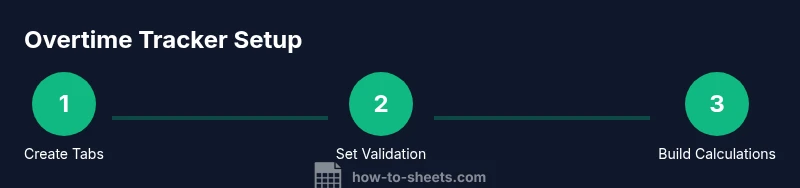
Open a new Google Sheet and set up the core tabs: Timesheet, Weekly Totals, and Rates. Define columns for Date, Employee, Hours Worked, Overtime Hours, Overtime Rate, Overtime Pay, Status, and Notes. Establish a consistent date format and time zone.
Tip: Use a separate header row with frozen panes (View > Freeze > 1 row) to keep headers visible while scrolling. - 2
Set up data validation for inputs
Apply data validation to keep inputs clean: Date column as date, Hours Worked as number >=0, Status as a drop-down (Pending, Approved, Rejected), and Employee from a roster list. Create named ranges for rosters to simplify maintenance.
Tip: Avoid free-text entries in critical fields by using dropdowns; this reduces errors later in formulas. - 3
Enter sample data and test formatting
Fill in a handful of rows with realistic data to test formatting, date consistency, and the drop-down lists. Check that the date matches your locale and that values render correctly across sheets.
Tip: Use a small test dataset to verify calculations before rolling out to the entire team. - 4
Add daily overtime formula
In the Overtime Hours column, enter a formula to compute overtime per day, e.g., =IF(C2>8, C2-8, 0) where C is Hours Worked. Copy down to apply to all rows.
Tip: Lock the column reference if you plan to move data around the sheet to avoid broken formulas. - 5
Compute overtime pay with a rate
In the Overtime Pay column, multiply overtime hours by the rate: =D2*E2 where D is Overtime Hours and E is Overtime Rate. Use a Rate table if rates vary by employee.
Tip: Consider a VLOOKUP/XLOOKUP for dynamic rates instead of hard-coded values. - 6
Summarize weekly overtime
On the Weekly Totals tab, set a start date for each week (e.g., 2026-03-29) and use a SUMIFS to total overtime pay by week: =SUMIFS(F:F, A:A, ">="&G2, A:A, "<="&G2+6).
Tip: Link the week start to the payroll cycle so totals align with pay periods. - 7
Enhance with conditional formatting
Apply conditional formatting to the Overtime Hours column to highlight hours exceeding policy (e.g., >2 hours) in red. This makes policy breaches visually obvious at a glance.
Tip: Keep rules simple and consistently color-coded across sheets. - 8
Protect formulas and share with your team
Lock cells containing formulas (Data protection options) and share the sheet with appropriate permissions. Provide a short help sheet with instructions for entering data.
Tip: Provide read/write access only to payroll/admins; others can view or edit limited fields.
FAQ
How do I set up the basic columns for an overtime tracker in Google Sheets?
Create headers like Date, Employee, Hours Worked, Overtime Hours, Overtime Rate, Overtime Pay, Status, and Notes. Use data validation for Date, Hours Worked, and Status, and pull Employee names from a roster list. This provides a consistent structure for calculations and audits.
Start with a clean header row, add data validation, and link the Employee list to a shared roster.
How do I calculate daily overtime hours in Sheets?
Use a simple rule: overtime hours = max(Hours Worked - 8, 0). Implement in a formula like =IF(C2>8, C2-8, 0) where C2 is Hours Worked. Copy down for all rows.
The daily overtime is Hours minus eight hours when you work more than eight hours.
Can I track overtime by department or project?
Yes. Add a Department or Project column and adjust your weekly total formulas to include that field. You can filter your weekly totals by department to see where overtime concentrates.
You can filter by department to see where overtime is concentrated.
How do I protect formulas in a shared Google Sheet?
Lock cells that contain formulas (Protect range) and restrict editing access to payroll admins. Provide viewers or commenters for others, and keep a backup copy in case of errors.
Lock the formula cells and limit who can edit them.
What are best practices for auditing overtime data?
Maintain a simple audit trail by using Version History, add notes for policy changes, and store a separate rates table. Regularly reconcile totals with payroll outputs.
Keep an audit trail with version history and a rates table.
Is there a ready-made template I can start from?
Yes. Start with a clean template and customize columns, rates, and validation to fit your policy. Duplicate the sheet for departments and adjust the weekly totals accordingly.
You can start from a ready template and tailor it to your policy.
Watch Video
The Essentials
- Define a clear column structure and data validation to reduce errors
- Use daily overtime formulas and weekly totals for clarity
- Leverage conditional formatting and dashboards for quick insights
- Protect critical formulas and control access in shared sheets
- Test with mock data and iterate before live rollout