Attendance Template Google Sheets: Practical Guide
Learn how to create an attendance template in Google Sheets, customize it for classes, teams, or events, and automate tracking, reporting, and sharing.


You can create an attendance tracker in Google Sheets by using a ready-made attendance template google sheets and customizing it for your class, team, or project. This quick setup will track dates, presence, tardies, and absences, automatically compute totals, and flag students needing follow-up. You’ll learn how to set up inputs, formulas, and sharing permissions.
What is an attendance template Google Sheets?
An attendance template for Google Sheets is a pre-structured spreadsheet designed to record who attended or was absent on each date, with built‑in calculations and formatting to help you monitor participation over time. At its core, the template provides a grid: rows for participants and columns for dates, plus additional columns for remarks, totals, and quick metrics. Using this approach, you can capture attendance data in a uniform format, which makes it easier to run reports, export summaries, and integrate with other records. For many schools, teams, and workplaces, an attendance template google sheets is a practical starting point that saves time and reduces data-entry errors. As you scale, you can adapt the sheet to multiple cohorts and different attendance rules without starting from scratch.
Why use attendance templates for tracking?
Templates bring consistency across cohorts and timeframes. A well-designed attendance template google sheets helps you: - Eliminate manual calculations with built-in formulas. - Maintain a verifiable record for audits, payroll, or grant reporting. - Share with stakeholders while protecting sensitive information. - Quickly identify patterns such as chronic tardiness or high absentee rates. According to How To Sheets, structured templates also improve accuracy by guiding data entry and validating inputs at the point of capture. This reduces rework and makes reporting faster for students, professionals, and small business owners.
Core components of a robust template
A strong attendance template google sheets should include:
- A header row with dates (or sessions) and a clear title.
- A participant list (names or IDs) that stays constant across sessions.
- Status columns (Present, Absent, Late, Excused) with data validation to ensure consistency.
- A notes column for explanations or context per session.
- A summary area that totals attendance, present days, and absences per person.
- Conditional formatting to highlight patterns (e.g., frequent absences).
- A separate summary tab for export-ready reports (CSV, PDF).
- Optional links to related records like enrollment or payroll data. Building this in Google Sheets helps you keep everything in one place and makes it easy to adapt to new cohorts.
Getting started: set up a basic template
To begin, create a new Google Sheet and structure it into three core tabs: a main attendance sheet, a roster sheet, and a summary/report tab. The main sheet should have columns for Date, Student Name, Status, and Notes. The roster lists all participants with unique IDs. The summary tab aggregates totals per person and per session. Start with a sample roster of 5–10 people to test the formulas, then expand to your full group. As you work, enable Google Sheets’ version history to track changes and revert mistakes.
Customization for classrooms, teams, and events
The template should be flexible enough to handle different sizes and contexts. For classrooms, you might add periods or class sections, while for teams you might track shifts or projects. For events, include event codes and session times. Consider adding a simple dropdown for the Status column (Present, Absent, Late, Excused) and a color scheme that differentiates each status. You can also introduce a rolling window (e.g., last 4 weeks) to review recent attendance trends without scrolling through long histories.
Formulas and automation to save time
Common formulas include COUNTIF to tally present days, and SUM to compute totals per student. A simple approach is to create a Present flag (1 for present, 0 for others) and then use SUM to total the present days for each participant. You can use IFERROR to gracefully handle missing data. For example, a formula in a per-person total cell might be =SUMIF(StatusRange, "Present", PointsRange). To flag consistent absence, use a conditional formula like =IF(AVERAGE(PresentFlagRange) < 0.9, "Watch", "OK"). You can also automate date generation with =SEQUENCE(number_of_sessions,1,start_date,1) to ensure dates are consistently spaced.
Formatting and validation for data integrity
Data validation ensures consistent input. Apply a dropdown to the Status column with values: Present, Absent, Late, Excused. Use conditional formatting to color code statuses (e.g., green for Present, red for Absent, amber for Late). Freeze the header row for easy scrolling, and lock the roster column to prevent accidental edits. Consider validation for dates (must be a valid date) and for unique IDs. Keeping a clean, validated structure helps you produce reliable reports with minimal manual checking.
Sharing, permissions, and privacy considerations
Decide who can view or edit the attendance sheet. For class rosters, limit editing rights to instructors and administrators, while allowing students to view. Use protected ranges for sensitive columns like personal IDs and notes. If you’re sharing externally, export regular reports (as CSV or PDF) and store them in a secure location. Google Sheets’ sharing settings let you control access at the sheet or range level, ensuring that only authorized people can modify data while others can view read-only summaries.
Data integrity and backups: best practices
Backups are essential. Create a weekly backup copy in a dedicated folder and consider enabling automatic version history for this workbook. Use clear naming conventions like Attendance_ClassA_YYYYMMDD to track versions. Regular audits (spot checks for typos and miskeyed statuses) help catch mistakes early. If you’re working with sensitive data (names, IDs, contact details), minimize exposure by restricting access to trusted individuals and using anonymized summaries when possible.
AUTHORITY SOURCES
- NCES: https://nces.ed.gov/
- U.S. Department of Education: https://www.ed.gov/
- How To Sheets Analysis, 2026: internal research reference used to illustrate the benefits of standardized templates.
Next steps: turning this into a reusable template
Once your basic attendance sheet is working, convert it into a reusable template by:
- Moving the roster and initial settings to a dedicated template tab
- Documenting the steps to use the template in a readme tab or comments
- Saving a copy as a Google Sheets template in your library
- Providing a quick-start guide for new users with example data
- Periodically reviewing and updating validation rules to reflect policy changes
Tools & Materials
- Google account(Needed to access Google Sheets and templates)
- Google Sheets access(Ensure you have editing rights or a workspace with Sheets enabled)
- Attendance template file (Google Sheet)(Start from a blank sheet or a starter template)
- Sample roster or class list(Test data to validate formulas and layout)
- Backup location (Google Drive or external drive)(Store backups and template versions)
Steps
Estimated time: 60-90 minutes
- 1
Define scope and cohorts
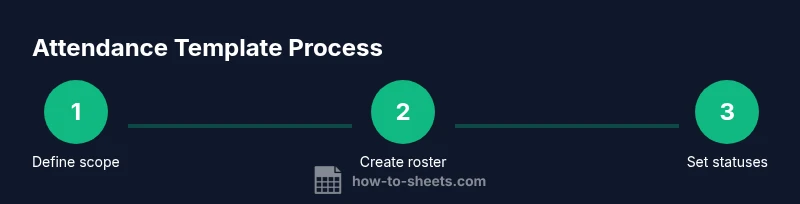
Clarify who will be tracked (class, team, or event) and what periods to cover. Decide on status categories and any special rules (e.g., tardies count as half-present). Document the expectations so the template is purpose-built from the start.
Tip: Write down the target cohort, session frequency, and reporting needs before creating columns. - 2
Create roster and session headers
List participants on the left side and create date columns across the top. Include essential columns for Status and Notes. Leave space for a totals column per participant.
Tip: Use frozen panes to keep headers visible while you scroll. - 3
Add status dropdowns
Set up a dropdown list for the Status column with options Present, Absent, Late, and Excused. This enforces consistency and reduces free-text errors.
Tip: Apply the dropdown via Data validation to keep data uniform. - 4
Implement basic totals
Create a per-participant total using a SUM or COUNTIF formula to count Present days. Add a date-wise total to quickly assess attendance in a session.
Tip: Label totals clearly and check a few rows to verify correctness. - 5
Add conditional formatting
Color-code statuses to provide visual cues: green for Present, red for Absent, amber for Late. This makes patterns instantly recognizable.
Tip: Use a separate rule for each status to avoid overlap. - 6
Create a summary tab
Build a compact summary with per-person totals, attendance rate, and flags for unusual patterns. This tab should be export-ready for reports.
Tip: Link the summary to the main sheet with dynamic ranges to reflect new rows automatically. - 7
Validate dates and IDs
Ensure date entries are legitimate and IDs are unique by using data validation and unique constraints. This reduces duplicates and misentries.
Tip: Enable a simple unique ID check using COUNTIF across the ID column. - 8
Protect sensitive columns
Lock or protect columns with personal data and notes to prevent unauthorized edits. Assign view-only permissions where appropriate.
Tip: Use protected ranges and assign editor roles carefully. - 9
Test with sample data
Enter a few test sessions and participants to validate formulas and formatting. Confirm that totals update correctly and that exported reports reflect the right numbers.
Tip: Simulate edge cases like backdated entries or late shifts to ensure resilience. - 10
Save as a reusable template
Convert the sheet into a template within Google Sheets or save a copy in your templates folder. Document usage steps for new users.
Tip: Keep a changelog and note any policy requirements in the template itself.
FAQ
What data should I track in an attendance template?
Track date, participant name or ID, attendance status, and notes. Include a per-person total and a session-wide summary for quick reporting.
Track date, name or ID, status, and notes. Include totals for quick reports.
Can I use this template for both in-person and remote teams?
Yes. Use a single Status dropdown and adjust notes to capture remote participation or special circumstances. Consider separate sheets or views if you need different metrics for in-person versus remote attendees.
Yes, you can adapt it for in-person or remote tracking with a few tweaks.
How do I share the template securely?
Limit editing rights to trusted users and use view-only links for others. Protect sensitive columns, and regularly audit access permissions.
Share with appropriate permissions and protect sensitive data.
Which formulas help compute attendance totals automatically?
Use COUNTIF or SUM with a status filter (e.g., Present) to tally attendance. Combine with IFERROR to handle blank cells gracefully.
Use COUNTIF for present days and ensure errors are handled gracefully.
Is there a recommended structure for different group sizes?
For large groups, split into cohorts or tabs and include a summary tab. For small groups, a single tab with scrolling and clear headers works well.
Split for large groups or keep a single sheet for small ones.
How do I protect sensitive information in Google Sheets?
Use Protected Ranges and restrict access to only those who need it. Consider anonymizing data in summary reports when possible.
Protect ranges and restrict access; anonymize data when sharing summaries.
Can I export attendance data to other formats?
Yes. Use File > Download to export as CSV or PDF for payroll, attendance logs, or reports.
Export as CSV or PDF for reporting and payroll.
Watch Video
The Essentials
- Define scope before building to save rework
- Use dropdowns and data validation for consistency
- Automate totals to reduce manual counting
- Protect sensitive data with permissions