Google Sheets Tracking Template: Build a Practical, Reusable System
Learn how to design a practical Google Sheets tracking template that centralizes tasks, deadlines, owners, and progress for projects, budgets, and daily tasks. Boost consistency, collaboration, and reporting with step-by-step guidance.


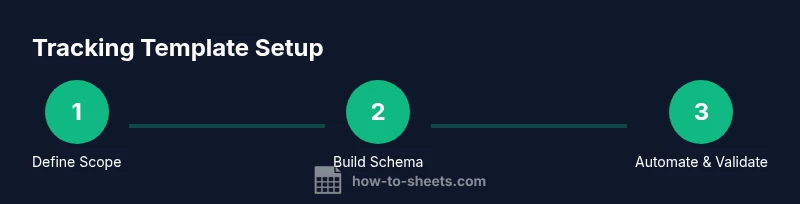
Goal: create a reusable Google Sheets tracking template that centralizes tasks, deadlines, owners, and status. You’ll start with a clean sheet, define key columns, apply data validation, and add simple formulas to track progress. By the end, you’ll have a drop-in template you can reuse for projects, budgets, or daily tasks.
Why a Google Sheets tracking template matters
In teams of any size, a centralized template for tracking work helps reduce miscommunication and duplicated effort. A well-designed Google Sheets tracking template serves as a single source of truth for task lists, timelines, owners, and status. It enables faster updates, consistent reporting, and easier onboarding for new teammates. According to How To Sheets, practical templates cut manual data entry and friction when collaborating across projects, budgets, and operations. The end result is clearer accountability, better visibility into bottlenecks, and faster decision-making. Whether you’re a student managing group projects, a professional tracking client work, or a small business owner monitoring expenses, a well-structured template scales with your needs without locking you into a single workflow.
Key design principles for an effective tracking template
A strong tracking template balances flexibility with discipline. Start with a clean, predictable structure: a single data entry sheet, a separate summary/dashboard, and consistent column headers. Use data types that prevent errors (dates for due dates, text for descriptions, and dropdowns for status). Keep formulas simple and readable, and document any assumptions within the sheet (via a Notes column or a dedicated sheet). The How To Sheets team emphasizes that templates should be easy to audit and extend; avoid overloading columns with too many fields at first. Plan for future expansion by reserving columns for project codes, priority levels, or owners, but only add them when you truly need them.
Core components to include in your template
Start with a compact set of core columns: Task/Item, Owner, Start Date, Due Date, Status, Priority, Progress, and Notes. Add a Status dropdown (e.g., Not Started, In Progress, Blocked, Complete) and use validation to keep responses consistent. Implement a Progress column that automatically calculates completion based on the number of completed tasks or milestones. A Summary sheet or dashboard should pull data from the main sheet using simple formulas (SUMIF, COUNTIF, AVERAGEIF) to show trimester totals, overdue items, or completion rates. Include a Documentation sheet describing each column, data types, and accepted values so new users can adopt it quickly.
Data validation and automation: ensuring data quality
Data validation is the backbone of reliable templates. Use dropdowns for Status and Priority to reduce misspelled entries, and add date validation to prevent impossible dates. Conditional formatting highlights overdue tasks, approaching deadlines, or high-priority items, providing at-a-glance awareness. For automation, you can set up simple triggers to auto-fill the Start Date when a new row is added, or to update a Last Modified timestamp. Apps Script is optional here; many teams get substantial value from built-in sheet features before expanding automation. The key is to keep it maintainable and transparent.
Using formulas to track progress and totals
Formulas turn raw data into actionable insights. A basic progress calculation might be Progress = (Count of Complete rows) / (Total rows) in a dashboard. Use IF and ISBLANK to handle incomplete items gracefully. SUMIF and COUNTIF help aggregate by Status, Priority, or Owner. For date-based analysis, use NETWORKDAYS to estimate working days between Start and Due dates. Remember to document assumptions and test formulas with sample data before going live. Small, well-documented formulas reduce confusion and errors over time.
Template variants: budgets, tasks, and habit tracking
A single Google Sheets tracking template can be adapted for multiple use cases. For budgets, add columns for Budget, Actual, Variance, and a simple cash flow summary. For tasks, emphasize due dates, owners, and a weekly view. For habit or activity tracking, replace monetary fields with counts or scores and add a 7-day, 30-day, or 90-day trend. Create templates for recurring projects and leverage replica sheets to speed up setup, then copy the master blueprint when starting a new initiative. This approach keeps governance tight while enabling flexible, domain-specific views.
Collaboration, sharing, and governance
Share the template with teammates using Google Sheets’ access controls. Grant Edit access only to those who must modify data, and use View access for stakeholders who only need reports. Protect sensitive ranges or cells to prevent accidental edits, and maintain a version history to recover from mistakes. Establish a simple governance policy: who can modify formulas, who maintains the template, and how often dashboards are refreshed. Documentation helps non-technical users understand the workflow and reduces support queries.
Common pitfalls and how to avoid them
Rushing setup without planning leads to messy data and redundant fields. Avoid overcomplicating the template with too many columns at launch. Inconsistent data entry destroys reporting accuracy—rely on dropdowns and validation. Failing to test formulas with real data results in misleading dashboards. Finally, neglecting version control makes it hard to track changes over time. Build a small, testable prototype first, then iterate with user feedback to achieve a robust tracking system.
Tools & Materials
- Google account(Needed to access Google Sheets and save templates.)
- Google Sheets (web or mobile app)(Create, edit, and share templates from your Google Drive.)
- Sample dataset (optional)(Use for testing formulas and layouts before data entry starts.)
- Device with internet access(A laptop or tablet is sufficient; desktop preferred for large dashboards.)
- Documentation sheet template(Helps new users understand fields and rules.)
Steps
Estimated time: 60-90 minutes
- 1
Define the template scope
Identify what you will track (tasks, budget, inventory), who uses it, and how the data will be consumed in reports. Write 3 use cases to guide design decisions.
Tip: Clarify the primary KPI you want to monitor (e.g., completion rate or variance). - 2
Create the header row and core columns
Set up essential columns: Task, Owner, Start Date, Due Date, Status, Priority, Progress, Notes. Use bold headers and consistent naming.
Tip: Use consistent data types to simplify formulas later. - 3
Add data validation and drop-downs
Implement dropdowns for Status and Priority, and date validators for date fields. This reduces errors and keeps reporting clean.
Tip: Document accepted values next to the headers. - 4
Set up basic formulas for tracking
Create a Progress indicator, complete counts, and simple totals. Use IF, COUNTIF, and SUMIF to summarize by status or owner.
Tip: Keep formulas readable with named ranges where possible. - 5
Build a compact dashboard sheet
Summarize key metrics like overdue items, completion percentage, and owner load. Use simple charts to visualize data at a glance.
Tip: Limit dashboards to a few essential visuals for clarity. - 6
Protect critical ranges
Lock essential formulas and headers to prevent accidental edits. Use protected ranges in Google Sheets.
Tip: Only grant edit access to trusted collaborators. - 7
Test with sample data
Populate with representative data and verify that dashboards reflect changes correctly. Iterate based on results.
Tip: Check edge cases like missing dates or completed items. - 8
Share and onboard
Invite teammates, provide a brief how-to, and collect feedback. Update documentation as needed.
Tip: Create a short video or quick guide to reduce onboarding time. - 9
Iterate and scale
Add new fields or sheets as requirements grow, but do so methodically. Maintain a changelog for transparency.
Tip: Schedule quarterly reviews of the template to keep it aligned with needs.
FAQ
What is a Google Sheets tracking template?
A Google Sheets tracking template is a ready-to-use structure inside Sheets that logs tasks, deadlines, owners, and status, then summarizes progress.
It's a ready-to-use structure in Sheets for tracking tasks and progress.
Can I customize the template for budgets and tasks?
Yes. Rename columns, adjust formulas, and add new sheets to fit budgets or different task views while preserving data integrity.
Yes, you can customize by renaming columns, adjusting formulas, and adding sheets.
How do I share the template with teammates?
Use Google Sheets' sharing settings to grant view or edit access. Consider protecting sensitive ranges for non-editors.
Use sharing settings to control access and protect ranges.
Is offline editing supported?
Yes. Google Sheets supports offline editing, allowing changes to sync when you’re back online.
Yes, you can edit offline and it will sync later.
How can I import data from other apps into the template?
Use built-in features like IMPORTRANGE or IMPORTDATA to pull in data, then validate and map fields to your template.
Use IMPORTRANGE or IMPORTDATA to pull data, then map fields.
What security considerations exist for shared templates?
Limit access to essential personnel, enable protected ranges, and avoid storing highly sensitive information in shared templates.
Limit access and protect ranges to safeguard data.
Watch Video
The Essentials
- Define the scope before building.
- Use data validation to ensure consistency.
- Create a lightweight dashboard for quick insights.
- Protect essential ranges to prevent edits.
- Automate totals with simple formulas to save time.