Google Sheets Project Management Template: A Practical Guide
Learn to build a reusable Google Sheets project management template that tracks tasks, owners, due dates, status, and progress with formulas and dashboards for teams.


Create a reusable project management template in Google Sheets to centralize tasks, ownership, due dates, status, and progress. You’ll choose a template, tailor columns, set up data validation, and leverage formulas for automatic reporting. This approach speeds onboarding, improves visibility, and scales across teams with minimal upfront setup. Whether you’re a student, professional, or small business owner, this method helps standardize workflows and maintain a single source of truth.
What is a Google Sheets project management template?
A Google Sheets project management template is a structured workbook that organizes tasks, owners, due dates, statuses, and progress in a single, cloud-based file. It combines rows for individual tasks with columns for attributes, leveraging built-in formulas and conditional formatting to visualize status at a glance. A well-designed template is adaptable to simple or complex projects and supports quick customization without breaking existing calculations. Because it’s stored in Google Drive, team members can comment, update, and view changes in real time, reducing email back-and-forth and ensuring everyone references the same data. Templates also integrate with other Google Workspace apps and third-party tools, enabling dashboards, automated reminders, and data imports to keep your project moving smoothly.
To get started, copy a proven template or create a fresh sheet with core columns like Task, Owner, Start date, Due date, Status, Priority, and Progress. Keep the structure lean at first and add new fields only when needed to avoid clutter and confusion. A practical approach is to design a separate Overview tab that aggregates key metrics from your task list, so leadership and stakeholders can see progress at a glance.
Core components to include
Every good PM template in Google Sheets should share a few non-negotiables, plus optional enhancements you can add as your needs evolve. Core components include a Task ledger with your primary fields (Task name, Owner, Start date, Due date, Status, Priority, Progress), an Overview dashboard that summarizes completion, and a Resources tab for people, time estimates, and dependencies. Data validation ensures consistent Status values (e.g., Not Started, In Progress, Blocked, Done) and controlled Priority levels. Formulas automatically compute progress, upcoming deadlines, and overdue tasks, while conditional formatting provides color cues for urgency. Optional but highly valuable add-ons include Milestones, Risk flags, and Budget tracking, which can be attached to individual tasks without disrupting the core data model. For teams using Kanban or sprints, you can create a separate board tab that mirrors tasks by column, while keeping a single source of truth in the main sheet. The key is to maintain a clean data model with scalable columns that you can grow without breaking existing formulas.
Designing for different teams and projects
Templates should be flexible enough to support multiple project types, from a one-off campaign to ongoing product development. Start with a minimal, universal schema, then branch out with project-specific fields only when necessary. Use named ranges and protected sheets to guard core calculations, while allowing team members to add comments and notes without altering formulas. Consider creating alternate views—such as a sprint view, milestone timeline, or risk heatmap—by duplicating the main data into auxiliary tabs with linked formulas. If you frequently switch between projects, design the template to reset quickly: clear task rows, reassign owners, and adapt the dashboard to reflect the new scope. This approach helps teams scale without creating chaos or data silos.
Data validation, formulas, and automation you can use
A robust template relies on data validation, consistent data entry, and automation. Use dropdowns for Status and Priority to avoid typos (e.g., In Progress, Done, Blocked), and validate date fields to prevent past-due deadlines from slipping through. Core formulas calculate progress as a ratio of completed tasks to total tasks, flag overdue items, and generate dynamic dashboards. You can also incorporate conditional formatting to highlight due dates within a week, overdue tasks in red, or high-priority items in amber. For more automation, leverage Google Sheets’ built-in functions like IF, IFS, VLOOKUP or XLOOKUP equivalents, and NOW to timestamp changes. Advanced users can integrate Apps Script to send email reminders when a task is approaching due, or connect the template to a calendar for automatic milestone events.
Collaboration, sharing, and governance
Good governance is essential for templates used by multiple people. Define who can edit the template and who can view it, and establish a version history discipline so changes are auditable. Create a standard onboarding checklist for new teammates, including a quick tour of the dashboard and data entry rules. Use comments to handle questions, and avoid direct edits to formulas by locking critical cells. Regularly review the template’s effectiveness with the team, collecting feedback and adjusting fields, views, or calculations as needed. Finally, keep a master copy in a shared drive and circulate updated links to avoid working off outdated versions.
Practical example: a four-week sprint template
Imagine a four-week project sprint tracked in Google Sheets. The Tasks tab lists all tasks with owners, start and due dates, and statuses. The Overview tab showcases a progress bar, upcoming deadlines, and high-priority items. As work progresses, the Status of each task updates, automatically shifting the sprint’s overall completion. Milestones are marked on a separate Milestones tab, with links back to the relevant tasks. This setup makes it easy to review weekly, adjust priorities, and keep stakeholders informed without leaving Sheets.
Common mistakes and how to avoid them
Common pitfalls include overcomplicating the sheet with too many columns, neglecting data validation, and failing to share a clear version history. Avoid duplicating data across tabs; instead, reference a single source of truth through robust formulas. Don’t skip testing: try the template with a small sample project before scaling, so you can catch logical errors and make adjustments. Finally, establish a routine for updating statuses and dates—manual neglect is the quickest way to undermine trust in the template.
Tools & Materials
- Google account(Needed to access Google Sheets and templates)
- Google Sheets PM template file(A ready-made template or blank sheet with the core columns)
- Team access(Shared drive or link access so teammates can view/edit as appropriate)
Steps
Estimated time: 60-90 minutes
- 1
Create or open the template
Open a new Google Sheets file or duplicate an existing project management template. Give the file a clear, project-specific name and ensure the first tab will serve as the main data store. Confirm that the sheet is accessible to all relevant teammates.
Tip: Set the share permissions to prevent accidental deletion of formulas by restricting editing to core staff. - 2
Define core columns
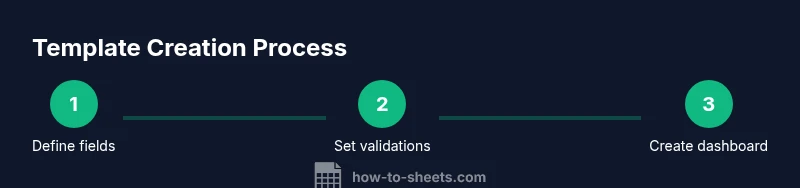
In the main Tasks tab, create the essential columns: Task name, Owner, Start date, Due date, Status, Priority, and Progress. Add a couple of optional columns for team-specific needs, such as Milestone or Budget, but keep the core data clean and consistent.
Tip: Use header rows with frozen panes to keep column labels visible during scrolling. - 3
Add data validation and drop-downs
Apply data validation to Status (Not Started, In Progress, Blocked, Done) and Priority (Low, Medium, High). This prevents typos and ensures consistent reporting. You can also validate date fields to catch invalid inputs.
Tip: Use exact text in dropdowns to keep formulas and filtering reliable. - 4
Enter initial tasks and milestones
Populate a small initial dataset to test calculations and dashboards. Include task owners, dates, statuses, and a couple of milestones to validate how the dashboard aggregates progress.
Tip: Start with a minimal set to keep testing focused and avoid data overload. - 5
Configure progress and dashboards
Set up a Progress column that auto-calculates completion based on status or task counts. Build a Dashboard tab that pulls key metrics (e.g., total tasks, completed, overdue) using simple formulas and charts.
Tip: Test dashboard filters to ensure it reflects changes in real time. - 6
Share, train, and govern
Share the template with the team, provide a quick run-through, and define rules for editing core fields. Establish a maintenance cadence to review field relevance and update as projects evolve.
Tip: Document a short usage guide to reduce misuse and misinterpretation.
FAQ
What is a Google Sheets project management template?
A Google Sheets PM template is a structured, shared workbook that tracks tasks, owners, dates, statuses, and progress. It uses data validation and formulas to automate reporting and dashboards, making it easy for teams to stay aligned in real time.
A Google Sheets PM template is a shared workbook that tracks tasks, owners, dates, and status with formulas to automate reporting.
Which columns are essential in the template?
Core columns typically include Task, Owner, Start date, Due date, Status, Priority, and Progress. These establish a consistent data model, while you can add Milestones or Budget as needed.
The essential columns are Task, Owner, Start date, Due date, Status, Priority, and Progress.
How do I automate progress reporting?
Use a Progress formula that aggregates Completed tasks and percentages, and build a Dashboard tab that pulls these metrics. Conditional formatting highlights overdue or high-priority items for quick action.
You can automate progress with a dashboard and a progress formula that sums completed tasks and highlights overdue items.
Can this template handle multiple projects?
Yes. Create a separate sheet or use a Project filter to view one project at a time while maintaining a single source of truth. Save independent datasets within the same template to avoid data duplication.
Yes—use filters or separate tabs to manage multiple projects in one template.
How should I share the template with my team?
Share the template via Google Drive with appropriate permissions (Viewer, Commenter, Editor). Provide a brief usage guide and establish a channel for feedback and updates.
Share with the team using Google Drive permissions and a short usage guide.
What common mistakes should I avoid?
Avoid overcomplicating the sheet with too many fields, skip data validation, and neglect updating statuses. Regularly review and prune fields that no longer serve the project.
Avoid overcomplicating the template and keep data validation in place to prevent errors.
Watch Video
The Essentials
- Define a minimal, scalable data model
- Use validation to ensure clean data
- Automate progress reporting with responsive dashboards
- Protect core formulas and data structure
- Share governance rules for reliable teamwork