Project Plan in Google Sheets: A Practical Guide
Learn how to build a robust project plan in Google Sheets. This guide covers templates, task tracking, budgets, dashboards, and collaboration for 2026.


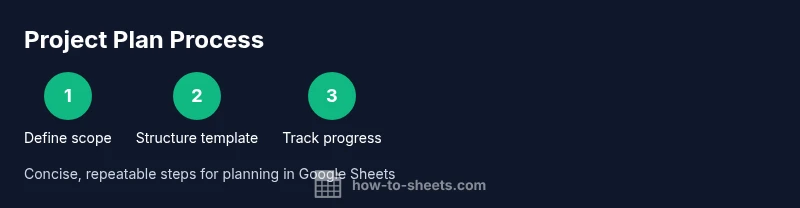
With this guide, you will build a ready-to-share project plan in Google Sheets that tracks tasks, owners, dates, and progress. You'll start from a reusable template, customize columns for scope, milestones, and budget, and set up dashboards to monitor status at a glance. This approach keeps everyone aligned and minimizes last-minute scope changes.
Why a project plan in Google Sheets matters
In any team project, clarity, accountability, and timely updates determine success. A well-structured project plan in Google Sheets acts as a single source of truth, accessible to teammates, supervisors, and clients. The flexibility of Sheets makes it ideal for fast-moving projects in education, startups, and small businesses. A good plan balances detail with simplicity: enough data to guide decisions, but not so much that it becomes a chore to maintain. By starting with a practical template, you can tailor columns to your project’s needs, align stakeholders, and create a framework that scales as scope changes. A project plan google sheets template lets you add tasks, owners, start and due dates, priority levels, dependencies, and progress indicators in a familiar interface. Leveraging built-in features like data validation, conditional formatting, and simple charts helps you monitor health at a glance, identify risks early, and keep everyone on the same page. The result is a living document that supports collaboration, transparency, and repeatable project execution in 2026.
Core components of a project plan
A robust project plan google sheets includes several core components that work together to guide execution. Start with the project scope and deliverables, defined in plain language so teammates know what constitutes success. Then enumerate tasks, assign owners, and set start and end dates. Milestones mark critical moments, while dependencies show which tasks must precede others. Include a simple budget or resource estimate to link work with cost, if applicable. Use a status column to reflect progress (Not Started, In Progress, Completed, On Hold) and a risk or issue log to surface blockers. Finally, maintain a lightweight change log so what changed, when, and why is visible. When you combine these elements in a Google Sheets template, you create a project plan google sheets that is easy to share, filter, and update during weekly reviews. This holistic view supports better planning, accountability, and predictable delivery across teams.
Setting up the template: structure and naming conventions
Begin by creating a small set of tabs: Overview, Tasks, Timeline, Budget, Risks, Resources, and Notes. Use consistent naming across sheets: e.g., Tasks for the list of work items, Timeline for date-based visualization, Budget for cost tracking. Establish a date format standard and enforce it with data validation (YYYY-MM-DD). Create a unique identifier for each task (Task ID) to simplify indexing and filtering. Build a minimal header row with column names like Task, Owner, Start Date, End Date, Duration, Status, Priority, Dependencies, Milestone, and Progress. Save a copy of your template as the base for new projects. By standardizing the structure, you make the project plan google sheets reusable and easy to copy across initiatives, teams, or quarters.
Data modeling: tasks, milestones, and budgets
Model your data in a way that makes analysis straightforward. Each row should represent a task linked to a milestone, with fields for owner, dates, and status. Use a Milestone column to group tasks under major goals, and a Dependencies column to capture sequencing logic. For budgets, track estimated costs next to each task and use a SUMIF or SUMIFS function to summarize totals by category or milestone. Leverage a simple risk score column to quantify potential blockers. As you populate the sheet, use color-coding to distinguish urgent tasks from long-running work. The project plan google sheets will become a clear, auditable record of work, enabling fast what-if analysis during stakeholder reviews.
Visualization and dashboards in Sheets
Turn raw task data into a readable dashboard that anyone can understand at a glance. Use conditional formatting to create progress bars inside a Status or Progress column, so a single color shows overall health. Build small charts to visualize completion by owner, milestone attainment, or budget burn over time. A dedicated Overview tab can summarize key metrics: total tasks, on-track tasks, late tasks, upcoming milestones, and cumulative spend. For a living project plan google sheets, dashboards should automatically update as you modify the underlying data. Consider adding filters or slicers for team, phase, or quarter to allow stakeholders to focus on relevant slices of the plan.
Collaboration, permissions, and version history
Google Sheets shines when teams collaborate in real time. Share the plan with appropriate access levels: editors for the core team, viewers for stakeholders, and restricted access for sensitive data. Use protected ranges to prevent accidental edits on formulas and milestones, and enable comment threads to discuss changes without altering data. Regularly review version history to recover from mistakes or to compare project baselines. Establish a cadence for weekly reviews to keep the plan accurate: assign a facilitator, log decisions, and push updates to all collaborators. A well-governed project plan google sheets reduces miscommunication and protects data integrity during rapid iterations.
Common mistakes and how to avoid them
Even the best templates fail when teams abandon discipline. Common pitfalls include overcomplicating the sheet with too many columns, inconsistent date formats, and neglected ownership. Avoid these by starting with a lean template, enforcing data validation, and assigning clear owners. Don’t forget to lock critical cells and to maintain a quarterly review cycle to refresh milestones and budgets. Finally, ensure you export or publish a read-only version for stakeholders who don’t need editing access. With careful setup and ongoing governance, your project plan google sheets remains a reliable compass for execution.
Practical example: a small project plan google sheets in action
Take a real-world scenario like a small product launch. Create a 2–3 milestone plan with eight tasks: define requirements, design, develop, test, launch, and post-launch review. Assign owners, set a two-week sprint rhythm, and include a simple budget line for each task. Use a dashboard to show percent complete, remaining budget, and upcoming due dates. As you run the project, update Start Date, End Date, and Status fields to reflect real progress. This practical example demonstrates how a living project plan google sheets template supports daily decision-making and keeps every stakeholder informed.
Next steps and maintenance
After you set up the initial plan, establish a maintenance routine. Schedule a weekly 15–30 minute review to update statuses, adjust dates, and reallocate resources. Create a versioned copy before major changes to preserve baselines. Periodically audit your formulas, validation rules, and conditional formatting to ensure they still reflect your process. Finally, expand the template to include additional tabs for risk management, resource utilization, or a post-project retrospective. A healthy project plan google sheets grows with your team and remains a reliable backbone for project execution in 2026.
Tools & Materials
- Google account with Google Sheets access(You need to log in to create and save the project plan)
- Project plan template(Structured template with Task, Owner, Start Date, End Date, Status, Dependencies, Milestone, and Progress)
- Shared drive or accessible folder(Facilitates collaboration and version history)
- Color legend and conditional formatting rules(Helps visualize progress and priorities)
- Data validation rules(Enforce consistent status, dates, and task IDs)
- Gantt-style visualization (optional)(Enhances timeline visibility if needed)
Steps
Estimated time: 45-90 minutes to set up; ongoing maintenance varies with project size and cadence
- 1
Define project scope and deliverables
Clarify what success looks like and which outcomes count as complete. Write concise deliverables and acceptance criteria to prevent scope creep. This first step anchors all subsequent planning decisions.
Tip: Document the scope in one place and link it to the first milestone. - 2
Create the sheet structure and naming conventions
Set up tabs (Overview, Tasks, Timeline, Budget, Risks) and standard column headers. Establish date formats (YYYY-MM-DD) and a Task ID system to simplify filtering and referencing.
Tip: Use a consistent naming convention to enable quick copy-paste across projects. - 3
Add tasks with owners and dates
Populate a starter task list with owners, start and end dates, and a status column. Include a Dependencies field to capture sequencing. This makes it easy to track who does what and when.
Tip: Assign exceptions for overdue tasks to trigger alerts. - 4
Define dependencies and milestones
Tag key milestones and link dependent tasks, so delays propagate awareness early. Use a Milestone column to group tasks and a separate Milestone Date to set target checkpoints.
Tip: Keep milestones realistic and independent where possible. - 5
Build a budget and resource plan
Estimate costs per task and sum totals for the project. Use simple formulas (SUMIF/SUMIFS) to summarize spend by milestone or category. This connects work to financial planning.
Tip: Review budgets against actuals at regular intervals. - 6
Set up dashboards and progress tracking
Create an Overview tab with key metrics (tasks completed, overdue, budget burn). Use charts and conditional formatting to visualize health at a glance and support decision-making.
Tip: Test the dashboard with a mock data set before live use. - 7
Configure sharing, permissions, and version history
Grant appropriate access levels and protect critical cells. Enable comments for discussions and review version history to recover baselines during changes.
Tip: Limit editors to reduce accidental data loss. - 8
Review, test, and iterate
Run a trial period with a small team, solicit feedback, and adjust structure or rules as needed. Treat the plan as a living document that evolves with the project.
Tip: Document lessons learned to improve future plans.
FAQ
What is the best template for a project plan in Google Sheets?
Start with a lean task list that includes Task, Owner, Start Date, End Date, Status, and Dependencies. Add milestones and a budget if needed. Customize later as the project grows.
Begin with a lean task list and add milestones and budget as you go.
How do I link tasks to milestones in Sheets?
Use a Milestone column to cluster tasks under goals and a Dependencies column to map sequencing. This helps visualize which tasks must finish before others begin.
Group tasks by milestones and map dependencies to see sequencing clearly.
Can I use Google Sheets for complex project planning?
Google Sheets works well for lightweight to moderately complex plans. For very large projects, consider supplementing Sheets with a dedicated PM tool while keeping a core plan in Sheets for transparency.
Great for lightweight planning; consider a specialized tool for very complex projects.
How do I protect a project plan from edits?
Use protected ranges for formulas and critical cells, and set sharing permissions so only trusted teammates can modify key data.
Protect important cells and manage who can edit.
How often should I update the plan?
Update the plan at least weekly; more frequent updates are helpful for urgent initiatives and when deadlines shift.
Update regularly, especially during active project phases.
What is a practical Gantt-like view in Sheets?
You can simulate a timeline with conditional formatting and bar-like cells in a timeline view, without needing a full Gantt tool.
You can create a simple timeline using Sheets features.
Watch Video
The Essentials
- Define scope and milestones for clear direction
- Assign owners and deadlines to ensure accountability
- Use dashboards to monitor progress in real time
- Protect critical cells and manage access for safe collaboration