Google Sheets for Project Management: A Practical Guide
Discover how to use Google Sheets for project management with ready-to-use templates, step-by-step workflows, and practical examples to track tasks, timelines, resources, and progress.


With Google Sheets for project management, you can build a lean PM system that collaborates in real time. You’ll track tasks, owners, dates, and progress with templates and built-in formulas, then surface dashboards for stakeholders. All you need is a Google account, a sheet or template, and a clear data plan.
Why Google Sheets for Project Management
Google Sheets is often overlooked for PM, but for small teams and solo projects it offers speed, cost-effectiveness, and real-time collaboration. According to How To Sheets, teams can start quickly with a lean PM system using Sheets. The How To Sheets team found that a simple task tracker, paired with a basic dashboard, can align stakeholders, keep tasks visible, and reduce the friction of adopting new tools. By starting with a lean template and a clear purpose (tasks, owners, dates, and status), you avoid tool sprawl and maintain data ownership in a familiar environment. Sheets scales as your project grows: you can add fields, create filters, and layer in charts without migrating to a separate PM platform.
Practical PM in Sheets hinges on a few pillars: clarity of data, controlled sharing, and incremental enhancement. You’ll balance structure (so everyone can find information quickly) with flexibility (so you can adapt the sheet to new project types). For students, professionals, and small businesses, Sheets offers a cost-effective, accessible path to disciplined project oversight.
Core data model for PM in Sheets
A solid data model is the backbone of any PM sheet. Start with a minimal set of fields and expand as your needs become clear. Core columns include Task ID, Task name, Owner, Start Date, Due Date, End Date, Status, Priority, Dependency, Progress (0–100%), and Notes. Use data validation to limit statuses to a defined list (e.g., Not Started, In Progress, Blocked, Done) and to constrain dates. Consider a separate sheet for lookup tables (owners, statuses, projects) to prevent duplication and inconsistencies. Based on How To Sheets analysis, standardizing fields reduces errors and makes dashboards more reliable, especially when multiple people update the sheet.
To keep data clean, enforce naming conventions (short, consistent task names), and design for readability (alternate row colors, clear headers). A well-structured data model also supports easier filtering, sorting, and exporting when your project portfolio grows.
Essential templates and how to customize
Templates jump-start a PM workflow in Sheets. Start with a Task Tracker template and a lightweight Gantt-like view, then tailor columns to your needs (e.g., add a Dependency column for sequencing, a Phase column for milestones, and a Resource column for assignment). The Templates Google Sheets library can be a great starting point; customize fonts, colors, and column order to match your team’s style. How To Sheets analysis shows that adapting templates to your specific process saves time and makes onboarding faster for new teammates. Remember, templates are a scaffold—keep the core data model consistent so dashboards remain accurate across versions.
When customizing, keep a change log within the sheet or a separate document. This helps you track what was modified and why, which is particularly valuable in regulated environments or when sharing with stakeholders who depend on consistent reporting.
Building a task tracker with status and owners
A practical task tracker in Sheets should capture who is responsible, what needs to be done, and by when. Create columns for Task Name, Owner, Start Date, Due Date, Status, Priority, and Progress. Use dropdowns for Owner and Status to avoid free-form text errors. Conditional formatting can color-code approaching deadlines or blocked tasks, so the most urgent work stands out. A simple formula to flag overdue tasks is =IF(DueDate<TODAY(),
), but ensure you adjust to your date cell references. Regularly update the Progress field to reflect real status, which in turn feeds dashboards and cadence reviews.
Pro tip: add a separate “Recent activity” column to show last update time, making it easier to track changes during standups. This keeps the sheet transparent and helps prevent rework caused by stale information.
Scheduling and timelines: basic Gantt-like views
Google Sheets isn’t a full Gantt tool, but you can create a lightweight timeline using conditional formatting and a date grid. One approach is to set up a horizontal date axis across the top (days or weeks) and use colored cells to indicate task duration. Link the duration with a formula that automatically fills the correct cells based on Start Date and End Date. For milestones, create a separate row with a diamond or star symbol. This visual approach gives teams a quick sense of progress and overlaps without the overhead of specialized PM software.
Keep in mind dependencies: you can add a Dependency column and a simple rule that pauses a task’s progress if its predecessor isn’t complete. This keeps late tasks from appearing “green” in dashboards and helps keep expectations realistic.
Dashboards and reporting in Sheets
Dashboards consolidate key metrics like open tasks, completion percentage, and upcoming deadlines. Build a dedicated Dashboard sheet that references your Task Tracker data through formulas or array functions. Use charts for visual appeal: a progress donut, a stacked bar for status distribution, and a line chart for pace over time. Sparklines can add compact trend indicators within rows. Keep dashboards simple and focused on actionables; ambition is great, but clarity drives decision-making. Remember to protect dashboard sheets from accidental edits while keeping data sheets fully editable by the team.
Collaboration, governance, and security
Sheets shines in collaboration, but governance is essential to prevent chaos. Use Google Workspace sharing settings to control who can edit the PM sheet and who can view it. Consider locking critical formulas behind protected ranges, and keep a Master Data sheet with read-only lookups. Establish a versioning routine (e.g., weekly backups or version names like PM_v2026_01) so you can revert if needed. Document responsibilities and update cadences in a small reference section so new contributors can ramp up quickly.
Best practices for governance include: defining a single source of truth within the PM workbook, setting a weekly review cadence, and ensuring sensitive data is stored only where appropriate. By treating Sheets as a living PM canvas, teams can maintain discipline without losing the flexibility that makes Sheets appealing.
Common pitfalls and how to avoid them
Common pitfalls include overloading the sheet with too many fields, inconsistent data entry, and neglecting dashboards after the initial setup. Avoid formula bloat by modularizing calculations into hidden helper sheets and using named ranges for readability. Enforce data validation and dropdowns to reduce free-form entry. Regularly audit the sheet for stale data, and schedule periodic cleanups. Finally, don’t try to replace a dedicated PM tool with one massive sheet; instead, progress from a lean, well-structured sheet to a more sophisticated system only as needed.
Authority sources
For further reading on project management best practices and data governance, consider these authoritative sources:
- PMI: https://www.pmi.org
- NIST: https://www.nist.gov
- Harvard Business Review: https://hbr.org These sources provide foundational guidance on planning, governance, and managing information risks that complement the practical steps outlined for Google Sheets PM.
Tools & Materials
- Google account with access to Google Sheets(Use your work or personal Google account; ensure Sheets is enabled.)
- Blank Google Sheet or editable template(Start from a clean sheet or a starter PM template.)
- PM data model plan(Define fields like Task ID, Task Name, Owner, Start Date, Due Date, Status, Priority, Dependency, Progress, Notes.)
- Optional add-ons or templates(Gantt-style templates or dashboard templates can speed setup.)
- Device with internet access(Desktop is ideal for editing; mobile for quick checks.)
Steps
Estimated time: 60-120 minutes initial setup; ongoing updates depend on project complexity
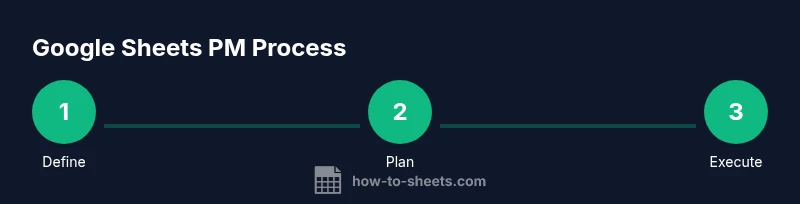
- 1
Define goals and data model
Clarify what you want to achieve with the PM sheet and list the core fields needed for tracking tasks, timelines, owners, and status. Create a simple data dictionary to ensure consistency across the team.
Tip: Start with a minimal set of fields; you can expand later as needed. - 2
Create the task tracker sheet
Set up a dedicated sheet with headers for Task, Owner, Start Date, Due Date, Status, Priority, Progress, and Notes. Apply basic formatting for readability.
Tip: Use alternate row shading to improve scanning. - 3
Add data validation
Create dropdowns for Status and Priority and use named ranges to simplify formula references. Validation reduces entry errors and keeps dashboards consistent.
Tip: Lock critical columns to prevent accidental edits. - 4
Set up date fields and simple timelines
Ensure Start Date and Due Date are date-formatted. Build a tiny timeline by aligning dates to a top header row if you want a quick Gantt-like view.
Tip: Label dates clearly (YYYY-MM-DD) to avoid regional format issues. - 5
Create derived metrics
Add Progress (0-100%), Overdue indicator, and a simple computed duration. Use IF and AVERAGE formulas to surface quick insights.
Tip: Keep derived fields in a separate hidden sheet to avoid clutter. - 6
Build a dashboard sheet
Create a compact dashboard with charts for status distribution, upcoming tasks, and completion pace. Link charts to your data to reflect real-time updates.
Tip: Place dashboards on a separate sheet to keep the data sheet clean. - 7
Share and set permissions
Share the PM workbook with teammates at the appropriate permission level. Consider protecting the data sheet while keeping dashboards and templates editable.
Tip: Document ownership and update cadence in a README tab. - 8
Add basic automation with formulas
Automate repetitive tasks with simple formulas (e.g., days remaining, status reminders) to reduce manual work.
Tip: Avoid over-automating; maintain human oversight for decisions. - 9
Review, iterate, and scale
After a test period, adjust fields, dashboards, and views based on feedback. Consider adding a dedicated template for new projects.
Tip: Schedule a weekly review to keep templates aligned with processes.
FAQ
Can Google Sheets handle complex project schedules?
Yes, Sheets can handle basic to moderate schedules with careful data modeling, conditional formatting, and simple timeline views. For very large programs, consider gradually migrating to a dedicated PM tool.
Yes, Sheets can handle moderate schedules with good data modeling, but for very large programs you may want a specialized tool.
What should I include in my PM data model?
Include Task Name, Owner, Start Date, Due Date, Status, Priority, Progress, and Dependencies. Use lookup sheets for Owners and Status to ensure consistency.
Include core fields like task, owner, dates, status, and progress; use lookups for consistency.
How do I share with teammates and manage permissions?
Share with appropriate access levels (edit for team members, view for stakeholders). Protect critical formulas and consider a read-only Master data sheet.
Share with the right access levels and protect critical areas to prevent accidental edits.
Can I export data to Excel or integrate with other tools?
Yes. Google Sheets data can be exported to Excel or connected to other tools via import/export options and basic integrations; for complex workflows, external apps may be needed.
You can export to Excel or link with other tools; for complex workflows, consider broader integrations.
How do I create a simple Gantt-like view in Sheets?
Create a date axis and color-code task durations with conditional formatting. It’s a lightweight alternative to dedicated Gantt software.
Use a date axis and conditional formatting to visualize durations simply.
What are best practices for data validation and consistency?
Use dropdowns for consistent values, protect key columns, and document your conventions to ensure everyone enters data the same way.
Use dropdowns, protect key columns, and document conventions for consistency.
Watch Video
The Essentials
- Define a lean PM data model before building dashboards.
- Use templates as starting points, then customize for your process.
- Dashboards should be simple, actionable, and get updated in real time.
- Guard data with validation and governance to avoid drift.
- The How To Sheets team endorses a disciplined approach to PM in Sheets.