Daily Task Tracker in Google Sheets: A Practical How-To
Learn to build a reusable daily task tracker in Google Sheets with clear layout, validation, dashboards, and automation. Step-by-step setup, practical examples, and tips for students, professionals, and small business owners.


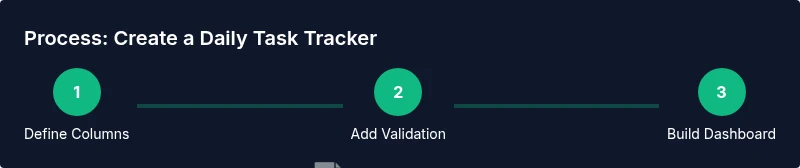
You will create a reusable daily task tracker in Google Sheets that lists tasks, due dates, priorities, and completion status. It will auto-tally daily progress, color-code overdue items, and export weekly reports. You'll need a Google account, a blank sheet, and basic formulas. This guide shows a practical, step-by-step setup you can customize.
Why daily task tracking matters for productivity and consistency
A daily task tracker built in Google Sheets gives you a single source of truth for what you plan to accomplish each day. For students juggling assignments, professionals balancing deadlines, and small business owners tracking routine operations, visibility reduces chaos and friction. According to How To Sheets, well-structured trackers improve task visibility and accountability, helping you stay focused on priorities rather than switching tasks aimlessly. In this section, we’ll explore the fundamental benefits of using a daily tracker and the kinds of metrics you can capture to drive real improvement. Expect better planning, fewer missed items, and a clearer path from intention to completion.
Core components of a daily task tracker
A practical daily task tracker requires the right columns, data types, and simple automations so you can input work once and let the sheet handle the rest. Key columns typically include: Task name, Assignee or owner, Due date, Priority, Status, Time spent, and Notes. Optional extras include Category, Project phase, and a completion checkbox. Use data validation to enforce consistent entries (e.g., statuses like Not Started, In Progress, Completed) and to avoid typos that break formulas. For progress visibility, a small calculated field that counts completed tasks against total tasks provides a quick health metric. You can also add a date stamp or a last updated column to track changes over the day.
Based on How To Sheets analysis, structured trackers help teams maintain visibility and momentum, especially when workload spikes occur.
Layout and naming conventions for clarity and scalability
Choose a clean, scalable layout that can handle dozens or hundreds of tasks over time. Start with a single data sheet with a frozen header row, and consider a separate summary tab for dashboards and weekly views. Use clear, unambiguous column headers like Task, Owner, Due Date, Priority, Status, and Time Spent. Consistency in naming makes it easier to copy the template or adapt it for a different team or project. If you expect more tasks, plan for additional columns without breaking existing formulas by using named ranges and absolute references. Also, consider color-coding by priority or status to make scanning faster.
Starter template design: a concrete structure you can copy
Begin with a header row and a sample row to show users how data should look. Example headers: Task, Owner, Due Date, Priority, Status, Time Spent (h), Notes. A minimal starter row might include: 'Prepare project brief', 'Ava', '2026-03-04', 'High', 'Not Started', '0', 'Draft outline'. The sheet should be easy to extend: you can insert extra rows beneath and keep summaries intact. To help you get started fast, turn this into a reusable template that you duplicate for each new day or project.
Formulas and automation that scale your tracker
Formulas turn a static list into an actionable dashboard. Use TODAY() to compare due dates to today and flag overdue tasks with conditional formatting. Use COUNTIF or COUNTIFS to compute totals by status, or SUMIF to track time spent by owner. A simple progress metric could be =COUNTIF(Status, "Completed")/COUNTA(Task). For dashboards, create a separate summary tab with charts showing status distribution and daily completion trends. A well-designed tracker also supports import/export for sharing with teammates. Consider using named ranges for stable references.
Maintenance, sharing, and future enhancements
Protect critical formulas and data validation rules to prevent accidental edits. Use Google Sheets sharing settings to grant view or edit permissions appropriately, and require sign-in for edits. Regularly back up the template to a versioned folder. As teams grow, you can add automation with Google Apps Script to auto-create daily tasks, email a summary, or sync with a calendar. Consider applying conditional formatting rules that alert you when a due date is within 24 hours or when time spent exceeds a planned threshold. Plan quarterly reviews to refine fields and dashboards based on feedback.
Case studies and templates you can adopt
Real-world users often adapt a simple starter tracker into a community template that scales to dozens of projects. Try a template designed for daily task tracking and customize columns to match your workflow. If you’re new to Sheets, use built-in templates as a springboard, then progressively introduce features like conditional formatting, scripts, and charts to visualize progress. The key is starting simple and iterating based on feedback and changing needs. This approach keeps maintenance lightweight while enabling continuous improvement.
Tools & Materials
- Google account(Needed to access Google Sheets)
- Computer or device with internet(For using Google Sheets online)
- Blank Google Sheet or template(Start from a fresh sheet to avoid conflicts)
- Optional data references or example tasks(Helps populate the starter template quickly)
- Notebook or digital notes for columns(Helps you plan column names and rules before building)
Steps
Estimated time: 15-25 minutes
- 1
Create a new Google Sheet and set up the header row
Open a new Google Sheet, name it Daily Task Tracker, and create a header row with core columns: Task, Owner, Due Date, Priority, Status, Time Spent, Notes. Freeze the header row so labels stay visible during scrolling.
Tip: Use a frozen header row (View > Freeze > 1 row) to keep headers visible as you add tasks. - 2
Define data types and validation rules
Set data validation for Priority (Low/Medium/High) and Status (Not Started/In Progress/Completed). Use date format for Due Date and numeric format for Time Spent. Add a Notes field for context.
Tip: Create a named range for the Status list to simplify future updates. - 3
Enter sample tasks and organize by owner
Fill in a few example rows to verify layout and understanding. Include diverse due dates and priorities to test color rules and dashboards.
Tip: Use consistent naming for owners to improve filtering and grouping later. - 4
Apply conditional formatting for urgency
Highlight overdue tasks and approaching deadlines with color rules. Use a rule to shade cells based on Due Date versus TODAY().
Tip: Test multiple dates to ensure formatting adjusts as days pass. - 5
Create a simple progress summary
Add a small dashboard tab that counts Completed tasks and shows a completion rate. Include a couple of basic charts to visualize status and daily progress.
Tip: Link dashboard cells to core data with simple COUNTIF formulas for live updates. - 6
Document how to reuse and share the template
Write short instructions on how to duplicate for a new day or project and set sharing permissions. Store the template in a shared drive for team use.
Tip: Protect key formulas with sheet protection to prevent accidental edits.
FAQ
What is a daily task tracker in Google Sheets?
A daily task tracker is a spreadsheet that lists tasks for the day with fields for due dates, owners, priorities, and status. It helps you monitor progress and stay organized.
A daily task tracker is a sheet that lists today's tasks with due dates and status to keep you organized.
How do I set up data validation for status?
Use data validation to restrict Status to options like Not Started, In Progress, and Completed. This keeps data clean and reporting reliable.
Use a dropdown for status so entries stay consistent.
Can I share the tracker with teammates?
Yes. You can share with view or edit permissions and protect critical ranges to prevent accidental edits.
Yes, you can share with teammates and protect critical parts.
How do I export weekly progress?
Create a weekly summary tab and use filters or a small script to export to CSV or PDF.
Use a summary tab or script to export weekly progress.
Is this suitable for personal use?
Yes, a simplified template works for personal tracking and can scale as needed.
Absolutely, start simple for personal use.
What if I need monthly resets?
Copy the current template to a new monthly sheet or use a date filter to auto-reset statuses.
You can reset by duplicating the template or filtering by month.
Watch Video
The Essentials
- Define a clear data model for tasks
- Use data validation to enforce consistency
- Apply conditional formatting for overdue items
- Add a small dashboard to track progress
- Iterate by gradually adding automation