Google Sheets To-Do List Template: Step-by-Step Guide
Learn how to build a reusable Google Sheets to-do list template with data validation, formulas, and collaboration features. This practical guide covers setup, best practices, and tips for staying organized in education, professional projects, and small business tasks.


Create a reusable Google Sheets to-do list template that tracks tasks, owners, priorities, due dates, and progress. You’ll set up a standardized layout, add data validation, and include simple formulas to monitor overdue items and overall completion. According to How To Sheets, templates like this reduce setup time and improve team coordination.
Why a Google Sheets To-Do List Template Elevates Productivity
A well-structured to-do list template in Google Sheets provides a single source of truth, improves task visibility, and reduces duplicate work. In practice, teams gain clarity when tasks are visible across owners, due dates, and status. By standardizing fields—task name, priority, due date, owner, status, and subtasks—a team reduces ad-hoc email chatter and misaligned expectations.
According to How To Sheets, templates act as living documents that scale with your workflow. When a template includes validation rules and conditional formatting, it not only captures data but also enforces consistent processes. For students, professionals, and small business owners, a shared template eliminates the friction of starting each new project from scratch. It also makes onboarding faster, because new collaborators can see exactly how tasks should be recorded and tracked.
In this section we’ll explore the core benefits, reinforced by practical examples: a class project with deadlines, a product development sprint, and a client onboarding task list. You’ll learn how a template fosters accountability, supports prioritization, and simplifies reporting for stakeholders. By the end, you’ll have a blueprint you can adapt to any routine, from daily chores to quarterly roadmaps.
Core Elements You'll Standardize in Your Template
A successful Google Sheets to-do list template relies on a consistent structure. Start by standardizing the core elements you’ll reuse across projects:
- Task name and description to capture what needs doing
- Owner or assignee to assign accountability
- Priority (Low/Medium/High) to signal urgency
- Status (Todo/In Progress/Done) to track progress
- Due date to keep deadlines visible
- Subtasks or checklists to break complex work into bite-sized steps
- Notes or comments for context
- Created date and last updated timestamps for audit trails
Additionally, decide on a naming convention for your sheet tabs (e.g., Template, Active Projects, Completed) and set up a simple header row with bold labels. Data validation rules and conditional formatting are critical to maintain consistency and visual cues across all tasks. How To Sheets’s approach emphasizes reusability: the same template can power daily tasks, semester projects, or client onboarding, with only minor adjustments required for each use case.
Designing the Layout: Columns, Rows, and Data Validation
Layout clarity is essential for quick scanning and data entry. A clean template uses a single header row and a vertical task list. Core columns typically include Task, Description, Owner, Priority, Status, Due Date, Subtasks, Completed, and Notes. Place a separate sheet for Instructions and a summary area that shows metrics like total tasks, overdue tasks, and completion rate.
Data validation enforces consistent values and minimizes typos:
- Priority: High/Medium/Low
- Status: Todo/In Progress/Done
- Due Date: valid date Visual cues help users recognize issues at a glance: color-code overdue items, highlight high-priority tasks, and use checkboxes for Completed. This consistency improves reporting accuracy and makes it easier for teammates to enter data in the same way every time. How To Sheets emphasizes keeping the layout intuitive so new collaborators can start contributing immediately.
Step-by-Step Template Setup: From Blank Sheet to Template
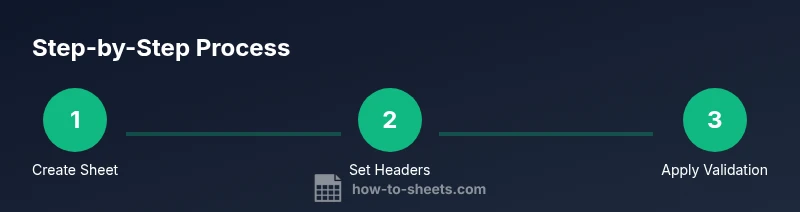
Setting up a usable template starts with a blank sheet, a clear header, and the right validation rules. Start by creating the header row with labeled columns. Then, implement data validation for Priority and Status, set up the Due Date field with a date picker, and add a checkbox for Completed. Finally, add a compact summary section to track overall progress and a hidden helper row for calculations.
As you build, document each decision in an Instructions tab. This ensures future users understand the logic behind formulas and formatting, reducing support requests. A well-documented template also makes it easier to clone and adapt for future projects without redoing the fundamentals.
Enhancing with Formulas: Status, Priority, Due Dates, and Reminders
Formulas power a static sheet into a living dashboard. Key calculations include counting tasks by status, identifying overdue items, and computing completion percentages. A simple approach uses COUNTIF to tally Todo, In Progress, and Done tasks; and a conditional formula to flag overdue items. For reminders, you can use conditional formatting to highlight tasks due within a set window (e.g., 3 days).
Useful specifics (apply as needed):
- Overdue flag: =IF(AND(DueDateCell<TODAY(),StatusCell<>'Done'),"Overdue","")
- Completion rate: =COUNTIF(StatusRange,"Done")/COUNTA(TaskRange)
- Priority heat map: Conditional formatting rules that color High in red, Medium in amber, Low in green
These calculations keep your team aligned and provide at-a-glance status updates for managers and stakeholders.
Automation and Collaboration: Shared Access, Notifications, and Rules
Collaboration is the lifeblood of any template used by multiple people. Ensure the template is stored in a shared drive and that permission levels match your governance needs. Use comments for context, and configure notification rules so teammates receive alerts on changes or approaching due dates. If your organization requires governance, enable version history so you can revert to earlier states if needed.
For lightweight automation, you can add a simple script or a time-driven trigger to remind assignees about approaching due dates. Keep automation minimal to avoid rule conflicts with teammates’ edits. Finally, emphasize responsibility owners: assign a primary owner for each project to maintain accountability.
Advanced Tips: Templates, Copying, and Version Control
Templates shine when you can duplicate them for new projects without carrying over outdated data. Treat the template as a living document that evolves with your workflow. Some best practices:
- Create a dedicated Template tab and a separate Active Projects tab
- Use named ranges for your formulas to keep references stable
- Maintain a version history or changelog when you modify core rules
- Periodically audit the template for outdated fields or broken data connections
When you clone the template, reset all data (clear values) but retain formatting, validation rules, and formulas. This approach saves time and preserves data integrity across projects.
Case Study: A Small Team Uses a Google Sheets To-Do List Template
A small marketing team adopted a Google Sheets to-do list template to manage campaigns, content production, and client deliverables. They began with a simple header row and a few sample tasks, then extended the template with a priority system and a due-date reminder. Over several weeks, the team reported fewer missed deadlines and clearer ownership for tasks. The template also enabled rapid onboarding for a new intern who could see task status and upcoming deadlines at a glance. The How To Sheets team observed that templates like this reduce redundant setup time and improve collaboration across roles.
Verdict: How To Sheets Recommends a Practical, Reusable Template
A practical Google Sheets to-do list template should be simple to copy, easy to customize, and capable of scaling with your projects. The How To Sheets team recommends starting with a lean setup—core columns, validation, and a basic set of formulas—and then iterating as your workflow matures. By maintaining consistency and providing clear instructions, you’ll empower anyone to contribute effectively and keep tasks moving toward completion.
Tools & Materials
- Google account with access to Sheets(Needed to create and share the template)
- A new Google Sheet or existing project sheet(Start with a clean canvas for a consistent template)
- Sample data for testing(Helpful to visualize layout during setup)
- Keyboard shortcuts cheat sheet(Speed up data entry and navigation)
- Instruction tab or sheet(Docs how to use the template)
Steps
Estimated time: 15-25 minutes
- 1
Create a new Google Sheet and rename it
Open Google Sheets and create a new blank spreadsheet. Give the file a descriptive name such as “Google Sheets To-Do List Template.” This establishes a consistent starting point for all projects. Keep the naming convention simple to help teammates locate the template quickly.
Tip: Tip: Use Ctrl/Cmd + S to quickly save and Ctrl/Cmd + Enter to jump to the next cell. - 2
Set up the header row and core columns
In the first row, enter the standard columns: Task, Description, Owner, Priority, Status, Due Date, Subtasks, Completed, Notes. Freeze the header so it remains visible as you scroll. This structure ensures everyone records the same data in the same order.
Tip: Tip: Bold the header and use wrap text to keep column widths manageable. - 3
Configure data validation for consistent values
Apply data validation to Priority (High/Medium/Low) and Status (Todo/In Progress/Done) to prevent typos and inconsistent entries. This step is critical for reliable filtering and reporting.
Tip: Tip: Use dropdown lists instead of free text to improve data quality. - 4
Add a date picker and set formatting for dates
Set the Due Date column to accept date values with a consistent format (e.g., YYYY-MM-DD). Consider adding a conditional format rule to highlight upcoming or overdue dates.
Tip: Tip: Use a custom date format that matches your locale for readability. - 5
Add a Completed checkbox and simple progress metrics
Insert a checkbox in the Completed column to track task completion visually. Create a small progress bar or percentage on a separate summary area to show overall progress.
Tip: Tip: Use conditional formatting to color the checkbox when checked vs. unchecked. - 6
Create basic formulas for tracking
Implement essential formulas to count tasks by status, flag overdue items, and calculate completion rate. Keep formulas robust and use named ranges for stability.
Tip: Tip: Start with simple COUNTIF formulas and expand as needed. - 7
Build an Instructions tab and template notes
Create a dedicated Instructions tab that explains field meanings, validation rules, and how to clone the template. This reduces onboarding time for new users.
Tip: Tip: Include a short FAQ in this tab for common questions. - 8
Set up a template-ready copy
Prepare the template to be copied for new projects. Clear out data while preserving structure, formulas, and formatting so new sheets start on a clean slate.
Tip: Tip: Protect the core layout by restricting edits to essential users. - 9
Share, set permissions, and establish governance
Share the template with teammates and define access levels. Establish governance rules (who can edit the template, who can view, and how updates are versioned).
Tip: Tip: Use View-only permissions for stakeholders and edit rights for project leads. - 10
Test, review, and iterate
Run a quick test by creating a dummy project and filling in sample tasks. Review data integrity, formatting, and formulas. Make necessary adjustments before rolling out widely.
Tip: Tip: Schedule a recurring review every 4–6 weeks to keep the template aligned with your process.
FAQ
How do I customize the template to fit my workflow?
Start with the core columns and adjust the fields to fit your process. Add or remove columns as needed, and update the data validation rules to match new categories. Document changes in the Instructions tab so teammates understand the updates.
You can customize by editing the header, adding or removing columns, and updating validation rules. Document changes in the Instructions tab so everyone stays in sync.
Can I share this template with teammates and control access?
Yes. Store the template in a shared drive and set permissions so only designated people can edit. For broader visibility, provide view-only access to stakeholders while keeping edit rights with project leads.
Yes, you can share it. Set edit access for team leads and view-only for others to protect the template while keeping everyone informed.
Which formulas are essential for a to-do list in Sheets?
Key formulas include COUNTIF to tally statuses, IF for simple condition checks, and TODAY-based logic to flag overdue tasks. Named ranges help keep formulas clean as the sheet grows.
Try using COUNTIF for status sums and a TODAY-based check to flag overdue items. Named ranges help keep things tidy.
How can I protect sensitive data in a shared template?
Limit editing by user role, use protected ranges for critical formulas, and avoid storing sensitive information in shared fields. Regularly review access and turn on version history for audits.
Limit who can edit, protect critical cells, and avoid sensitive data in shared areas. Review access regularly.
Is it possible to export or migrate the template to Excel?
Yes, you can download the sheet as an Excel file. Some advanced Google Sheets features may differ in Excel, so test the import with a copy of your data.
You can export to Excel, but test key features after import to ensure compatibility.
How can I automate reminders for due dates?
Use conditional formatting to highlight due dates and optionally connect a script or add-on for email reminders. Start with simple visual cues and expand with automation as needed.
Set up color cues for approaching due dates, then consider light scripting for reminders.
Watch Video
The Essentials
- Define a consistent task schema
- Use data validation to enforce data quality
- Leverage simple formulas for visibility
- Share with appropriate permissions
- Iterate the template as your workflow evolves