Create a To-Do List Template in Google Sheets
Learn to build a reusable to-do list template in Google Sheets with clear headers, data validation, and conditional formatting. A practical, step-by-step HowTo for students, professionals, and small business owners.


You will build a reusable to-do list template in Google Sheets to track tasks, due dates, priorities, and owners. You'll clone a proven structure, customize columns, and add conditional formatting and data validation. No advanced add-ons required; basic familiarity with Sheets is enough. This quick answer also covers sharing options, version history, and templates you can adapt.
Why a standardized to-do list template matters
According to How To Sheets, a standardized to-do list template reduces missed tasks and improves collaboration by providing a single source of truth. For students, professionals, and small business owners, a consistent format saves time during project kickoffs and handoffs. A well-designed template also lowers the learning curve when teams switch between projects, ensuring everyone stays on the same page without reinventing the wheel. In the context of google sheets, a robust to-do list template becomes a living document that you can adapt for different workflows without losing structure.
Key features of a Google Sheets to-do list template
A practical to-do list google sheets template should include: a clear header row, task descriptions, due dates, priorities, owners, and a status column. Data validation (dropdowns for Status and Priority) prevents inconsistent entries. Conditional formatting highlights overdue tasks, high-priority items, or tasks assigned to a specific owner. Filters keep views focused, while a summary sheet can provide quick metrics like open tasks and upcoming deadlines. The template should also support copying for new projects and easy sharing with teammates.
Step-by-step: building the template from scratch (Part 1)
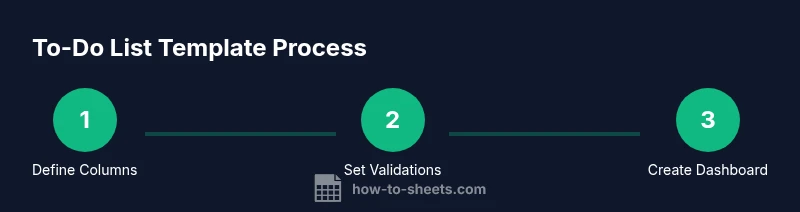
Start by creating a new Google Sheet and naming it something like “To-Do List Template.” In the first tab, create headers: Task, Due Date, Priority, Status, Owner, Notes. This foundational structure sets the stage for consistent data entry and future automation. Tip: keep column widths moderate so that the sheet prints neatly and remains readable on mobile devices.
Step-by-step: building the template from scratch (Part 2)
Add data validation for Status (Planned, In Progress, Completed, Blocked) and Priority (Low, Medium, High). This enforces uniform choices and makes downstream analytics reliable. Format the Due Date column as a date and apply a date-based conditional format to highlight overdue tasks. Tip: Enable “Show dropdown list in cell” for quick selection and fewer mistakes.
Step-by-step: building the template from scratch (Part 3)
Apply conditional formatting to visually distinguish rows by priority and status. For example, assign red to High priority and a pale yellow for overdue dates. Create a simple formula to automatically mark overdue items: =IF(AND(DueDate<TODAY(), Status<>'Completed'), 'Overdue', '') and hide the helper column if desired. Tip: Use named ranges for key columns to simplify formulas and navigation.
Step-by-step: building the template from scratch (Part 4)
Add a summary section on a second tab that aggregates open tasks, overdue items, and upcoming deadlines. Use simple COUNTIF or SUMIF formulas to quantify statuses, and link a small dashboard to the main template. This makes it easier for managers or instructors to review progress at a glance. Tip: Keep the dashboard lightweight to preserve performance.
Step-by-step: building the template from scratch (Part 5)
Create a reusable blueprint by turning the main sheet into a template. Duplicate the sheet for new projects, preserving the structure while allowing fresh data. Include a short README note on how to customize columns or drop-down options. Tip: Lock headers and protect critical cells in shared workbooks to prevent accidental edits.
Advanced features you can add (optional)
Consider adding features like automatic reminders via Google Apps Script, a calendar sync for due dates, or a tag system to categorize tasks. You can also implement filters for assignee or priority to tailor views for different stakeholders. Tip: Start with the simplest enhancement and iterate as needed to avoid breaking the core template.
Sharing, permissions, and templates for teams
Share the template with teammates using either view or edit permissions depending on role. For collaborative projects, enable comment access to collect feedback without changing the data. Use protected ranges for critical cells to prevent accidental edits. Tip: Create a version history bookmark or copy so you can revert to a clean state if needed.
Real-world example: student project workflow vs. small business task tracker
A student could use the template to sequence assignment tasks, due dates, and checkpoints for a final project. A small business can adapt the same structure for client work, assigning owners and due dates, and monitoring task progress. The shared framework ensures consistency across both contexts while letting each user tailor the details to their needs. Tip: Create two starter templates with different color schemes to quickly distinguish contexts.
Quick-start blueprint and next steps
Copy the starter sheet, rename it for your project, and begin entering tasks. Keep the initial dataset small, then gradually expand as you gain comfort with the structure. The template is designed to be intuitive, so you can deploy it in under an hour and start tracking immediately. For complex workflows, reference the step-by-step guide again and adapt the fields to your process.
Common pitfalls and how to avoid them
Avoid inconsistent data by enforcing dropdowns and date formats. Minimize manual edits in the main data area by locking headers and using separate tabs for dashboards. Regularly back up the template to protect against data loss, and document any changes so new collaborators understand the setup.
How to customize for different audiences: students, professionals, and small businesses
Tailor the Priority labels, Status options, and Owner field to fit your team. For students, emphasize milestones and due dates; for professionals and small businesses, add client names and project codes. Use the same core structure to ensure uniform reporting and easier onboarding for new team members.
Tools & Materials
- Google account with Sheets access(Sign in to Drive and open Google Sheets.)
- Web browser or mobile Sheets app(Ensure you have internet access for real-time collaboration.)
- A project plan or task list outline(Helps define initial headers and data fields.)
- Starter template or prior project example(Optional for faster setup and guidance.)
Steps
Estimated time: 60-90 minutes
- 1
Create a new Google Sheet
Open Google Drive, click New, and select Google Sheets. Name the file clearly as the project or template you plan to reuse. This creates a clean starting point for the to-do list template.
Tip: Use a descriptive file name to avoid confusion when duplicating for future projects. - 2
Set up the header row
In the first row, enter headers such as Task, Due Date, Priority, Status, Owner, and Notes. This establishes a consistent data structure for every entry.
Tip: Keep headers short and readable; freeze the header row for easy scrolling. - 3
Add data validation for Status
Select the Status column, choose Data > Data validation, and enter allowed options (Planned, In Progress, Completed, Blocked). This ensures uniform status values across tasks.
Tip: Check 'Show dropdown list in cell' to make selection quick and error-free. - 4
Add data validation for Priority
Repeat the validation process for Priority with options (Low, Medium, High). Consistent priorities improve readability and filtering.
Tip: Place Priority next to Status to simplify logic in formulas. - 5
Format Due Date and default values
Format the Due Date column as a date type and set a sensible default (e.g., blank or a date one week ahead). This supports consistent scheduling.
Tip: Consider conditional formatting to highlight overdue items automatically. - 6
Apply conditional formatting for visibility
Set rules to color-code High priorities in red and overdue dates in orange. Visual cues help prioritize work at a glance.
Tip: Use distinct colors that are easy to distinguish at a glance. - 7
Create a simple dashboard sheet
Add a second tab for a dashboard with counts of open tasks, upcoming due dates, and overdue items. Link counts with basic COUNTIF formulas.
Tip: Keep the dashboard lightweight to preserve sheet performance. - 8
Make the template reusable
Turn the main sheet into a template by duplicating it for new projects. Include a README note describing how to customize fields and drop-down options.
Tip: Lock critical cells to avoid accidental edits in shared workbooks. - 9
Configure sharing and permissions
Share the template with your team using Edit or Comment access depending on roles. Use protected ranges for critical fields.
Tip: Create a version history bookmark so you can revert if needed. - 10
Document usage and maintenance
Add brief usage notes on how to enter tasks, update statuses, and refresh the dashboard. Regularly update the template to reflect evolving workflows.
Tip: Keep a changelog within the template to help newcomers understand changes.
FAQ
Can I reuse the template for multiple projects?
Yes. Duplicate the sheet or create a new tab within the same file for each project. Keep the core structure intact so reporting stays consistent.
Yes. You can duplicate the sheet for multiple projects and keep a consistent structure.
Is this template suitable for team collaboration?
Absolutely. Share with edit or comment access and use protected ranges for critical cells to prevent accidental changes.
Absolutely. Share with your team and protect key cells.
Can I export the template to Excel?
Yes, you can download the sheet as an Excel file, but some features like Apps Script automation may require adjustment.
Yes, you can export to Excel, but some features may differ.
Which formulas are essential for automation?
Core formulas include IF for status logic, TODAY for dynamic dates, and COUNTIF/SUMIF for simple dashboards.
Use IF, TODAY, and basic COUNTIF or SUMIF for dashboards.
How do I reset data safely without losing the template?
Create a fresh copy for a new project and clear only the data cells while preserving headers and structure.
Make a fresh copy for a new project and clear data cells only.
Do I need add-ons to automate reminders?
No add-ons are required for basic reminders; you can leverage Google Calendar or simple Apps Script for automation if needed.
You can set reminders with Calendar or use Apps Script if you want automation.
Watch Video
The Essentials
- Define a clear header structure and data validation.
- Use conditional formatting to surface priorities and overdue tasks.
- Duplicate the template for new projects to preserve structure.
- Share with appropriate permissions and protect core cells.
- Maintain a lightweight dashboard for quick insights.