Create a to do list in Google Docs: A practical guide
Learn how to create a lightweight to‑do list in Google Docs with checklists, clear sections, and optional links to Sheets for tracking. This educational guide walks you through templates, formatting, sharing, and best practices.


Goal: create a simple to-do list in Google Docs with checkboxes, clear headers, and concise task descriptions. This quick method keeps tasks visible inside your document while remaining easy to update. For more advanced tracking, you can export or link tasks to Google Sheets later. This approach suits students, professionals, and teams needing lightweight task capture without extra tools.
Why a to-do list google docs matters
In a world where digital clutter slows progress, a lightweight, in-document to-do list offers immediacy and focus. The How To Sheets team observes that many students and professionals start with a simple to-do list google docs setup to capture tasks during meetings, while drafting reports, or planning projects. By keeping tasks inside your current document, you reduce context switching and maintain focus on the task at hand. This approach also supports quick edits, clear priorities, and easy sharing with teammates without requiring extra tools. In this section we’ll explore why Docs can be a practical home for a lightweight task list and how it complements more formal project trackers later on.
Key features that make Google Docs suitable for to-do lists
Google Docs offers several features that make to-do lists easy to create and maintain. The Checklist (checkbox) bullet option lets you mark items as complete with a single click, giving you visual feedback on progress. Paragraphs and headings help separate tasks by project, day, or priority, while tables and bulleted lists keep content organized. Docs also shines in collaboration: you can share, comment, and resolve items in real-time. For offline work, drafts stay accessible on any device with your Google account. When you need to scale, you can connect or export data to Google Sheets for richer analytics. Finally, the built-in version history protects your list against accidental edits, so you can revert to earlier task states if needed.
Choosing a structure: simple checklist vs task table
A basic checklist is quick to implement and ideal for small, linear task lists. It keeps every item visible with a checkbox beside it, making completion obvious at a glance. A task table, on the other hand, gives you columns for status, due date, owner, and notes. This structure is better for larger projects with multiple contributors. In practice, many users start with a simple checklist and migrate to a table as tasks grow in complexity. The choice often comes down to the number of tasks, the need for accountability, and whether you’ll share the document with others.
Designing a reusable template in Docs
Templates save time and ensure consistency. In Google Docs, you can design a reusable to-do list template by creating a clean title, a short description, a checklist section, and a status area. Use Heading 2 for major sections, Heading 3 for task groups, and a final “Summary” section for quick conclusions. You can save this layout in your Template Gallery for future projects. A well-structured template reduces setup time and helps you maintain uniform task capture across documents and teams.
Step-by-step plan to create a basic to-do list in Docs
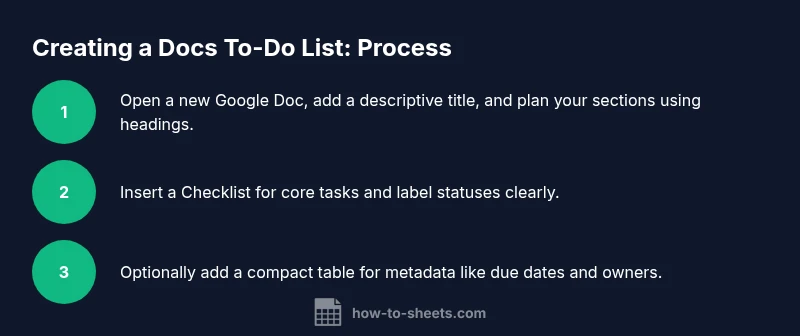
A well-constructed to-do list in Docs begins with a clean document: title, date, and a brief project description. Next, insert a Checklist bullet list and start adding tasks with concise descriptions. Group related tasks under bold headings and consider a small table or a priority marker for emphasis. Finally, add a short section for notes and next steps, and use comments to discuss any items that require input from teammates. This practical flow keeps your list usable and easy to share.
Styles, formatting, and accessibility tips
Formatting matters when you want your to-do list to be scannable. Use bold headings to separate sections, apply a consistent font size, and keep tasks short and action-oriented (start with verbs). For accessibility, ensure sufficient contrast and organize content with headings so screen readers can navigate efficiently. Consider color-coding priorities by applying text color or background shading to urgent tasks. If you anticipate long lists, a Table of Contents can help readers jump to relevant sections quickly.
Integrating Docs with Sheets for tracking
Docs excels at capturing and sharing, while Sheets excels at analysis. If your list grows beyond a single page, consider exporting the Docs list to Sheets or maintaining a parallel Sheets task board. Copy key items, statuses, and due dates into Sheets for filtering, sorting, and charting progress. You can also paste summaries or tables into Sheets as needed. The goal is to keep the Docs list lightweight and let Sheets handle data-driven insights when required.
Common pitfalls and how to avoid them
One common pitfall is letting the list become too long or unfocused. Regularly prune completed tasks and archive older sections to maintain readability. Another pitfall is inconsistent statuses or due dates; establish clear conventions (for example, use “Done,” “In Progress,” and a due date). Finally, remember that Docs lacks built-in task reminders; rely on comments or calendar reminders to stay on track. With discipline, a Docs-based to-do list remains a reliable, low-friction workflow.
Tools & Materials
- Computer or mobile device with internet access(Google account required to access Google Docs)
- Google Docs access (docs.google.com)(Create and edit documents; enable Checklist feature)
- Google Sheets (optional)(For downstream task tracking and analytics)
- Template ideas (digital or printable)(Use as a starting point for your docs template)
- Printer (optional)(Hard copy backups or sharing in environments without devices)
Steps
Estimated time: 20-30 minutes
- 1
Create a new Google Docs document
Open Google Docs and start a blank document. Give it a descriptive title that reflects the project or time period, such as “Q2 Marketing Tasks.” This sets the context and makes it easy to locate later.
Tip: Use a consistent naming pattern across projects to simplify search. - 2
Set up a task structure with headings
Insert a clear heading for the project and subsections for groups of tasks. Use Heading styles to improve readability and enable quick navigation with a document outline.
Tip: Keep headings short and consistent (e.g., “Tasks by Priority”). - 3
Add a checklist for core tasks
Use the Checklist bullet option to create a interactive list. Each task should be a single line with a short description and, if needed, a due date in parentheses.
Tip: Start each task with a verb for clearer action items. - 4
Label statuses and priorities
Bold important statuses (e.g., “In Progress,” “Waiting on Client”) and consider a small priority marker at the start of each line.
Tip: A simple color cue (red for high priority) boosts scannability. - 5
Add an optional table for metadata
If you have many tasks, insert a compact table with columns for Status, Due Date, Owner, and Notes. Keep the table lean to avoid clutter.
Tip: Tables stay scannable when you keep content concise. - 6
Create a lightweight template section
Add a “Template” section you can reuse in new documents. Include preformatted headings, a checklist, and a placeholder for notes.
Tip: Save this as a template in the Template Gallery for rapid reuse. - 7
Share and collect feedback
Use the Share button to invite collaborators and toggle permissions. Encourage comments on items that require input to prevent misinterpretation.
Tip: Set expectations for response times to keep tasks moving.
FAQ
Can I use checkboxes in Google Docs to track tasks?
Yes. Use the Checklist option under Bullets to add checkboxes beside each task for quick completion tracking.
Yes, you can use checkboxes by selecting Checklist in the Bullets menu.
Is there a Google Docs template for task lists?
Google Docs supports templates. You can create a simple task-list layout and save it as a template for future projects.
Yes, you can save your task list as a template for reuse.
How can I share my to-do list with colleagues?
Click the Share button, choose permissions (Viewer, Commenter, Editor), and send invitations to teammates.
Share with teammates and set the appropriate permissions.
Can I export the to-do list to PDF?
Yes. Use File > Download > PDF Document to export your list, preserving formatting.
Yes, you can export to PDF for offline sharing.
What are the limitations of using Google Docs for task management?
Docs works well for lightweight, in-document lists. For more complex task management, a Sheets-based board or a dedicated tool may be better.
Docs is great for simple lists; for complex tasks, use Sheets or a dedicated tool.
Watch Video
The Essentials
- Use checklists in Docs for quick task capture.
- Structure with headings to improve readability.
- Bridge to Sheets for tracking and analytics.
- Save as a reusable template for consistency.