Assignment Tracker Google Sheets: A Practical Step-by-Step Guide
Learn to build an assignment tracker in Google Sheets with templates, formulas, and dashboards—perfect for students, professionals, and small teams.


By the end of this guide, you will have a fully functional assignment tracker in Google Sheets that captures due dates, status, course, and grades in a single, filterable view. You'll set up a practical data schema, essential formulas, and a reusable template you can adapt across courses, projects, or teams.
Why use an assignment tracker in Google Sheets
A robust assignment tracker helps you see at a glance what’s due, what’s completed, and what needs attention. For students juggling multiple courses, professionals managing project tasks, or small teams coordinating coursework, a centralized tracker reduces missed deadlines and miscommunication. In this guide from How To Sheets, you’ll learn how to design a practical sheet that scales—from a single course to a full semester or multiple projects. The emphasis is on clarity, simplicity, and reliability. By keeping all essential fields in one place, you can quickly sort, filter, or re-prioritize tasks as priorities shift.
Key benefits include: a single source of truth for task status, due-date awareness, and lightweight automation to surface overdue items. You’ll learn how to structure the data so you can easily export it, share with teammates, or plug the tracker into other workflows (for example, sending reminders via Google Calendar). The approach is intentionally practical: no heavy scripting required, but enough formulas to reduce manual work. The result is a flexible, repeatable template you can reuse across courses or teams.
According to How To Sheets, using a simple, well-structured tracker in Google Sheets reduces late submissions and helps keep everyone aligned. The How To Sheets team found that templates like this can be adapted for budgets, assignments, and tasks across many contexts, keeping workflows lean and transparent.
Core data fields to track in your tracker
The backbone of a reliable assignment tracker is a well-defined data schema. Start with a compact set of fields that cover what you need today, plus a few extras you can grow into later. Typical fields include: Assignment name, Course/Subject, Due date, Start date, Status, Priority, Weight, Grade, Submission link, and Notes. A small set of mandatory fields keeps data entry fast, while optional fields enable deeper analysis when you’re ready to scale.
Drop-down lists for Status (Not Started, In Progress, Submitted, Graded) and Course/Subject help maintain consistency, which makes filtering and reporting much more accurate. When you define these lists once on a separate sheet (or named ranges), you can reuse them across multiple tasks. For teams or groups, a shared Google Sheet reduces the friction of collaboration and ensures everyone is looking at the same data.
From a practical perspective, think about what you need to answer at a glance: What’s due this week? What assignments are already graded? Which courses are dragging the overall progress? By structuring data around these questions, you’ll unlock intuitive dashboards and fast insights. How To Sheets’s guidance emphasizes starting simple and expanding later, so your tracker remains maintainable while you learn the formulas that power it.
Designing the sheet layout for readability and scale
A clean layout is essential when you scale from a single course to multiple courses or a full term. Start with two or three tabs: Data (raw entries), Dashboard (summaries and visuals), and Templates (sample entries you can copy). Within Data, order columns to reflect data entry flow: Assignment, Course, Due Date, Start Date, Status, Priority, Weight, Grade, Submission Link, Notes. Use frozen header rows to keep context as you scroll.
Use named ranges for drop-downs and validation rules to keep data consistent. For example, create a StatusList that contains the allowed statuses and reference it in Data validation. Apply consistent date formats across the sheet, and consider a small color scheme: blue headers, gray background for data cells, and green/red cues for status or overdue items. A simple dashboard tab can pull from the Data tab using FILTER and SORT, giving you a live view of what matters most.
Clarity beats complexity. When readers skim your sheet, they should immediately understand what each column represents, how to filter for what they need, and where to enter new tasks. This alignment between structure and visuals makes it easier to maintain accuracy over time, especially as you add more assignments or courses. As you scale, modular sections—like a separate sheet for Courses or Categories—keep the core data lean and fast.
Automations and formulas to keep data up-to-date
Automations save you from repetitive chores and help you catch issues early. Start with data validation and conditional formatting. For example, set a drop-down for Status with values Not Started, In Progress, Submitted, and Graded. Add conditional formatting to highlight overdue due dates: if due date is before today and Status is not Graded, apply a red fill. A lightweight progress metric can be calculated with a simple COUNTIF: =COUNTIF(StatusRange, "Graded") / COUNTA(StatusRange) to show completion percentage.
Formulas enable deeper insights without manual counting. Use a VLOOKUP or INDEX/MATCH to pull course details from a separate Courses sheet, or use IMPORTRANGE to link data from another Google Sheet. For upcoming items, FILTER can create a dynamic list of tasks due within the next seven days: =FILTER(A2:A, D2:D >= TODAY(), D2:D <= TODAY() + 7).
If you’re tracking grades with weights, you can compute a weighted score with: =SUMPRODUCT(GradeRange, WeightRange) / SUM(WeightRange). This gives you a single, interpretable metric that reflects the importance of each assignment. The key is to keep formulas readable and documented with comments or a hidden helper column so others can audit or adjust later.
Building a compact dashboard for quick insights
A dashboard consolidates the most important signals from your tracker. Start with a status distribution chart to show how many assignments are Not Started, In Progress, Submitted, and Graded. Add a date-based view that highlights the number of upcoming deadlines in the next 7–14 days. A secondary chart can display average grades by course or by assignment type. Slicers or filters let you focus on a particular course, term, or student.
Pivot tables are a powerful, low-code option for dashboards. Create a pivot that groups by Course and Status, then chart the results. You can also create a computed field for expected workload by summing the Weight column. If you want to automate dashboard updates, ensure your data range covers new entries by using dynamic named ranges and using A2:A as the starting range with open-ended ends.
A small, well-structured dashboard not only looks professional; it also speeds decision-making. When you can see overdue items, workload imbalances, or course-specific trends at a glance, you’ll avoid surprises and stay ahead of deadlines. The dashboard should be an at-a-glance tool, with deeper details accessible by drilling into the Data tab or exporting to CSV for stakeholders.
Templates, sharing, and next steps
Templates save you from reinventing the wheel for every class or project. Start with a base tracker you can duplicate for each course or team, then customize field names, drop-down lists, and default values. Sharing the tracker in Google Drive enables real-time collaboration: assign permissions, set comment rules, and track changes with version history. When you share, consider establishing a simple process: who edits, who reviews, and where to store supporting documents.
To maximize reuse, create a separate Templates tab with a clean example row that users can copy. Document the data schema in a short README cell range to lower the learning curve for new users. Finally, save a clean, locked version as a Google Sheets template for future terms. This makes it trivial to onboard new students, teammates, or colleagues without starting from scratch each time.
Through iterative improvements, your assignment tracker will evolve into a robust system that supports planning, execution, and review—without becoming a maintenance burden. How To Sheets emphasizes starting with a practical, minimal setup and gradually layering on automation as needs grow.
Getting started with a starter template
If you want to accelerate, begin with a starter template and customize from there. Create a Data tab with basic fields, add a simple Dashboard, and link them with a few core formulas. Use a small test set of assignments to confirm that filtering, sorting, and conditional formatting behave as expected before you enter real data. As you gain comfort with formulas, you can expand with more advanced features like weighted grades, calendar integrations, and multiple course dimensions. Remember to save a personal copy and share it with teammates for feedback.
Conclusion and next steps
A well-built assignment tracker in Google Sheets can be a foundation for ongoing productivity. By focusing on a clear data schema, readable layout, essential validations, and a concise dashboard, you can scale from a single course to multiple projects. The emphasis on practical, repeatable steps ensures your tracker remains maintainable, even as requirements evolve. For ongoing improvements, schedule regular data audits, incorporate user feedback, and extend the tracker with templates and automation as needed.
Tools & Materials
- Google account with access to Google Sheets(Needed to create, save, and share the tracker)
- A stable internet connection(To access Sheets and collaborate in real time)
- Starter assignment tracker template(Use as a base to customize for courses or teams)
- List of courses or projects(Helps populate dropdowns and dashboards quickly)
- Optional: Google Form for data entry(Speeds up input from multiple contributors)
- If pulling data from another sheet(Have the URL or sharing access ready for IMPORTRANGE)
Steps
Estimated time: 90-120 minutes
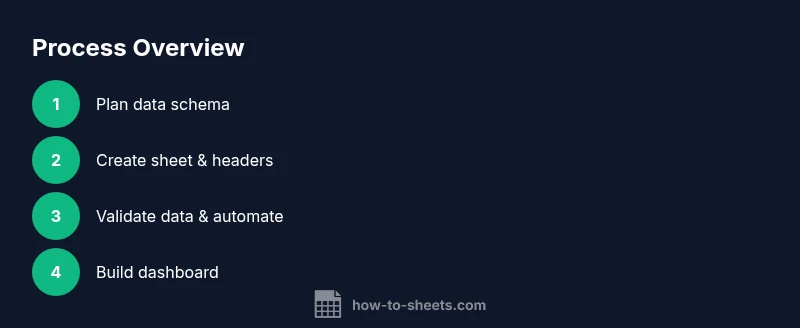
- 1
Plan your data schema
Define the fields you’ll track (assignment, course, due date, status, weight, grade, and notes) and decide which are required. Sketch a sample row to ensure all needed information fits on one screen.
Tip: Draft the schema on paper first to avoid feature creep. - 2
Create the sheet and headers
Set up a Data tab with clearly labeled columns. Freeze the header row and ensure date columns use a consistent date format.
Tip: Use bold headers and a light background to improve readability. - 3
Add data validation
Create dropdowns for Status and Course fields to maintain consistency. Reference a named range for easy updates.
Tip: Keep the lists short and descriptive for quick selection. - 4
Apply conditional formatting
Highlight overdue items and upcoming deadlines. Use a red fill for overdue and a yellow fill for due within 3 days.
Tip: Test with sample dates to ensure visual cues are correct. - 5
Set up key formulas
Add a progress metric (e.g., =COUNTIF(StatusRange, "Graded")/COUNTA(StatusRange)). Create a weighted grade calculation if needed.
Tip: Comment formulas or use named ranges for clarity. - 6
Build a dashboard
Create charts for status distribution, upcoming deadlines, and average grade by course. Link charts to the Data tab with dynamic ranges.
Tip: Use slicers to allow quick filtering by course or term. - 7
Save as a template and share
Lock critical formulas, save as a template, and share with teammates. Provide a short README to guide new users.
Tip: Define collaboration rules to avoid conflicting edits.
FAQ
Is Google Sheets suitable for tracking assignments?
Yes. Google Sheets is accessible, collaborative, and supports formulas and charts that make tracking assignments practical for students and teams.
Yes. Google Sheets is accessible, collaborative, and supports formulas and charts that make tracking assignments practical for students and teams.
Can I automatically import grades into the tracker?
You can import grades using formulas or data connections from another sheet. A weighted grade calculation can reflect assignment importance, but automatic imports require careful data mapping.
You can import grades using formulas or data connections from another sheet. A weighted grade calculation can reflect assignment importance, but automatic imports require careful data mapping.
How do I protect sensitive information in the tracker?
Protect the sheet or specific ranges by setting permissions, view-only modes for collaborators, and using protected ranges for formulas and keys.
Protect the sheet or specific ranges by setting permissions, view-only modes for collaborators, and using protected ranges for formulas and keys.
How can I share the tracker with teammates or classmates?
Use Google Sheets sharing options to grant edit or view access, and set up a simple process for updates to avoid conflicting changes.
Use Google Sheets sharing options to grant edit or view access, and set up a simple process for updates to avoid conflicting changes.
What if I have multiple courses to track?
Add a Course column and use filters or Pivot Tables to analyze data by course. A separate Courses tab can help manage course-specific metadata.
Add a Course column and use filters or Pivot Tables to analyze data by course. A Courses tab helps manage course-specific metadata.
Can I integrate this with Google Calendar?
Yes. You can link due dates to Google Calendar reminders or export calendar feeds, ensuring reminders line up with your tracker.
Yes. You can link due dates to Google Calendar reminders or export calendar feeds, ensuring reminders line up with your tracker.
Watch Video
The Essentials
- Plan a lean data schema before building
- Use validation and conditional formatting for data quality
- Link a dashboard to your core data for quick insights
- Share and reuse templates to scale across courses