AppSheet Database: A Practical Step-by-Step Guide
Learn how to design, connect, and manage a robust AppSheet database using Google Sheets, SQL, or other sources. This guide covers data modeling, relationships, security, and maintenance for reliable app data.


With AppSheet, you can store and manage app data in a connected database like Google Sheets, Excel (OneDrive), SQL databases, or Airtable. This guide shows how to define tables, map columns, set data types, and apply roles so your AppSheet app reads and writes to a reliable database. You'll learn practical steps to design a scalable app-data layer.
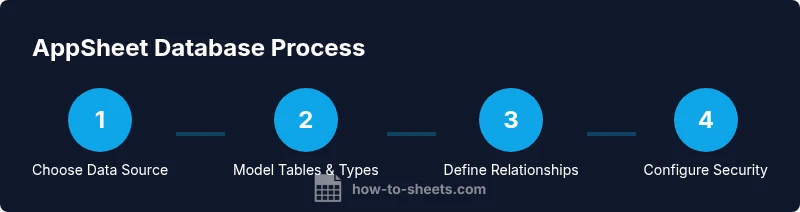
What is an AppSheet database and why it matters\n\nIn practice, the AppSheet database is the data layer that underpins your apps, storing records, supporting queries, and enabling offline syncing. According to How To Sheets, the database can live in Google Sheets, SQL databases, or other supported sources, and your design choices directly affect performance, security, and scalability. A well-structured AppSheet database makes it easier to scale from a simple mobile form to a multi-branch workflow. If you haven’t planned your data model, you’ll face friction when you add new features, run reports, or expand to new users. This guide explains how to approach the AppSheet database strategically for students, professionals, and small business owners.\n\nKey concepts you’ll master include choosing a data source, modeling tables and columns, defining relationships, and enforcing security. Read on to see practical steps, concrete examples, and best practices that you can apply today. The How To Sheets team emphasizes that solid foundations reduce rework and speed up development.
Choosing a data source for your AppSheet database\n\nAppSheet supports a variety of data sources. The most common starting point is Google Sheets or Excel Online because they are easy to set up and shareable. For more robust needs or larger teams, SQL databases (MySQL, PostgreSQL, Google Cloud SQL) provide stronger concurrency, indexing, and transactional safety. Airtable is another option that blends spreadsheet-like views with relational features, though its pricing and limits differ from pure SQL. When deciding, consider data size, number of concurrent users, offline requirements, and ease of backup. The How To Sheets analysis found that for many small to mid-sized projects, starting with Google Sheets is a pragmatic choice, then migrating to SQL as complexity grows. If you expect heavy write loads or complex joins, plan for a SQL backend from the start. In almost all cases, ensure you have a clear data schema and naming conventions that map cleanly to AppSheet tables.
Data modeling essentials: tables, columns, and data types\n\nA solid AppSheet database design starts with clear tables that mirror real-world entities. Each table holds a set of columns with defined data types (Text, Number, Date, DateTime, Boolean, Image, etc.). In AppSheet, you’ll designate a Key column that uniquely identifies records and use proper data types to ensure validation and reliable queries. Map each column to a data type that matches how you’ll use it in the app: a customer’s email as Text, an order total as Number, an order date as Date, and a status as a constrained Enum. Naming conventions matter—keep singular table names and consistent column names to minimize confusion when you scale. This approach makes formulas, filters, and automation in AppSheet predictable and maintainable. Remember to model derived fields and lookups as needed rather than duplicating data across tables. According to How To Sheets, starting with a clean, normalized schema helps future-proof your app against changes in scope or team size.
Tools & Materials
- Google Sheets (or Excel Online)(Baseline data source for many AppSheet apps; supports offline cache and sharing.)
- SQL database (MySQL/PostgreSQL / Cloud SQL)(Optional for larger apps needing robust querying and concurrency.)
- AppSheet account(Access to create apps and connect data sources.)
- Sample dataset (CSV or sheet)(Useful for practicing schema design and testing app behavior.)
Steps
Estimated time: 60-90 minutes
- 1
Plan data sources and scope
Identify the core entities (e.g., Customers, Orders, Products) and decide which data source will house each table. Define a minimal viable schema that supports the app’s features, then list non-negotiable fields (keys, dates, identifiers). This planning prevents later refactors as your app grows.
Tip: Start with a single data source (e.g., Google Sheets) for the MVP to keep setup simple. - 2
Create Tables and columns in your data source
In the chosen data source, create one table per entity and add columns with clear, consistent names and types. Example: Customers(Name Text, Email Text, CustomerID Text as Key). Use primary keys and avoid duplicating data across tables.
Tip: Keep keys stable and avoid changing them after launch. - 3
Define keys and relationships in AppSheet
In AppSheet, mark the Key column for each table and set Ref relations where needed (e.g., Orders with a CustomerID referring to Customers). This enables related records to be pulled in automatically and supports clean data joins in views and reports.
Tip: Use Ref to model one-to-many relationships, not manual joins. - 4
Configure security and access controls
Set up user roles, security filters, and data access rules so users only see what they should. Security filters can restrict rows per user, while roles control who can edit or delete data. Test with sample user accounts to validate behavior.
Tip: Always validate with multiple user profiles before deployment. - 5
Enable offline syncing and performance checks
If your app must work offline, enable offline sync and optimize data access patterns (limit large datasets, use slices to reduce data pulled). Run performance checks to ensure responses stay fast, particularly on mobile devices with unstable networks.
Tip: Use slices to minimize data loaded for specific views. - 6
Test, iterate, and deploy
Create test scenarios that cover common user paths (creating, updating, querying data). Iterate on schema or constraints as needed. Once solid, deploy and monitor usage—watch for unexpected data loads or permission issues.
Tip: Document schema decisions so future contributors understand the design.
FAQ
What is an AppSheet database and why should I care?
An AppSheet database is the data layer that underpins your app, storing records and supporting queries, syncing offline, and enabling transactions. It can live in Google Sheets, SQL databases, or other supported data sources. Designing it well from the start improves performance, security, and maintainability.
An AppSheet database is the data layer behind your app and can live in Google Sheets, SQL databases, or other sources. Designing it well early improves performance and security.
Can I use Google Sheets as my AppSheet database?
Yes. Google Sheets is a common starting point for AppSheet databases because it’s easy to set up and share. As your app grows, you may migrate to a more robust SQL database to handle larger data loads or more complex queries.
Yes, Google Sheets is a popular starting point for AppSheet databases, with a path to migrate to SQL if needed.
How do I secure data in AppSheet?
Security in AppSheet is achieved through user roles, data access controls, and security filters that limit which rows a user can view or modify. Test with different user profiles and validate that sensitive data remains protected.
You secure data by setting user roles, applying security filters, and testing with multiple user profiles.
What is a Ref and why use it?
A Ref is a reference type that links two tables (for example, Orders to Customers). It enables related data to be shown together, supports relational joins, and keeps data consistent without duplicating records.
Ref links tables like Orders to Customers, enabling related data to be shown together and kept consistent.
Is offline access supported in AppSheet databases?
Yes. AppSheet supports offline caching and syncing when the device reconnects. Plan data access patterns to minimize data transfers and ensure smooth operation in low-connectivity environments.
Yes, AppSheet supports offline access with syncing when you’re back online.
Watch Video
The Essentials
- Model data first to prevent refactoring later
- Choose a data source based on app size and needs
- Use Ref relationships for clean, scalable links
- Enable security filters and offline sync for safer, resilient apps