Book Tracker in Google Sheets: A Step-by-Step Guide
Learn to build a practical book-tracking workbook in Google Sheets with templates, formulas, and step-by-step instructions for students, professionals, and small business owners.


You can create a practical book tracker in Google Sheets that logs titles, authors, reading status, dates, and progress, while automatically calculating totals and reminders. Start from a ready-made template or design a custom layout with columns for Title, Author, Start Date, Due Date, Status, Pages Read, and Total Pages. With built-in filters and data validation, the sheet stays clean, scannable, and accessible from any device.
Why a Book Tracker Matters
Reading lists are often scattered across notebooks, notes apps, and scattered emails, which leads to lost titles, forgotten due dates, and inconsistent progress tracking. A book tracker in Google Sheets centralizes all the essential details—title, author, start date, status, total pages, and pages read—into a single, accessible dashboard. According to How To Sheets, replacing a paper or siloed system with a live spreadsheet increases data accuracy and accessibility, especially when multiple readers collaborate. A well-structured tracker also supports decision-making for what to read next, helps match reading pace to deadlines, and offers a durable archive of past reading activity. The How To Sheets team emphasizes that a lightweight, adaptable template reduces setup friction and makes ongoing maintenance far easier. By choosing a sheets-based approach, you gain cross-device access, natural collaboration, and the ability to layer automations as needed through formulas or Apps Script.
In practice, this means you can monitor progress at a glance, filter by status or genre, and export summaries for classes, clients, or team meetings. The result is a transparent, scalable solution that grows with your reading list instead of breaking under its own weight. This section sets the stage for a practical, incremental build you can implement this weekend or in a single study session.
Designing your Google Sheets Template
The first step is to decide how your template will look and what data it must capture. Start with a clean sheet and define primary columns such as: Title, Author, Start Date, Due Date (or Target Completion), Status (Not Started, Reading, Completed, On Hold, Dropped), Total Pages, Pages Read, and a simple Progress percentage. Use bold headers and freeze the header row so you always know which column you’re in. Think about optional fields you might add later, such as Genre, Publisher, ISBN, or a link to an online copy. How To Sheets recommends starting with a minimal, consistent schema before you add extras; this keeps the sheet fast and reliable even on mobile devices.
To keep your data clean, implement data validation for the Status column (a drop-down list) and for the date fields (date format only). This reduces entry errors and makes filtering predictable. A clean color scheme or conditional formatting can also help you distinguish between “Not Started,” “In Progress,” and “Completed” at a glance. Documentation within the sheet (a README tab) helps new readers understand how to use the tracker and what each field means. By designing with future users in mind, you’ll reduce rework and improve long-term utility.
As you structure the template, consider how you’ll reuse it across devices or with teammates. The How To Sheets team notes that templates anchored to named ranges or structured data models are easier to share and extend. A simple, robust design foundations you can build on today will pay off when your book list grows or you hand the sheet to a student or colleague.
Core Data Model: Tracks and Status
At the core of any book tracker is a dependable data model. You’ll want a single row per title and a set of standardized fields that can be consistently filtered, sorted, and summarized. A practical minimum set includes: Title, Author, Start Date, Due Date, Status, Total Pages, Pages Read, and a computed Progress. Optional fields like Genre or Series can enhance organization without complicating the base model.
Use a dedicated Status list with clear, discrete options such as Not Started, Reading, Completed, On Hold, and Dropped. This avoids ambiguity and makes automated calculations straightforward. The Total Pages and Pages Read fields enable automatic progress calculations, which you can display as a percentage using a simple formula. If you’re syncing with external tools, consider a column for a link to the book’s catalog entry or an ISBN. From a data-management perspective, keeping each column monolithic (one type per column) reduces errors and simplifies future automation.
Input Methods: Adding Titles Efficiently
Efficiency matters when you’re managing a long reading list. Start by designing a quick-entry process that minimizes friction and reduces data drift. You can add new books directly in the sheet, but you may prefer a Google Form to collect data and push entries into the tracker. A form-based workflow can eliminate repetitive typing for students or teammates who add several titles at once. If you stay in Sheets, use the “Paste values only” option to avoid formatting leaks when importing lists from other sources.
To accelerate entry, create a few starter templates you can copy for different readers or genres. For example, one template could be tailored for students, another for a book club, and a third for research literature. Consistent entry patterns—like always listing the author name as Last, First—help maintain uniform search results and reliable sorting. Remember to validate dates and page counts to keep the dataset clean.
Calculations: Progress, Completion, and Deadlines
The real power of a book tracker comes from lightweight calculations that reveal reading progress and upcoming deadlines. A basic Progress column can be calculated as Pages Read divided by Total Pages, formatted as a percentage. A separate alert can flag overdue books if the Due Date has passed and the Status is not Completed. You can also compute estimated completion dates by factoring in an average daily reading pace.
In addition to progress, you can create a simple summary row at the top of the sheet showing total titles, number of books in progress, and average progress across all entries. These quick stats support decision-making for what to read next or when to adjust deadlines. The How To Sheets team also suggests adding a lightweight “priority” flag for urgent reads to help collaborators allocate attention effectively.
Automation Tips: Formulas and Validation
Automation helps you scale without losing control. Start with core formulas such as Progress = Pages Read / Total Pages, and a simple condition to determine Status. Use IF statements to automatically set Status based on Pages Read and Total Pages, or apply conditional formatting to highlight key states (e.g., overdue or near-due items).
Next, lock critical cells and ranges to prevent accidental edits, and create named ranges for key data (Titles, Authors, Status) to simplify formulas and data validation. Consider small automation upgrades like a script that emails a summary weekly or a trigger to generate a CSV export for reporting. If you’re new to Google Apps Script, begin with a basic script that runs on a timer and writes a weekly progress snapshot to a new tab.
Data Organization: Views, Filters, and Dashboards
As your list grows, you’ll want different views for different readers. Filter views are ideal for sharing non-destructive, reader-specific perspectives (e.g., “In Progress” or “By Genre”). A lightweight dashboard tab can summarize key metrics such as total titles, in-progress books, and completion rate. The QUERY function lets you create custom sub-totals and cross-tab views without duplicating data.
Having a stable data model enables you to slice the data in meaningful ways: by author, by due date, or by progress band. This makes it easier to communicate status to stakeholders, be they teachers, teammates, or clients. The How To Sheets guidance emphasizes keeping dashboards simple and actionable rather than overwhelming users with too much data.
Templates and Customizations for Different Readers
Different readers have different needs. A researcher might want fields for journal articles and DOIs, while a student may prefer a compact layout with a focus on due dates and pace. Start with a core template and clone it when you need a variant. You can add optional sections such as a “Reading Notes” area, a
or a separate sheet for “Completed” entries to keep the main sheet lean.
Documenting standard practices within the template helps new users adapt quickly. If you share the workbook with a team, explain the purpose of each field and provide examples in the first few rows. The goal is to create a flexible, scalable template that remains straightforward to use as your library and collaboration needs grow.
Collaboration and Sharing Safely
Google Sheets makes collaboration straightforward, but it’s important to manage access carefully. Share the tracker with appropriate permissions: editors for collaborators who update lists, and viewers for those who only need to review progress. Use protected ranges to prevent accidental edits in critical calculation areas and headers.
Establish a clear ownership model and version-control practices, such as keeping a changelog tab with recent edits and who made them. If you’re using sensitive data (like personal notes or private identifiers), ensure those fields are on a separate, restricted sheet or properly access-controlled. Regularly review sharing settings to keep your data secure as your team grows.
Common Pitfalls and Troubleshooting
Even a well-designed tracker can drift without guardrails. Common issues include inconsistent date formats, duplicate entries, and inaccurate progress calculations. Mitigate these problems by enforcing consistent data formats, using data validation for critical fields, and creating a separate data-entry sheet to isolate raw inputs from calculated outputs. If progress shows as a misleading value, check the Total Pages and Pages Read columns for data integrity and verify the formula syntax. Finally, back up periodically and consider exporting a copy to another drive as an insurance policy.
Tools & Materials
- Google Account with Google Sheets access(Used to create and save the tracker)
- Google Sheets template (pre-built or starter sheet)(Optional: start from a template to speed setup)
- Barcode scanner or keyboard(If you plan to scan ISBNs or IDs into the sheet)
- Printer for book labels (optional)(Useful for physical labeling of books in a library setup)
- Sample dataset or test list(Helps verify formulas and views during setup)
Steps
Estimated time: 60-90 minutes
- 1
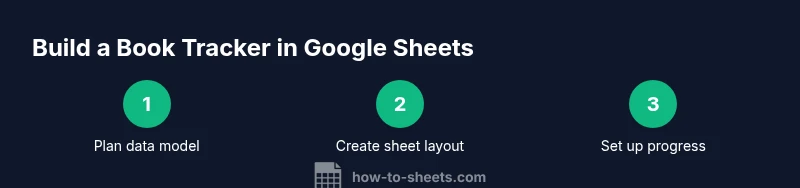
Plan the data model
Define the core fields (Title, Author, Start Date, Due Date, Status, Total Pages, Pages Read) and decide on optional fields you may add later. Sketch a simple mockup on paper or in a note to align expectations with readers.
Tip: Keep the core fields minimal to avoid clutter; you can always add more later. - 2
Create the sheet layout
Set up a clean header row, freeze it, and apply a consistent font and column widths. Place the most-used fields (Title, Status, Progress) in the leftmost columns for quick scanning.
Tip: Use bold headers and a distinct color for the header row to improve readability. - 3
Add data validation
Create a drop-down list for Status (Not Started, Reading, Completed, On Hold, Dropped) and enforce a date format for Start and Due Dates. This minimizes entry errors and makes filtering reliable.
Tip: Validate dates to prevent mismatched entries like 2026-02-31. - 4
Enter a baseline dataset
Populate the sheet with a handful of sample titles to test layout, formulas, and filters. Use realistic data so you can catch edge cases early.
Tip: Include at least one overdue item to test alerts. - 5
Set up progress calculations
Add a Progress column with a formula like Pages Read / Total Pages and format as a percentage. Link this to a conditional status indicator.
Tip: Test with various Pages Read and Total Pages values. - 6
Create quick filters/views
Enable Filter views for different reader groups (e.g., In Progress, By Genre). Save views you’ll reuse to speed up daily checks.
Tip: Name views clearly for team members. - 7
Test automation and sharing
Try simple automations (e.g., a weekly progress snapshot) and set sharing permissions. Ensure only authorized users can edit critical areas.
Tip: Keep a test version for experiments before changing the live sheet. - 8
Document usage and maintenance
Add a README tab with field definitions, data-entry rules, and a quick troubleshooting guide. Schedule periodic reviews to keep the tracker current.
Tip: Provide an example row to illustrate expected input.
FAQ
What is the best way to structure a book tracker in Google Sheets?
Use a single row per title with a core set of fields (Title, Author, Start Date, Due Date, Status, Total Pages, Pages Read) and add optional fields later. Keep the data model simple to enable reliable filters and summaries.
Use a single-row structure with a core field set first; you can add optional fields later as needed.
Can I import my existing reading list into Sheets?
Yes. Copy data from a CSV or another spreadsheet and paste into your tracker using Paste values only to preserve data types. Then map each column to your template’s fields and run validation.
You can import existing lists by pasting values and aligning columns, then enabling data validation.
How do I share the tracker with collaborators while controlling edits?
Use Google Sheets sharing settings to grant view or edit access. Protect critical ranges (like totals and calculations) to avoid accidental changes and maintain data integrity.
Share with appropriate permissions, and protect key areas to keep data safe.
What should I do about duplicates or missing data?
Implement data validation and a required field policy for key columns. Periodically run a deduplication check and fill missing data from a trusted source. Regular audits help keep the tracker clean.
Validate entries and routinely audit for gaps or duplicates.
How scalable is a Google Sheets book tracker?
Sheets scales well for moderate lists. For very large catalogs, consider archiving completed items to a separate sheet and using QUERY to summarize across datasets. Plan a growth path from the start.
Shes scales with careful data structuring and occasional archiving.
Watch Video
The Essentials
- Define a clear data model before building
- Use validation to prevent errors
- Leverage filters for tailored views
- Automate progress calculations to save time
- Protect critical cells and share responsibly