Can You Get Notifications from Google Sheets? A Practical Guide
Discover how to receive alerts from Google Sheets using built-in rules, Apps Script, or third-party automation. A step-by-step guide with best practices and troubleshooting tips for students, professionals, and small businesses.


Yes. You can receive notifications from Google Sheets by using built-in Notification rules, Google Apps Script, or third-party automation tools. To start, ensure you have edit access to the sheet and are signed in with a Google account. This guide walks through each method, highlighting when to use which approach and how to test alerts before depending on them.
Understanding notifications in Google Sheets
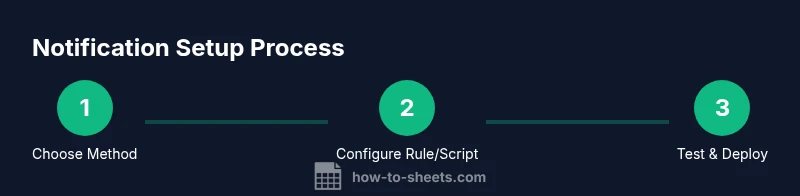
Can you get notifications from Google Sheets? In short, yes. Notifications let you know when a sheet changes or when form responses arrive, helping teams stay aligned without manually checking spreadsheets. The How To Sheets team emphasizes choosing the right method based on your needs: built-in rules for straightforward alerts, Apps Script for custom conditions, and automation platforms for cross-app notifications. This section lays the groundwork so you can decide which route fits your workflow, whether you’re a student tracking assignments, a professional monitoring budget changes, or a small business owner overseeing inventory. By understanding the triggers, delivery options (email, mobile, or inbox), and scope, you’ll set up reliable alerts that reduce noise and improve responsiveness.
Built-in Notification Rules: The basics
Google Sheets offers notification rules that can email you when changes occur or when form submissions are received. These rules are quick to configure and require no coding, making them ideal for simple monitoring tasks. You can choose between a “notification rule when changes are made” and a “daily digest” option to limit email volume. This built-in feature is most effective for users who need immediate awareness of edits by collaborators or new form data, without maintaining scripts or external integrations. For teams, it’s important to align with privacy and data-sharing policies to ensure the right people receive alerts.
Apps Script: Customizable alerts for precision
Apps Script provides a programmable way to tailor notifications to highly specific conditions. By writing custom logic that runs on triggers (such as onEdit or formSubmit), you can craft alerts that fire only for particular cells, ranges, or user actions. This method is powerful when you need conditional logic (e.g., alert only when a value exceeds a threshold or when multiple cells change within a short window). While it requires some scripting knowledge, the payoff is precision and control. As you design your script, consider error handling, debouncing changes to avoid duplicate alerts, and documenting triggers for future maintenance.
Third-party automation: Zapier, IFTTT, and more
For cross-application notifications, automation platforms like Zapier or IFTTT bridge Google Sheets with email, Slack, Teams, or SMS. This approach is ideal when your alerts must reach stakeholders who don’t use Google products directly. Set up a trigger (e.g., new row added, specific cell value changes) and map it to a delivery action (send an email, post a message in Slack, etc.). These tools often include templates and built-in error handling, but they may introduce costs or latency depending on your plan. They’re particularly valuable in multi-app workflows that extend beyond spreadsheets.
When to use built-in rules vs Apps Script vs automation
Choosing the right method depends on the complexity of your needs. Use built-in rules for quick, low-friction alerts with reliable delivery to email. Opt for Apps Script when you need custom logic, targeted notifications, or integration with other Google services like Calendar or Drive. If your workflow spans multiple apps and you want to centralize alerts in a chat channel or project management tool, automation platforms are the most scalable option. A common strategy is to start with built-in rules to establish a baseline, then add Apps Script or automation for more nuanced requirements. Remember to test thoroughly in a safe environment before rolling out to production.
Step-by-step: Set up built-in notification rules
- Open the Google Sheet and verify you have edit access. This is essential because only editors can configure notification rules. 2) Go to Tools or Extensions (depending on your interface) and locate Notification rules. 3) Choose the trigger: 'Notify me when any changes are made' or 'Notify me with a daily digest.' 4) Select how you want to receive alerts (email is the default, but you can route emails to different addresses via sharing settings). 5) Save the rule and test by making a deliberate change to a non-critical cell. 6) Review the received email to confirm the message content and timing. 7) If you rely on multiple sheets, repeat the process or use a spreadsheet with centralized notification settings. 8) Document the rule configuration for teammates to avoid misconfiguration in the future. Time estimate: 20-40 minutes.
Step-by-step: Apps Script walkthrough for custom alerts
- Open the target Google Sheet and choose Extensions > Apps Script to create a new project. 2) Define a trigger function (e.g., onEdit) to monitor cell changes and determine whether an alert should fire. 3) Implement logic to format the alert message and determine delivery method (email or other services). 4) Save and authorize the script, then set up a trigger in the UI to run on the desired event (onEdit, formSubmit, etc.). 5) Test by editing the target cell and verify the notification arrives as expected. 6) Add error handling and optional rate-limiting to prevent duplicate emails. 7) Review quotas and limits for triggers and email sending to avoid throttling. 8) Schedule periodic audits to ensure scripts continue to run after sheet ownership or permission changes. Time estimate: 40-60 minutes.
Step-by-step: Zapier/IFTTT setup for cross-app alerts
- Create accounts for Zapier or IFTTT and connect your Google Sheets account. 2) Choose a trigger like 'New or updated row' or 'New form response' and specify the sheet and range. 3) Select an action channel (Gmail, Slack, Teams, SMS, etc.) and design the alert message. 4) Test the workflow by simulating a change in the sheet. 5) Enable the Zap/Applet and monitor the first few deliveries to confirm reliability. 6) Consider using filters so only meaningful changes trigger alerts. 7) Document the integration map and ownership for your team. 8) Review costs and rate limits on your automation plan. Time estimate: 25-40 minutes.
Tools & Materials
- Google account with edit access to the target sheet(Needed to configure notifications and install scripts or rules)
- Internet-connected device (computer or mobile)(For accessing Google Sheets and testing alerts)
- The target Google Sheet(The sheet you want to monitor with notifications)
- Apps Script editor (built into Google Sheets)(Required if you implement custom Apps Script alerts)
- Email app (Gmail) or messaging app(Needed for email or chat-based notifications when using Apps Script or Zapier/IFTTT)
- Zapier or IFTTT account (optional)(Use if you want cross-app notifications across Slack, Teams, etc.)
Steps
Estimated time: 60-90 minutes
- 1
Open your sheet and verify access
Ensure you have editing rights to configure notifications. Without edit access, you cannot save notification rules or scripts.
Tip: If you’re not the owner, request temporary or permanent access before proceeding. - 2
Decide your notification path
Choose between built-in rules, Apps Script, or a third-party automation platform based on required customization and cross-app needs.
Tip: Start with built-in rules for quick wins, then layer in Apps Script or automation if needed. - 3
Configure built-in notification rules
Access Notification rules and pick: (a) notify on changes, or (b) daily digest. Specify recipients by sharing the sheet or relying on email routing.
Tip: Test with a non-critical change to ensure the alert content is clear. - 4
Set up Apps Script alerts
Create a new Apps Script project, implement an onEdit or formSubmit trigger, and craft a condition-based alert message.
Tip: Keep a simple log to avoid duplicate notifications and document script changes. - 5
Test Apps Script alerts
Make representative edits to validate the trigger fires and delivery succeeds.
Tip: Check Gmail/target inbox and inspect script logs for errors. - 6
Integrate Zapier/IFTTT for cross-app alerts
Connect Google Sheets as the trigger and choose your destination channel (Slack, email, SMS, etc.).
Tip: Use filters to reduce noise and ensure only meaningful events trigger alerts. - 7
Test cross-app notifications
Run the workflow with controlled changes and verify delivery across all channels.
Tip: Document expected formats so recipients know what the alerts mean. - 8
Monitor, maintain, and document
Track alert performance, document configurations, and update permissions as needed.
Tip: Schedule quarterly reviews to account for sheet changes and user role updates.
FAQ
Can I receive notifications for specific cells or ranges?
Built-in rules notify on changes to the sheet as a whole. For cell-level specificity, use Apps Script to tailor triggers to a range or condition.
Yes, you can target specific cells with Apps Script by checking the edited range.
Do notifications trigger on Google Form submissions?
If a sheet is linked to a Google Form, form submissions can trigger notifications via built-in rules, Apps Script, or automation platforms.
Form submissions can trigger alerts depending on your setup.
Can I limit who receives notifications?
Notifications are delivered to email addresses that have access to the sheet or are specified in your automation workflow. Sharing settings determine recipient scope.
Recipients are defined by sharing settings or automation configurations.
What happens if my notifications stop working?
Check permission changes, trigger quotas, and script errors. Re-test and review logs to identify whether the issue is with delivery or trigger firing.
Check permissions, quotas, and logs to diagnose delivery issues.
Will sponsored third-party tools give me more control?
Yes. Zapier/IFTTT can route alerts to multiple channels and apply filters, but they may introduce latency or costs. Plan accordingly.
Yes—use automation tools for broader reach, mindful of costs.
Is there a limit to how many alerts I can create?
There are practical limits based on email quotas and automation platform plans. Start with essential alerts and expand as needed.
Start with essential alerts; monitor quotas as you scale.
Watch Video
The Essentials
- Choose built-in rules for simple alerts with minimal setup
- Use Apps Script for precise, condition-based notifications
- Leverage Zapier/IFTTT when cross-app alerts are required
- Test thoroughly and document configurations for reliability