How to Send Email from Google Sheets
Learn how to google sheets send email using no-code mail merges or Apps Script. This educational guide walks through methods, data prep, testing, and best practices for reliable, scalable email outreach from Google Sheets.


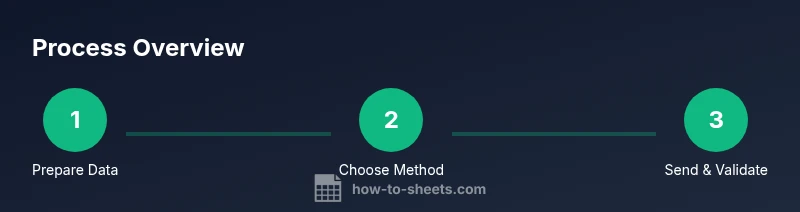
You can email from Sheets using Google Apps Script or built-in add-ons. This guide compares two reliable methods: a no-code mail merge approach and a code-based solution with Apps Script to customize recipients, subjects, and content. Choose based on data size, personalization needs, and security concerns. By the end, you’ll know which path fits your workflow and how to start.
Why sending emails from Google Sheets matters
For teams that manage contact lists in Google Sheets, integrating email outreach directly reduces manual copy-paste and context switching between apps. The ability to google sheets send email helps you scale reminders, confirmations, and personalized messages without leaving your spreadsheet. In practice, this approach aligns with modern data workflows: you keep data in Sheets, compose content in a template, and dispatch messages through Gmail or an SMTP-enabled service. According to How To Sheets, automating this task decreases friction and enhances accountability, especially when you need to personalize fields like name, appointment date, or order number. The key is to structure your sheet so the data maps cleanly to subject lines, message bodies, and recipient addresses. Throughout this guide, you’ll compare no-code solutions with a code-based approach and walk through concrete steps you can apply to sales outreach, class communications, project updates, or customer support follow-ups.
Two practical methods to achieve google sheets send email
There are two primary paths: a no-code mail merge with a Gmail add-on and a code-first approach using Google Apps Script. The no-code option is quick to set up and ideal for small batches, while Apps Script offers granular customization, automation triggers, and scalability for larger lists. How To Sheets analysis shows that automation can scale outreach without increasing manual workload. Use the decision framework below to pick the route that matches your data structure, privacy requirements, and desired level of control. This section also explains when to combine both methods—for example, using a no-code solution for monthly reports and Apps Script for event-driven notifications.
Method A: No-code mail merge with a Gmail add-on
No-code mail merge relies on a Gmail add-on or Google Workspace marketplace tool that connects your sheet to Gmail without writing code. Typical setup steps include selecting a recipient column in your Sheet, mapping placeholders (for example, {{FirstName}} or {{DueDate}}) to your email template, and defining a trigger or batch size. The benefits are speed, reduced complexity, and easier maintenance for non-developers. A common pitfall is misaligning column headers with placeholders, which causes personalization to fail. Prepare a clean data schema and a reusable template to minimize retries. How To Sheets has found that organizing data into clearly labeled columns (Email, FirstName, LastName, Subject, Body) leads to fewer errors and smoother execution.
Method B: Custom emails with Google Apps Script
Apps Script lets you write JavaScript to send emails exactly as you want, including advanced personalization, conditional content, and dynamic attachments. This method requires some coding familiarity but pays off in flexibility and scalability. Start by creating a new script project bound to your spreadsheet, then write a function that reads rows, builds the email body from a template, and uses GmailApp.sendEmail or MailApp.sendEmail to dispatch messages. This approach handles more complex logic, such as looping over large lists, appending HTML content, or injecting data securely from the sheet. How To Sheets analysis shows that custom scripting empowers teams to automate complex workflows while maintaining data integrity and audit trails.
Tools & Materials
- Google account with Gmail access(Needed to send emails and access Google Sheets/Apps Script)
- A Google Sheet with recipient data(Include columns like Email, FirstName, LastName, Subject, and Body)
- No-code mail merge add-on (optional)(Pick a reputable add-on with good user reviews; ensures simpler setup)
- Apps Script editor (built-in to Google Sheets)(Used for custom scripts; no installation needed)
- Email template(Template with placeholders for personalization (e.g., {{FirstName}}))
- Sample data and test emails(Always test on a small batch before broad sending)
Steps
Estimated time: 1.5-2.0 hours
- 1
Choose your method
Decide between a no-code mail merge approach and a code-based Apps Script solution. Consider data size, required personalization, and comfort with coding. The choice sets the subsequent setup steps and testing plan.
Tip: Aim for a quick prototype with a small data set to confirm the chosen method works before scaling. - 2
Prepare your data sheet
Ensure your Google Sheet has clearly named headers and a consistent schema. Typical headers include Email, FirstName, LastName, Subject, Body, and any placeholders your template requires. Validate emails for basic syntax and remove duplicates where necessary.
Tip: Use data validation rules to prevent bad addresses from entering the sheet. - 3
Set up a no-code mail merge (optional)
If you chose the no-code path, install and configure the Gmail mail merge add-on. Map sheet columns to placeholders, create a reusable email template, and run a test batch to confirm personalization renders correctly.
Tip: Run a test with 2–3 recipients to catch any placeholder mismatches early. - 4
Create your email template
Draft a template with dynamic placeholders for personalization. Decide on plain text vs. HTML email formats. Save the template in a place you can reference programmatically or within the add-on’s template editor.
Tip: Include a clear subject line and a fallback default for missing personalization fields. - 5
Write Apps Script (if using code)
Open Apps Script from the sheet, create a function to read rows, build personalized bodies, and send emails with GmailApp or MailApp. Use template strings or an HTML template, and ensure proper error handling.
Tip: Log successes and failures to a sheet column for auditing. - 6
Test with a small batch
Run sending with a tiny subset of your data to verify correct personalization, formatting, and delivery. Check inbox placement and any attachments. Resolve issues before scaling.
Tip: Check your Gmail sending quota if you’re approaching limits. - 7
Schedule or trigger sending
If needed, set up time-driven triggers in Apps Script or rely on the add-on’s scheduling features to automate future sends. Confirm any privacy or data governance requirements before automating.
Tip: Document the trigger logic and ensure you can disable it quickly if something goes wrong.
FAQ
What is the difference between a no-code mail merge and Apps Script for sending emails from Sheets?
No-code mail merge is quick and beginner-friendly, great for small batches. Apps Script offers full customization, automation, and scalability, but requires coding. Choose based on data size, complexity, and team skills.
No-code is faster to set up for small lists, while Apps Script gives you power and flexibility for larger or more complex sends.
Can I personalize subject lines and email bodies per recipient?
Yes. Both methods support placeholders to insert recipient-specific data such as names or dates. Ensure your template handles missing data gracefully.
Yes, personalization is supported; placeholders pull data from your sheet for each recipient.
Can attachments be sent with these emails?
Attachments are possible with Apps Script or certain mail-merge add-ons. Verify that the chosen method supports attachments and consider file size restrictions.
Yes, you can attach files, but check size limits and recipient permissions.
Are there privacy or compliance considerations I should know?
Yes. Avoid sending sensitive data to unintended recipients and ensure recipients opted in. Review your organization’s data policies before automating email sends.
Be mindful of privacy and consent when sending bulk emails.
Watch Video
The Essentials
- Plan method based on data size and personalization needs
- Prepare a clean, well-labeled data sheet before sending
- Test thoroughly with small batches before scaling
- Use templates and placeholders to ensure consistent personalization
- Review sending limits and privacy considerations before automation