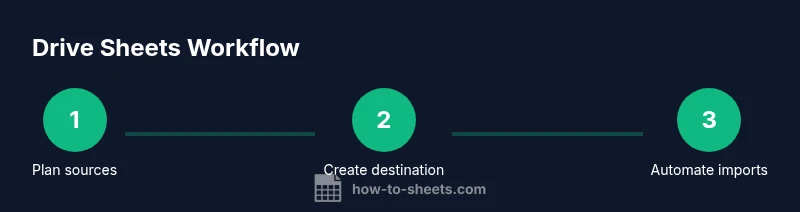
Drive Sheets: A Practical Guide to Automate Google Sheets
Learn how to drive sheets by linking Drive data to Google Sheets, automating imports, and building templates. This guide helps students, professionals, and small businesses optimize workflow with safe, repeatable processes.


By the end of this guide, you will be able to drive sheets by linking Google Drive sources to Google Sheets, importing data automatically, and maintaining templates that update on a schedule. You'll learn a practical setup, common workflows, and safety checks to keep data accurate and secure. This approach works for students, professionals, and small businesses seeking repeatable, scalable data processes.
What drive sheets actually means
Drive sheets describes a practical approach to organizing and automating data that originates in Google Drive and ends up in Google Sheets. The goal is to reduce manual data entry while keeping data consistent, auditable, and easy to share. In this section we define the concept, outline common workflows, and set expectations for what a successful Drive Sheets setup can deliver for students, professionals, and small business owners. Throughout, you’ll see the term drive sheets used to denote the end-to-end data flow from source files stored in Drive into a structured Sheets workbook. This definition helps clarify the scope before you start building, testing, and refining your templates.
According to How To Sheets, a well-designed Drive Sheets workflow begins with a clear data map, reliable source files, and a reusable template. You’ll minimize disruption by specifying data types, validation rules, and update frequencies up front, so future updates stay predictable rather than chaotic.
The data flow: from Drive to Sheets
Most drive-to-sheets workflows start with source files stored in Google Drive—CSV exports, Excel files, Google Forms responses, or raw data stored as Google Docs. The sheets side acts as the single source of truth for analysis and reporting. A typical flow looks like this:
- Identify sources: locate the exact Drive folders and files that contain the data you need.
- Define a destination: create a target Google Sheet (or a template) where data will land.
- Map fields: specify which columns in Sheets align with fields in the source files.
- Establish imports: decide whether to pull data via built-in functions (IMPORTRANGE), Google Apps Script, or a third-party add-on.
- Automate: schedule updates or trigger automations so data stays fresh.
This flow reduces manual copy-paste, lowers the risk of human error, and makes data easier to consolidate and audit.
Why drive sheets matter for collaboration
Drive Sheets unlocks collaboration by centralizing data in a shareable, live document that updates automatically. Teams can rely on a common source of truth, with access controls that govern who can view or modify the data. When you drive sheets effectively, you enable:
- Real-time dashboards fed by fresh data.
- Consistent data definitions across departments.
- Reusable templates that speed up reporting and budgeting.
- Clear audit trails as data flows from source files to the sheet.
For students, this means faster project set-up; for professionals and small businesses, it translates to better decision-making powered by timely information. How To Sheets emphasizes starting with a simple workflow and expanding it as your needs evolve.
Prerequisites and setup
Before you begin, confirm you have a Google account with access to Drive and Sheets, plus a plan for how data will be sourced and stored. Create or choose a destination Google Sheet that will serve as your data hub. Gather a few example source files to test the integration. Finally, decide on a naming convention for folders, files, and sheets so that future automations remain easy to maintain. Setting up a test environment is essential so you can validate flows without affecting live data.
From a practical standpoint, you should also plan for permissions: who can read the source data, who can edit the destination, and how to log changes. If you’ll use Apps Script, consider enabling a dedicated Google Cloud Project for API access and setting up basic error handling from the start.
Step-by-step: designing a Drive-to-Sheets workflow
A Drive-to-Sheets workflow focuses on predictable data movement and reliable templates. Start by mapping source fields to destination columns, then decide the method for bringing data into Sheets. If the data scale is small and sources are simple, IMPORTRANGE or built-in functions may suffice. For broader integration or custom logic (like filtering or transformation), Apps Script is often the best path. Always begin with a minimal viable flow and test with a few rows of data before expanding.
Key design decisions:
- Data map: what data is pulled, from where, and into which columns?
- Update cadence: how often should the sheet refresh (manual, time-driven trigger, or event-driven)?
- Error handling: how will you detect and report failures?
- Security: what permissions are required for source files and the destination?
With these decisions in place, you can implement a lean, scalable Drive Sheets workflow.
Automating updates with Google Apps Script
Apps Script provides a flexible way to transform data as it moves from Drive into Sheets. A typical script might:
- Read data from a Drive source (e.g., a CSV in Drive or another Sheets file).
- Transform or filter rows and columns as needed (mapping, validation, formatting).
- Write the result to a destination Sheet and optionally clear old data first to avoid duplicates.
- Schedule automatic runs with time-driven triggers or run on demand via a custom menu.
If you’re new to Apps Script, start with a simple function that reads a file, parses its contents (if CSV), and writes a minimal dataset to Sheets. Incrementally add transformations and error handling as you gain confidence.
Data integrity, validation, and security
Driving sheets effectively requires attention to data quality. Use validation rules in Sheets to catch bad inputs, and implement checks in Apps Script to verify row counts, required fields, and data types. Version control is a best practice: maintain a copy of the source data, log changes, and test updates on a copy of the destination sheet before pushing to production. Security matters too: limit who can edit the Apps Script project, the destination sheet, and the source files, and review shared permissions regularly. Where possible, use least-privilege access and monitor for unusual changes.
Finally, establish a rollback plan. If an import goes wrong, you should be able to revert to a known good version of the destination sheet or re-run a corrected script without data loss.
Common pitfalls and troubleshooting
Many drive-to-sheets projects stumble on permission errors, wrong data mappings, or stale caches. Common fixes include:
- Re-authenticating access to Drive sources when permissions change.
- Re-checking the data map to ensure columns align exactly with source fields.
- Clearing and re-importing data when using IMPORTRANGE or scripts that append data without purging old rows.
- Adding try/catch blocks and logging errors for quick diagnosis.
Pro tip: always test updates in a duplicate sheet before touching the production version. This protects against accidental data corruption and helps you verify that automations behave as intended.
Real-world templates and use cases
Drive Sheets templates come in many flavors: projects dashboards that pull status from Drive-hosted CSVs, budget trackers that ingest monthly expense files, and CRM views that consolidate contact data from multiple Drive folders. A simple use case might involve a monthly sales report: a source CSV in Drive is parsed by Apps Script, transformed to a standardized schema, and written to a
How to accelerate adoption with ready-to-use templates
If you want faster results, start with a baseline template: a destination sheet with a clean column layout, defined named ranges, and a small set of source mappings. Customize gradually by adding more sources and logic. This approach reduces risk and helps teams ramp up their Drive Sheets workflows with confidence. As you gain comfort, you can add error alerts, versioning, and more advanced transformations to support broader business needs.
Final checklist and next steps
Before you deploy, review the data map, test with multiple datasets, confirm permissions, and set up at least one automated run. Document the workflow so teammates can understand and extend it. Revisit the setup every few months to adapt to changing data sources or business requirements. With a solid plan and incremental improvements, your Drive Sheets workflow becomes a dependable backbone for reporting and decision-making.
Conclusion and next steps
Drive sheets empower teams to turn scattered Drive data into cohesive, automated sheets. Start small, validate each step, and expand gradually. The most important outcomes are reduced manual effort, improved data quality, and clearer visibility into business processes. How To Sheets’s approach emphasizes practical, repeatable steps you can implement today and iterate over time.
Tools & Materials
- Google account with Drive access(Needed to access Drive sources and Google Sheets)
- Google Sheets(Create or open a destination workbook)
- Google Apps Script(Optional for advanced automation and transforms)
- Source files in Drive (CSV/Excel/Sheets)(Examples for testing imports)
- Stable internet connection(Required for live syncing and script execution)
Steps
Estimated time: 1-2 hours
- 1
Define data sources
Identify the exact Drive folders and files that contain the data you need for the destination sheet. Document field names, data types, and expected update frequency.
Tip: Create a quick data map draft before you start building connections. - 2
Create destination sheet
Set up a Google Sheets workbook with a clean schema, including headers that match source fields and named ranges for stable references.
Tip: Use a separate sheet for raw imports and a normalized sheet for analysis. - 3
Choose integration method
Decide between built-in imports (like IMPORTRANGE) for simple needs or Apps Script for transformation and error handling. Keep scope small at first.
Tip: Start with IMPORTRANGE to validate connectivity quickly. - 4
Map fields and implement initial import
Create the mapping from source fields to destination columns and implement the initial import routine. Validate that data lands in the right columns and formats.
Tip: Check data types (text vs numbers) to prevent parsing errors. - 5
Add automation and triggers
If using Apps Script, set up a time-driven trigger (e.g., daily) or event-driven trigger to refresh data. Keep trigger limits in mind.
Tip: Test with a short interval to confirm reliability. - 6
Test and validate
Run end-to-end tests with multiple data sets. Confirm no duplicates and that updates reflect as expected in the destination.
Tip: Maintain a test copy of the destination sheet for validation. - 7
Deploy and monitor
Publish the workflow to stakeholders, monitor for errors, and establish a process for handling failed imports.
Tip: Set up error notifications via email or a log sheet.
FAQ
What does 'drive sheets' mean in practice?
Drive sheets refers to creating automated data flows from files stored in Google Drive into Google Sheets, so data is current and readily analysable. It combines data sourcing, mapping, and templating to minimize manual effort.
Drive sheets is about automating data flows from Drive into Sheets so you can analyze fresh data with less manual work.
Do I need Apps Script to automate Drive-to-Sheets?
Not always. For simple imports, built-in functions like IMPORTRANGE can be enough. Apps Script helps when you need data transformation, error handling, or custom logic.
You can start with built-in imports, but Apps Script is helpful for more complex automation.
How secure is the integration between Drive and Sheets?
Security relies on Google account permissions. Limit who can edit source files, destination sheets, and scripts. Regularly review sharing and API access to protect data.
Security comes down to who has access. Manage permissions carefully and review them regularly.
What are common errors and how can I fix them?
Permissions errors, mis-mapped columns, and stale data are frequent. Check access, re-map fields, and consider clearing and re-importing when appropriate.
Typical issues are permission or mapping errors; verify access and fix the field map.
Can I schedule automatic updates?
Yes. Use time-driven triggers in Apps Script or periodic refresh in sheet functions to keep data current without manual runs.
Yes—set up scheduled refreshes to keep data up-to-date automatically.
Is Drive-to-Sheets suitable for large datasets?
It can work, but performance depends on data volume and the chosen method. For very large datasets, batch processing and chunked imports help avoid timeouts.
It works for many sizes, but plan for performance with large datasets and use batching.
Watch Video
The Essentials
- Automate Drive-to-Sheet data flows to save time.
- Define a clear data map before building connections.
- Test thoroughly on copies before production.
- Use Apps Script for transformations and robust error handling.
- Monitor and adjust permissions regularly.