Export Google Sheets to CSV: A Practical Step-by-Step Guide
Learn how to export Google Sheets to CSV with a practical, step-by-step approach. Includes single-sheet exports, multi-tab workflows, encoding, and automation tips for students, professionals, and small businesses.


Exporting a Google Sheet to CSV saves the current sheet as a plain text CSV file you can open in Excel or other apps. In Google Sheets, go to File > Download > Comma-separated values (.csv, current sheet). This exports only the active tab, not the entire workbook. If you need every tab, export each one separately or use a script for automation.
Why export Google Sheets to CSV matters
CSV, or comma-separated values, is the simplest portable data format. It’s ideal for sharing tabular data with colleagues who use different software, for importing into databases, or for archiving a snapshot of a worksheet. When you export Google Sheets to CSV, you convert the visible data into plain text, preserving rows and columns while stripping formatting, formulas, and embedded objects. This makes CSV universally readable, lightweight, and easy to manipulate with other tools. For students, professionals, and small business owners, exporting to CSV enables seamless handoffs, data exchange with teammates, and compatibility with systems that rely on flat-file imports.
In practice, your first export should match your immediate goal: a single sheet for quick sharing, or multiple sheets for a comprehensive data dump. If you plan to work with the same dataset regularly, consider automating the export to save time and reduce errors. The How To Sheets team found that a consistent CSV export workflow improves collaboration and reduces data friction across teams.
csv export: a quick reality check
CSV is a plain-text format that stores data in rows and columns with a delimiter (usually a comma). It does not preserve formulas, formatting, or charts. If your sheet contains dates, numbers, or special characters, you may need to verify how the destination application interprets the data. When you export from Google Sheets, only the active sheet is saved to CSV, so plan accordingly if your workbook has multiple tabs that you need to export. If you require multiple sheets, you’ll either repeat the export for each tab or use an automation approach.
Understanding when to export what you need
There are several common scenarios:
- Sharing a single table with a teammate who doesn’t need the entire workbook.
- Importing data into a database or analytics tool that accepts CSV as a standard input.
- Archiving a snapshot of your data for compliance or record-keeping.
In each case, exporting to CSV keeps your data portable and readable, but you should tailor the export to the recipient’s needs (encoding, delimiter, and field quoting).
How to export a single sheet from Google Sheets (high-level overview)
To export a single sheet, you’ll switch to the tab you want, access the File menu, and choose the CSV option. Remember, the exported file will contain only the visible data from that tab. If your sheet includes non-standard characters, check the destination’s encoding support. After exporting, open the file in a text editor or spreadsheet program to verify the layout and delimiters before sharing.
Common pitfalls and how to avoid them
- Pitfall: Exporting from the wrong tab. Always confirm the active sheet before exporting. Solution: Double-check the tab label and a small sample of data.
- Pitfall: Data with commas or quotes. CSV fields that contain commas should be quoted; quotes inside fields must be escaped. Solution: Review the destination importer’s rules for quoting and escaping.
- Pitfall: Losing date formatting. CSV stores dates as plain text; formatting is not preserved. Solution: Export with a known date format or reformat after import.
Automating exports with Google Apps Script
If you need to export on a schedule or export multiple sheets, Apps Script can automate the process. A simple script can loop through chosen tabs, export each as a separate CSV file in Google Drive, and name files after the tab. This approach reduces manual steps and ensures consistency across exports. Always test the script on a copy of the original sheet before running it live.
Real-world use cases: students, professionals, and small businesses
- Students: export a single class roster or gradebook as CSV for import into a learning management system.
- Professionals: share a sales delta or inventory list with a colleague who uses a different toolchain.
- Small businesses: create scheduled reports that export to CSV for a backend system that ingests flat files.
Tools & Materials
- Computer or mobile device with internet access(Any modern browser; ensure you’re signed in to Google.)
- Google account with access to the sheet(You must have view/edit access to the target Google Sheet.)
- The Google Sheet you want to export(Open the exact file and, if exporting multiple tabs, plan the order.)
- Destination for the CSV(Downloads folder or cloud storage; consider a naming convention.)
- Text editor or spreadsheet app for verification(Useful for quick checks of the CSV contents and encoding.)
Steps
Estimated time: 15-30 minutes
- 1
Open the target Google Sheet
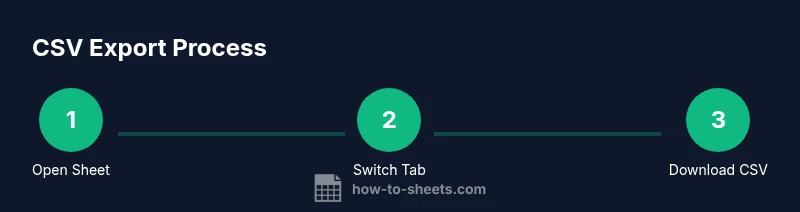
Navigate to Google Sheets and open the file you intend to export. Confirm you’re viewing the correct tab, since only the active sheet is exported to CSV.
Tip: Use a naming convention for tabs to keep track of which sheet corresponds to which CSV. - 2
Switch to the desired tab
Click the tab you want to export so it is the active sheet. The CSV export will reflect this tab’s data only.
Tip: If you need multiple tabs, repeat steps 3–7 for each tab with a new file name. - 3
Access the File menu and export as CSV
Go to File > Download > Comma-separated values (.csv, current sheet). The browser will start downloading the file immediately.
Tip: Before exporting, glance at a few rows to ensure data appears correctly and no hidden rows are truncated. - 4
Locate and verify the downloaded file
Find the CSV in your downloads folder and open it with a text editor or spreadsheet app to confirm proper delimiters and data alignment.
Tip: Verify that the sheet name is reflected in the file name for easy identification. - 5
Export additional tabs if needed
Repeat the export process for each additional tab you require as separate CSV files. Maintain consistent file naming.
Tip: Create a folder to store all related CSVs to avoid clutter and confusion. - 6
Consider encoding and delimiters
CSV is typically UTF-8 and uses commas as delimiters, but locale settings may affect delimiter interpretation. Ensure the destination app matches these expectations.
Tip: If you see misinterpreted characters, re-export with UTF-8 encoding or adjust the destination’s import settings. - 7
Optional: automate with Apps Script
If you export frequently, create a small Apps Script to export all desired tabs to separate CSV files on a schedule or trigger.
Tip: Test the script on a copy first to prevent accidental data changes or file overwrites.
FAQ
Can I export multiple sheets to a single CSV file?
CSV format supports one sheet per file. To export multiple sheets, export each tab separately or use a script to automate the process.
CSV exports are one sheet per file; export each tab or automate the process with a script.
Does exporting to CSV preserve formulas?
No. CSV saves the current displayed values as plain text. Formulas are not preserved when exporting.
No, formulas aren’t preserved; only the resulting values are saved.
What about encoding and special characters?
CSV exports typically use UTF-8 encoding. If you see garbled characters after import, adjust the destination app’s encoding settings or re-export with UTF-8.
CSV is UTF-8 by default; adjust encoding if characters don’t display correctly.
How do I export an entire workbook?
Google Sheets does not export an entire workbook as a single CSV. Export each sheet separately or use automation to generate multiple CSVs.
You’ll need to export each sheet separately or automate the process.
Can exporting be automated on a schedule?
Yes. You can automate CSV exports with Google Apps Script or third-party tools, ideal for regular reporting.
Automation is possible with Apps Script for scheduled exports.
Watch Video
The Essentials
- Export the active sheet as CSV to share quickly.
- CSV preserves data values, not formulas or formatting.
- Export each tab separately when you need all sheets.
- Verify encoding and delimiters after export.
- Automate repetitive exports with Apps Script.