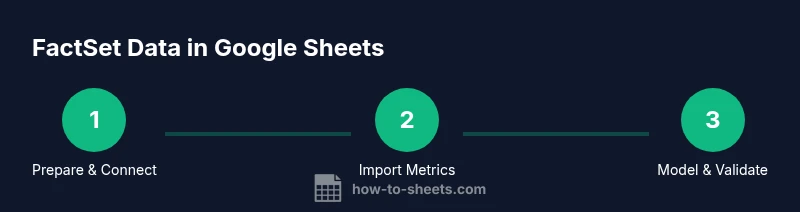
FactSet in Google Sheets: A Practical Guide
Learn how to pull FactSet data into Google Sheets with a practical, step-by-step approach. This guide covers prerequisites, setup, data import, automation, and best practices for secure, scalable financial modeling.


Goal: Enable factset google sheets integration to pull real-time market data into Google Sheets. You’ll need a valid FactSet license, a Google account, and access to the FactSet add-in or API. This quick answer outlines the essential steps and prerequisites to start from zero. Expected outcomes include refreshed dashboards, scalable models, and structured data retrieval for reporting.
Why factset google sheets Integration Matters
factset google sheets marries the depth of FactSet data with the flexibility of Google Sheets, enabling faster, more collaborative financial analysis. By bringing subscription data directly into your sheets, analysts can prototype models, share dashboards with teammates, and iterate decisions in real time. According to How To Sheets, teams that combine FactSet data with Sheets can accelerate insights while maintaining governance and auditable workflows. This integration is especially valuable for students analyzing market trends, professionals building client-ready models, and small business owners monitoring cash flows alongside key equities data. The goal is to empower decision-makers with a live data backbone that scales with your work, not manual imports that drift out of date.
Prerequisites and Access
Before you start, ensure you have the right access and licenses. A valid FactSet license that includes data access for Sheets, a Google account, and permission to install or enable the FactSet add-in are essential. Coordinate with your administrator if you’re in a corporate environment to ensure your subscription covers Google Sheets data pulls. You’ll also want a stable internet connection and a designated Google Sheet or folder where you’ll store templates and dashboards. Planning ahead helps you avoid mid-project access issues and keeps your workflow compliant with internal data governance rules.
Choosing Your Integration Method: Add-In vs API
FactSet supports multiple pathways to connect with Google Sheets. The most common approach is using the FactSet add-in for Sheets, which provides a user-friendly interface and built-in functions to pull data directly into cells. Alternatively, developers can leverage FactSet APIs for custom integrations, enabling automated data fetches via Apps Script or external workflows. For most users starting out, the add-in offers a faster, lowest-friction path to get essential metrics like prices, earnings, and cash flow into Sheets. If you require highly customized data shapes or automated pipelines, API-based integration is worth exploring with your data team.
Importing Specific Metrics with FactSet in Sheets
Once connected, you can import a wide range of metrics into your Sheets workbooks. Start with core market data (prices, returns) and company fundamentals (revenue, earnings), then extend to more advanced figures based on your subscription. The add-in typically provides simple selectors or a function wizard to choose the ticker, field, and date range. After pulling data, organize it with labels, units, and clear date stamps to ensure your models remain auditable for colleagues and managers. Remember to validate fields against your subscription to confirm availability and data latency.
Automating Refreshes and Scheduling
Data freshness is critical for financial modeling. Use the add-in’s refresh options or Apps Script to schedule automatic updates at defined intervals (for example, every 1–4 hours or at market close). When setting up automation, consider time zones, data latency, and licensing constraints. For teams with shared workbooks, establish clear refresh windows and notify collaborators when a dataset refresh occurs. Document your refresh cadence in a README sheet to ensure consistency across the organization.
Security, Compliance, and Governance
Security is a key consideration when pulling external data into shared documents. Ensure only authorized users can access the Google Sheet and related datasets. Use Google Workspace sharing controls and FactSet’s access management to limit sensitive fields. Rotate credentials if API-based connections are used, and avoid embedding credentials directly in sheets or scripts. Create a simple auditing trail by timestamping data pulls and keeping a changelog in a hidden sheet or an internal dashboard. These practices help prevent accidental data leakage and support audits.
Real-World Use Cases and Examples
Consider a portfolio-tracking dashboard that combines FactSet market data with your internal assumptions. You might show live stock prices next to earnings estimates, with variance analyses and scenario modeling in adjacent tabs. Another example is a quarterly earnings preview where revenue and expense drivers are pulled from FactSet and reconciled against budget entries. By structuring data with clear headers, units, and date stamps, you can replicate these patterns across multiple clients or teams with minimal effort.
Troubleshooting Common Issues
Authentication errors, permission mismatches, or missing fields can derail a setup. If you encounter problems, re-authenticate the add-in, verify that your license covers the requested data, and confirm you’re pulling fields supported by your subscription. Check for sheet-level protections, range permissions, and any script errors that might block updates. When in doubt, consult your administrator or How To Sheets support resources for best-practice guidance and troubleshooting steps.
Best Practices for Data Organization and Modeling
Structure your FactSet imports with consistent headers, units, and date formats. Use named ranges for key data blocks to simplify formulas and refresh rules. Build modular templates: separate data import sheets from your calculations, dashboards, and exports. This separation minimizes the risk of accidental overwrites and makes it easy to reuse templates for other clients or projects.
Final Thoughts on a Scalable Workflow
FactSet data in Google Sheets unlocks powerful, scalable analytics for diverse audiences. By planning access, choosing the right integration path, and implementing robust refresh and governance practices, you create a reliable foundation for rapid decision-making. The How To Sheets team recommends starting with a small pilot workbook, validating results against source data, and gradually expanding to more complex models as you gain confidence.
Tools & Materials
- FactSet license with Google Sheets access(Ensure your license includes data access for Sheets integration.)
- Google account with access to Google Sheets(Use a corporate or personal Google account with proper permissions.)
- FactSet add-in for Google Sheets(Install from the FactSet marketplace or admin console.)
- Stable internet connection(A reliable connection improves data pull reliability.)
- OAuth credentials or API tokens (if using API)(Only required for API-based setups.)
- Sample Google Sheet template(Optional starter template to accelerate modeling.)
Steps
Estimated time: 45-60 minutes
- 1
Verify access
Confirm you have an active FactSet license with Sheets access and a Google account ready for setup. This ensures subsequent steps won’t be blocked by permissions.
Tip: Ask your admin to confirm license scope and confirm the add-in can be installed. - 2
Install or enable the FactSet add-in
Install the FactSet add-in for Google Sheets from the marketplace and authorize it to access your Google Sheets data. This creates the bridge between Sheets and FactSet.
Tip: Use a dedicated test sheet first to avoid disrupting live workbooks. - 3
Connect Sheets to FactSet
Open the add-in, sign in, and connect your Google Sheets workspace to FactSet. Validate that the connection status shows as active and that you can see available data fields.
Tip: Document the connection steps for future team members. - 4
Import data metrics
Select the ticker symbols and fields you need (pricing, fundamentals, earnings) and pull them into your sheet. Start with a small set to confirm accuracy before expanding.
Tip: Label columns clearly and include date stamps and units. - 5
Set up data refresh
Configure a refresh cadence that aligns with market hours and your model needs. Decide between time-based or event-based refresh triggers.
Tip: Avoid refreshing during peak collaboration times to reduce latency for others. - 6
Validate results and document
Cross-check pulled data against FactSet sources and note any discrepancies. Save a copy of the setup in a shared doc with usage guidelines.
Tip: Create a change log to track updates and data changes over time.
FAQ
Do I need a separate FactSet license to use Google Sheets integration?
Yes, you must have a FactSet license that includes data access for Sheets integration. Check with your administrator for scope and permissions.
Yes, you need a FactSet license with Sheets access.
How do I connect Google Sheets to FactSet data?
Install the FactSet add-in, authorize access, and use the provided functions or UI to pull data into your sheet.
Install the add-in, authorize, and pull data.
Can I refresh data automatically in Google Sheets?
Most setups support scheduled or trigger-based refreshes. Configure refresh cadence in the add-in settings or via Google Apps Script.
Yes, you can set automatic refresh through add-in settings or scripts.
What types of data can I pull with FactSet into Sheets?
You can access market data, company fundamentals, earnings, and other subscription data supported by FactSet, depending on your license.
You can pull market data, fundamentals, earnings, depending on your license.
What are common issues when integrating FactSet with Sheets?
Authentication failures, permission errors, or data restrictions are common; review permissions, re-authenticate, and consult your admin if issues persist.
Authentication issues are common; re-auth and check permissions.
Watch Video
The Essentials
- Verify your license and permissions before connecting.
- Choose the right integration method for your data needs.
- Validate data after import to ensure accuracy.
- Automate refresh to keep models current.
- Securely manage credentials and access.