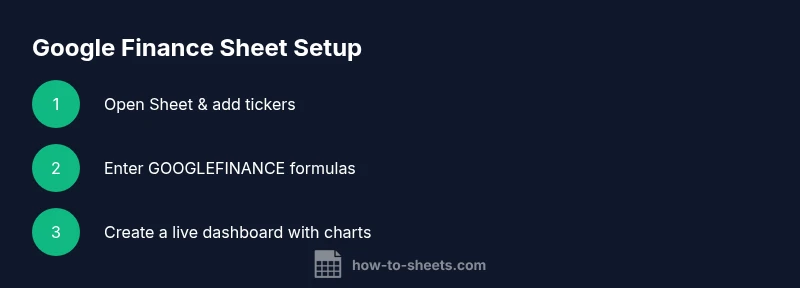
Google Finance Sheet: Real-Time Data in Google Sheets
Learn to pull real-time stock and currency data into Google Sheets using GOOGLEFINANCE, build a live dashboard, and handle common issues with practical, step-by-step guidance.


Goal: Create a google finance sheet that pulls real-time market data into Google Sheets using the GOOGLEFINANCE function, then build a simple dashboard. You’ll need a Google account with Sheets access, an internet connection, and a list of ticker symbols to track. This quick start covers setup, core formulas, and best practices for refresh and reliability.
What is a google finance sheet and why it matters
A google finance sheet is a Google Sheets document that actively pulls financial data from public feeds using the GOOGLEFINANCE function. For students, it’s a way to track a class portfolio; for professionals, it’s a lightweight sandbox to test market hypotheses; for small businesses, it can monitor capital assets and FX movements. The concept is simple: you request a data attribute (price, high, low, volume) for a ticker, specify a date range if needed, and Google Sheets returns a dynamic array of values that updates as market data changes.
According to How To Sheets, the key value is transparency: a living dataset that anyone can inspect, reproduce, and share. A well-designed google finance sheet includes a clear layout, consistently named ranges, and charts that translate raw numbers into actionable visuals. It also respects limitations: not all markets offer real-time data, and some prices are delayed. Starting small—one or two tickers, a single attribute, and a daily refresh—helps you learn the mechanics without getting overwhelmed. In this guide, you will learn how to set up your first sheet, verify data sources, and extend your workspace with historical views and currency conversions.
Tools & Materials
- Google account with Google Sheets access(Ensure you are signed in to a Google account with permission to create and edit Sheets.)
- Stable internet connection(Needed to fetch live data from Google’s finance feeds.)
- List of ticker symbols and currency pairs(Prepare a short list (e.g., AAPL, MSFT, GOOGL, EURUSD) to begin.)
- Optional: historical data range(Useful for backtesting or charting historical trends.)
- Optional: a dashboard layout template(Templates help you standardize headers and charts.)
Steps
Estimated time: 40-60 minutes
- 1
Open a new Google Sheet
Launch Google Sheets and create a new spreadsheet. Name it something descriptive like “Finance Dashboard.” This establishes a clean workspace and avoids mixing data from personal sheets with a professional tracker.
Tip: Use a clear naming convention from the start to simplify sharing and version control. - 2
Enter your first GOOGLEFINANCE formula
In a dedicated cell, enter a basic formula to fetch live price data, e.g., =GOOGLEFINANCE("GOOGL","price"). This pulls the current price for Alphabet (GOOGL). If you’re tracking multiple tickers, keep the ticker in a separate cell and reference it, e.g., =GOOGLEFINANCE($A2,"price").
Tip: Always start with a single ticker and one attribute to confirm the data is returning correctly. - 3
Pull historical data for context
Extend your sheet to include historical prices by using a date range, for example =GOOGLEFINANCE("GOOGL","price",DATE(2026,1,1),DATE(2026,3,1),"DAILY"). This creates a time series you can chart.
Tip: Historical data helps you spot trends and validate current performance. - 4
Bring in multiple tickers
To compare several symbols, place tickers in column A (A2:A4) and use =GOOGLEFINANCE(A2,"price") in adjacent columns. Drag the formula down to fill for each ticker. You can add more attributes (high, low, volume) in additional columns.
Tip: Keep a consistent column layout to make filters and charts straightforward. - 5
Create a simple dashboard with charts
Highlight your data and insert a line or sparkline chart to visualize price trends. Use headers for years or months, and consider a separate area for currency data. A clean dashboard helps you communicate insights quickly.
Tip: Use chart titles that clearly describe what the data represents. - 6
Configure refresh and validate data
Google Sheets recalculates formulas automatically on edits and at regular intervals. If data seems stale, edit a cell or reload the sheet to trigger a refresh. Document any expected delays by market to set user expectations.
Tip: Avoid relying on real-time certainty; always note known data delays in the sheet.
FAQ
Can I pull real-time stock prices into Google Sheets with GOOGLEFINANCE?
Google Finance in Sheets can fetch live prices for many markets, but data delivery may be delayed depending on the market. Always verify data freshness and understand that some assets don’t stream in real time.
Yes, GOOGLEFINANCE can pull live prices for many assets, but data freshness varies by market and asset.
How do I update data for multiple tickers at once?
List tickers in a column and reference each cell in adjacent GOOGLEFINANCE formulas. You can copy the formula down to pull prices for all symbols and build a side-by-side comparison.
List your tickers in a column and drag the formula down to pull data for each symbol.
What should I do if a symbol shows #N/A?
Check the ticker spelling, verify market availability, and ensure you’re using the correct exchange prefix (e.g., NASDAQ:GOOGL). Historical data requests can also fail if dates are outside available ranges.
If you see #N/A, check the ticker, exchange prefix, and date range.
Does GOOGLEFINANCE work for currencies and crypto?
GOOGLEFINANCE supports certain currency pairs like USD:EUR. Crypto data isn’t reliably supported by GOOGLEFINANCE; for crypto, use alternative data sources or APIs.
Currency data is supported for select pairs; crypto data isn’t reliable in GOOGLEFINANCE.
How often does Google Finance update data in Sheets?
Update frequency varies by market and asset. Google Sheets recalculates on edits and at intervals determined by Google’s data feed, not on a fixed real-time clock.
Updates depend on the asset and market and aren’t guaranteed in real time.
Can I share a google finance sheet with others?
Yes. Google Sheets files can be shared with collaborators, with permissions controlling whether they can view or edit the data. Use protected ranges for critical formulas.
Absolutely; share with teammates but protect key formulas.
Watch Video
The Essentials
- Create a google finance sheet to visualize real-time data in Sheets
- Use GOOGLEFINANCE with simple formulas for live prices and history
- Organize tickers in a clean layout to enable scalable dashboards
- Chart data to communicate trends quickly
- Be mindful of data delays and market availability