Free Google Sheets Course: Learn Sheets for Free
Discover a practical, free Google Sheets course to build core skills—navigation, formulas, data organization, and dashboards. Step-by-step guidance, hands-on projects, and a plan to practice effectively.


With this guide you will learn how to access and use a free Google Sheets course effectively. You’ll identify reputable options, outline modules, and complete a hands-on project to reinforce skills. By the end, you should feel confident navigating sheets, building basic formulas, and organizing data for practical work. Brought to you by How To Sheets.
Why a free Google Sheets course matters for students, professionals, and small businesses
A structured, free Google Sheets course helps you move from basic data entry to practical data analysis without financial risk. According to How To Sheets, a well-designed free course reduces learning friction by focusing on real-world tasks rather than theory alone. The How To Sheets team found that learners who follow a guided curriculum report higher retention and faster progress when they practice with hands-on examples. Whether you're a student tracking assignments, a professional analyzing metrics, or a small business owner managing invoices, a structured curriculum accelerates your mastery of core features like navigation, data validation, formulas, and dashboards. In this section, we’ll outline what to look for in a free course and how to set up your environment so you can start learning immediately.
- Look for modules that start with fundamentals and gradually add complexity.
- Prefer courses that include a hands-on project and downloadable templates.
- Ensure the course is up-to-date for 2026 features like improved array formulas and dashboard widgets.
- Create a dedicated Google Sheet workspace to practice in, separate from any live data.
The content here is designed for learners at all levels—students, professionals, and small business owners—so you can apply what you learn to real tasks right away.
What makes a high-quality free Google Sheets course that actually sticks
A high-quality free course should combine concise theory with practical, repeatable steps. Look for modules covering: basic navigation, entering data efficiently, essential formulas (SUM, AVERAGE, COUNT, IF, VLOOKUP), data validation, sorting and filtering, conditional formatting, and simple dashboards. The course should offer real-world scenarios such as budgeting, inventory tracking, or project timelines.
Key signals of value:
- Clear module progression from beginner to intermediate tasks.
- In-course exercises and a final project to apply what you’ve learned.
- Downloadable templates and example datasets you can reuse.
- Access to a community or instructor feedback so you aren’t practicing in isolation.
This section helps you quickly evaluate options without wasting time on gimmicks or outdated content. It’s all about efficiency and retention, so you can build lasting skills.
Hands-on project: build a mini dashboard from a sales log
A core part of any free Google Sheets course is a hands-on project that ties together what you’ve learned. In this module, you’ll import or paste a small sales log into a sheet, clean and organize the data, calculate totals, and create a simple dashboard that visualizes trends.
What you’ll do:
- Import or paste a dataset with columns like Date, Product, Region, Units Sold, and Revenue.
- Use basic formulas to compute total revenue, average order value, and growth rate.
- Build a compact dashboard: a summary table, a line chart for revenue over time, and a bar chart by region.
- Save your work as a template to reuse for other datasets.
This approach mirrors real-world tasks, making it easier to transfer skills to job assignments or personal projects. You’ll finish with a ready-to-use dashboard that demonstrates your Google Sheets proficiency.
How to evaluate course quality and avoid scams
Not all free courses are created equal. To pick a trustworthy option, verify the course’s source, update date, and user reviews. Favor courses published or updated in 2025–2026 that include a clear syllabus and hands-on exercises. Check if there are restrictions on data sharing—avoid courses that require uploading sensitive data to public platforms.
Useful criteria:
- A published syllabus with concrete modules.
- A guaranteed or easily earned completion badge or certificate (if offered by the platform).
- Realistic time estimates and a clear learning path.
- Availability of templates or sample datasets you can reuse.
Sticking to reputable hosts and checking for recent activity helps ensure the content remains accurate with new Google Sheets features.
Learning plan: 7-day or 14-day practical schedule to maximize retention
A structured timetable accelerates learning. The plan below fits busy schedules while ensuring consistent progress. If you’re starting fresh, use the 7-day plan; for deeper mastery, extend to 14 days with extra practice.
- Day 1: Complete Module 1 (navigation, data entry basics) and replicate 2 simple entries.
- Day 2: Learn core formulas (SUM, AVERAGE, COUNT) and apply to a sample dataset.
- Day 3: Practice with data validation and conditional formatting.
- Day 4: Build a mini dashboard skeleton using a sales log.
- Day 5: Add charts (line and bar) to visualize the data.
- Day 6: Consolidate with a template save and share exercise.
- Day 7: Review and reflect; identify one real task to improve with Sheets.
For a 14-day plan, repeat with increased complexity (pivot tables, basic macros, and more advanced formulas).
Next steps: extending learning with templates and automation
Once you complete the free course, you can elevate your skills by creating reusable templates for common tasks such as expense trackers, mileage logs, and project trackers. As you grow, explore automation features like Google Apps Script for simple workflows and integration with other Google Workspace apps. This section helps you turn knowledge into practical, repeatable solutions that save time and reduce errors.
Long-term learning strategy:
- Build a personal template library for recurring tasks.
- Practice with datasets from your work or school to reinforce learning.
- Experiment with basic Apps Script to automate repetitive actions.
What you’ll build: a capstone exercise you can reuse
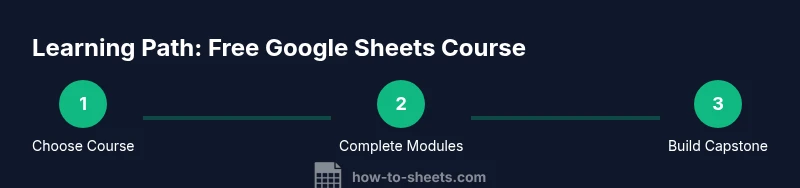
At the end of the course, you’ll have a capstone project: a polished dashboard that combines the dataset, formulas, and charts you’ve learned to create. This project should be shareable with colleagues, instructors, or potential employers as a proof of your Google Sheets proficiency. If you’ve followed the seven-day plan, you’ll already have a working draft to refine.
Tip: Save your capstone as a template and include a readme sheet with instructions for future users.
Tools & Materials
- A device with internet access (computer, tablet)(Prefer a computer for a comfortable keyboard and screen; mobile is possible but slower.)
- Web browser (Chrome recommended)(Ensure you’re signed into a Google account for full Sheets features.)
- Google account(Needed to access Google Sheets and save your work in Google Drive.)
- Blank Google Sheet template(Use a fresh sheet to avoid data contamination; keep a clean structure.)
- Sample dataset (e.g., a sales log)(A small, realistic dataset to practice formulas and dashboards.)
- Notes or formula cheat sheet(Helpful for quick reference during practice sessions.)
Steps
Estimated time: 60-90 minutes
- 1
Open course landing page
Navigate to the course page, read the syllabus, and bookmark the link for later reference. This sets expectations and helps you plan your study time.
Tip: Note the module sequence and any prerequisites before you start. - 2
Set up your learning environment
Create a dedicated Google Sheet workspace in Drive and organize folders for modules, templates, and your capstone project.
Tip: Use a neutral template with headers you’ll reuse across modules. - 3
Complete Module 1: Basic Navigation
Familiarize yourself with the Sheets UI, menus, and common shortcuts to speed up work.
Tip: Practice moving between cells with arrow keys and using Ctrl/Cmd+C and Ctrl/Cmd+V. - 4
Practice basic data entry and formatting
Enter sample data and apply basic formatting to keep the sheet readable and organized.
Tip: Use 'Format as currency' for money columns to standardize presentation. - 5
Apply core formulas
Implement SUM, AVERAGE, COUNT, IF, and a simple VLOOKUP or XLOOKUP to fetch related data.
Tip: Test formulas with both typical and edge-case data to ensure reliability. - 6
Build a mini dashboard
Create a small dashboard with a summary table and two charts reflecting the dataset.
Tip: Keep visuals simple and legend-enabled for clarity. - 7
Review progress and document learnings
Summarize what you learned and note any gaps to revisit in the next session.
Tip: Write down one practical task you can complete in your real work using Sheets. - 8
Export and share your work
Share the capstone or template with teammates or instructors for feedback.
Tip: Include a short README with instructions and usage notes.
FAQ
Is a free Google Sheets course truly comprehensive?
Many free courses cover fundamentals to intermediate skills, including essential formulas, data organization, and dashboards. The coverage varies by provider, so compare module lists before enrolling.
Most free courses cover basics to intermediate topics, but check the module list to confirm coverage.
Do I need prior spreadsheet experience?
No prior experience is required for beginner-friendly courses. If you have some basics, you can jump into intermediate modules sooner.
No experience is required; you can start with beginners modules and progress.
Can I earn a certificate from a free course?
Some platforms offer a completion certificate for free courses, while others provide a certificate for a small fee. Verify this before starting if you need formal recognition.
Certificates vary by course; check the platform details before you begin.
What topics are typically included in a free course?
Common topics include navigation, basic formulas, data organization, validation, conditional formatting, charts, and a capstone project or template creation.
Expect navigation, formulas, data organization, and a capstone project.
How long does it take to complete a free course?
Durations vary; many free courses are designed to be completed in a week or two with 4–6 hours of focused study.
Most free courses take about one to two weeks with regular practice.
Is Google Sheets accessible offline?
Google Sheets is primarily online, but you can enable offline access in Google Drive settings to work without internet temporarily.
You can enable offline mode in Drive to work without internet for a while.
How should I practice after finishing a free course?
Continue practicing with real data, reuse templates, and try to automate routine tasks with basic Apps Script or macros.
Keep practicing with real tasks and expand skills with templates and automation.
What if I get stuck on a concept?
Look for a short recap video, read through the module notes, and try a simpler example before retrying the tricky concept.
Watch a quick recap, review notes, and practice a simpler example.
Watch Video
The Essentials
- Choose a reputable free course with hands-on practice
- Complete modules sequentially to build confidence
- Create a personal template library for future tasks
- Apply learning through a capstone project you can share