Google Live Sheet: Real-Time Collaboration in Google Sheets
A practical step-by-step guide to using Google Live Sheet for real-time teamwork in Google Sheets. Learn setup, sharing, templates, and best practices for productive collaboration in 2026.


Google Live Sheet enables real-time collaboration in Google Sheets, letting multiple users edit the same document simultaneously, see each other’s changes as they happen, and participate through comments and chat threads. To begin, open a sheet you own or have edit access to, ensure you’re signed into a Google account, and confirm sharing permissions. This guide shows setup, sharing, and best practices.
What is Google Live Sheet and why it matters
Google Live Sheet refers to the real-time collaborative capabilities available in Google Sheets, where multiple people can edit the same workbook at once, see each other’s changes arrive instantly, and participate through comments and chat threads. This live interactivity reduces back-and-forth emails and accelerates decision making in group projects, classrooms, or small businesses. For students, teams, and owners who rely on fast data updates, Google Live Sheet is a foundational tool to stay aligned.
In practice, the live aspect is powered by real-time presence indicators, automatic version history, and granular permission controls that let you decide who can view, comment, or edit. When used well, teams can co-create dashboards, budgets, and schedules with confidence that the data in front of them is current. According to How To Sheets, effective live sheets rely on clear naming conventions, minimal duplication, and consistent templates to maintain clarity as the document grows.
Beyond the obvious collaboration benefits, live sheets open opportunities for automation and audit trails. You can add comments linked to specific cells, use conditional formatting to flag outliers, and deploy basic Apps Script triggers to notify teammates when key changes occur. The result is a living document that scales with your project, rather than a static file that becomes stale.
To maximize value, set expectations early: define who edits, how conflicts are resolved, and how updates are communicated. Build a minimal template that captures inputs, outputs, and calculations, and share it with your team to avoid drift. In this guide, you’ll see practical steps to start using Google Live Sheet today, whether you work solo or with a group.
Getting started: prerequisites and permissions
Before you begin with Google Live Sheet, make sure you have a few basics in place. You will need a Google account and access to Google Sheets via a supported browser or mobile app. Confirm you have permission to edit the target sheet, or request access from the owner. Decide early who will own the document and who will be allowed to edit, comment, or view. If you are part of a team, create a shared folder or a central hub where your team can locate the live sheet templates and related resources. Lastly, establish a naming convention for files, sheets, and tabs to reduce confusion as you scale.
Practical setup steps include:
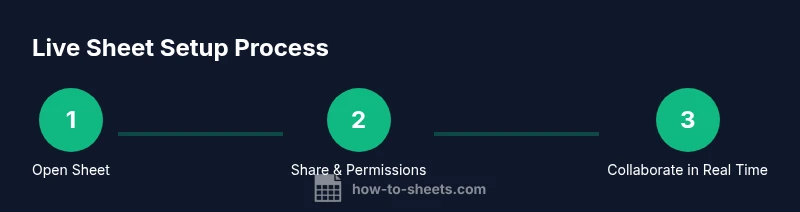
- Create or open the master sheet and enable sharing for teammates.
- Set clear roles (Editor, Commenter, Viewer) to minimize accidental edits.
- Turn on version history to track changes and recover previous states if needed.
- Add a brief governance section at the top of the sheet with instructions and contact points.
- Consider a starter template that captures inputs, calculations, and outputs for consistency across projects.
Real-time features you can rely on
The real-time collaboration capabilities in Google Live Sheet are designed to minimize latency and maximize transparency. Presence indicators show who is actively editing, while live cursors help you see who is working where. Changes you make appear instantly for all collaborators, and cell-level history makes it easy to review prior values. Comments and mentions enable targeted discussions without leaving the sheet. Notifications can be configured to alert team members about important edits or completed sections. Importantly, these features work best with a reliable internet connection; without it, updates may lag and cause conflicts that require reconciliation later.
To leverage these features, keep your sheets lean—avoid overly complex formulas in the same range, use named ranges for readability, and document assumptions in a dedicated tab or comments. Regularly review the version history after significant edits and use the “Resolve” feature on threads to maintain closure on discussions.
Templates, scripts, and automation
Templates are a powerful way to accelerate the adoption of Google Live Sheet workflows. Start with a clean, modular template that separates inputs, calculations, and outputs. This makes it easier to reuse the same structure across projects and keep data consistent. You can extend templates with Google Apps Script to automate routine tasks, such as sending email summaries when a sheet is updated or creating daily snapshots of a dashboard. Built-in functions like IF, VLOOKUP, and QUERY give you a strong foundation, while Apps Script can connect your sheet to other tools in your workflow.
How To Sheets analysis shows that teams benefit from standardized templates and small automation scripts, which reduce setup time and improve onboarding for new collaborators. Focus on documenting inputs and expected outputs so new members can contribute quickly, and regularly refresh the template to reflect evolving processes.
Authority sources and best practices
When you adopt Google Live Sheet in a professional setting, it’s important to ground your practices in reputable guidance. For data governance and privacy considerations, consult official federal and academic resources, as well as leading publications on data management and cloud collaboration. This section references trusted sources to help you implement safe and scalable live-sheet practices. By aligning with well-regarded guidance, your team can maintain data integrity while collaborating in real time.
Common pitfalls and how to avoid them
Despite its strengths, Google Live Sheet can introduce conflicts if not managed carefully. Common issues include competing edits in the same cell, inconsistent formulas across tabs, and unclear ownership of inputs. To avoid problems, enforce a single source of truth for critical data, minimize direct edits on core calculations, and use comments to discuss changes before applying them. Regularly audit shared access, prune unused editors, and maintain a backlog of tasks instead of piling changes directly into the live sheet. Finally, always back up critical sheets before major changes and train new collaborators on your team’s conventions.
Tools & Materials
- Google account(Needed to access Google Sheets and share documents.)
- A device with internet(Desktop, laptop, or mobile with browser or app access.)
- Target Google Sheet(A sheet you own or have edit access to.)
- Clear naming conventions(Standardized sheet and tab names for consistency.)
- Starter templates(Optional, speeds up onboarding.)
- Apps Script access(Optional for automation.)
- Internet reliability(Helpful for smooth real-time updates.)
Steps
Estimated time: 60-90 minutes
- 1
Open the sheet and confirm access
Navigate to the target Google Sheet or create a new one. Verify that you have editing rights and can view revision history. If you don’t have access, request it from the owner to enable live collaboration.
Tip: Check permissions before making any major edits to avoid conflicts. - 2
Set up a simple shared structure
Create a clean layout with inputs, calculations, and outputs in separate tabs. Use named ranges for key cells to make formulas easier to read and maintain.
Tip: Document the purpose of each tab in a header row. - 3
Share with teammates and assign roles
Use the Share button to invite teammates. Assign roles (Editor, Commenter, Viewer) and consider using Group permissions for ongoing teams.
Tip: Limit Editors to trusted teammates to prevent accidental changes. - 4
Enable version history and comments
Turn on or verify Version History is available and easily accessible. Encourage collaborators to use Comments for discussions and to tag teammates with @mentions.
Tip: Review changes after major edits to validate assumptions. - 5
Create alerts for key changes
Set up notifications for important edits, such as column-wide data updates or threshold breaches. This helps the team stay aligned without constant checking.
Tip: Avoid excessive notifications by targeting only essential changes. - 6
Adopt templates for consistency
Leverage a standardized template for new projects to reduce setup time and ensure consistent calculations. Copy the template rather than modifying a live sheet directly.
Tip: Keep a versioned template library for onboarding new projects. - 7
Use Apps Script for automation
If routine tasks repeat, add simple Apps Script triggers to email summaries or create backups. Start small with a single script to avoid destabilizing the sheet.
Tip: Test scripts on a copy before deployment. - 8
Review and iterate with the team
Schedule regular check-ins to review data quality, naming conventions, and templates. Incorporate feedback to refine the live sheet process.
Tip: Treat the sheet as a living workflow, not a finished product.
FAQ
What is Google Live Sheet and how is it different from a regular Google Sheet?
Google Live Sheet enables real-time simultaneous editing by multiple users, with presence indicators and live comments. A standard Google Sheet can be edited by many people, but Live Sheet emphasizes immediate visibility of changes and tighter collaboration workflows.
Live Sheet is Google Sheets for teams who edit together at the same time, with instant updates and live discussions.
Can I use Google Live Sheet offline?
Real-time collaboration requires an online connection. Google Sheets supports offline mode for viewing and editing, but live editing and presence indicators only work when you’re connected to the internet.
Offline editing is possible, but real-time collaboration needs an online connection.
How do I share a Google Live Sheet securely?
Share via the built-in Share button, assign roles (Editor, Commenter, Viewer), and limit access to necessary collaborators. Regularly review access lists and remove people who no longer need access.
Use Share settings to limit who can edit or view, and remove users when appropriate.
How can I track changes and resolve conflicts in a Live Sheet?
Use Version History to see past edits and restore states. Resolve conflicts by discussing changes in Comments and applying agreed edits, not duplicating efforts in parallel.
Check version history and discuss changes in comments to resolve conflicts.
Are there limitations on the number of simultaneous editors?
Google Sheets supports multiple editors, but performance can vary with very large datasets or complex formulas. Plan data structure and limit heavy computations during peak collaboration times.
Multiple editors are supported, but performance can drop with very large sheets.
What are best practices for templates in Live Sheets?
Start with modular templates that separate inputs, calculations, and outputs. Document conventions, reuse named ranges, and save updated templates in a shared library to ensure consistency across projects.
Use modular templates and a shared library to maintain consistency.
Watch Video
The Essentials
- Start with a clean, shared template to align teammates.
- Use roles and version history to prevent conflicts.
- Leverage templates and automation to accelerate onboarding.
- Document conventions and maintain a changelog.
- The How To Sheets team recommends gradual adoption with governance.