Google Sheets Download for Windows 10: A Practical Guide
Learn how to access Google Sheets on Windows 10, including offline usage and installing the Sheets web app as a PWA. This step-by-step guide covers prerequisites, setup, troubleshooting, and best practices for productive browser-based spreadsheet work.


The phrase google sheets download for windows 10 is misleading: Google Sheets is a browser-based app and does not have a traditional Windows desktop download. On Windows 10 you access Sheets via a browser and can install it as a progressive web app (PWA) for a near-native feel and offline access. This guide walks you through setup, offline enablement, and best practices.
What is Google Sheets on Windows 10?
Google Sheets is a cloud-based spreadsheet application that runs in a web browser. On Windows 10, you don’t download a native Windows app in the traditional sense; instead you access Sheets via Google Drive in any modern browser, such as Chrome, Edge, or Firefox. The concept of a 'google sheets download for windows 10' is common in search terms, but the reality is that Sheets is designed for online use with optional offline support. Windows users can still achieve a responsive, nearly native experience by installing Sheets as a progressive web app (PWA) or by pinning a browser shortcut to the taskbar. Offline sync, real-time collaboration, and automatic backups are maintained by Google’s cloud services, ensuring data consistency across devices. This section clarifies how Google Sheets behaves on Windows 10 and sets expectations for performance and accessibility.
Why Windows 10 users might want to download Sheets
Windows 10 users often look for a Windows-native download to speed up access or to ensure offline usability. In practice, Google does not offer a desktop client for Sheets; instead you work in the browser and optionally enable offline mode through Google Drive and Chrome. The benefit of a PWA or a browser shortcut is closer to a traditional app experience: fast launch, taskbar pinning, and offline access to recently opened files. For students, professionals, and small business owners, this means you can keep working on spreadsheets even when network connectivity is unreliable, provided you prepared in advance. This approach aligns with How To Sheets’ guidance on practical cloud tools for Windows environments.
Before you start: prerequisites and accounts
To set up Google Sheets on Windows 10, you’ll need a few essentials. First, a Google account to access Sheets in Drive. Second, a Windows 10 device with an up-to-date browser (Chrome is recommended for offline features, but Edge also supports PWAs). Third, a reliable internet connection for initial setup and syncing. Finally, basic familiarity with Google Drive and browser settings will help you enable offline access efficiently. Make sure your browser is updated to the latest version to ensure offline caching, smoother loading times, and compatibility with PWAs.
Accessing Google Sheets: browser vs PWA
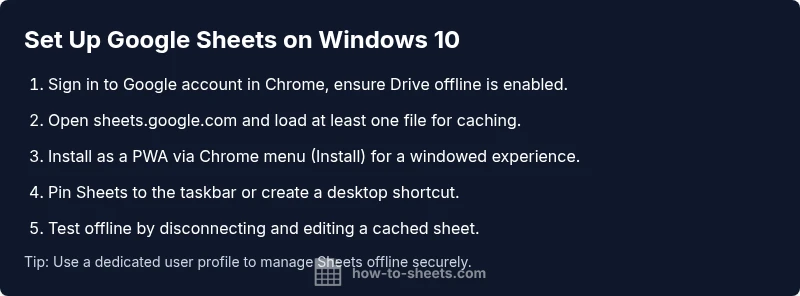
There are two practical ways to use Google Sheets on Windows 10: through a browser, or as a Progressive Web App (PWA). In a browser, you simply go to sheets.google.com and sign in. For a more app-like experience, install Sheets as a PWA via Chrome: open Sheets, click the three-dot menu, choose Install, and follow prompts. You’ll get a dedicated window, quicker launch, and offline support if enabled. If you need to alternate, you can create a desktop shortcut that launches Sheets in a standalone window, improving focus and reducing tab clutter.
Common issues and how to solve them
Users sometimes encounter issues when enabling offline mode or when Sheets seems slow on Windows 10. Ensure offline mode is enabled in Google Drive settings and in Chrome’s offline options. If Sheets won’t update offline changes, check your network status and verify that you are signed into the same Google account. Clearing the cache, updating the browser, or disabling browser extensions that interfere with Google services can resolve synchronization delays. If problems persist, sign out and sign back in, or check Google’s Workspace status page for service outages.
Best practices for offline use and data safety
To maximize reliability, enable offline mode for Google Drive and Sheets in Chrome. Before going offline, open necessary sheets to cache them locally. Periodically refresh sheets to ensure updates are stored. Use version history to recover older edits if needed. For data safety, enable two-factor authentication on your Google account and consider exporting critical sheets to Excel or CSV as a backup. Regularly review sharing permissions to avoid accidental access exposure.
Alternatives and companion tools
If you frequently work with Excel files, you may export Sheets to Excel or import Excel spreadsheets into Sheets for continued compatibility. For teams, Google Workspace collaboration features stay intact whether you’re online or offline. You can also use add-ons for advanced functionality and use other Google apps like Docs and Slides for integrated workflows on Windows 10. Remember that the core workflow remains browser-based, with PWAs providing the closest thing to a native app experience on Windows 10.
Tools & Materials
- Windows 10 PC or laptop(Ensure latest Windows updates are installed)
- Google account(Needed for Sheets access and offline sync)
- Chrome browser (latest version)(Preferred for offline caching)
- Stable internet connection(Initial setup and syncing)
- Optional: Microsoft Edge(Supports PWAs as well)
- Optional: USB drive for backups(Use for local exports like CSV/Excel)
Steps
Estimated time: 25-35 minutes
- 1
Open Chrome and sign in
Launch Chrome, visit sheets.google.com, and sign in with your Google account. This creates a Pocket of Sheets ready for quick access and offline setup.
Tip: Use a dedicated Google profile to keep Sheets data organized. - 2
Navigate to Google Sheets
From Sheets’ homepage, ensure your internet connection is active so your browser can cache recent files for offline use.
Tip: Open at least one sheet to preload content for offline mode. - 3
Choose your installation method
Decide between a browser shortcut or a PWA. For a native feel, install as a PWA via Chrome’s menu and follow prompts.
Tip: A PWA provides windowed, app-like behavior without full installation. - 4
Enable offline access
Open Google Drive settings and enable offline mode; then in Chrome, allow offline data for Sheets.
Tip: Test offline by disconnecting from the network and reopening a cached sheet. - 5
Pin Sheets to Start or Taskbar
Create a shortcut that launches Sheets in a standalone window or pin the PWA to the taskbar for quick access.
Tip: This reduces tab clutter and mimics a desktop app. - 6
Test offline functionality
Turn off your internet and open a previously cached sheet to verify offline editing and syncing when you reconnect.
Tip: If edits aren’t syncing, recheck offline settings and account sign-in.
FAQ
Can I download Google Sheets as a native Windows 10 app?
Google Sheets does not offer a traditional native Windows app. You access it via a web browser and can install a Progressive Web App (PWA) for a more app-like experience and offline support.
No native Windows app exists; use Sheets in a browser or install the PWA for offline use.
Do I need a Google account to use Sheets on Windows 10?
Yes. A Google account is required to access Sheets, save files to Drive, and use offline features.
Yes, you’ll need a Google account to use Sheets and enable offline access.
How do I enable offline mode for Google Sheets on Windows 10?
Enable offline in Google Drive settings, then in Chrome allow offline data for Sheets. Open sheets.google.com while online to cache files for offline use.
Turn on offline mode in Drive, allow offline data for Sheets, and open files while online to cache them.
Is offline support available in all browsers on Windows 10?
Offline support works best in Chrome due to its robust offline caching. Other browsers may offer limited offline functionality depending on their support for PWAs.
Chrome provides the most reliable offline support; other browsers may vary.
Can I work with Excel files in Google Sheets on Windows 10?
Sheets can import and export Excel files, enabling continued work across formats, but some advanced Excel features may not translate perfectly.
You can import and export Excel files, with some feature differences.
What are best practices for sharing Sheets on Windows 10?
Use precise sharing permissions, enable link sharing only when necessary, and regularly review access levels. Turn on activity notifications for edits.
Set strict permissions, limit access, and monitor changes.
Watch Video
The Essentials
- Understand Sheets is browser-based with offline options.
- Choose PWA or shortcut to simulate a native app on Windows 10.
- Test offline mode before relying on it for work.
- Keep security with 2FA and data backups.