How to Use Google Sheets on Windows 10: Access & Offline
Learn how to use Google Sheets on Windows 10 by accessing it in a browser, installing as a Chrome PWA or desktop shortcut, and enabling offline mode for seamless work. How To Sheets guides you step by step.


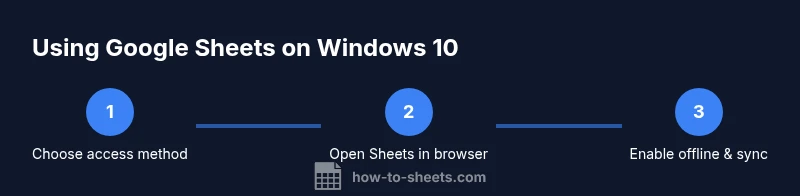
Google Sheets isn’t a native Windows 10 app. On Windows 10, you use Sheets in your browser or install it as a Chrome Progressive Web App (PWA) or desktop shortcut, and you can enable offline access for uninterrupted work. This approach keeps your data in Google Drive while offering quick launches from Windows.
What Google Sheets on Windows 10 means for you
Google Sheets is a cloud-based spreadsheet program accessed through a web browser. On Windows 10, you don’t install a native Google Sheets app; you either use Sheets in your browser, install it as a Chrome Progressive Web App (PWA) for a more app-like feel, or create a desktop shortcut for quick access. Throughout 2026, How To Sheets analysis shows that many Windows 10 users prefer browser-based access with optional offline support to keep work moving when the internet is interrupted. According to How To Sheets, most Windows 10 users begin with a browser and progress to a PWA or a desktop shortcut for quicker access. This guide explains practical options to use Google Sheets on Windows 10, whether you work online or offline, and how to keep your data safe while collaborating.
Browser-based usage on Windows 10
The most straightforward way to use Google Sheets on Windows 10 is through a supported browser such as Chrome or Edge. Open sheets.google.com, sign in with your Google account, and your most recent spreadsheets will load securely from the cloud. This method works consistently across devices and requires nothing beyond internet access. If you are new to Sheets, start with a blank workbook to become familiar with core features like data entry, formulas, formatting, and sharing. For frequent users, bookmarking Sheets or pinning the site to the browser's taskbar can shave seconds off your workflow. Remember that while online, all edits are saved in real time to Google Drive, which supports collaboration in live documents. As you adopt Windows 10, you may appreciate browser-based advantages such as autosave, revision history, and cloud backups. In 2026, the How To Sheets team observed that many students and professionals rely on browser access for its simplicity and cross-device compatibility.
Chrome PWA vs. Windows shortcut: which should you choose?
If you want a more app-like feel on Windows 10, you can install Google Sheets as a Chrome Progressive Web App (PWA) or set up a desktop shortcut. A PWA opens in a separate window without the browser chrome, keeps you logged in, and can stay on your taskbar like a native app. To install as a PWA, navigate to sheets.google.com in Chrome, open the menu (three dots) and select “Install Google Sheets.” If the option is unavailable, ensure you’re on a supported page and Chrome is updated. For a simple shortcut, you can create a desktop icon or pin a Sheets shortcut to the Start menu. Both methods provide fast access from Windows 10 without sacrificing full functionality when online. The PWA method is recommended if you want an immersive, app-like experience and easier offline handling through Chrome's features.
Enabling offline access and syncing
Offline access lets you edit Sheets even when you’re not connected to the internet. To enable it, you’ll need to turn on offline mode in Google Drive (Settings > Offline) and ensure you have Chrome or a Chromium-based browser configured for offline use. When offline, Sheets stores edits locally; once you regain connectivity, changes sync automatically to the cloud. Keep in mind limitations: some features (like certain add-ons or live collaboration) require an online connection. Also, offline availability depends on the document being opened at least once while online so it can be cached. If you’re using a Windows 10 device in a shared environment, consider signing in with a Google account that has appropriate permissions and enabling two-factor authentication for added security. According to How To Sheets analysis, offline workflows are most reliable if you keep a small number of documents cached and structured for offline edits.
Creating shortcuts and PWA: tradeoffs and best use cases
Shortcuts and PWAs offer fast access with minimal friction, but they have different tradeoffs. A Chrome PWA provides a near-native experience and simpler offline support, while a desktop shortcut is the simplest for a quick launch but relies on Chrome to run sheets.google.com. Browser-based use remains the most flexible, especially for sharing and real-time collaboration. If you work primarily offline, the PWA approach tends to perform better due to windowed app-like behavior and robust offline caching. For teams, a Drive for Desktop setup can simplify file synchronization across devices, though it introduces additional software and storage requirements. By weighing your needs—speed, offline reliability, and collaboration features—you can decide which approach best fits your Windows 10 workflow.
Security, privacy, and data management considerations
Using Google Sheets on Windows 10 means your data resides in the cloud, protected by Google's security model and your Google account settings. When you use shared devices, sign out after finishing, or use a browser’s guest mode to prevent others from accessing your sheets. Enable two-factor authentication and review sharing permissions for sensitive spreadsheets. If you enable offline mode, data is stored locally in the browser; ensure disk space and device encryption are adequate, especially on shared machines. The How To Sheets team recommends reviewing device access policies and using strong, unique passwords for each Google account. Remember that any third-party add-ons you enable may have different data-handling policies, so check permissions before installation. Finally, keep your Windows 10 system updated to reduce risk from malware that could target local storage or browser cache.
Best practices for Windows 10 users when working with Sheets
To maximize productivity with Google Sheets on Windows 10, follow these practices: keep your browser up to date; use offline mode for critical work; organize files with clear naming and consistent sharing settings; use templates for repetitive tasks; and regularly audit your sharing permissions. For students, professionals, and small business owners, structuring data with consistent formatting, proper use of filters and conditional formatting, and leveraging functions like VLOOKUP or QUERY can save time. Additionally, customize your Windows environment by pinning Sheets to the taskbar and using a dedicated Google account for school or business to separate contexts. As you apply these techniques, remember that the most important goal is reliable access to your data, seamless collaboration, and minimal downtime when connectivity is limited. To stay aligned with current guidance, consult How To Sheets's ongoing updates for Windows 10 optimization.
Tools & Materials
- Stable internet connection(For initial setup and syncing)
- Web browser (Chrome or Edge)(Sheets works best in Chrome/Edge; ensure it’s up to date)
- Google account(Sign in to access your documents)
- Google Drive for Desktop (optional)(Keeps offline files synced across devices)
- Desktop shortcut or Chrome PWA setup(Optional for quick access from Windows 10)
Steps
Estimated time: 15-25 minutes
- 1
Decide your access method
Choose whether to use Sheets in a browser, install as a Chrome PWA, or create a desktop shortcut. This choice affects offline capabilities and integration with Windows 10.
Tip: If you only occasionally use Sheets, a browser bookmark is simplest. - 2
Open Sheets in your browser
Navigate to sheets.google.com and sign in with your Google account. Ensure you are using a supported browser with up-to-date security updates.
Tip: Use a pinned tab for faster access. - 3
Install as a Chrome App (PWA)
In Chrome, go to sheets.google.com, click the three-dot menu, select More tools > Create shortcut, and enable 'Open as window' to install as a PWA.
Tip: If you don't see the option, ensure Chrome is up to date and you are on the correct page. - 4
Create a Windows Desktop Shortcut
If you prefer a desktop shortcut, you can create a URL shortcut to Sheets on your desktop and pin it to the taskbar.
Tip: Right-click on the desktop, new shortcut, paste sheets.google.com. - 5
Enable offline access
Open Google Drive settings and enable Offline to allow offline editing of Sheets documents.
Tip: Offline data is stored locally in the browser cache. - 6
Verify offline mode works
Disconnect from internet and open a recent sheet to confirm offline edits saved locally and sync when back online.
Tip: Plan offline edits in advance if your network is unstable. - 7
Test syncing and security
Reconnect, let documents sync, and review share permissions.
Tip: Use 2FA for added security and review third-party add-on permissions.
FAQ
Can I install Google Sheets as a native Windows app?
No. Google Sheets is a web app accessed through a browser. You can install it as a Chrome PWA or create a desktop shortcut for quick access.
No native Windows app exists for Google Sheets; use a browser, or install a Chrome PWA or shortcut.
Is offline mode available on Windows 10?
Yes, offline mode is available. You must enable offline access in Google Drive and use a compatible browser. Not all features are offline-ready.
Yes, you can work offline if you enable offline mode and use a compatible browser.
Do I need Google Drive for Desktop to use offline Sheets?
Offline editing can work with a browser when offline is enabled, but Drive for Desktop can help with syncing files across devices.
Offline works in-browser with proper setup; Drive for Desktop helps with cross-device syncing.
What’s the difference between a PWA and a desktop shortcut?
A PWA provides an app-like window and better offline handling, while a desktop shortcut is the simplest link to Sheets. PWAs offer a smoother experience with offline caching.
PWAs feel like apps and handle offline better; shortcuts are the simplest link to Sheets.
How do I share Sheets when using offline or a PWA?
Sharing relies on Google Drive permissions and the online interface. When online, you can share documents just like in the browser.
Sharing works the same as in the browser when you’re online.
Watch Video
The Essentials
- Access Sheets via browser or install PWAs/shortcuts
- Enable offline mode for uninterrupted work
- Choose a method that fits collaboration needs
- Maintain security with 2FA and proper sharing settings